How to Update Safari: Essential and Easy Guide
Safari is Apple’s native web browser, and keeping it updated ensures you have the latest security patches, performance improvements, and new features. Learning how to update Safari is essential for protecting your device and enjoying a faster browsing experience. Whether you’re using an iPhone, iPad, or Mac, the process is straightforward and typically happens automatically, but knowing how to manually update gives you full control. This guide walks you through every method to update Safari on all your Apple devices.
Quick Answer: On Mac, Safari updates through macOS system updates via System Settings > General > Software Update. On iPhone and iPad, Safari updates automatically with iOS/iPadOS updates through Settings > General > Software Update. You can also enable automatic updates in System Settings or Settings to keep Safari current without manual intervention. The entire process takes just a few minutes and requires an internet connection.
Tools and Materials You’ll Need
- Apple device (Mac, iPhone, or iPad)
- Active Wi-Fi or cellular internet connection
- Sufficient device storage (typically 1-3GB free space)
- Optional: External backup (Time Machine for Mac)
- Power source or charged battery (recommended)
- Apple ID (for some verification steps)
How to Update Safari on Mac
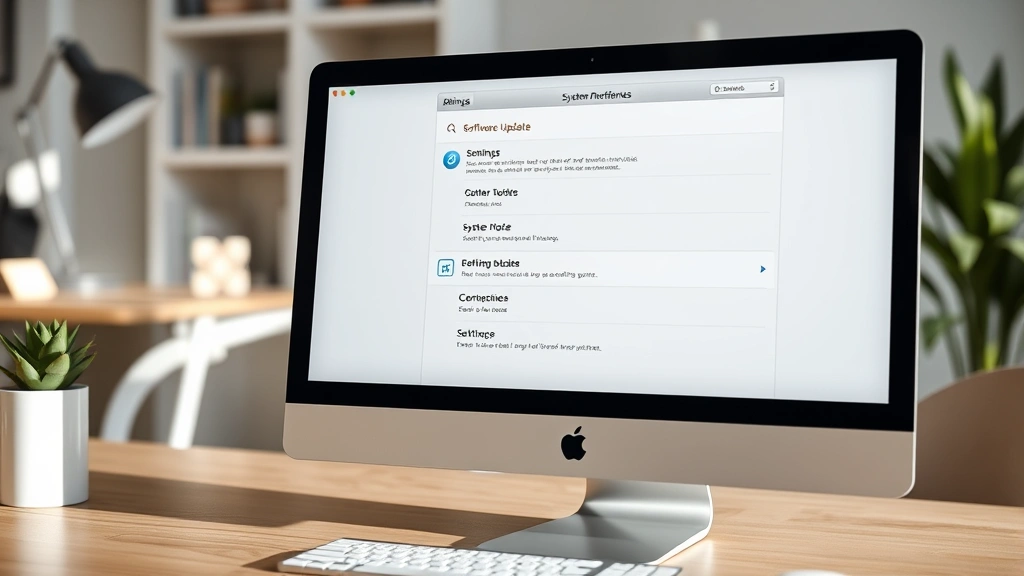
Updating Safari on your Mac is the most common way to update Safari since the browser is integrated with macOS. Safari doesn’t receive independent updates; instead, it updates with your operating system. Follow these steps to manually check for and install updates:
- Click the Apple menu in the top-left corner of your screen
- Select “System Settings” (or “System Preferences” on older macOS versions)
- Click “General” in the sidebar
- Select “Software Update” from the right panel
- Your Mac will automatically check for available updates, including Safari
- If an update is available, click “Update Now” or “Upgrade Now”
- Enter your password if prompted
- Allow the installation to complete (your Mac may restart)
The update process typically takes 15-30 minutes depending on your internet speed and the update size. Make sure your Mac is plugged in during this time to prevent interruptions. If you’re updating from a significantly older macOS version, the process may take longer. According to WikiHow’s comprehensive technology guides, it’s best to back up your Mac before major updates.
You can also check for updates by holding the Option key and clicking the Apple menu, then selecting “System Settings.” This method bypasses the standard menu and takes you directly to updates. Some users prefer this faster approach when they want to quickly check if Safari needs updating.
How to Update Safari on iPhone
On your iPhone, how to update Safari involves updating iOS itself, as Safari is built into the operating system. Here’s the straightforward process:
- Open the Settings app on your iPhone
- Tap “General” from the menu
- Select “Software Update”
- Your iPhone will check for available updates
- If an update is available, tap “Download and Install”
- Enter your passcode when prompted
- Agree to the terms and conditions
- Allow the installation to complete (your iPhone may restart)
For the best experience, connect your iPhone to Wi-Fi before updating, as iOS updates are large files. Ensure your battery is at least 50% charged or keep your device plugged in during the update. If you’re away from Wi-Fi, you can use cellular data, but this may consume significant bandwidth. The update process usually completes within 10-20 minutes on most modern iPhones.
If you see a notification badge on the Settings app, this indicates an update is available. You can dismiss this notification and update later, but it’s recommended to install updates promptly for security reasons. Once the update completes, your Safari browser will have all the latest features and security patches.
How to Update Safari on iPad
Updating Safari on your iPad follows the same process as iPhone since iPadOS integrates Safari as the default browser. The steps to update Safari on iPad are nearly identical:
- Open Settings on your iPad
- Navigate to “General”
- Tap “Software Update”
- Wait for your iPad to check for updates
- Select “Download and Install” if an update is available
- Enter your passcode or use Face ID/Touch ID
- Accept the license agreement
- Let the update finish (your iPad may restart)
iPads often have larger screens and longer battery life, making them ideal for updating without interruption. However, the same precautions apply: use Wi-Fi for faster downloads, ensure adequate battery charge, and avoid using your iPad during installation. If you’re using an older iPad model, the update may take longer to complete, so plan accordingly.
After updating, you might notice improvements in Safari’s performance, including faster page loading and better compatibility with modern websites. If you’ve been putting off an update, you’ll immediately appreciate the responsiveness improvements that come with how to update Safari properly on your iPad.
Enable Automatic Updates for Safari
The easiest way to keep Safari updated is to enable automatic updates on your device. This ensures you never miss critical security patches. Here’s how to set this up on each device type:
On Mac:
- Open System Settings
- Click “General” then “Software Update”
- Click “Automatic Updates” or “Advanced Options”
- Enable “Install system data and security updates”
- Optionally enable “Install macOS updates”
On iPhone and iPad:
- Open Settings
- Go to “General”
- Tap “Software Update”
- Select “Automatic Updates”
- Toggle on “Download iOS/iPadOS Updates” and “Install iOS/iPadOS Updates”
With automatic updates enabled, your device will download and install updates during off-peak hours, typically overnight when you’re not using your device. This means you’ll wake up to a fully updated Safari without any manual intervention. According to Consumer Reports’ technology recommendations, automatic updates are the best practice for device security.
You can customize when automatic updates occur by setting specific times in your device settings. Some users prefer updates to happen during specific hours to avoid battery drain during work or personal time. Regardless of your preference, enabling automatic updates ensures your Safari browser stays current with the latest security features.
Troubleshooting Safari Update Issues
Sometimes updating Safari encounters problems. Here are common issues and solutions:
Update Won’t Download: Check your internet connection, restart your device, and try again. If the problem persists, try connecting to a different Wi-Fi network. Ensure you have at least 1-3GB of free storage space available on your device.
Update Stuck During Installation: Force restart your device by following Apple’s specific instructions for your model (varies by Mac, iPhone, or iPad). Then return to Software Update and try installing again. This resolves most installation freezes.
Safari Crashes After Update: Clear Safari’s cache and cookies by going to Settings > Safari > Clear History and Website Data. If crashes continue, contact Apple Support or visit an Apple Store for professional assistance.
Update Fails Repeatedly: Try updating via a computer if you’re on iPhone or iPad. For Mac, restart in Safe Mode and attempt the update again. As recommended by HowStuffWorks’ technology troubleshooting guides, these methods resolve most persistent update failures.
If you experience recurring issues, you may need to contact Apple Support directly. They can provide device-specific troubleshooting and ensure your Safari installation is healthy. Don’t let update troubles prevent you from keeping your browser secure—professional help is always available.
How to Verify Your Safari Version
After you successfully update Safari, you should verify that the update installed correctly. Checking your Safari version confirms you have the latest features and security patches:
On Mac:
- Open Safari
- Click “Safari” in the menu bar
- Select “About Safari”
- Your Safari version appears in the window that opens
On iPhone or iPad:
- Open Settings
- Scroll down and tap “Safari”
- Scroll to the bottom to find the Safari version number
Safari version numbers typically correspond to your operating system version. For example, Safari 17 comes with macOS Sonoma or iOS 17. If your version number seems outdated compared to your operating system, try updating again or restarting your device.
You can compare your version number against Apple’s official release notes to ensure you have the latest build. This verification step takes just seconds but provides peace of mind that you’ve successfully completed the update process. Many users skip this step, but it’s a good habit to confirm critical software updates have installed properly.
Benefits of Keeping Safari Updated
Understanding why how to update Safari matters helps motivate you to stay current. Regular updates provide substantial benefits:
Security Enhancements: Each update patches known vulnerabilities that hackers could exploit. By updating Safari regularly, you protect your personal information, passwords, and browsing data from cyber threats. Security updates are the most critical reason to keep Safari current.
Performance Improvements: New versions optimize Safari’s code, resulting in faster page loading, smoother scrolling, and better memory management. Websites load noticeably quicker on updated Safari versions, improving your overall browsing experience.
New Features: Safari regularly introduces new capabilities like improved privacy tools, better tab management, and enhanced reading modes. These features improve productivity and make browsing more enjoyable. You’ll discover useful tools you didn’t know existed.
Compatibility: As websites update their code, older Safari versions may display pages incorrectly or fail to load certain content. Updated Safari ensures compatibility with modern web standards and prevents frustrating browsing issues. This is especially important for online banking, shopping, and streaming services.
Bug Fixes: Regular updates squash annoying bugs that may have affected your previous version. If you’ve experienced crashes, freezes, or unusual behavior, updating often resolves these issues. According to Family Handyman’s technology maintenance guides, regular software maintenance prevents most technical problems.
For complementary Apple device maintenance, you might also want to learn how to clean iPhone charging port to keep your device in optimal condition. Additionally, understanding how to right click on a Mac helps you navigate Safari more efficiently, and knowing how to replace AirTag battery ensures all your Apple devices work seamlessly together.
FAQ
Does Safari update separately from my operating system? No, Safari updates only through macOS, iOS, or iPadOS updates. You cannot update Safari independently; it’s integrated into the operating system.
How often should I update Safari? Update Safari as soon as updates are available, typically monthly or when security patches are released. Enabling automatic updates ensures you never miss critical updates.
Will updating Safari delete my bookmarks and passwords? No, updating Safari preserves all your bookmarks, passwords, browsing history, and saved information. Your data remains completely intact during the update process.
Can I update Safari without updating my entire operating system? Unfortunately, no. Safari updates are bundled with operating system updates, so you must update your Mac, iPhone, or iPad to get the latest Safari version.
What should I do if Safari won’t update? Restart your device, check your internet connection, ensure you have sufficient storage space, and try again. If problems persist, contact Apple Support for assistance.
Is it safe to update Safari? Yes, updating Safari is completely safe and highly recommended. Updates improve security and fix potential vulnerabilities that could compromise your device.
How long does a Safari update take? Most updates complete within 15-30 minutes, though larger updates may take longer. The time depends on your internet speed and device performance.
Can I use Safari while it’s updating? No, you should avoid using your device during the update process. Wait until the update completes and your device restarts before resuming normal use.
Will updating Safari slow down my device? Updates typically improve performance, not slow it down. If you notice slowness after updating, try restarting your device or clearing Safari’s cache.
How do I know if Safari needs updating? Check Software Update in your device settings, or look for notification badges on the Settings app. You can also manually check for updates anytime by following the steps outlined above.