

Pinning conversations on Snapchat is super handy when you want to keep important chats at the top of your list. But here’s the thing—sometimes you need to unpin someone on Snapchat, whether they’re no longer a priority, you’ve organized your chats differently, or you just want to declutter. The good news? It takes about five seconds, and once you know how to do it, you’ll never fumble through the process again.
This guide walks you through exactly how to unpin someone on Snapchat on both iOS and Android, plus covers all the little quirks and questions that come up. Whether you’re cleaning house or just need a quick refresh on the feature, we’ve got you covered.
What Does Pinning Mean on Snapchat?
Let’s start with the basics. Pinning a conversation on Snapchat means you’re telling the app to keep that chat at the very top of your conversation list, no matter how long it’s been since you last messaged. Think of it like bookmarking a webpage—it stays visible and easy to access.
When you pin someone, their conversation appears above all your unpinned chats, even if you haven’t talked to them in weeks. This is different from muting, blocking, or archiving. Pinning is purely about organization and quick access. You can pin up to three conversations at once on most Snapchat versions, though this can vary depending on your app version and device.
The feature became popular because people wanted to keep their closest friends or most-used contacts immediately visible without scrolling. But when your priorities shift—maybe you’re talking to someone less, or you’ve reorganized your social circle—unpinning becomes necessary.
How to Unpin Someone on Snapchat (iOS)
If you’re on an iPhone or iPad, unpinning someone is straightforward. Here’s the exact process:
- Open Snapchat and go to your Chat screen (swipe left from the camera if you’re not already there).
- Find the pinned conversation you want to unpin. Pinned chats appear at the very top of your list, usually with a small pin icon next to the name.
- Press and hold on the conversation name for about a second. A menu will pop up with several options.
- Look for “Unpin” in the menu that appears. Tap it once.
- Confirm the action if prompted. The conversation will immediately move down in your chat list and no longer stay pinned to the top.
That’s it. The entire process takes maybe five seconds once you’re in the app. The conversation itself isn’t deleted or affected in any way—it just loses its priority placement.
One thing to note: the exact wording in the menu might say “Unpin Conversation” or just “Unpin” depending on your Snapchat version. Either way, you’re looking for the option that removes the pin. If you don’t see it immediately, try pressing and holding a bit longer—sometimes the menu takes a moment to fully load.
How to Unpin Someone on Snapchat (Android)
Android users follow almost the exact same process. The steps are virtually identical because Snapchat keeps the interface consistent across platforms.
- Launch Snapchat and navigate to your Chat screen.
- Locate the pinned conversation at the top of your chat list.
- Long-press (press and hold) on the conversation for about a second. A context menu will appear with options.
- Select “Unpin” from the menu.
- The conversation unpins immediately. No confirmation dialog needed on most Android devices.
The main difference between iOS and Android is sometimes the exact timing of the long-press—Android sometimes requires a slightly longer hold—but the end result is identical. If the menu doesn’t appear, try holding down for a full second or two.
If you’re using an older version of Snapchat on Android, the menu options might look slightly different, but the “Unpin” option should still be there. If you haven’t updated your app in a while, consider grabbing the latest version from the Google Play Store to ensure you have all the current features working smoothly.
The Difference Between Unpinning and Muting
Here’s where people often get confused. Unpinning and muting are two completely different actions with different purposes.
Unpinning just removes the conversation from the top of your list. You’ll still see notifications from that person, and their messages will appear in your chat list in normal order (based on when you last talked). It’s purely a visibility/organization thing.
Muting, on the other hand, silences notifications from that conversation. You won’t get alerts when they message you, but the conversation still exists in your chat list. You can still see messages from them; you just won’t be notified. Muting is about reducing noise, not about organization.
You might also be thinking about how to know if someone blocked you on Snapchat, which is completely different. Blocking removes someone’s ability to contact you at all.
In short: unpin for organization, mute for notification control, block for privacy/safety. Each serves a different purpose, and you might use all three at different times depending on the situation.
Troubleshooting: What If You Can’t Unpin?
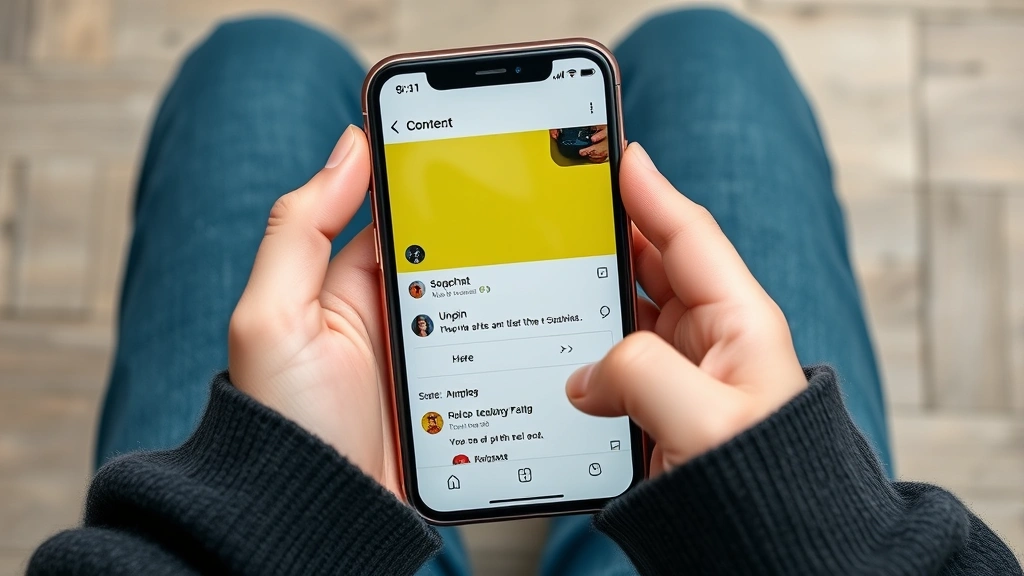
Most of the time, unpinning works without a hitch. But occasionally, users run into issues. Here’s what to do if you’re stuck.
The menu won’t appear: Try holding down longer on the conversation. Sometimes the app needs a full second or two to register the long-press. If it still doesn’t work, try swiping left on the conversation instead—some Snapchat versions show options when you swipe.
The unpin option is grayed out: This is rare, but it can happen if there’s a glitch. Try closing and reopening Snapchat. If that doesn’t work, restart your phone entirely.
“Unpin” isn’t in the menu: Make sure you’re long-pressing on the right conversation. Also, verify that the conversation is actually pinned (look for a pin icon). If you’re not sure, try long-pressing on a different conversation to see if the menu structure is different.
The app crashes when you try: Update Snapchat from your device’s app store. Outdated versions sometimes have bugs. If you’re already on the latest version, try uninstalling and reinstalling the app. This usually fixes persistent glitches.
You unpinned by accident: Don’t worry. You can re-pin the conversation just as easily by long-pressing and selecting “Pin Conversation.” Your chat history is completely safe.
Pro Tip: If you’re constantly having issues with Snapchat’s interface, check your app version in Settings. Running an old version can cause all kinds of weird behavior, including pinning/unpinning problems.
Managing Multiple Pins Effectively
Since you can pin up to three conversations (depending on your version), it’s worth thinking strategically about who deserves that top-of-the-list real estate.
Most people pin their closest friends, family members they talk to daily, or group chats they’re actively involved in. The idea is that your three pins should be the conversations you access most frequently. If you find yourself scrolling past pinned conversations to reach someone you talk to more, that’s a sign you should reorganize your pins.
Here’s a practical approach: look at your chat history for the past week. Who did you message most? Those are your candidates for pinning. If you pinned someone three months ago and haven’t talked to them since, they probably don’t deserve a pin anymore.
You can also use pins strategically for different purposes. For example, pin a group chat you’re coordinating an event with, pin your partner or best friend, and pin a family group chat. This way, your most important conversations are always visible.
Keep in mind that pinning is purely for your own organization. The other person has no idea whether they’re pinned or unpinned—it’s invisible to them. So pin based on what works for you, not on any social pressure or feelings.
Privacy and Pinning: What You Should Know
One question that comes up: does pinning someone affect your privacy or theirs? The short answer is no.
Pinning is a local, device-level setting. It only affects how your chat list is organized on your phone. The person you pin can’t see that they’re pinned, and pinning doesn’t change any privacy settings or permissions. It’s purely visual organization.
Similarly, if you’re worried about someone seeing your pins, don’t be. Unless you’re showing them your phone directly, they have no way of knowing who you’ve pinned. Snapchat doesn’t share pinning information with other users.
If you’re concerned about privacy in general on Snapchat, you might also want to look into how to unblock a number on iPhone if you’ve previously blocked someone, or explore other privacy features like blocking and reporting.
One related consideration: if you share your phone with family members, they can see your pinned conversations. If you’re concerned about that, consider using Snapchat’s privacy settings to limit who can contact you or see your status. According to Snapchat’s official support documentation, you can customize who can message you and view your stories through Settings > Privacy.
Why You Might Want to Unpin Someone
Let’s talk about the real reasons people unpin conversations. Understanding these can help you make better decisions about who stays pinned.
Friendships evolve: People drift apart. You might have pinned someone because you talked every day, but life changes. Jobs change, relationships shift, friend groups evolve. Unpinning reflects that reality without being dramatic about it.
You’re in a new relationship: When you start dating someone, you might unpin old friends or exes to make room for your new partner’s conversation.
Organizing by priority: Maybe you pinned three people, but now there’s a fourth person you talk to way more. You need to unpin someone to make room.
Reducing distractions: Some people unpin conversations from people they know will send them lots of messages or memes. It’s not about the relationship; it’s about managing notifications and focus.
Spring cleaning: Periodically, it’s healthy to audit your pins and make sure they still reflect your actual communication patterns.
None of these reasons are rude or mean. Unpinning is a neutral action. It’s not a statement; it’s just organization. Don’t overthink it.
For more context on managing your Snapchat contacts and privacy, check out Snapchat’s official safety and privacy center, which covers blocking, reporting, and other contact management features.
Frequently Asked Questions
Does the person know when I unpin them on Snapchat?
– No. Pinning and unpinning is completely invisible to the other person. They have no way of knowing whether they’re pinned or unpinned on your device. It’s a purely local setting that only affects your own chat organization.
Can I pin someone back after unpinning them?
– Yes, absolutely. Unpinning isn’t permanent. You can re-pin the same conversation anytime by long-pressing and selecting “Pin Conversation.” Your chat history with them is completely intact.
What’s the difference between unpinning and muting a conversation?
– Unpinning removes the conversation from the top of your list but you’ll still get notifications. Muting silences notifications but the conversation stays in your normal chat list. They serve different purposes—unpin for organization, mute for notification control.
How many conversations can I pin at once?
– Most current versions of Snapchat allow you to pin up to three conversations. However, this can vary slightly depending on your app version and device. If you try to pin a fourth, you’ll usually be prompted to unpin one of the others first.
Will unpinning delete my chat history with someone?
– No. Unpinning only affects where the conversation appears in your list. All your messages, photos, and history with that person remain completely intact. Unpinning is purely organizational.
Can I unpin someone on the web version of Snapchat?
– Snapchat’s web version has limited functionality compared to the mobile app. Pinning and unpinning features are primarily available on iOS and Android. If you’re using Snapchat on a computer, you may not have access to pinning features.
What if I accidentally unpinned someone?
– Just long-press on their conversation again and select “Pin Conversation” to re-pin them. It takes the same amount of time as unpinning. No harm done, and your chat history is completely safe.
Does unpinning affect my Snapchat score or streaks?
– No. Pinning and unpinning have zero impact on your Snapchat score, streaks, or any other metrics. It’s purely a visual organization feature that doesn’t affect how the app tracks your activity.
Can I pin group chats?
– Yes. You can pin group conversations just like individual chats. Long-press on the group chat and select “Pin Conversation.” Group chats count toward your three-pin limit.
What happens if I block someone I had pinned?
– If you block someone, they’ll automatically be unpinned (since you can no longer communicate with them anyway). When you unblock them later, they won’t automatically re-pin—you’ll need to manually pin them again if you want to.


