
Merged cells in Excel are like a two-for-one deal that looked great at the time but now you’re stuck with it. You’ve got data crammed into a single cell that spans multiple columns, and now you need to unmerge cells in Excel to get back to a normal spreadsheet. Maybe you inherited a file from someone else, or maybe you merged cells months ago and forgot why. Either way, you’re here because you need to undo it, and the good news is it’s way simpler than you think.
The frustrating part? Merged cells break sorting, filtering, and formulas. They’re the spreadsheet equivalent of a furniture piece that doesn’t fit through the doorway. Once you understand how to unmerge cells, you’ll wonder why you ever merged them in the first place. Let’s fix this.
Why You Should Unmerge Cells (And Why It Matters)
Before we jump into the how-to, let’s talk about why unmerging cells matters. Merged cells look clean on a printed report or a presentation slide. They’re visually appealing. But in a working spreadsheet, they’re a nightmare waiting to happen.
When cells are merged, Excel treats them as a single unit. That means you can’t sort your data properly. Filtering breaks. Formulas get confused. If you’re trying to use your spreadsheet as an actual database (which is what Excel is meant for), merged cells are like putting a lock on your filing cabinet. They prevent you from doing the work you need to do.
According to Microsoft’s official documentation on merging and unmerging cells, merged cells can cause issues with data validation, sorting, and conditional formatting. It’s not just an inconvenience—it’s a real limitation.
Here’s the real talk: if you’ve got a spreadsheet with merged cells and you’re trying to work with it professionally, you need to unmerge them. Period.
The Basic Method: Unmerge Cells in Excel
This is the straightforward way to unmerge cells in Excel, and it takes about 30 seconds. No tricks, no formulas, no workarounds.
- Select the merged cell or range. Click on any cell within the merged area. You don’t have to select the entire merged range—just click anywhere inside it.
- Go to the Home tab. At the top of your Excel window, click the “Home” tab (it’s usually the first one).
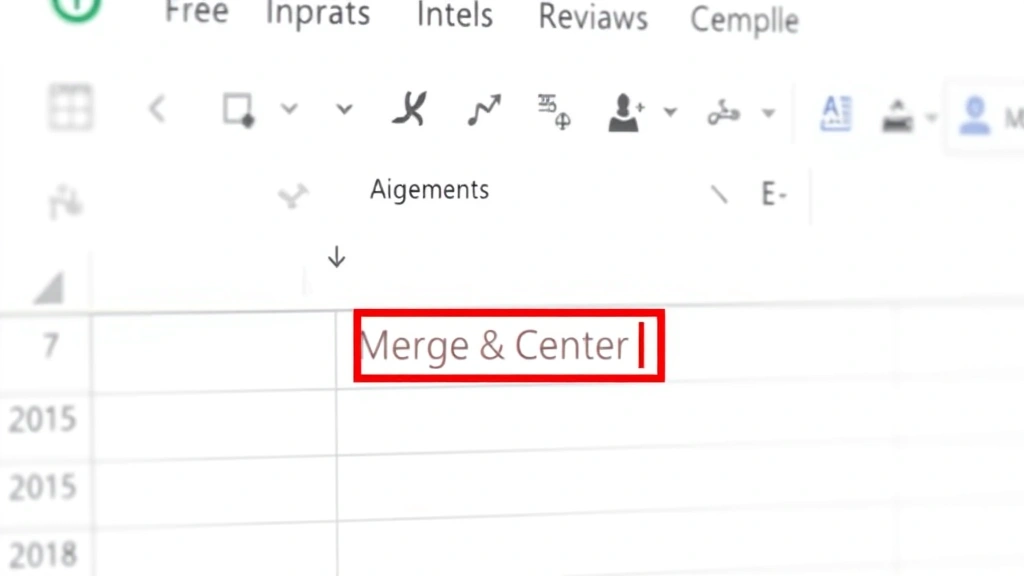
- Find the Merge & Center button. In the Alignment group, look for the “Merge & Center” button. It looks like a small grid with arrows pointing inward. Click the dropdown arrow next to it (not the button itself—the tiny arrow).
- Click “Unmerge Cells.” A small menu will pop up. Select “Unmerge Cells” from the dropdown.
- Done. Your cells are now unmerged.
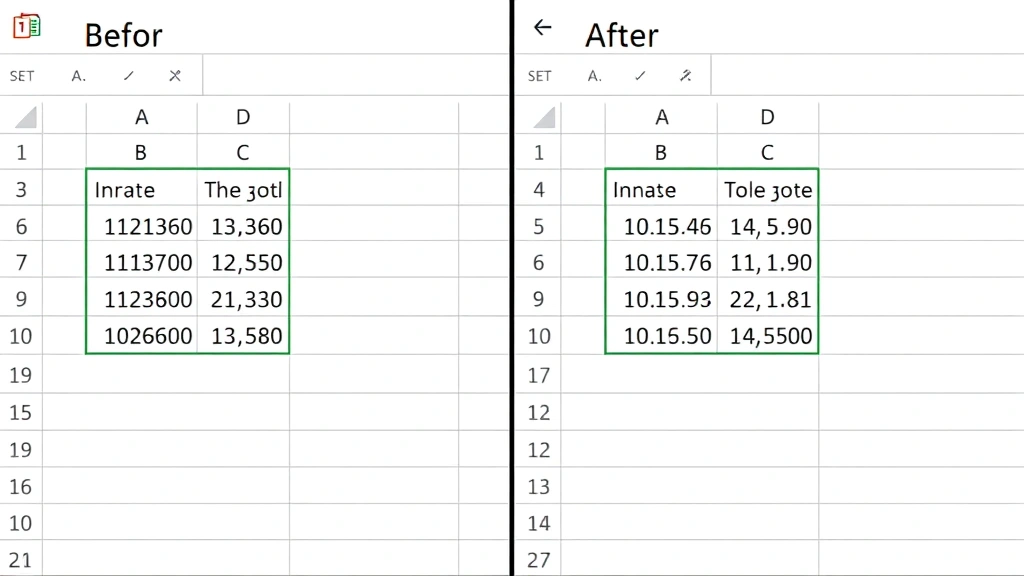
That’s it. Your merged cells are now separate cells again. If you had data in the merged cell, it stays in the top-left cell of the former merged range. Everything else becomes empty.
Pro Tip: If you’re working on a Mac, the process is identical. The Merge & Center button is in the same place on the Home tab. Don’t overthink it.
Unmerging Multiple Cell Ranges at Once
Here’s where things get a little trickier. If your spreadsheet is full of merged cells (and let’s be honest, some spreadsheets are), you don’t want to unmerge them one at a time. That’s tedious.
The good news: you can select multiple merged ranges and unmerge them all at once.
- Select your first merged cell. Click on it like normal.
- Hold Ctrl (or Cmd on Mac) and click other merged cells. While holding Ctrl, click on each additional merged cell you want to unmerge. You’re building a selection of non-contiguous cells.
- Go to Home > Merge & Center > Unmerge Cells. Same as before, but now it applies to all the cells you selected.
Alternatively, if all your merged cells are in a contiguous range, you can select the entire range at once and unmerge them all together. Just click and drag from the top-left to the bottom-right of your merged area, then follow the unmerge steps.
What Happens to Your Data When You Unmerge

This is the critical part that trips people up. When you unmerge cells, here’s what happens:
- Data in the top-left cell stays. Whatever text or numbers were in the original merged cell remain in the top-left cell of the unmerged range.
- Everything else becomes empty. If you had a merged cell spanning A1:C1 with the text “Sales Report,” after unmerging, A1 will have “Sales Report,” but B1 and C1 will be blank.
- Formulas don’t break. If your merged cell contained a formula, it stays in the top-left cell and continues to work normally.
This is why some people get nervous about unmerging. They think they’ll lose data. But you won’t—the data just consolidates into one cell. The unmerged cells simply become empty.
Safety Warning: Before you unmerge a bunch of cells, take a screenshot or save a backup copy of your file. If you’ve got complex formatting or data spread across merged cells in a way you don’t fully understand, you want a safety net.
If you need to separate names in Excel or distribute data across multiple cells after unmerging, that’s a different process. You might need formulas like LEFT, RIGHT, or MID to split text, or you might use the “Text to Columns” feature. But that’s a separate workflow from the unmerging itself.
Advanced Techniques: Recovering Lost Data After Unmerging
Here’s a scenario: you’ve got a merged cell that spans A1:D1, and you had different data in what used to be B1, C1, and D1 before the merge. When you unmerge, that data is gone. How do you get it back?
The answer depends on whether you have a backup or a way to reconstruct the data.
Option 1: Use Undo (Ctrl+Z)
If you just unmerged and realized you made a mistake, press Ctrl+Z immediately. This will undo the unmerge and restore the merged cell to its previous state. This only works if you haven’t done anything else since the unmerge.
Option 2: Check Your File History
If you’re using Excel online or OneDrive, you can check the version history. Right-click the file in OneDrive, select “Version history,” and restore a previous version before you unmerged. This is a lifesaver if you’ve already saved the file.
Option 3: Reconstruct the Data Manually
If you’ve got the original source data somewhere else (an email, a database, a previous version of the file), you can manually re-enter the data into the unmerged cells. It’s not fun, but it works.
Option 4: Use a Formula to Distribute Data
If your merged cell contains a long string of data that you want to split across multiple cells, you can use Excel formulas. For example, if you have a merged cell with “John Doe” and you want to split it into first and last names, you can use the FIND and MID functions to extract each part. This is similar to the process described in our guide on how to separate names in Excel.
Real Talk: This is why preventing merged cells in the first place is so much easier than dealing with them later. If you’re building a new spreadsheet, use formatting (like center alignment and borders) to make it look clean without actually merging cells. Your future self will thank you.
How to Prevent Merged Cell Problems in the Future
Now that you know how to unmerge cells, let’s talk about not having to do this again.
Use Formatting Instead of Merging
Instead of merging cells for a header, try this: select the range you want to span, then use “Center Across Selection” or just apply center alignment. Add a border and background color. It looks the same but doesn’t break your data integrity.
Use Tables
Excel Tables (created with Ctrl+T or the “Format as Table” button) are designed to work with data. They support sorting, filtering, and formulas without any of the merged-cell nonsense. If you’re building a new spreadsheet with data, use a Table instead of manually formatting cells.
Document Your Spreadsheet Structure
If you inherit a spreadsheet with merged cells, ask the original creator why they merged them. Sometimes there’s a good reason (like a title that spans the entire report). Sometimes it’s just a formatting choice that nobody questioned. Understanding the intent helps you decide whether to unmerge or leave it alone.
Use Conditional Formatting for Visual Clarity
If you want your spreadsheet to look visually organized without merged cells, use conditional formatting to highlight rows or columns based on criteria. This gives you the visual organization you want without the functional limitations of merging.
For more tips on organizing your Excel spreadsheets, check out our guides on how to freeze columns in Excel and how to hide columns in Excel. These are much better ways to organize your view without breaking your data.
Related Excel Features That Work Better Than Merged Cells
While we’re on the subject of better alternatives to merged cells, let’s talk about some other Excel features that give you similar visual results without the headaches.
Dropdown Lists
If you’re trying to create a clean, organized spreadsheet, dropdown lists in Excel can help you standardize data entry without needing merged cells. They keep your spreadsheet functional while making data entry easier.
Checkboxes
For forms or checklists, inserting checkboxes in Excel is a much better approach than merged cells. They’re interactive, they don’t break sorting, and they look professional.
Merging vs. Centering Across Cells
Here’s a distinction worth making: merging cells and centering across cells are not the same thing. When you merge 2 cells in Excel, you’re combining them into one. When you center across cells, you’re just applying formatting. The latter is almost always the better choice.
According to best practices for organizing digital files and spreadsheets, keeping your data structure clean and unmerged is essential for long-term maintainability. Think of it like organizing your garage—you want everything accessible and functional, not just looking pretty.
Frequently Asked Questions
Can I unmerge cells without losing data?
– Yes. When you unmerge cells, the data stays in the top-left cell. The other cells in the former merged range become empty, but you don’t lose the original data. If you need that data distributed across multiple cells, you’ll need to manually enter it or use formulas to split it.
What if I unmerge cells by accident?
– Press Ctrl+Z (or Cmd+Z on Mac) immediately to undo the unmerge. This works as long as you haven’t done anything else since the unmerge. If you’ve already saved and closed the file, you can restore a previous version from your file history if you’re using OneDrive or Excel online.
How do I unmerge all cells in a spreadsheet at once?
– Select all cells (Ctrl+A), then go to Home > Merge & Center > Unmerge Cells. This will unmerge every merged cell in your worksheet simultaneously. Be careful with this—it’s a nuclear option.
Can I unmerge cells in Google Sheets?
– Yes, but the process is slightly different. In Google Sheets, go to Format > Merge cells > Unmerge. The concept is the same, but the menu structure is different.
Why does my spreadsheet have so many merged cells?
– Usually because someone was formatting for print or presentation rather than building a functional data spreadsheet. Merged cells are fine for a one-time report, but they’re terrible for working data. If you’re inheriting a spreadsheet with lots of merged cells, it’s probably because it was designed to look good printed, not to be used as a working document.
Will unmerging cells affect my formulas?
– No. If your merged cell contained a formula, that formula stays in the top-left cell after unmerging and continues to work normally. If other cells in your spreadsheet reference the merged cell, those references will still work after unmerging (they’ll reference the top-left cell).
Is there a way to merge cells without breaking sorting and filtering?
– Not really. Merged cells and sorting/filtering don’t play well together. If you need to sort or filter your data, don’t merge cells. Use formatting (borders, background color, center alignment) instead to achieve the visual effect you want.


