

Your keyboard is locked and nothing you type shows up on screen. Frustrating, right? Whether you accidentally hit a key combination that triggered lock mode, or your keyboard got stuck in a restricted state, you’re probably wondering how to unlock keyboard on Windows 10 right now. The good news: it’s almost always fixable in minutes, and you don’t need to be tech-savvy to do it.
A locked keyboard on Windows 10 can happen for several reasons—accidental hotkey presses, accessibility features kicking in, driver issues, or even malware in rare cases. The fix depends on what caused the lock, but we’ll walk you through every scenario so you can get typing again.
Focus keyword: how to unlock keyboard appears throughout this guide because it’s the exact problem you’re facing, and we’re solving it systematically.
Quick Fixes to Try First
Before you dive into settings menus, try these dead-simple solutions that fix the problem 70% of the time.
- Restart your computer. Sounds basic, but a soft restart clears temporary glitches that lock the keyboard. Press the Windows key + X, select “Shut down or sign out,” then “Restart.”
- Disconnect and reconnect your keyboard. If you’re using a USB keyboard, unplug it for 10 seconds, then plug it back in. Windows will reinitialize the connection.
- Check if Num Lock or Caps Lock is stuck. Some locked keyboard states are just these toggle lights being on. Press Num Lock and Caps Lock a few times to reset them.
- Try a different USB port. A faulty port might be sending constant signals that lock input. Move the keyboard to another port on your computer.
- If it’s a wireless keyboard, replace the batteries. Low battery power can cause erratic behavior that mimics a locked keyboard.
- Press Escape a few times. Some applications or windows have modal dialogs that trap keyboard focus. Hitting Escape can break you free.
If none of these work, move to the next section. We’re getting into the real troubleshooting now.
Disable Filter Keys
Filter Keys is an accessibility feature that ignores brief or repeated keystrokes. It’s designed to help people with tremors or motor control issues, but it can accidentally get enabled and lock your keyboard from responding normally.
How to turn off Filter Keys:
- Press Windows key + U to open the Ease of Access settings (or go to Settings > Ease of Access).
- Click Keyboard in the left sidebar.
- Find the Filter Keys toggle and make sure it’s OFF.
- If it’s on, click the toggle to disable it.
- Close the settings and test your keyboard.
If you see a notification that says “Filter Keys is on” when you’re trying to type, this was definitely your culprit. Filter Keys can be re-enabled by holding the right Shift key for 8 seconds, which is why it sometimes activates by accident.
Pro Tip: If you want to keep Filter Keys disabled permanently, also uncheck the box that says “Allow shortcut key to start this feature.” This prevents accidental re-activation.
Turn Off Sticky Keys
Sticky Keys is another accessibility feature that lets you press modifier keys (Ctrl, Alt, Shift) one at a time instead of holding them down. When enabled, it can make your keyboard feel locked because keypresses behave unexpectedly.
How to disable Sticky Keys:
- Go to Settings > Ease of Access > Keyboard.
- Find Sticky Keys and toggle it OFF.
- You can also press Shift five times rapidly to toggle Sticky Keys on and off. If you hear a sound, Sticky Keys just switched states.
Sticky Keys gets triggered when you press Shift five times in a row, which can happen accidentally if you’re typing fast or if a child gets hold of the keyboard. Disabling it is the move if you don’t use this feature.
Knowing your Windows version helps when troubleshooting, because some older versions of Windows 10 have different menu locations for these settings. If you’re on an older build, the path might be slightly different.
Check Toggle Keys Settings
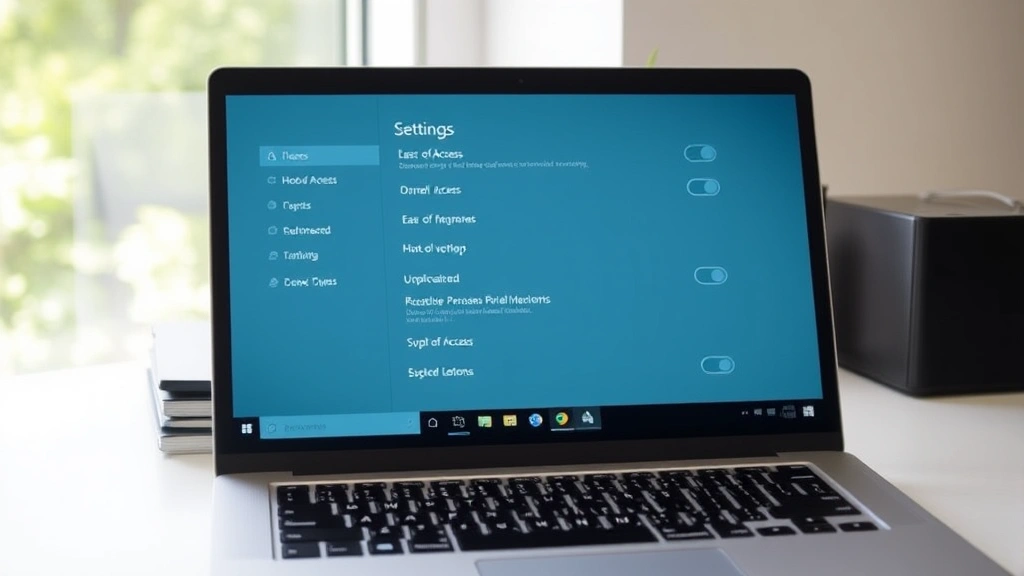
Toggle Keys is a feature that plays a sound when you press Caps Lock, Num Lock, or Scroll Lock. It’s not directly a lock mechanism, but it can indicate that your keyboard is in an unusual state.
What to do:
- Open Settings > Ease of Access > Keyboard.
- Look for Toggle Keys and toggle it off if you don’t need audio feedback.
- Press Caps Lock and Num Lock to make sure they’re in the OFF position.
This is less likely to be your culprit, but it’s worth checking while you’re in the Ease of Access menu.
Update or Reinstall Keyboard Drivers
If your keyboard is physically working (you can see the lights on it, or it connects) but Windows isn’t responding to your input, a corrupted or outdated driver is often the cause. Think of drivers like the translator between your keyboard hardware and Windows—if the translator is broken, nothing gets through.
How to update keyboard drivers:
- Right-click the Start button and select Device Manager.
- Expand Keyboards by clicking the arrow next to it.
- Right-click your keyboard device and select Update driver.
- Choose Search automatically for updated driver software.
- Windows will search and install updates if available.
- Restart your computer when prompted.
How to reinstall keyboard drivers (the nuclear option):
- Open Device Manager again.
- Right-click your keyboard and select Uninstall device.
- Check the box that says Attempt to remove the driver software for this device.
- Click Uninstall.
- Restart your computer. Windows will automatically reinstall the keyboard driver on boot.
According to Family Handyman’s tech troubleshooting resources, driver reinstallation is one of the most effective fixes for input device issues. After the restart, your keyboard should work normally.
If you have a keyboard from a specific manufacturer (like Corsair, Logitech, or Razer), you can also download the latest drivers from their website and install them manually. Visit the manufacturer’s support page, find your keyboard model, and download the driver for Windows 10.
Boot Into Safe Mode
Safe Mode loads Windows with only essential drivers and services. If your keyboard works in Safe Mode but not in normal mode, a third-party program or driver is causing the lock.
How to boot into Safe Mode:
- Press Windows key + R to open the Run dialog.
- Type msconfig and press Enter.
- Go to the Boot tab.
- Check the box for Safe boot. Leave it set to “Minimal.”
- Click Apply and OK.
- Click Restart when prompted.
If your keyboard works in Safe Mode, the problem is a software conflict in normal mode. Here’s what to do:
- Boot back into normal mode (reverse the msconfig steps above).
- Uninstall recent programs you installed before the keyboard locked. Go to Settings > Apps > Apps & features, sort by install date, and remove suspicious recent installs.
- Check for malware using Windows Defender (built-in) or a tool like Malwarebytes.
This diagnostic step is powerful because it narrows down whether the problem is Windows itself or something you installed.
Hardware and Connection Issues
Sometimes the simplest explanation is the right one: your keyboard might be physically broken or disconnected.
Check these things:
- Is the keyboard plugged in? For USB keyboards, make sure the cable is fully seated in the port. For wireless keyboards, check that the USB receiver is plugged in.
- Is the keyboard powered on? Wireless keyboards have power switches. Make sure it’s in the ON position.
- Are the batteries dead? Wireless keyboards need fresh batteries. Replace them and wait 10 seconds for the keyboard to reconnect.
- Is there physical damage? Look for cracked keys, liquid damage, or bent connectors. If the keyboard is damaged, replacement is usually cheaper than repair.
- Does the keyboard work on another computer? Borrow a friend’s laptop or use a work computer to test. If the keyboard works elsewhere, the problem is definitely Windows 10, not the hardware.
If the keyboard works on another computer, go back to the driver reinstall section. If it doesn’t work on any computer, the keyboard is dead and needs replacement.
Safety Warning: Never open a keyboard to clean it while it’s plugged in. Disconnect it first, wait 30 seconds, then gently clean the underside with a dry cloth or compressed air. Liquids inside a keyboard can cause electrical shorts.
According to Bob Vila’s home tech guides, keyboard replacement is one of the most cost-effective repairs because quality USB keyboards are affordable and easy to swap out.
If you’re using a built-in laptop keyboard, the troubleshooting is the same, but replacement is more involved. For laptops, try the driver update and Safe Mode steps first before considering hardware replacement.
For additional context on Windows troubleshooting, understanding how different operating systems handle input can help you appreciate why Windows keyboard issues are unique. Similarly, if you’re troubleshooting across devices, knowing how to right click on a MacBook shows how different systems implement keyboard functions.
One more thing: if you’re having trouble accessing settings because your keyboard is locked, you can use the On-Screen Keyboard. Press Windows key + Ctrl + O to open it, then use your mouse to click keys. This is a lifesaver when you’re completely locked out.
Frequently Asked Questions
Why did my keyboard suddenly stop working in Windows 10?
– The most common causes are accidental activation of accessibility features (Filter Keys, Sticky Keys), outdated drivers, or a loose USB connection. Start with the quick fixes (restart, reconnect) and then check Ease of Access settings. If those don’t work, update your keyboard drivers.
How do I unlock my keyboard if I can’t access the Settings menu?
– Use the On-Screen Keyboard (Windows key + Ctrl + O) to navigate menus with your mouse. Alternatively, try pressing Escape or restarting your computer. If you’re in a locked application, Alt + Tab to switch windows or Alt + F4 to close the app.
Can malware lock my keyboard on Windows 10?
– Yes, but it’s rare. Malware usually steals input rather than blocking it. If you suspect malware, boot into Safe Mode and run a full scan with Windows Defender or Malwarebytes. If your keyboard works in Safe Mode but not normal mode, malware or a conflicting program is likely.
Is it safe to uninstall my keyboard driver?
– Yes, it’s completely safe. Windows will automatically reinstall the driver when you restart. This is actually a recommended troubleshooting step for stubborn keyboard issues. Just make sure you restart immediately after uninstalling.
My keyboard works but some keys don’t respond. What’s wrong?
– This is usually a hardware issue (stuck keys, debris under the keys) or a partially corrupted driver. Try cleaning the keyboard gently with compressed air first. If that doesn’t work, reinstall the driver. If it’s a built-in laptop keyboard with dead keys, you may need hardware service.
How do I prevent my keyboard from locking again?
– Keep accessibility features disabled if you don’t use them. Disable the shortcut keys (like pressing Shift five times for Sticky Keys). Keep your keyboard drivers updated. Avoid placing objects on your keyboard that could trigger accidental keypresses. For wireless keyboards, check batteries monthly.
What if none of these fixes work?
– Try a complete Windows 10 reset. Go to Settings > System > Recovery and click “Reset this PC.” Choose “Keep my files” to preserve your data. This is a last resort, but it fixes software-related keyboard issues that other troubleshooting can’t touch. If the keyboard still doesn’t work after a reset, it’s a hardware problem.


