How to Unhide an App on iPhone: Simple & Essential Guide
Accidentally hidden an app on your iPhone? Don’t worry—learning how to unhide an app on iPhone takes just seconds. Whether you used the hide feature in the App Library or disabled an app through Settings, we’ll walk you through every method to restore your apps to visibility. This guide covers all iOS versions and explains why apps get hidden in the first place.
Quick Answer: To unhide an app on iPhone, open the App Library, find the hidden app in the “Suggestions” or category section, press and hold it, select “Show on Home Screen,” and tap “Add.” Alternatively, go to Settings > General > iPhone Storage, find the app, and select “Offload App” or reinstall it. For apps hidden in Screen Time, disable restrictions in Settings > Screen Time > Content & Privacy Restrictions.
Tools & Materials You’ll Need
- iPhone (iOS 14 or later recommended)
- Access to your Apple ID (if reinstalling apps)
- Wi-Fi or cellular connection
- Your Screen Time passcode (if apps are restricted)
- App Store access
Method 1: Unhide Apps from the App Library
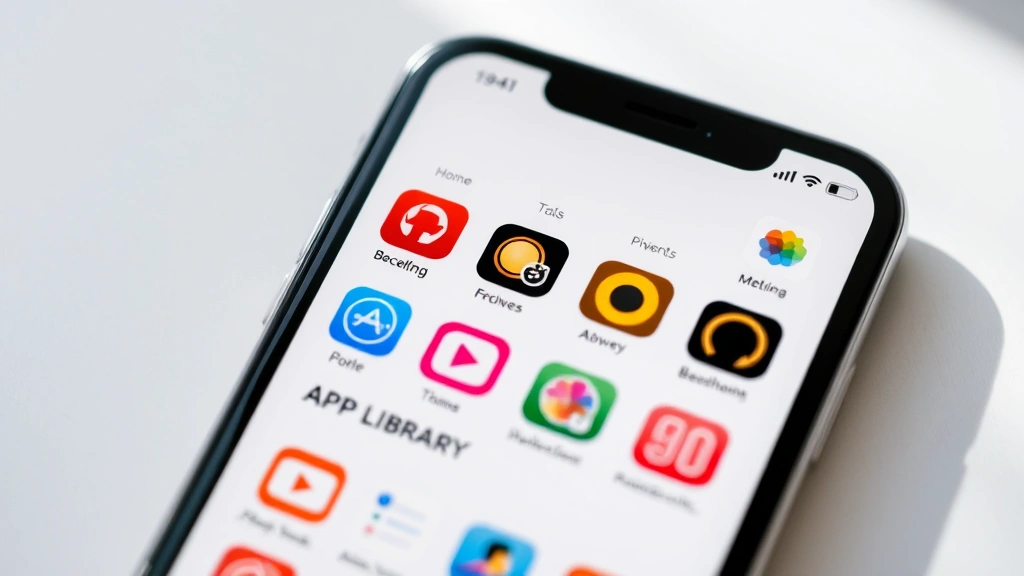
The App Library is Apple’s smart app organization system introduced in iOS 14. When you hide an app on iPhone using the App Library, it doesn’t disappear completely—it simply moves out of view on your home screens. This is the fastest way to unhide an app on iPhone for most users.
Step-by-step process:
- Swipe left on your home screen until you reach the App Library (the last screen showing app categories)
- Look for the app you want to unhide—it may be in a category like “Suggestions,” “Utilities,” or “Productivity”
- Press and hold the app icon until a menu appears
- Tap “Show on Home Screen”
- Select which home screen you’d like to add it to
- Tap “Add” to confirm
The app will now reappear on your chosen home screen. If you’re unsure where the app is located, use the search function by swiping down from the top of your screen and typing the app name. This method works for any app you’ve manually hidden using the hide feature.
Method 2: Restore Hidden Apps via Settings
Sometimes apps become hidden when they’re offloaded or when iOS system settings are adjusted. Accessing your iPhone Settings is another reliable way to unhide an app on iPhone, particularly if it’s been offloaded to save storage space.
Follow these steps:
- Open Settings on your iPhone
- Navigate to General
- Select iPhone Storage (or “iPad Storage” for iPad)
- Scroll through the list to find the hidden app
- Tap the app name
- Select “Reinstall App” or “Offload App” depending on your needs
If you choose “Reinstall App,” the application will download again from the App Store. This is useful if the app was offloaded (which removes it temporarily but keeps your data). The “Offload App” option removes the app but preserves its data, which is helpful if you want to manage storage without losing settings.
You might also consider how to clear app cache on iPhone to free up space if storage is why apps were hidden in the first place.
Method 3: Disable Screen Time Restrictions
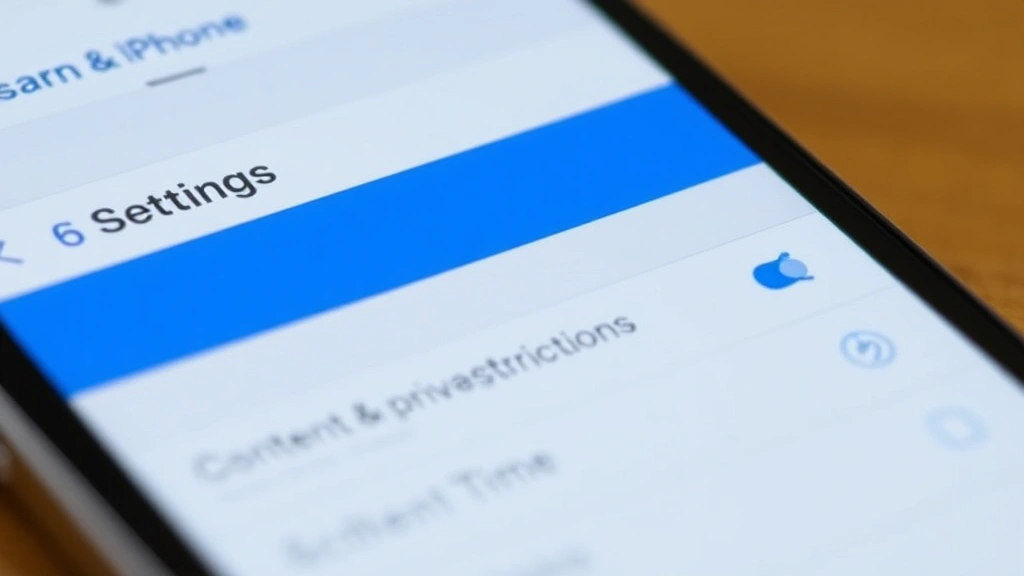
Apps can also be hidden through Screen Time parental controls and app restrictions. This is a common scenario if you’ve set usage limits or if a family member restricted certain apps. Disabling Screen Time restrictions is essential to unhide an app on iPhone when apps are blocked rather than simply hidden.
To remove Screen Time restrictions:
- Open Settings
- Tap Screen Time
- Select Content & Privacy Restrictions
- Enter your Screen Time passcode (you’ll need this to proceed)
- Scroll down to “Allowed Apps”
- Find the hidden app and toggle it ON (green switch)
- Return to the home screen—the app should now be visible
If you’ve forgotten your Screen Time passcode, you can reset it using your Apple ID. Go to Settings > Screen Time > Change Screen Time Passcode > Forgot Passcode? and follow the prompts. This method ensures that restricted apps become accessible again on your device.
Method 4: Reinstall Apps from the App Store
If an app has been deleted entirely (not just hidden), you’ll need to reinstall it from the App Store. This is the solution for completely removing and restoring an app on iPhone when other methods don’t work.
Reinstallation steps:
- Open the App Store
- Tap the Search tab (magnifying glass icon)
- Type the name of the app you want to restore
- Tap the app from the search results
- Press the cloud icon with a download arrow to reinstall
- Authenticate with Face ID, Touch ID, or your Apple ID password
- Wait for the download to complete
Your app will reinstall with its previous data intact if it was backed up to iCloud. According to WikiHow’s comprehensive app management guide, most apps automatically restore their settings when reinstalled. If you want to customize your app organization afterward, you can also explore how to make stickers on iPhone to personalize your home screen layout.
Why Apps Get Hidden on iPhone
Understanding why apps become hidden helps prevent this issue in the future. Apps can be hidden for several reasons, and knowing the cause makes it easier to unhide an app on iPhone correctly.
Common reasons apps get hidden:
- Manual hiding: You intentionally removed an app from your home screen using the “Remove App” option
- Offloading: iOS automatically offloaded the app to save storage space, or you manually offloaded it
- Screen Time restrictions: Parental controls or app limits prevented the app from appearing
- iCloud sync issues: If you signed out of iCloud, some apps may disappear
- iOS updates: Occasionally, major iOS updates reorganize apps or hide incompatible ones
- Accidental deletion: The app was removed entirely rather than just hidden
Each cause requires a slightly different approach to unhide an app on iPhone. If you’re dealing with privacy concerns, you might also want to explore how to hide followers on Instagram for social media management tips.
Troubleshooting Hidden Apps
If the standard methods don’t work, try these advanced troubleshooting steps to unhide an app on iPhone.
Restart your iPhone: A simple restart often resolves display issues. Hold the power button and volume up/down button simultaneously until “Slide to Power Off” appears. Slide to turn off, wait 10 seconds, then power back on.
Check iCloud settings: Go to Settings > [Your Name] > iCloud and ensure “App Library Sync” is enabled. This syncs your app organization across devices.
Update iOS: Outdated software can cause app visibility problems. Go to Settings > General > Software Update to check for available updates.
Sign out and back into your Apple ID: If apps remain hidden after trying other methods, sign out of your Apple ID (Settings > [Your Name] > Sign Out), then sign back in. This refreshes your app permissions and visibility settings.
Reset home screen layout: As a last resort, go to Settings > General > Transfer or Reset > Reset > Reset Home Screen Layout. This restores all apps to your home screens, though you’ll lose any custom organization. According to The Spruce’s tech troubleshooting resources, this method resolves most persistent app visibility issues.
If none of these solutions work, your iPhone may have a deeper software issue. Consider backing up your device using iCloud (Settings > [Your Name] > iCloud > iCloud Backup) and performing a factory reset. This is a more drastic step, but it resolves nearly all app-related problems.
FAQ
Q: Can I unhide multiple apps at once on iPhone?
A: Unfortunately, you must unhide apps individually. However, the process is quick—each app takes only seconds to restore. If you have many hidden apps, you can speed up the process by using the App Library search function to locate each one.
Q: Will unhiding an app delete my data?
A: No. Unhiding an app restores it without affecting any saved data, settings, or preferences. Your app data is stored separately from the app’s visibility status, so unhiding is completely safe.
Q: What’s the difference between hiding and offloading an app?
A: Hiding removes an app from your home screen but keeps it installed and fully functional. Offloading removes the app but preserves its data—you can reinstall it later and recover all your information. Hiding takes no storage space, while offloading frees up significant space.
Q: How do I prevent apps from being hidden accidentally?
A: Be careful when pressing and holding apps on your home screen, as this opens the menu with hide options. If you have children using your iPhone, enable Screen Time to prevent accidental changes. Additionally, organize apps you use frequently on your main home screen rather than relying solely on the App Library.
Q: Why can’t I find an app in the App Library?
A: If an app isn’t in the App Library, it may have been completely deleted. Search the App Store for the app name and reinstall it. Some apps are also region-restricted, so availability depends on your location and Apple ID country.
Q: Can I hide apps again after unhiding them?
A: Yes. Once unhidden, you can hide an app again by pressing and holding it and selecting “Remove App” > “Remove from Home Screen.” This moves it back to the App Library without deleting it.
Q: Does unhiding an app on iPhone work the same way on iPad?
A: Yes. The process to unhide an app on iPhone is identical to iPad. All steps mentioned in this guide apply to both devices running iOS or iPadOS 14 or later.
Q: What if my Screen Time passcode is forgotten?
A: You can reset it using your Apple ID. In Settings > Screen Time > Change Screen Time Passcode > Forgot Passcode, select “Use Apple ID” and enter your credentials. You’ll then set a new passcode.
Learning how to unhide an app on iPhone is a fundamental skill for iPhone users. Whether you’ve accidentally hidden an app or it’s been restricted, these methods cover every scenario. For more iPhone management tips, explore related guides on Instructables’ iPhone tutorials or Family Handyman’s tech section. If you’re managing multiple Apple devices, understanding app visibility across your ecosystem ensures a seamless experience. Remember that unhiding apps is completely reversible, so don’t hesitate to experiment with your home screen organization. With these straightforward methods, you’ll never lose track of your favorite apps again.