
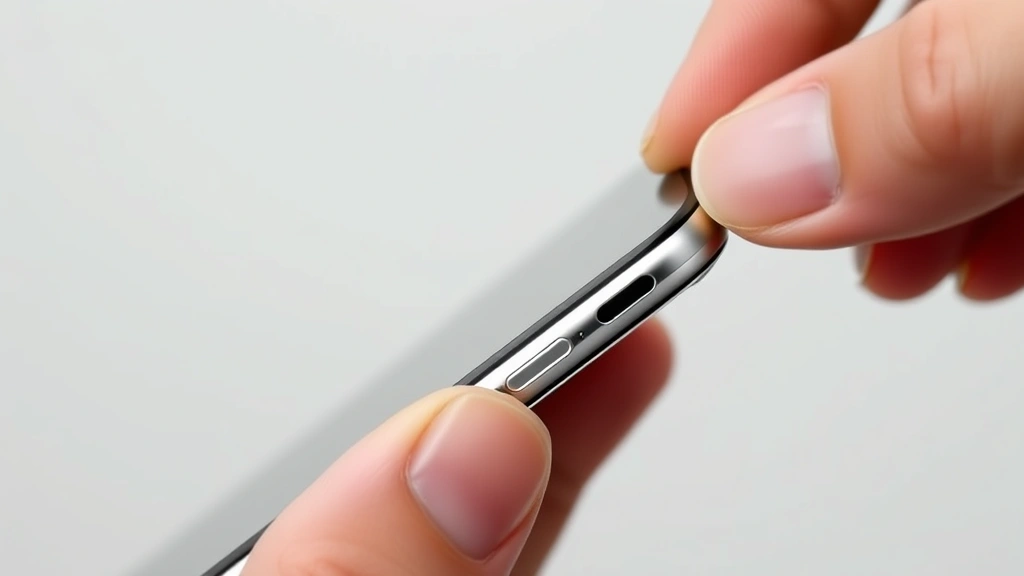
Your iPhone screen is completely dead. Cracked beyond recognition, unresponsive to touch, or just a black void staring back at you. But here’s the thing—you still need to turn it off. Maybe you’re sending it in for repair, maybe you’re concerned about battery drain, or maybe you just want the peace of mind knowing it’s powered down. The good news? You can absolutely turn off an iPhone without a working screen, and it’s easier than you’d think. This guide walks you through every method to turn off iPhone without screen, from using Siri to force shutdowns to leveraging Find My iPhone remotely.
Using Siri to Power Down
This is the easiest method if your iPhone still responds to voice commands. Siri doesn’t need a working screen—it just needs to hear you. Here’s what to do:
- Press and hold the Home button (iPhone 8 and earlier) or the Side button (iPhone X and newer) to activate Siri. You’ll hear the Siri chime even if the screen is black.
- Say “Turn off my iPhone” or “Power down.”
- Siri will confirm the shutdown command and ask you to slide to power off.
- Since you can’t see the screen, you’ll need to perform a swipe gesture from the bottom of the screen upward, or from the top downward—basically, a full-screen swipe motion.
- Your iPhone will shut down within seconds.
Real talk: This method works great if your screen is cracked but still somewhat functional, or if it’s just black but the phone is responsive. If your iPhone is completely unresponsive and won’t activate Siri, move to the next method.
Pro Tip: Make sure “Listen for ‘Hey Siri'” is enabled in Settings before your screen breaks. This lets you activate Siri hands-free without pressing any buttons.
Force Restart Your iPhone
A force restart is different from a shutdown—it’s a hard reboot that forces your iPhone to turn off and back on immediately. This is your go-to move when the screen is dead and Siri won’t respond. The button combination depends on your iPhone model, which we’ll cover in detail below.
The beauty of a force restart is that it doesn’t require any screen interaction. You’re just holding down physical buttons in a specific sequence. Here’s the general approach:
- Quickly press and release the Volume Up button.
- Quickly press and release the Volume Down button.
- Press and hold the Side button (or Top button on older models) until you see the “slide to power off” screen or feel the phone vibrate multiple times.
- Keep holding even though you can’t see anything—this is crucial. The phone will vibrate and restart on its own.
A force restart will turn your iPhone off and back on. If you want it to stay off, you’ll need to immediately perform the shutdown gesture (swipe from bottom to top or top to bottom) once the Apple logo appears, or use one of the other methods in this guide.
Using Find My iPhone Remotely
If you have another Apple device or access to iCloud.com, you can turn off your iPhone remotely without ever touching it. This is perfect if the screen is dead and you’re away from your phone. Here’s how:
- Go to iCloud.com on any web browser, or open the Find My app on another Apple device.
- Sign in with your Apple ID (the same one your broken iPhone uses).
- Select “Find My iPhone” or tap the “Devices” tab in the Find My app.
- Choose your iPhone from the device list.
- Tap “Find My iPhone” or the information icon to see options.
- Look for “Erase iPhone” or “Erase This Device.” This will remotely wipe your phone and turn it off in the process.
- Confirm your Apple ID password if prompted.
This method is aggressive—it erases all data on your iPhone. Only use it if you’re okay losing everything on the device, or if you have a recent backup. However, it’s a guaranteed way to turn off your iPhone without screen access.
Safety Warning: “Erase iPhone” will delete all your data. Make sure you have a backup via iCloud or your computer before doing this.
Button Combinations by Model

The exact button sequence to force restart varies by iPhone model. Here’s the breakdown:
iPhone 14, 13, 12, 11, X, XS, XR, and newer
- Quickly press Volume Up.
- Quickly press Volume Down.
- Press and hold the Side button until the phone vibrates (usually 10-15 seconds). You might feel multiple vibrations—keep holding.
- Release when you feel the final vibration or hear the startup sound.
iPhone 8
- Quickly press Volume Up.
- Quickly press Volume Down.
- Press and hold the Side button until the “slide to power off” screen appears or the phone vibrates. Keep holding for 10+ seconds even though you can’t see the screen.
iPhone 7 and 7 Plus
- Press and hold the Volume Down button and the Side button together until the phone vibrates and restarts. Hold for at least 10 seconds.
iPhone 6s and earlier (with Home button)
- Press and hold both the Home button and the Top (or Side) button simultaneously.
- Keep holding until the Apple logo appears, then release. The phone will restart.
If you’re unsure which model you have, check the back of the phone or your original box. The model number is usually printed there.
Letting the Battery Drain Completely
Here’s the nuclear option: just let your iPhone run until the battery dies. It’s not fast, and it’s not elegant, but it works. Here’s why this matters:
If your iPhone’s battery is already low, this might take just a few hours. If it’s fully charged, you could be waiting 24+ hours. During this time, your phone will continue to consume power through background processes, even with a dead screen.
To speed this up:
- If you can access Settings or Control Center via voice (through Siri), turn on Bluetooth, WiFi, and location services. These drain battery faster.
- Place the phone in a warm environment (not hot—just room temperature or slightly warmer). Heat speeds up battery drain.
- Keep the phone away from anything that might charge it.
Once the battery is completely dead, your iPhone is off. Plug it in to turn it back on, or leave it unplugged if you want it to stay off.
Pro Tip: This method is useful if you’re sending your phone in for repair and want to ensure it’s completely powered down before shipping.
When to Seek Professional Help
Sometimes, your iPhone might be completely unresponsive. The screen is dead, Siri won’t activate, and nothing seems to work. At this point, you have two options:
Visit an Apple Store or Authorized Repair Center: Apple technicians have specialized equipment to power down devices that won’t respond to standard commands. They can also diagnose what’s wrong with your screen and provide repair options. This is the safest option if you’re concerned about data loss or further damage.
Contact Apple Support: Call Apple Support or chat with them online. They can walk you through additional troubleshooting steps or advise you on the best course of action. Apple’s official support page has phone numbers and live chat options for every region.
If your iPhone is still under warranty, AppleCare+, or if you have a recent purchase, Apple might repair or replace it for free or at a reduced cost. Don’t skip this step if you’re unsure about DIY methods.
Troubleshooting Common Issues
My iPhone Won’t Respond to Siri
If Siri won’t activate, it could be because:
- “Listen for ‘Hey Siri'” is disabled. You’ll need to use the button combination method instead.
- Your iPhone is in a low-power state or has crashed. Try the force restart method.
- The microphone is damaged. Use the button combination or Find My iPhone method.
I’m Holding the Buttons but Nothing Happens
Make sure you’re holding long enough. On newer iPhones, it can take 15-20 seconds before you feel the first vibration. Don’t give up too early. If you’ve been holding for 30+ seconds with no response, your phone might be completely unresponsive, and you should seek professional help.
The Phone Keeps Restarting Instead of Staying Off
This is actually normal behavior for a force restart—the phone will restart after the shutdown. If you want it to stay off, immediately perform the power-off gesture (swipe from bottom to top) as soon as you feel the vibrations stop. Or use the Find My iPhone method to erase and power off remotely.
I Don’t Have Access to Another Apple Device or iCloud
Use the force restart method, followed by the battery drain method. Or visit an Apple Store. There’s no way around it if you can’t access Siri or Find My iPhone.
For additional help with device troubleshooting, check out Family Handyman’s tech section for general device care tips, or iFixit’s iPhone guides if you’re considering DIY screen repair.
Frequently Asked Questions
Can I turn off my iPhone without a screen if it’s completely frozen?
– Yes. Use the force restart method (button combination for your model). Even if the phone is frozen, holding the buttons will force a restart. To keep it off after that, use Find My iPhone or let the battery drain.
Will turning off my iPhone without a screen damage it?
– No. Turning off your iPhone is safe regardless of screen condition. The screen being broken doesn’t affect the power-off process. However, if you’re using Find My iPhone’s “Erase” option, that will delete all data, so be careful.
How long does a force restart take?
– Hold the buttons for 10-20 seconds until you feel vibrations. The actual restart process takes another 30-60 seconds. Total time: roughly 1-2 minutes from start to finish.
What’s the difference between a force restart and a shutdown?
– A force restart turns the phone off and back on immediately. A shutdown turns it off and keeps it off until you manually turn it back on. For a broken screen, force restart is often easier because you don’t have to worry about the “slide to power off” gesture.
If I use Find My iPhone to erase my device, can I recover the data?
– Only if you have a backup. If you backed up to iCloud or your computer before the screen broke, you can restore from that backup. If you didn’t, the data is gone. Always back up your iPhone regularly.
Can I turn off my iPhone if the battery is completely dead?
– If the battery is completely dead, your iPhone is already off. There’s nothing to turn off. Plug it in to turn it back on.
Is it safe to keep my iPhone off for extended periods?
– Yes. An iPhone can stay off for weeks or months without damage. However, if you plan to store it long-term, charge it to about 50% first, then power it down. This preserves battery health.
What if my iPhone is stuck in a boot loop (constantly restarting)?
– A boot loop is different from a frozen screen. If your phone keeps restarting on its own, don’t try the force restart method—it might make things worse. Instead, use Find My iPhone to erase the device, or take it to Apple for professional diagnosis. Boot loops usually indicate a software issue that needs expert attention.
Can I turn off my iPhone using iTunes or Finder on my computer?
– Not directly. iTunes and Finder can help you restore or update your iPhone, but they can’t power it off remotely. However, if you restore your iPhone through iTunes, it will erase the device and power it down in the process—similar to Find My iPhone.

My iPhone screen is black but the phone is still on. How do I know?
– If you can hear sounds, feel vibrations, or activate Siri, your phone is on. If you plug it in and see a charging indicator (even a faint one), it’s on. If there’s absolutely no response after 30 seconds of waiting, it might be off or completely unresponsive.
The reality is, a broken screen doesn’t mean a broken iPhone. You have multiple ways to turn it off, and most of them are quick and straightforward. Whether you use Siri, button combinations, or Find My iPhone, you’ll get your phone powered down without needing to see what’s on the screen. If none of these methods work, that’s when professional help is worth the investment—it usually means something deeper is wrong, and you’ll want an expert to handle it.


