

Let’s be honest—turning off your iPhone 15 shouldn’t feel like defusing a bomb, but Apple’s redesign threw a lot of people for a loop. You’re staring at your phone wondering where the power button went, or maybe you’re nervous about force-shutting it down and corrupting your data. Here’s the real talk: how to turn off iPhone 15 is actually straightforward once you know the trick, and doing it safely takes about 30 seconds.
Unlike older iPhones with a dedicated power-off screen, the iPhone 15 uses a combination of physical buttons and gestures. Whether you’re doing routine maintenance, troubleshooting a frozen app, or just want to power down before bed, this guide walks you through every method—including the emergency shutdown that won’t hurt your phone.
The Standard Way to Turn Off iPhone 15
This is your go-to method for everyday shutdowns. It’s clean, it’s safe, and it gives your phone time to save any open data before powering down.
- Locate the buttons. On the iPhone 15, you’ve got the volume up button on the left side and the side button (power button) on the right. The volume down button is also on the left, below the volume up.
- Press and hold both buttons simultaneously. Push the volume up button and the side button at the same time. Don’t tap—hold them down. You’re looking for about 2-3 seconds of pressure.
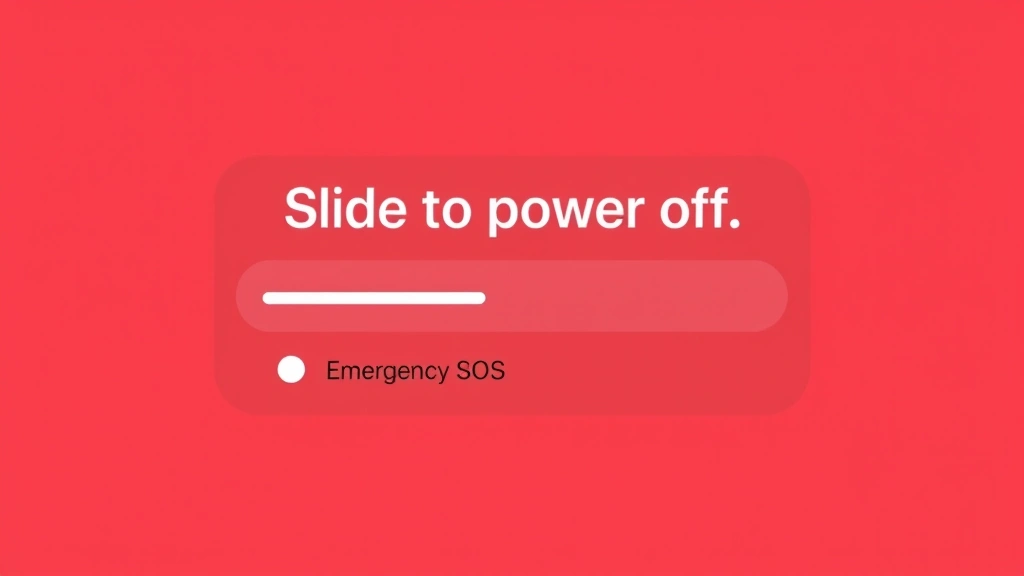
- Wait for the power-off slider to appear. Your screen will show a slider that says “slide to power off” along with emergency SOS options. This is the magic moment that confused a lot of people upgrading from iPhone 14 or earlier.
- Drag the slider to the right. Use your finger to swipe the “Power Off” slider toward the right side of the screen. Don’t use your thumb if you can help it—use your index or middle finger for better control.
- Wait for the shutdown sequence. You’ll see the Apple logo briefly, then the screen goes black. Your iPhone 15 is now off. The entire process takes about 10-15 seconds from start to finish.
Pro tip: If you’re doing this regularly (like once a week for maintenance), you’re doing it right. Most people don’t shut down their phones often enough, and a weekly shutdown clears cached data and refreshes system processes.
Force Restart vs. Force Shutdown: Know the Difference
Here’s where people get confused, and I see this mistake constantly. A force restart is NOT the same as a force shutdown. One is safe; one is the nuclear option.
Force Restart: This is what you do when your iPhone 15 is frozen or an app is unresponsive. It’s safe because it’s designed into the system. Think of it like rebooting your computer—everything gets reloaded fresh.
- Quickly press and release the volume up button.
- Quickly press and release the volume down button.
- Press and hold the side button until the “slide to power off” screen appears (about 10 seconds).
- Release the side button. The phone will restart automatically.
This takes about 30 seconds total, and your phone comes back on fully refreshed. It’s safe, it’s designed for this, and it fixes 90% of frozen-phone situations.
Force Shutdown: This is different. A force shutdown actually powers the phone off without the graceful shutdown sequence. You only do this in true emergencies—like if the phone is physically damaged, overheating severely, or completely unresponsive to a force restart. Here’s how:
- Quickly press and release volume up.
- Quickly press and release volume down.
- Press and hold the side button for 20+ seconds (don’t release when the power-off slider appears; keep holding).
- The phone will shut down forcefully. The screen goes black, and you’ll feel a haptic vibration.
The reason I’m separating these is because force shutdown should be rare. If you’re doing it every day, something’s wrong with your phone, and you should check what’s causing the freezing. Visit Apple Support if this becomes a pattern.
Using Settings to Power Down
Not everyone likes button combinations—totally fair. If you prefer using the touchscreen, there’s a settings-based method that works just as well.
- Open the Settings app (the gray gear icon on your home screen).
- Scroll down and tap General.
- Scroll all the way to the bottom and tap Shut Down. (Note: On some iOS versions, this might say “Power Off” instead.)
- The power-off slider appears. Drag it to the right to confirm.
This method takes a few extra taps, but it’s useful if your physical buttons are damaged or if you just prefer the touchscreen approach. It’s equally safe and gives your system the same graceful shutdown sequence.
Before you power down using any method, make sure you’ve updated your apps on iPhone recently. Pending updates can sometimes cause background processes that slow down shutdown. It’s a small thing, but it matters.
Emergency Shutdown (When Your Phone is Frozen)
Your iPhone 15 is stuck. The screen isn’t responding. You’ve tried tapping, swiping, everything. This is when you need the emergency shutdown, and it’s designed to be safe—Apple engineers built this in specifically for moments like this.
The emergency shutdown is essentially a forced restart that bypasses any software hang-ups. Here’s the exact sequence:
- Volume up: Press and release quickly (about 1 second).
- Volume down: Press and release quickly (about 1 second).
- Side button: Press and hold for 10-15 seconds. Ignore the “Emergency SOS” slider if it appears—keep holding.
- The Apple logo will appear, and the phone will restart. This is normal and safe.
This entire sequence takes about 20-25 seconds. Your phone will come back on, and 99% of the time, whatever was frozen is now resolved. You haven’t lost data, you haven’t corrupted anything—you’ve just given the system a hard reset.
Safety Warning: Don’t do this repeatedly in a short time frame. If your iPhone 15 freezes multiple times per day, there’s likely a software or hardware issue. Back up your data (using iCloud or a computer) and contact Apple Support or visit an Apple Store. This isn’t something you should troubleshoot alone if it becomes a pattern.
Safety Tips Before Powering Down
Shutting down your iPhone 15 is safe, but there are a few smart habits to adopt before you do it.
Save Your Work
If you’re in the middle of an email, a note, or any unsaved document, save it first. Most apps auto-save, but don’t assume. Take 10 seconds to make sure nothing’s going to be lost.
Close Active Apps
You don’t have to manually close every app—iOS handles this automatically during shutdown. But if an app is behaving strangely, swipe up from the bottom and close it before powering down. This ensures it doesn’t cause issues on the next startup.
Check Battery Level
If your battery is critically low (below 5%), your phone might not turn back on immediately. Plug it in for at least 15 minutes before attempting to power it on again. This is especially important if you’re shutting down because of a freeze or crash.
Disable Location Services Temporarily (If You’re Concerned About Privacy)
Before shutting down, you can toggle off Location Services in Settings > Privacy > Location Services if you want to ensure location tracking is completely disabled during the shutdown. This is optional, but some privacy-conscious users prefer it.
Make Sure You’re Not in the Middle of a Backup
If iCloud backup is running (you’ll see a small cloud icon with an up arrow in the status bar), wait for it to finish before powering down. This usually takes 30 seconds to a few minutes, depending on how much data is being backed up.
If you’re planning to delete sensitive data before powering down, check out our guide on how to delete Apple ID for comprehensive information on wiping your account data safely.
Troubleshooting: What If It Won’t Turn Off?
Occasionally, an iPhone 15 gets stubborn and refuses to shut down using the standard methods. Here’s what to do.
Scenario 1: The Buttons Aren’t Responding
If pressing the side button and volume buttons doesn’t trigger the power-off slider, try the settings method instead. Open Settings > General > Shut Down and use the touchscreen slider. If that works, your physical buttons might need service, but the phone itself is fine.
Scenario 2: The Power-Off Slider Appears but Won’t Respond to Your Swipe
This is rare, but it happens. Try swiping more slowly and deliberately. Make sure your finger is actually on the slider—sometimes people swipe near it instead of directly on it. If it still doesn’t work, try the force restart sequence (volume up, volume down, hold side button for 10 seconds).
Scenario 3: The Phone Turns Off but Immediately Turns Back On
This suggests a software issue. Plug your iPhone 15 into a computer with iTunes or Finder installed and attempt a restore through Apple’s recovery mode. This is beyond basic troubleshooting, so if you’re not comfortable with it, visit an Apple Store.
Scenario 4: The Phone Is Completely Unresponsive
If nothing is responding—not the buttons, not the screen, nothing—try charging it for 30 minutes. Sometimes a completely drained battery can make the phone appear non-responsive. After 30 minutes of charging, try the force restart sequence again.
Pro Tip: If you’re experiencing persistent issues, Apple’s official support documentation at Apple’s iPhone support guide has troubleshooting steps specific to your iOS version. Check there before assuming hardware failure.
Frequently Asked Questions
Will turning off my iPhone 15 delete any data?
– No. Powering off your iPhone 15 is like putting a computer to sleep—it doesn’t delete anything. All your photos, contacts, messages, and apps remain exactly as they were. Data is only deleted if you actively erase it or perform a factory reset.
How often should I turn off my iPhone 15?
– Apple doesn’t require you to shut down regularly, but most experts recommend a weekly shutdown. It clears cached data, refreshes system processes, and can improve battery longevity. Think of it like restarting a computer—it’s maintenance, not necessity.
Is force restart the same as turning off?
– No. A force restart reboots your phone (it turns off and back on automatically). Turning off leaves it powered down until you manually turn it back on. Use force restart for frozen apps; use power-off when you want the phone to stay off.
What’s the difference between “Slide to Power Off” and “Emergency SOS”?
– “Slide to Power Off” is the standard shutdown. “Emergency SOS” is a shortcut to call emergency services (911 in the US). They appear on the same screen, so be careful not to swipe the wrong direction. Swipe right for power off, left for emergency.
Can I turn off my iPhone 15 without using the buttons?
– Yes. Use Settings > General > Shut Down and drag the slider. This method uses only the touchscreen and is useful if your physical buttons are damaged.
What happens if I force shutdown my iPhone 15 regularly?
– Regularly force shutting down (more than once a week) can potentially cause minor file system issues over time. It bypasses the graceful shutdown sequence, so use it only for emergencies or when the phone is frozen. For routine shutdowns, use the standard method.
How long does it take to turn off an iPhone 15?
– Standard shutdown: 10-15 seconds from button press to complete power-off. Force restart: 20-30 seconds total, including the automatic restart. Emergency shutdown: 20-25 seconds.
Will my iPhone 15 lose internet connection when turned off?
– Yes. When powered off, WiFi, cellular, and Bluetooth are all disabled. Your phone won’t receive calls, messages, or notifications until it’s turned back on.
Can I schedule my iPhone 15 to turn off automatically?
– Not directly. However, you can use the Sleep Schedule feature in the Health app to set a bedtime, which enables Do Not Disturb automatically. For automatic shutdowns, you’d need third-party apps or shortcuts, but Apple doesn’t recommend this for daily use.
What if my iPhone 15 won’t turn back on after shutting it down?
– Plug it into a charger immediately. The battery may have been lower than you thought. Wait 15-30 minutes, then press the side button to power it on. If it still won’t respond, try a force restart. If that fails, contact Apple Support—this is rare but indicates a potential hardware issue.
Is it safe to turn off my iPhone 15 during an update?
– No. Never turn off or force restart your phone during a software update. This can corrupt the update and require a full restore. Always let updates complete fully before powering down. If an update is stuck, wait at least 1 hour before attempting a force restart.
Turning off your iPhone 15 is straightforward once you know the button combinations and safety practices. Whether you’re doing routine maintenance, troubleshooting a frozen app, or just want to power down for the night, you’ve got multiple methods to choose from. The standard button combination (volume up + side button) takes 30 seconds and is the safest option for daily use. For frozen phones, the emergency shutdown sequence is built in and won’t harm your device. And if you prefer touchscreen controls, the Settings method works just as well.
The key takeaway: there’s no wrong way to turn off your iPhone 15 as long as you’re using one of the official methods. Avoid repeatedly force shutting down (save that for emergencies), save your work before powering down, and don’t panic if it takes 10-15 seconds—that’s normal. Your data is safe, your phone is designed for this, and you’re doing it right.


