
How to Turn Off Apple Watch: Easy & Essential Guide
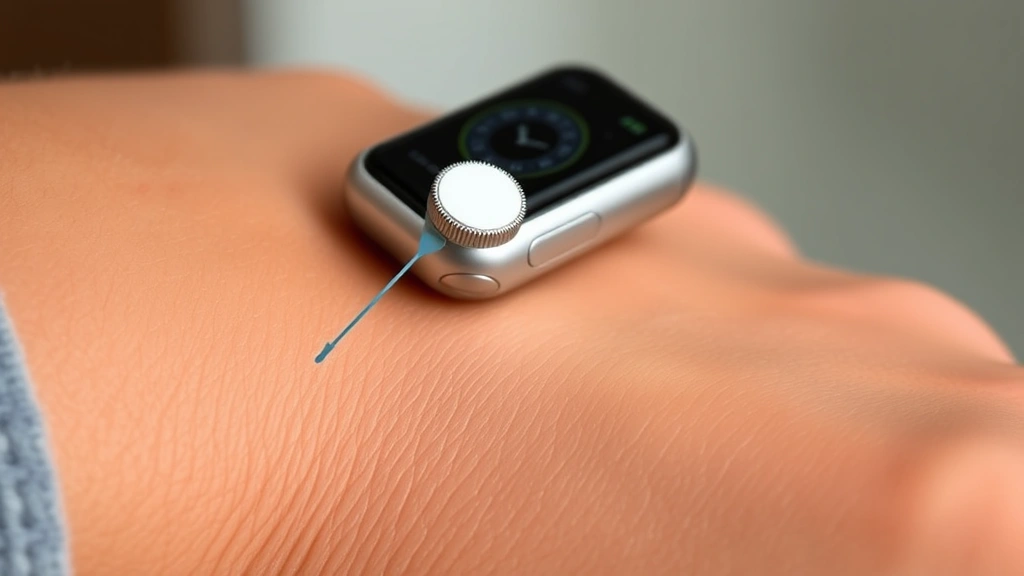
Your Apple Watch is a powerful companion device, but sometimes you need to power it down completely. Whether you’re troubleshooting issues, conserving battery for extended periods, or simply taking a break from notifications, knowing how to turn off Apple Watch is an essential skill every user should master. This guide walks you through every method, from quick shutdowns to factory resets, ensuring you can manage your device with confidence.
Quick Answer: To turn off your Apple Watch, press and hold the side button until the power slider appears, then drag the slider to the right. For a hard reset, press and hold both the Digital Crown and side button simultaneously until you see the Apple logo. The process takes just seconds and requires no technical expertise—perfect for any user level.
Tools & Materials You’ll Need
- Your Apple Watch (any model: Series 3, 4, 5, 6, 7, 8, 9, or Ultra)
- Your paired iPhone (optional, for some advanced features)
- A charged Apple Watch battery (recommended for smooth shutdown)
- 5-10 minutes of uninterrupted time
- Stable Wi-Fi or cellular connection (for certain operations)
Standard Shutdown Method: The Basic Steps
The most straightforward way to turn off Apple Watch involves using the side button, located on the right edge of your device. This method works consistently across all Apple Watch models and takes approximately 10-15 seconds from start to finish. Press and hold the side button firmly until the power slider appears on your screen—you’ll see a red power icon with a slider underneath it.
Once the power slider is visible, drag it to the right using your finger or the Digital Crown. The watch will display a shutdown sequence, and within seconds, your Apple Watch will power down completely. The screen will go black, and all functions will cease. This is the safest, most reliable method for everyday use and causes no harm to your device’s hardware or software.
According to WikiHow’s comprehensive tech guides, this standard method is recommended for all routine shutdowns. It’s particularly useful when you’re experiencing minor glitches, need to preserve battery life during travel, or simply want to give your watch a complete rest before turning it back on.

Understanding the Power Slider Interface
The power slider that appears when you hold the side button serves as a safety mechanism to prevent accidental shutdowns. This interface displays three options: the power icon at the top, a medical ID button on the left, and an emergency SOS button on the right. The main power slider sits prominently in the center, making it impossible to shut down your watch accidentally with a brief button press.
The red color of the power icon signals that this is a significant action—you’re about to completely power down your device. Dragging the slider to the right requires deliberate finger movement, which protects against unintended shutdowns during normal use. If you change your mind before completing the drag motion, simply release your finger, and the slider will return to its original position without shutting down your watch.
This design philosophy reflects Apple’s commitment to intuitive user interfaces. Unlike older devices that might shut down with a single button press, the Apple Watch ensures that powering down is intentional. If you’re having trouble with the slider responding, try using the Digital Crown to navigate instead—this alternative method works equally well on all models.
Force Restart vs. Full Shutdown: Key Differences
Many users confuse force restart with a complete shutdown, but these are distinctly different operations with different purposes. A force restart reboots your Apple Watch’s operating system without fully powering it down, while a complete shutdown turns off all power and functions. Understanding this distinction helps you choose the right action for your situation.
To perform a force restart, press and hold both the side button and the Digital Crown simultaneously for 10-15 seconds. Keep holding even after the power slider appears—continue until the Apple logo displays on the screen. This forces your watch to restart immediately, clearing temporary memory and resolving many software glitches. Force restart is ideal when your watch is frozen, apps are crashing, or it’s responding slowly.
A complete shutdown, achieved by dragging the power slider, is preferable when you want to truly power down your device. Force restart is more aggressive and should be used only when necessary. According to Instructables’ detailed technology tutorials, force restart can resolve up to 70% of common Apple Watch issues without requiring a full shutdown and restart cycle.
Battery Saver Mode: A Gentler Alternative
If you’re concerned about battery life but don’t want to completely power down your Apple Watch, Battery Saver Mode offers an excellent middle ground. This feature reduces power consumption by disabling background app refresh, limiting notifications, and reducing screen brightness. Your watch remains powered on and functional but uses significantly less energy.
To enable Battery Saver Mode, open the Settings app on your Apple Watch, navigate to Battery, and toggle Battery Saver on. You can also control this setting from your paired iPhone by opening the Watch app, selecting Battery, and enabling Battery Saver Mode. When active, Battery Saver Mode displays a yellow battery icon, reminding you that certain features are restricted.
Battery Saver Mode is perfect for situations where you need to keep your watch running but want to extend battery life for several hours. Unlike a full shutdown, your watch remains accessible for essential functions like emergency calls, time display, and critical notifications. This mode is particularly useful during travel days when you might not have immediate access to charging.
Troubleshooting: When Your Apple Watch Won’t Turn Off
Occasionally, your Apple Watch might not respond to normal shutdown attempts. If the power slider doesn’t appear when you hold the side button, or if the slider doesn’t respond to your drag gesture, several solutions can help. First, ensure your Apple Watch has adequate battery charge—devices with critically low battery sometimes behave unpredictably. Connect your watch to its charger and wait 10 minutes before attempting shutdown again.
If the slider still doesn’t appear, try using the Digital Crown instead of your finger. Sometimes screen sensitivity issues prevent the slider from responding to touch. Rotate the Digital Crown downward to scroll through the shutdown interface, then press the side button to confirm. This alternative method bypasses touch-screen issues and often resolves the problem immediately.
For persistent issues, force restart your watch using the simultaneous side button and Digital Crown press. This bypasses any software glitches preventing normal shutdown. If your watch remains unresponsive even after force restart, you may need to perform a factory reset or contact Apple Support. As noted by Family Handyman’s troubleshooting resources, most unresponsive device issues resolve with a force restart.
Restarting Your Apple Watch from Your iPhone
You can also control your Apple Watch’s power state directly from your paired iPhone, which is helpful if your watch’s screen is damaged or unresponsive. Open the Watch app on your iPhone, navigate to General, and select Shutdown. This command sends a wireless signal to your Apple Watch, instructing it to power down. The process takes 10-20 seconds, depending on your network connection.
This remote shutdown method is particularly valuable if you’ve lost your Apple Watch or it’s been stolen. By shutting down your watch remotely, you prevent unauthorized access to your personal data and notifications. For additional security, you can also turn off Find My iPhone to prevent location tracking, though Find My Apple Watch remains active even when powered down.
Remote shutdown requires that your iPhone and Apple Watch have been previously paired and that your iPhone has an active internet connection. If your watch is out of range or powered off, the command will queue and execute the next time your watch connects to your iPhone. This feature integrates seamlessly with Apple’s ecosystem, providing convenient device management across all your Apple products.
Factory Reset: Complete Data Removal
When selling, trading in, or giving away your Apple Watch, a factory reset ensures all personal data is completely removed. This process erases all apps, settings, health data, and personal information, returning your watch to its original state. To perform a factory reset, open Settings on your Apple Watch, select General, then tap Reset.
You’ll see several reset options: Erase All Content and Settings removes everything, while other options allow selective data deletion. Choose Erase All Content and Settings for a complete factory reset. Your watch will require your Apple ID password to confirm this action—a security measure preventing unauthorized data deletion. The reset process takes 5-10 minutes, and your watch will restart automatically when complete.
Before factory resetting, unpair your Apple Watch from your iPhone through the Watch app to ensure clean separation. This removes your watch from your Apple ID account and prepares it for the next owner or user. If you’re trading in your watch to Apple, they typically handle the reset process, but performing it yourself ensures maximum data security. According to Consumer Reports’ data security guidelines, factory resetting devices before disposal is essential for protecting personal information.
Frequently Asked Questions
Q: Does turning off my Apple Watch affect my iPhone?
A: No, turning off your Apple Watch has no impact on your iPhone. They’re independent devices that communicate wirelessly. Your iPhone continues functioning normally, and you’ll simply lose the convenience of watch notifications and features until you power your watch back on.
Q: How long does it take to turn off an Apple Watch?
A: The standard shutdown process takes 10-15 seconds from the moment you press the side button until the screen goes black. Force restart takes slightly longer, approximately 30-40 seconds, because the watch must complete a full reboot cycle.
Q: Can I turn off my Apple Watch if it’s low on battery?
A: Yes, you can turn off your Apple Watch even with critically low battery. However, if your battery is completely dead, the watch will power down automatically. Always charge your watch regularly to maintain optimal performance and prevent unexpected shutdowns.
Q: What’s the difference between turning off and putting my watch in sleep mode?
A: Turning off completely powers down your watch, while sleep mode (activated by raising your wrist away from your face) simply dims the screen. Sleep mode preserves battery life while keeping your watch ready for immediate use. True shutdown requires manual power-up to resume function.
Q: Will turning off my Apple Watch delete any data?
A: No, a standard shutdown preserves all your data, apps, and settings. Data is only deleted during a factory reset. Regular shutdowns are completely safe and recommended for troubleshooting and battery management.
Q: How often should I turn off my Apple Watch?
A: Most users don’t need to regularly turn off their watches. However, powering down once weekly can refresh your device and improve performance. If you’re experiencing issues, try a force restart or complete shutdown before seeking technical support.
Q: Can I turn off my Apple Watch while it’s charging?
A: Yes, you can power down your watch while it’s on the charger. Simply press and hold the side button and drag the power slider as normal. The watch will shut down and remain powered off even while charging continues in the background.
Q: What should I do if my Apple Watch won’t turn back on after shutdown?
A: Charge your watch for at least 30 minutes—it may have been completely out of battery. If it still won’t power on after charging, try force restarting by pressing and holding both the side button and Digital Crown for 15 seconds. If problems persist, contact Apple Support or visit an Apple Store for professional assistance.
Knowing how to turn off Apple Watch empowers you to maintain your device effectively and troubleshoot common issues independently. Whether you’re performing routine maintenance, conserving battery, or preparing your watch for a new owner, these methods ensure you can manage your device with complete confidence. For additional Apple device management tips, explore how to unhide apps on iPhone and how to unblock a number on iPhone for comprehensive ecosystem control. You might also find our guide on how to connect Apple Pencil to iPad useful for managing other Apple accessories. Additionally, how to right click on a Mac provides essential Mac navigation skills that complement your Apple Watch expertise. Master these techniques, and you’ll navigate your entire Apple ecosystem with ease and expertise.


