
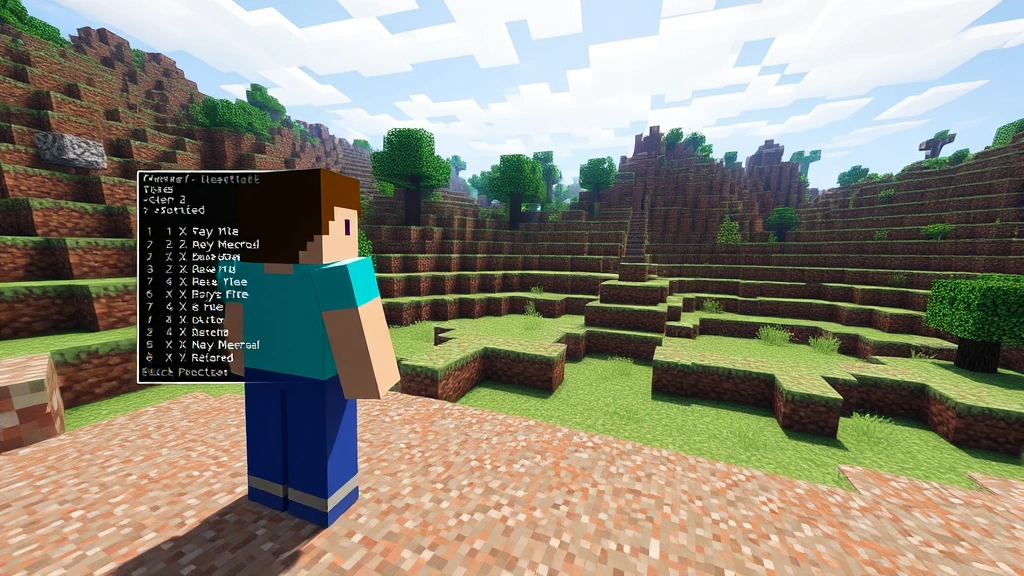
Getting lost in Minecraft is half the fun—until it isn’t. You’ve found an amazing location, written down the coordinates, and now you need to get back there without spending an hour walking through the Nether. That’s where learning how to teleport to coordinates in Minecraft becomes a game-changer. Whether you’re playing Survival mode with cheats enabled or running a server, teleporting to specific coordinates is one of the most practical skills you can master. It saves time, keeps your sanity intact, and lets you focus on building instead of wandering.
The good news? It’s not complicated. You don’t need mods, fancy plugins, or a degree in computer science. A simple command does the trick. Let’s break down exactly how to do it.
Enable Cheats on Your World
Before you can teleport anywhere, you need to turn on cheats. This is the foundation for using any command in Minecraft. Here’s how:
- Open your world settings. From the main menu, select your world and click “Edit World.”
- Find the “Allow Cheats” toggle. Scroll down until you see this option.
- Switch it to “ON.” You’ll see a warning that achievements will be disabled—that’s normal and temporary.
- Save and reload your world. Once you’re back in, you’re ready to use commands.
If you’re on a server, your administrator may have already enabled this. If not, ask them to do it—it’s a simple backend setting.
Pro Tip: Disabling achievements is reversible. Once you’re done experimenting with commands, you can turn cheats back off and your achievements will work again on new worlds.
Find Your Current Coordinates
You can’t teleport to coordinates if you don’t know what they are. Minecraft displays your position as X, Y, and Z values. Here’s what they mean:
- X: Your position east-west (positive = east, negative = west)
- Y: Your elevation (how high you are)
- Z: Your position north-south (positive = south, negative = north)
To see your coordinates in real-time:
- Java Edition: Press F3 (or Fn + F3 on Mac). You’ll see a debug screen with your exact coordinates listed as “XYZ.”
- Bedrock Edition: Enable the “Show Coordinates” toggle in world settings. Your coordinates will appear in the top-left corner of your screen.
Write these down or take a screenshot. You’ll need them for the teleport command.
The Basic Teleport Command
This is the core skill for learning how to teleport to coordinates in Minecraft. The command syntax is straightforward:
/tp @s X Y Z
Let’s break this down:
/tp= the teleport command@s= “self” (you, the player running the command)X Y Z= the coordinates where you want to go
Real example: If you want to teleport to coordinates 500, 64, -300, you’d type:
/tp @s 500 64 -300
Hit Enter, and boom—you’re there instantly. No walking, no swimming, no dealing with mobs. Just instant travel.
Safety Warning: Teleporting into water, lava, or solid blocks can kill you or trap you. Always double-check your coordinates before hitting Enter. If you’re unsure about the Y value, use 64 (sea level) as a safe default.
Java Edition Teleport Methods
Java Edition has the most flexibility when it comes to teleporting. Beyond the basic command, you’ve got options.
Method 1: Simple Teleport (The Standard Way)
This is what we covered above. Open your chat (T key), type the command, and press Enter. It works every time.
Method 2: Teleporting Another Player
If you’re running a server or playing with friends, you can teleport someone else:
/tp PlayerName X Y Z
Replace “PlayerName” with their actual username. They’ll teleport whether they like it or not—use this power wisely.
Method 3: Relative Coordinates
Sometimes you don’t want absolute coordinates. You want to move relative to where you are now. Use the tilde (~) symbol:
/tp @s ~10 ~0 ~5
This moves you 10 blocks east and 5 blocks south from your current position, keeping your Y level the same. Useful for quick repositioning without calculating absolute numbers.
Method 4: Teleport with Rotation
You can control which direction you face when you arrive:
/tp @s X Y Z 90 0
The first number is yaw (0-360 degrees for horizontal rotation), and the second is pitch (vertical angle). This is advanced stuff, but it’s there if you need it.
Bedrock Edition Teleport Methods
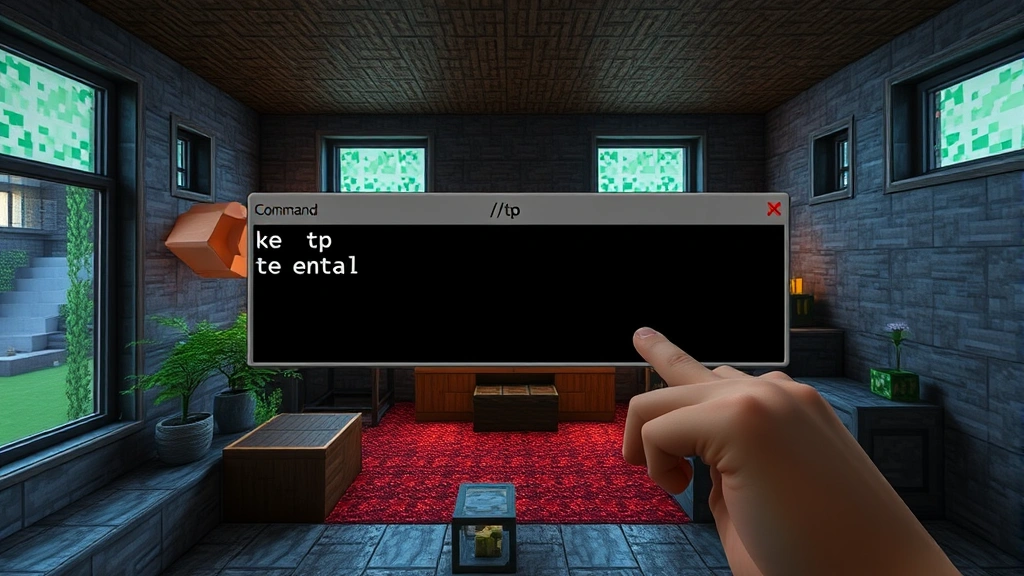
Bedrock Edition (Windows 10/11, Xbox, mobile, Switch) works slightly differently, but the core concept is the same.
Method 1: Basic Teleport Command
The syntax is almost identical:
/tp @s X Y Z
Open your chat with the slash key (/), type the command, and press Enter. Same result as Java Edition.
Method 2: Using Player Names
/tp @a[name=PlayerName] X Y Z
This targets a specific player by name and teleports them. The @a selector means “all players,” and the [name=] filter narrows it down.
Method 3: Teleport to Another Player
Want to teleport to where your friend is?
/tp @s @p
@p means “nearest player.” This teleports you to the closest player on the server. Handy for regrouping.
Advanced Teleport Tricks
Once you’ve mastered the basics of how to teleport to coordinates in Minecraft, here are some next-level applications.
Create a Teleport Hub
Build a room with command blocks (or use a server plugin like Spigot) that teleports you to different locations. Each block could represent a different biome, your base, a friend’s house, etc. It’s like a fast-travel system in an RPG.
Teleport to Structures
If you’re looking for a specific structure (like a village or stronghold), use the /locate command first to find its coordinates, then teleport there:
/locate village
Minecraft will give you the nearest village’s coordinates. Copy those numbers and use the teleport command.
Teleport with Conditions
Advanced players can use command blocks and redstone to create conditional teleports. For example, “teleport the player only if they’re holding a specific item.” This requires understanding command syntax deeply, but it’s incredibly powerful for custom maps and servers.
Teleport to Waypoints
Many servers use plugins that let you set waypoints by typing /setwaypoint name, then teleport to them with /waypoint name. Check with your server admin about available plugins.
Common Mistakes and Fixes
Here’s what usually goes wrong when people first try this:
“Command Not Recognized”
Problem: You typed the command, but nothing happened or you got an error.
Fix: Make sure cheats are enabled. Go back to world settings and double-check. Also verify you’re using the correct syntax—no typos, spaces in the right places.
You Teleport Into a Block
Problem: You arrive inside stone, suffocate, and die.
Fix: Always use a Y coordinate that’s above ground level, or use /tp @s X Y Z with a safe Y value (like 64 for sea level). If you’re stuck, use /tp @s X 100 Z to teleport upward.
Coordinates Are Slightly Off
Problem: You wrote down coordinates wrong or they shifted.
Fix: Use the debug screen (F3) to verify coordinates in real-time. Minecraft coordinates are integers—no decimals. If you see decimals, round to the nearest whole number.
Teleport Command Doesn’t Work on Servers
Problem: You’re on a server and the command is blocked.
Fix: Server admins can disable commands. Ask them to enable cheats or check if there’s a permission system. Many servers use plugins like Essentials that have their own teleport syntax (/tppos instead of /tp).
You Teleport But Your Items Don’t
Problem: This is rare, but it can happen if you die mid-teleport.
Fix: Make sure you’re not in combat or taking damage when you teleport. Teleport to a safe location first.
Pro Tip: Always test a teleport command in a creative world first before using it on your main survival world. That way, you can verify the coordinates are safe.
Frequently Asked Questions
Can I teleport in Survival mode without cheats?
– No, the teleport command requires cheats enabled. However, some servers use plugins that let you teleport without cheats. Ask your server admin if they’ve installed a teleportation plugin.
What’s the difference between /tp and /teleport?
– They’re the same command. /tp is just the shortened version. Both work identically.
Can I teleport to coordinates in the Nether or End?
– Absolutely. The coordinate system works the same way. Just make sure you’re typing coordinates that actually exist in that dimension. For example, if you’re in the Nether and type a coordinate from the Overworld, you’ll still teleport—it’ll just be a different location in the Nether.
Do I need to be looking at the location to teleport there?
– No. The teleport command works regardless of where you’re looking or facing. You’ll arrive at the exact coordinates specified.
What happens if I teleport to coordinates that don’t exist (like beyond the world border)?
– Minecraft will teleport you as close as possible to those coordinates, usually stopping at the world border. On servers with custom world borders, you might be blocked entirely.
Can I use decimals in coordinates?
– Yes, but it’s not necessary. Decimals let you be more precise (like teleporting to the exact center of a block), but whole numbers work fine for most purposes. Example: /tp @s 500.5 64 -300.5
How do I teleport to a player’s exact location?
– Use /tp @s @p (Java) or /tp @s @p[name=PlayerName] (Bedrock). This teleports you to the nearest player or a specific player.
Is teleporting considered cheating in Survival mode?
– Technically, yes—enabling cheats disables achievements. But many players use it for convenience and don’t care about achievements. It’s your world; play however you want.
Can I teleport mobs or animals?
– Yes. Use /tp @e[type=cow] X Y Z to teleport all cows, or /tp @e[type=zombie,distance=..10] X Y Z to teleport zombies within 10 blocks. This is useful for herding animals or moving mobs for mob farms.
What’s the fastest way to teleport repeatedly?
– Use a command block connected to a button or redstone clock. This lets you teleport instantly without typing. Set the command block to repeat mode and it’ll teleport you continuously.
Final Thoughts on Teleporting in Minecraft
Learning how to teleport to coordinates in Minecraft is one of those skills that seems complicated until you do it once. After that, it becomes second nature. Whether you’re exploring a massive world, managing a server, or creating a custom map, teleportation saves time and opens up creative possibilities.
The key is understanding the basic syntax: /tp @s X Y Z. Everything else builds from there. Start with simple teleports, then experiment with relative coordinates, teleporting other players, and eventually command blocks if you’re feeling ambitious.
Remember: always double-check your coordinates before hitting Enter. A typo that teleports you into lava is way less fun than discovering a new biome. And if you’re stuck, just teleport to a safe location and try again. That’s the beauty of having instant travel—mistakes are easy to undo.
For more advanced Minecraft mechanics, check out our guides on how to craft an enchantment table to enhance your gear before long journeys. And if you’re running the game on a PC, monitoring your CPU temperature ensures smooth gameplay during extended play sessions.
Happy exploring, and may your coordinates always lead somewhere interesting.


