

Strikethrough is one of those Excel features that sits quietly in the toolbar, waiting for the moment you need it. Maybe you’re tracking completed tasks in a project list. Maybe you’re marking outdated prices or deprecated data. Or maybe you just want to show that something’s been reviewed without actually deleting it. Whatever the reason, knowing how to strikethrough in Excel saves you from the awkward choice between keeping messy data visible or losing it forever.
The good news? It takes about five seconds once you know where to look. And unlike some Excel tricks that feel like you’re hacking your way through a spreadsheet, strikethrough is straightforward, reversible, and works across all versions of Excel—desktop, web, and Mac.
Let’s walk through the methods, the shortcuts, and the real-world scenarios where strikethrough actually makes your life easier.
Method 1: Using the Format Cells Dialog (Most Reliable)
This is the nuclear option—the method that works everywhere, every time, no exceptions. If you’re on any version of Excel from the last decade, this approach will get you there.
- Select the cell or range of cells you want to strikethrough. You can click one cell, drag across multiple cells, or click the column header to select an entire column.
- Right-click on your selection. A context menu pops up.
- Click Format Cells at the bottom of the menu.
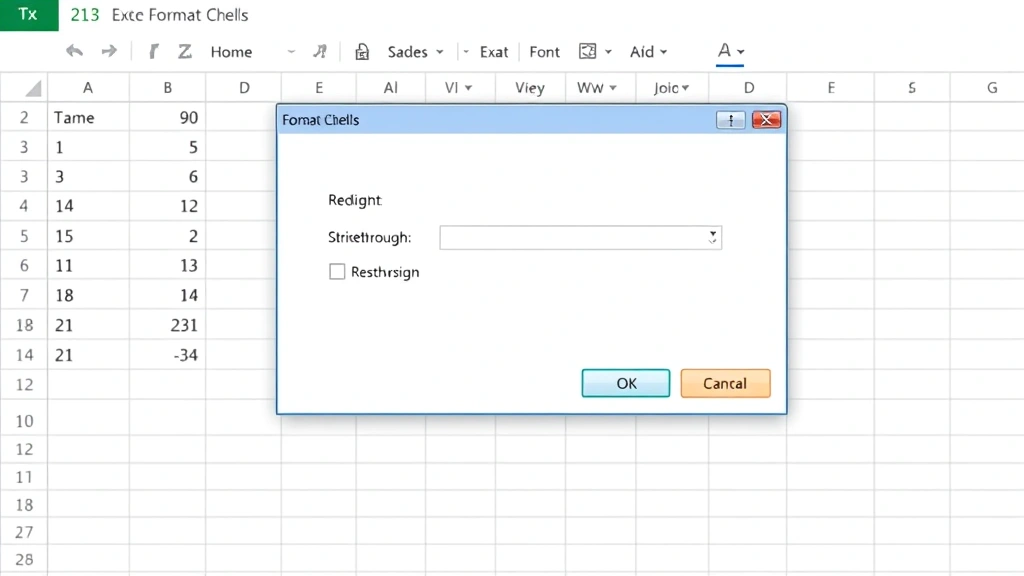
- The Format Cells dialog opens. Navigate to the Font tab (it’s usually the first one).
- In the Effects section, you’ll see a checkbox labeled Strikethrough. Click it.
- Click OK.
Done. Your text now has a line through it. This method is bulletproof because it opens the full formatting menu, where you can also change font color, size, or style while you’re at it. Think of it like opening the entire toolbox instead of just grabbing one wrench.
Pro Tip: If you’re formatting a lot of cells with strikethrough, do them all at once. Select the entire range before opening Format Cells. Excel will apply the strikethrough to every cell in your selection in one go.
Method 2: Keyboard Shortcut (Fastest)
Once you know the shortcut, this is the speed-run method. No menus, no clicking around.
On Windows: Select your cell(s) and press Alt + H, 4 (that’s Alt, then H, then 4 in sequence). Or use Ctrl + 5 on some Excel versions—it depends on your setup.
On Mac: Select your cell(s) and press Cmd + Shift + X.
The strikethrough appears instantly. Press the same shortcut again to toggle it off. This is what I use when I’m knee-deep in a spreadsheet and don’t want to break rhythm.
Real Talk: The Windows shortcut can be finicky depending on your keyboard layout or Excel version. If Alt+H, 4 doesn’t work, go back to Method 1. It’s not worth the frustration.
Method 3: The Ribbon Button (Easiest to Remember)
If you’re a visual person, the ribbon button method might feel more natural. Here’s how:
- Select the cell or range you want to format.
- Look at the Home tab in the ribbon (it’s the default tab when you open Excel).
- In the Font group, you’ll see formatting buttons: Bold (B), Italic (I), Underline (U). Next to or near these, there’s often a small dropdown arrow or additional formatting options.
- Click the small arrow next to the underline button (or look for the strikethrough icon—it looks like a line through text).
- Select Strikethrough from the dropdown.
The exact location varies slightly between Excel versions. In newer versions of Excel, you might need to click a small arrow to reveal more font formatting options. In older versions, the strikethrough button might be visible directly on the ribbon.
Method 4: Excel Online (Web Version)
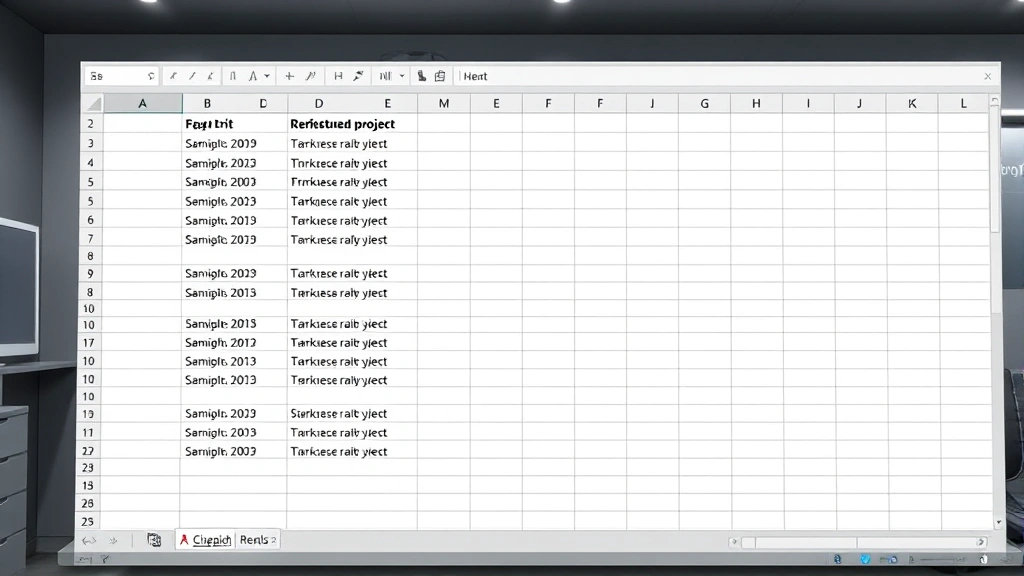
Working in Excel Online or Excel for the web? The process is almost identical to the desktop version, but slightly streamlined:
- Select your cell(s).
- Go to the Home tab.
- In the Font group, click the small arrow to expand formatting options.
- Look for Strikethrough and click it.
- Your text is now struck through.
Excel Online is more limited than desktop Excel in some ways, but strikethrough is fully supported. If you’re collaborating with others on a shared workbook, this method works seamlessly.
For more information on Excel’s web capabilities, check out Microsoft’s official Excel for the Web documentation.
How to Remove Strikethrough
Strikethrough isn’t permanent—it’s a formatting choice, not carved in stone. Removing it is just as easy as applying it.
Method 1 (Dialog): Select the cell, right-click, choose Format Cells, go to the Font tab, uncheck Strikethrough, click OK.
Method 2 (Shortcut): Select the cell and press the same keyboard shortcut again. It toggles off.
Method 3 (Ribbon): Select the cell, go to Home, click the Strikethrough button again to deactivate it.
If you need to remove strikethrough from a large section of your spreadsheet, you can also use Find & Replace with formatting. This is more advanced, but it’s powerful if you’re dealing with hundreds of cells:
- Press Ctrl + H to open Find & Replace.
- Click Format (or Options depending on your version).
- Set the search criteria to look for cells with strikethrough formatting.
- Leave the replacement field empty or set it to no strikethrough.
- Click Replace All.
This removes strikethrough formatting while keeping your actual data intact. It’s surgical and fast.
Real-World Uses for Strikethrough in Excel
Strikethrough isn’t just a formatting gimmick. In real spreadsheets, it solves actual problems.
Project Management and Task Tracking
You’re running a project list. Tasks get completed, but you don’t want to delete them because you need to show progress and history. Strikethrough marks them as done without erasing the record. Managers can see what’s been accomplished at a glance. This is cleaner than using a separate “Status” column, and it’s faster than moving completed tasks to another sheet.
Inventory and Deprecation
A product is discontinued, a price is outdated, or a supplier is no longer used. Striking through the old entry shows the change without losing the historical data. Auditors and team members can see what was replaced and when. If you’re also finding duplicates in Excel, strikethrough helps you mark which entries are the “keepers” and which are redundant.
Data Cleanup and Migration
When you’re migrating data from an old system to a new one, strikethrough marks entries that have been processed. It’s a visual checkpoint. You can see at a glance which rows have been transferred and which still need attention. This is especially useful if you’re working with a team and need to avoid duplicating effort.
Editing and Review Workflows
In collaborative documents, strikethrough shows deletions or changes without actually removing the text. It’s like tracked changes, but simpler. Reviewers can see what you removed, and you keep a record of the original content.
Budget and Forecast Adjustments
When a budget line item is removed or a forecast assumption changes, striking through the old value shows the evolution of your planning. New team members can see what was considered and rejected. It’s transparency without clutter.
Advanced Tips and Tricks
Combining Strikethrough with Conditional Formatting
You can automate strikethrough using conditional formatting. For example, if a task’s status is marked as “Complete,” automatically apply strikethrough to the task name. This requires a formula-based conditional formatting rule, but it’s powerful for large datasets.
Here’s a basic example:
- Select your data range.
- Go to Home → Conditional Formatting → New Rule.
- Choose Use a formula to determine which cells to format.
- Enter a formula like
=B2="Complete"(assuming column B contains status values). - Click Format, go to the Font tab, and apply strikethrough.
- Click OK.
Now, whenever a cell in column B says “Complete,” the corresponding task in column A automatically gets strikethrough. No manual formatting needed.
Strikethrough with Color
Strikethrough is more visible when combined with a font color change. For example, strike through the text and make it gray. This creates a visual hierarchy: active items are black, completed items are gray with a line through them. The combination is more scannable than strikethrough alone.
Copying Strikethrough Formatting
Use the Format Painter tool to copy strikethrough formatting from one cell to another. Click a cell with strikethrough, click the Format Painter brush in the toolbar, then click the cells you want to apply the same formatting to. It’s faster than formatting each cell individually, and it ensures consistency.
Preserving Strikethrough in Exports
If you export your Excel file to PDF, strikethrough formatting is preserved. If you export to CSV, it’s lost (CSV only stores raw data, not formatting). Keep this in mind when choosing your export format. If strikethrough is important for your final document, use PDF or keep it in Excel format.
For more on managing Excel files and formatting across different platforms, FamilyHandyman.com has great tips on digital organization, and Microsoft’s official export guide covers PDF options.
Strikethrough in Formulas
Here’s the thing: strikethrough is purely visual formatting. It doesn’t affect formulas or calculations. If you have a formula that references a struck-through cell, the formula still works normally. The strikethrough is just a visual indicator for humans; Excel’s calculation engine ignores it. This is actually useful—you can mark data as deprecated or reviewed without breaking your spreadsheet logic.
Batch Strikethrough with VBA (Advanced)
If you’re comfortable with Excel macros, you can write a simple VBA script to apply strikethrough to multiple cells based on criteria. For example, strikethrough all cells in column A where the corresponding value in column B is less than a certain threshold. This is overkill for most situations, but it’s an option if you’re working with massive datasets and need to automate the process.
For guidance on VBA and macros, Microsoft’s VBA documentation is the authoritative source.
Frequently Asked Questions
Can I apply strikethrough to just part of a cell’s text?
– Not directly through the normal formatting menu. Excel’s strikethrough applies to the entire cell. However, you can double-click the cell to enter edit mode, select just the text you want to strike through, and then apply strikethrough to that selection. It’s manual, but it works for individual cells. If you need this frequently, consider restructuring your data so each piece of text is in its own cell.
Does strikethrough work in Excel for Mac?
– Absolutely. All three methods work on Mac: Format Cells dialog (right-click → Format Cells), keyboard shortcut (Cmd + Shift + X), and the ribbon button. The process is identical to Windows, just with Mac keyboard shortcuts.
Will strikethrough print correctly?
– Yes. When you print an Excel sheet with strikethrough formatting, the strikethrough appears on the printed page. It’s treated like any other font formatting. If you’re concerned about clarity, do a print preview first to make sure it looks good.
Can I undo strikethrough if I accidentally apply it?
– Yes. Press Ctrl + Z (or Cmd + Z on Mac) to undo the last action. Or simply select the cell and toggle strikethrough off using any of the three methods. Strikethrough is reversible, no questions asked.
Is there a difference between strikethrough and underline?
– Completely different formatting. Underline adds a line below text (used to emphasize or mark hyperlinks). Strikethrough adds a line through the middle of text (used to show deletion or completion). You can apply both at the same time if you really want to, but that’s usually not necessary.
Can I search for cells with strikethrough formatting?
– Yes, using Find & Replace. Press Ctrl + H, click Format or Options, and set your search criteria to look for strikethrough formatting. This is useful if you need to find all struck-through entries in a large spreadsheet without manually scanning.
Does strikethrough affect cell sorting or filtering?
– No. Strikethrough is purely visual formatting. It doesn’t change the underlying data, so sorting and filtering work exactly the same whether cells have strikethrough or not. If you need to filter based on a status (like “Complete”), use a separate status column rather than relying on strikethrough alone.
What’s the difference between strikethrough and deleting content?
– Strikethrough keeps the data visible but marks it as inactive. Deleting removes the data entirely. Strikethrough is better when you need to preserve history, show what was changed, or maintain an audit trail. Deletion is better when you’re cleaning up and don’t need the old data anymore. For related data management, you might also want to explore how to merge two columns in Excel or how to lock cells in Excel to protect important data.
Can I apply strikethrough to an entire row or column at once?
– Yes. Click the row number or column header to select the entire row or column, then apply strikethrough using any method. All cells in that row or column will be struck through. Be careful though—if you have headers or labels you don’t want struck through, select just the data range instead.
Does strikethrough work in Excel charts or graphs?
– Strikethrough formatting applies to cell text, not to chart elements. If you want to show deleted or deprecated data in a chart, you’ll need to remove the data from the source range or hide rows/columns. Charts don’t inherit strikethrough formatting from cells.
Can I use strikethrough in conditional formatting rules?
– Yes. When you set up a conditional formatting rule, you can choose to apply strikethrough as one of the formatting options. This is how you automate strikethrough based on cell values or formulas, as mentioned in the Advanced Tips section.
What if strikethrough doesn’t appear on my screen?
– Make sure your font is large enough to display the strikethrough clearly. Very small fonts (8pt or smaller) might make strikethrough hard to see. Also, check your zoom level—if you’re zoomed out far, strikethrough might be faint. Zoom in to verify the formatting is actually there. If it’s still not visible, try changing the font or increasing the cell height.
Now that you know how to strikethrough in Excel, you’re equipped to handle task completion, data deprecation, and collaborative editing with confidence. Pick the method that feels most natural to you—keyboard shortcut for speed, Format Cells for reliability, or the ribbon button for simplicity. And remember: strikethrough is reversible, so don’t hesitate to experiment. Your spreadsheet will thank you for the clarity.


