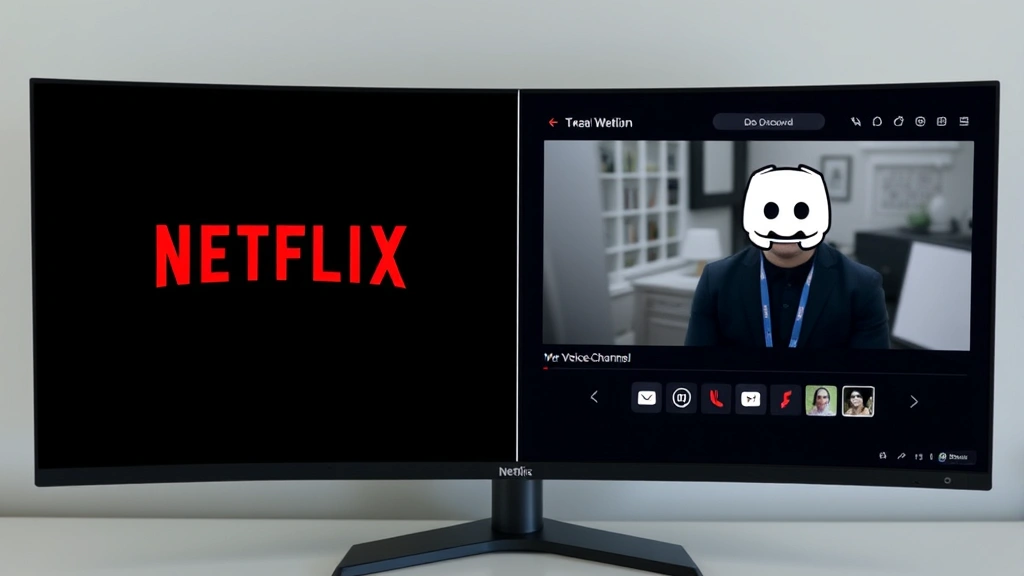
How to Stream Netflix on Discord: Easy & Amazing Guide
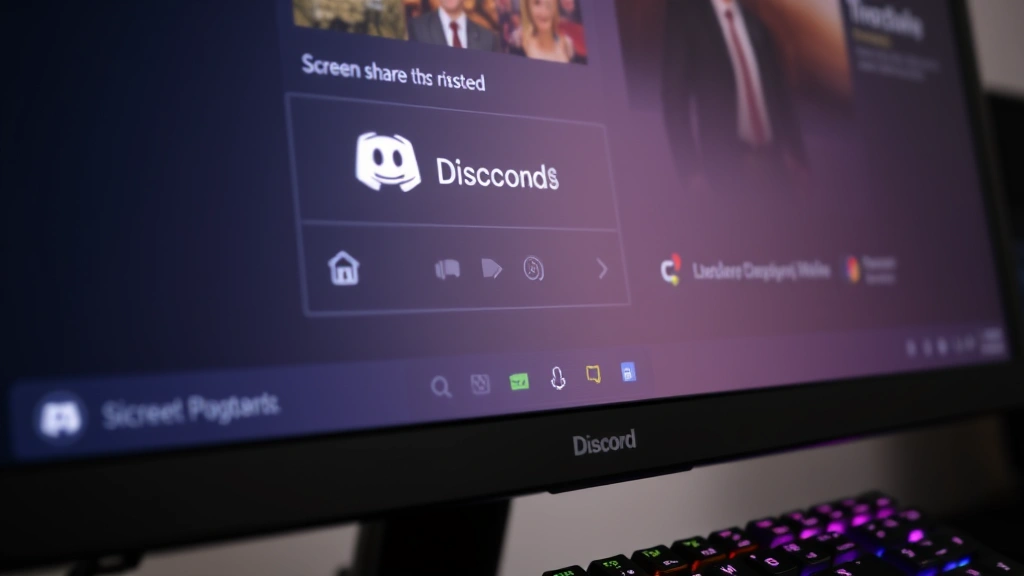
Want to watch Netflix with friends on Discord without leaving the chat? Streaming Netflix on Discord lets you share your screen and watch together in real-time, creating a shared viewing experience that feels like a virtual movie night. Whether you’re catching up on your favorite series or introducing friends to a new show, learning how to stream Netflix on Discord transforms casual watching into interactive entertainment.
The process is straightforward: use Discord’s built-in screen sharing feature to broadcast your Netflix content to a server or direct call. This guide walks you through every step, from setup to troubleshooting, so you can start streaming Netflix on Discord immediately.
Quick Answer
To stream Netflix on Discord, open Discord and start a voice call or join a server channel. Click the screen icon in the call controls, select your screen or application window, and choose Netflix. Adjust your stream quality settings, then click “Go Live” to begin streaming Netflix on Discord to your friends.
Tools & Materials You’ll Need
- Discord account (free or Nitro)
- Netflix subscription (any tier)
- Computer or laptop with Discord and Netflix installed
- Stable internet connection (minimum 2.5 Mbps upload speed recommended)
- Headphones or speakers (optional but recommended)
- Discord Nitro subscription (optional, for higher quality streaming)
- Updated graphics drivers for optimal performance
- Sufficient system RAM (8GB+ recommended)
Understanding Discord Screen Sharing
Discord’s screen sharing feature is the foundation for streaming Netflix on Discord. This built-in functionality allows you to broadcast your entire screen or a specific application window to friends or server members. Screen sharing on Discord is free for all users, though certain quality options require Discord Nitro.
When you stream Netflix on Discord, your friends see your screen in real-time with audio included. The feature works on Windows, Mac, and Linux, making it accessible to most users. Discord handles the streaming technology, so you don’t need external software to stream Netflix on Discord.
Understanding bandwidth requirements is essential before you stream Netflix on Discord. Your upload speed determines streaming quality and stability. According to WikiHow’s streaming guides, maintaining a stable connection prevents lag and buffering when you stream Netflix on Discord.
Setting Up Your Discord Account for Streaming
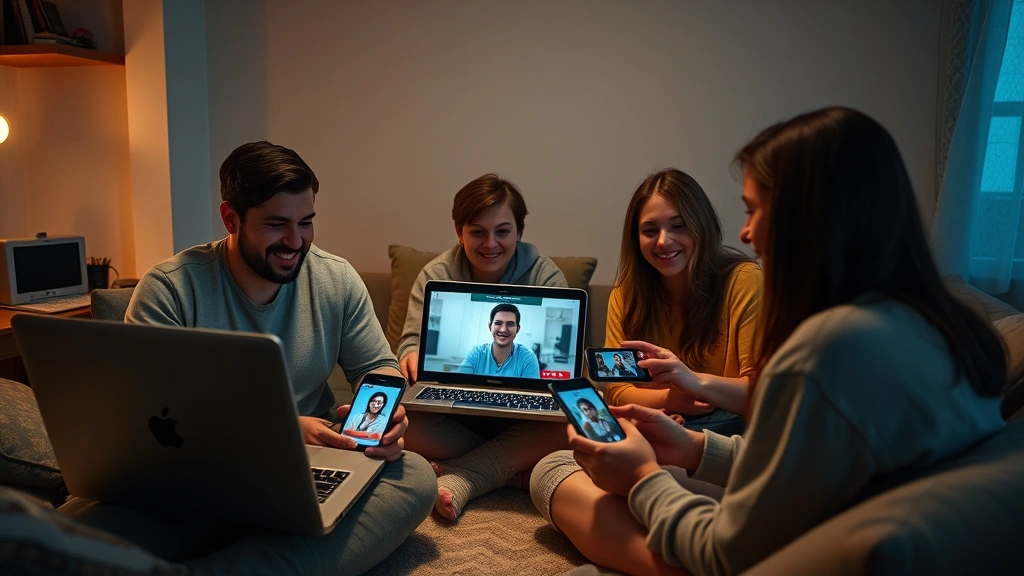
Before you can stream Netflix on Discord, ensure your account is properly configured. Start by updating Discord to the latest version, as older versions may lack streaming features or have performance issues. Check your Discord settings under “User Settings” and verify your audio and video devices are correctly selected.
Create or join a Discord server where you want to stream Netflix on Discord. You’ll need access to a voice channel. For private viewing with one friend, start a direct voice call instead. Test your microphone and speaker settings before attempting to stream Netflix on Discord to avoid technical difficulties during your session.
If you have Discord Nitro, enable high-quality streaming in your settings. This improves video clarity when you stream Netflix on Discord, though standard Discord accounts can still stream Netflix on Discord at acceptable quality levels.
How to Stream Netflix on Discord Step-by-Step
Follow these detailed steps to stream Netflix on Discord successfully:
- Open Discord and navigate to a voice channel or start a direct call with friends. You cannot stream Netflix on Discord from text-only channels.
- Click the screen share icon in the voice call controls. This appears as a monitor or window icon at the bottom of your screen.
- Select your streaming source. You can choose your entire screen or a specific application window. For streaming Netflix on Discord, select the Netflix window to avoid sharing other desktop content.
- Choose your audio source. Discord automatically captures system audio, which includes Netflix sound, so your friends hear the show.
- Adjust stream quality settings based on your internet connection. Discord offers 720p at 30fps for free users and up to 1080p at 60fps for Nitro subscribers when you stream Netflix on Discord.
- Click “Go Live” to begin streaming Netflix on Discord. A notification appears confirming your stream is active.
- Start playing Netflix content. Your friends see your screen and hear the audio as you watch.
- Monitor your stream stability by watching for lag indicators. If performance suffers, reduce quality settings or close other applications.
- End your stream by clicking “Stop Streaming” when finished watching Netflix on Discord.
This process remains consistent whether you stream Netflix on Discord from Windows, Mac, or Linux systems. The interface may vary slightly between operating systems, but the core steps to stream Netflix on Discord are identical.
Optimizing Your Stream Quality
Stream quality when you stream Netflix on Discord depends on several factors: your internet bandwidth, Discord Nitro status, and your computer’s processing power. To optimize quality when you stream Netflix on Discord, close unnecessary applications consuming bandwidth or CPU resources.
According to HowStuffWorks’ technology guides, stable internet connections are crucial for streaming. If you stream Netflix on Discord over WiFi, position yourself near your router or switch to a wired Ethernet connection for better stability.
Adjust Discord’s stream settings by right-clicking on your stream preview. You can modify resolution and frame rate. For streaming Netflix on Discord, 720p at 30fps provides a good balance between quality and bandwidth usage. Discord Nitro subscribers can stream Netflix on Discord at 1080p for superior picture clarity.
Update your graphics drivers regularly to ensure smooth performance when you stream Netflix on Discord. Outdated drivers cause lag and quality degradation. Check your GPU manufacturer’s website (NVIDIA, AMD, or Intel) for the latest drivers before you stream Netflix on Discord.
Troubleshooting Common Streaming Issues
Audio problems when streaming Netflix on Discord often stem from incorrect audio device settings. Verify Discord captures system audio by checking Voice Settings under User Settings. If Netflix audio doesn’t transmit when you stream Netflix on Discord, ensure your audio device is set as the default playback device.
If your stream lags or freezes when you stream Netflix on Discord, several solutions exist. First, reduce stream quality settings. Second, close bandwidth-heavy applications like downloads or video uploads. Third, move closer to your WiFi router or use Ethernet. According to Family Handyman’s tech troubleshooting section, connection stability matters more than raw speed when you stream Netflix on Discord.
Black screen or no video when streaming Netflix on Discord indicates a display capture issue. Restart Discord and try selecting a different screen source. If you stream Netflix on Discord on multiple monitors, ensure you’re selecting the correct display. Disable hardware acceleration in Discord settings if problems persist when you stream Netflix on Discord.
If friends can’t see your stream when you stream Netflix on Discord, verify they have permission to view streams in your server settings. Server admins must enable streaming permissions for channels where you stream Netflix on Discord.
Best Practices for Streaming Netflix on Discord
Prepare before you stream Netflix on Discord by selecting your content in advance and testing your setup with a short stream. This prevents awkward delays or technical troubleshooting while friends wait. Have Netflix open and ready to play before you stream Netflix on Discord.
When you stream Netflix on Discord, communicate with viewers about what you’re watching and why. This creates engagement and makes the experience more social. Pause occasionally to discuss plot points or let friends comment when you stream Netflix on Discord.
Respect content licensing when you stream Netflix on Discord. Netflix’s terms of service permit personal, non-commercial sharing with friends and family. However, avoid streaming Netflix on Discord to large public servers or recording streams for redistribution, as this violates Netflix’s policies.
Manage your internet usage when you stream Netflix on Discord. If others in your household use the connection, inform them about your streaming session. Streaming Netflix on Discord can consume significant bandwidth, potentially affecting their activities.
Alternative Methods to Watch Netflix Together
While streaming Netflix on Discord works well, alternatives exist for group viewing. Netflix Party (now Teleparty) is a browser extension that synchronizes Netflix playback across multiple users, though it doesn’t use Discord. This method works best for dedicated Netflix watching sessions.
Some users prefer streaming Netflix on Discord for its simplicity and integration with their existing Discord community. Others choose Teleparty for its synchronized playback and built-in chat features. Consider your group’s preferences when deciding how to watch Netflix together.
You can also combine methods: stream Netflix on Discord while using external chat platforms, or use Teleparty within a Discord voice channel for synchronized viewing with Discord communication. As reviewed by Consumer Reports’ streaming technology assessments, multiple viewing methods serve different needs.
Maximizing Your Discord Streaming Experience
Enhance your streaming experience by creating a dedicated Discord server for watch parties. Organize channels by genre or viewing preference. This helps friends find watch party sessions easily and builds community around shared interests.
When you stream Netflix on Discord regularly, establish viewing schedules so friends know when to expect streams. Post announcements in advance about what you’ll stream Netflix on Discord, allowing people to plan accordingly. This increases participation and engagement.
Consider enabling Discord Nitro for enhanced streaming capabilities when you stream Netflix on Discord frequently. The improved quality and reliability justify the subscription cost for dedicated streamers. According to CNET’s streaming service reviews, Nitro features significantly enhance group viewing experiences.
Encourage viewer participation by reading comments during streams. Pause at natural breaks when you stream Netflix on Discord to discuss what’s happening. This transforms passive watching into interactive entertainment that strengthens friendships.
Monitor your stream health using Discord’s built-in stream stats. Right-click your stream preview to view bandwidth usage, frame rate, and resolution. These metrics help you understand how effectively you stream Netflix on Discord and identify optimization opportunities.
Create playlists or watchlists in Netflix before your stream sessions. This eliminates decision-making delays when you stream Netflix on Discord and keeps the experience flowing smoothly. Your friends appreciate seamless transitions between content.
If you frequently stream Netflix on Discord, invest in quality audio equipment. A good microphone and speakers enhance the experience for both you and your viewers. Clear audio is often more important than perfect video when you stream Netflix on Discord.
FAQ
Can I stream Netflix on Discord without Discord Nitro?
Yes, all Discord users can stream Netflix on Discord using the free screen sharing feature. Discord Nitro provides higher quality options (1080p at 60fps), but free users can stream Netflix on Discord at 720p at 30fps, which is acceptable for most viewers.
Will streaming Netflix on Discord get me banned?
Streaming Netflix on Discord with friends for personal enjoyment is permitted by Netflix’s terms of service. However, avoid streaming Netflix on Discord to large public audiences or recording streams for redistribution, as these violate Netflix’s policies.
What internet speed do I need to stream Netflix on Discord?
A minimum upload speed of 2.5 Mbps is recommended to stream Netflix on Discord reliably. For higher quality streams, 5+ Mbps upload speed provides better stability. Check your upload speed using online speed testing tools before you stream Netflix on Discord.
Can I stream Netflix on Discord from my phone?
Discord’s mobile apps support voice calls and basic features, but screen sharing to stream Netflix on Discord isn’t available on mobile. Use a computer or laptop to stream Netflix on Discord effectively.
Why is my stream lagging when I stream Netflix on Discord?
Lag typically results from insufficient bandwidth, too many background applications, or distance from your WiFi router. Close unnecessary programs, reduce stream quality, or switch to a wired connection when you stream Netflix on Discord.
Can multiple people stream Netflix on Discord simultaneously?
Yes, multiple users can stream Netflix on Discord in different channels or calls. However, only one person can stream Netflix on Discord per voice channel at a time.
Is there a way to record my stream when I stream Netflix on Discord?
Discord doesn’t provide built-in recording for streams. Use third-party screen recording software like OBS Studio or ShareX to record your stream when you stream Netflix on Discord, but ensure you comply with Netflix’s terms regarding recordings.
How do I improve audio quality when I stream Netflix on Discord?
Check that your audio device is set correctly in Discord settings. Use a dedicated microphone for better sound. Ensure Netflix audio isn’t muted in your system mixer when you stream Netflix on Discord.
Can I stream Netflix on Discord to a private server?
Yes, you can stream Netflix on Discord to any server where you have streaming permissions, whether public or private. Server administrators control who can stream Netflix on Discord in specific channels.
For additional streaming guidance, check out Instructables’ comprehensive streaming tutorials and Lifehacker’s technology how-tos for complementary information about streaming Netflix on Discord and related topics.