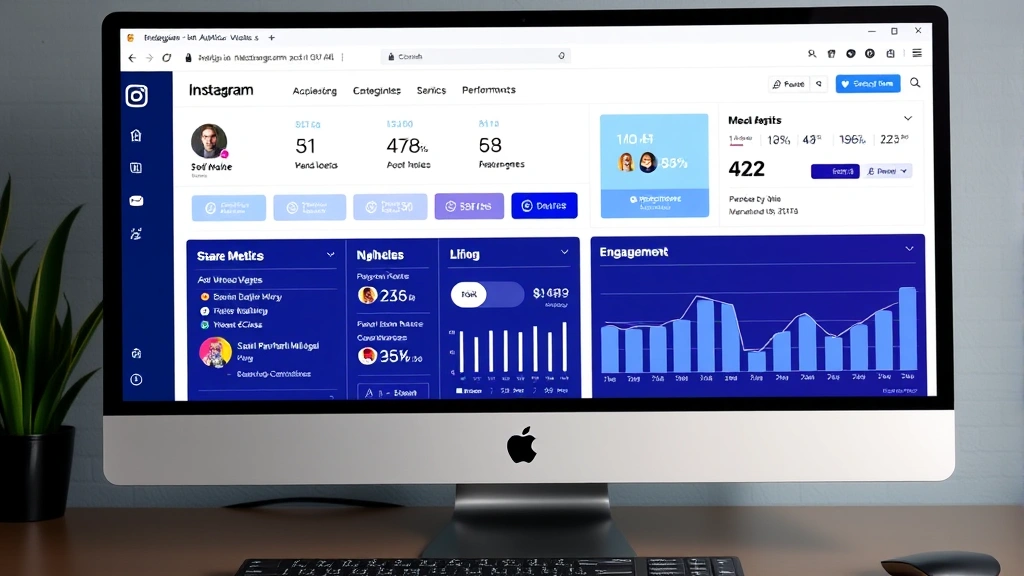
How to See Who Shared Your Instagram Post: Essential Guide

Instagram’s sharing features let your followers amplify your content, but how to see who shared your Instagram post isn’t immediately obvious. Unlike likes and comments, Instagram doesn’t display a public list of people who reshared your content to their Stories or sent it via Direct Message. However, several methods exist to track shares and understand your post’s reach. This guide walks you through every option available on both mobile and desktop.
Quick Answer: Instagram doesn’t provide a dedicated “shares” counter on posts, but you can view shares by checking your Insights tab (for business accounts), monitoring Story mentions, and using third-party analytics tools. Business and Creator accounts have the best visibility into share data through their analytics dashboard, where reposts to Stories appear under engagement metrics.
Tools & Materials You’ll Need
- Instagram app (iOS or Android) or web browser
- Business or Creator account (recommended for full analytics)
- Instagram Insights access
- Third-party analytics tools (optional: Later, Buffer, or Sprout Social)
- Direct Message notifications enabled
- Story mentions notifications active
Understanding Instagram’s Share Functionality
Instagram allows users to share posts in three primary ways: resharing to their Stories, sending via Direct Message, or sharing to other platforms like Facebook and Twitter. When someone shares your post, Instagram tracks this data differently depending on the share method and your account type. How to see who shared your Instagram post depends on which sharing method was used and whether you have a business or personal account.
Personal accounts have limited visibility into shares, while business and Creator accounts receive detailed analytics. This distinction is crucial because it determines what data you can access. If you’re serious about understanding your Instagram post performance, upgrading to a business or Creator account is the first step toward comprehensive share tracking.
According to WikiHow, the most common share method is resharing to Stories, which generates significant engagement and extends your post’s reach. Understanding these mechanics helps you interpret the data you’ll find in your analytics.
Check Instagram Insights for Share Data
Instagram Insights is your primary tool for tracking shares. This feature is exclusively available to business and Creator accounts, making it essential for anyone wanting detailed engagement metrics. To access Insights and view share data:
- Open Instagram and navigate to your profile
- Tap the menu icon (three horizontal lines)
- Select “Insights” from the dropdown menu
- Choose a specific post you want to analyze
- Scroll to view the “Shares” metric under engagement data
The Insights dashboard displays shares as a separate metric from likes and comments. This data shows how many times your post was reshared to Stories or sent via Direct Message. The number appears prominently in your post analytics, giving you immediate visibility into your content’s shareability.
For desktop access: Visit Instagram.com, go to your profile, click the menu icon, and select “Insights.” The same share data appears in the desktop version, though the mobile experience is more intuitive.
Business accounts also receive weekly and monthly summaries of top-performing posts, which highlight shares alongside other engagement metrics. This broader view helps identify patterns in what content resonates enough for followers to share.
Monitor Story Shares and Mentions
When followers share your post to their Stories, you receive notifications if you have alerts enabled. Tracking Story shares manually provides real-time visibility into how to see who shared your Instagram post. To monitor these shares:
- Enable notifications for Story mentions and shares in your settings
- Check your notification center regularly for share alerts
- Visit the Stories that mention your post to see context
- Note which followers consistently share your content

Instagram sends notifications when someone includes your post in their Story, either through direct reposting or by tagging your account. These notifications appear in your activity feed, making it easy to track engaged followers. Tapping the notification takes you directly to their Story, showing you exactly how they shared your content.
This method requires active monitoring but provides authentic engagement insights. You’ll discover which followers are your most loyal advocates and understand how your content performs in different audience segments. As reviewed by The Spruce, consistent engagement tracking helps refine your content strategy.
Additionally, you can visit your tagged posts section to see all instances where your content appears in Stories. This comprehensive view shows both direct reposts and mentions, giving you a complete picture of your post’s reach.
Use Third-Party Analytics Tools
Professional analytics platforms provide deeper insights into shares than Instagram’s native tools. Services like Later, Buffer, and Sprout Social offer comprehensive tracking for how to see who shared your Instagram post with detailed audience segmentation and engagement analysis.
These tools connect to your Instagram account and pull data directly from your analytics. They create visual dashboards showing share trends over time, identify your most shareable content types, and highlight top sharers by follower count and engagement level. Many platforms also provide competitor analysis, showing how your share rates compare to similar accounts.
Most third-party tools require a paid subscription but offer free trials. For serious content creators and businesses, the investment pays dividends through actionable insights and time savings. According to Lifehacker, these platforms streamline analytics across multiple social networks.
Popular options include:
- Later: Visual content calendar with detailed share tracking
- Buffer: Simplified analytics with share rate comparisons
- Sprout Social: Enterprise-level analytics with audience insights
- Hootsuite: Multi-platform management with share monitoring
These tools also track shares to external platforms (Facebook, Twitter, Pinterest), providing complete visibility into your content’s viral potential. If you’re managing multiple accounts or running a business, third-party analytics are invaluable.
Track Direct Message Shares
When followers send your post via Direct Message, you don’t receive automatic notifications about who shared it. However, you can monitor DM activity to identify shares. How to see who shared your Instagram post via DM requires manual tracking:
- Check your Direct Messages regularly for forwards of your content
- Note which followers frequently send your posts to others
- Look for patterns in which posts get shared most
- Ask followers directly about their sharing habits through engagement
While this method lacks automation, it provides qualitative insights into your audience’s preferences. Followers who DM your content to others are highly engaged and influential within their networks. Building relationships with these power users can amplify your reach significantly.
Consider creating a system to track DM shares: maintain a simple spreadsheet noting which posts get shared and by whom. Over time, this reveals patterns about your most shareable content and your most engaged followers. You can then tailor future content to match these preferences.
Access Share Data on Desktop
Desktop analytics provide the same comprehensive data as mobile but with a larger screen for easier navigation. To view how to see who shared your Instagram post on desktop:
- Visit Instagram.com and log into your business account
- Navigate to your profile by clicking your profile picture
- Click the “Insights” button near your bio
- Select “Total” to view all posts or choose a specific post
- Scroll to find the “Shares” metric in the engagement section
The desktop version displays share data alongside reach, impressions, saves, and profile visits. This comprehensive view helps you understand how shares contribute to your overall engagement strategy. You can also download reports directly from the desktop dashboard, creating permanent records of your analytics.
Desktop analytics are particularly useful for content creators who manage multiple accounts or need to present data to clients or stakeholders. The larger screen makes it easier to spot trends and compare performance across posts. Additionally, desktop tools often load faster and provide more detailed filtering options.
Optimize Posts for Sharing
Understanding how to see who shared your Instagram post is only half the battle; the real value comes from using this data to create more shareable content. Posts that receive high shares typically share common characteristics:
- Emotional resonance: Content that inspires, surprises, or entertains gets shared more
- Relatability: Posts that reflect common experiences encourage sharing
- Actionable value: Tips, tutorials, and how-tos are highly shareable
- Visual appeal: High-quality images and videos perform better
- Timely topics: Relevant, current content spreads faster
Analyze your top-shared posts to identify patterns. Do they contain specific hashtags, themes, or formats? Are they posted at particular times? Do certain captions perform better? Use these insights to refine your content strategy and increase future shares.
Encourage sharing by including clear calls-to-action: “Share this if you agree,” “Tag someone who needs to see this,” or “Send this to your bestie.” While subtle, these prompts significantly increase share rates. Additionally, creating content specifically designed for Stories (vertical format, trending audio, relatable text) naturally encourages resharing.
For business accounts, shares are particularly valuable because they extend organic reach without paid promotion. As noted by Family Handyman, understanding your audience’s sharing behavior helps optimize your overall social media strategy. Consider also learning about how to hide followers on Instagram if you want to manage your profile’s public appearance, or explore how to check subscribers on YouTube for cross-platform engagement tracking.
Consistency matters significantly in building shareable content. Post regularly, maintain a cohesive aesthetic, and engage authentically with your audience. Followers are more likely to share content from accounts they follow consistently and trust. Over time, this builds a community of engaged users who actively amplify your content.
FAQ
Q: Can I see who shared my post if I have a personal account?
A: Personal accounts have limited share visibility. You won’t see share metrics in analytics, but you’ll receive notifications when followers share your post to their Stories. To access full share data, upgrade to a business or Creator account.
Q: Does Instagram notify me when someone shares my post?
A: Yes, if someone shares your post to their Story, you’ll receive a notification (if enabled). However, Direct Message shares don’t generate notifications—you must check your DMs manually.
Q: Why does my post show zero shares?
A: Posts with zero shares are simply not being reshared to Stories or sent via DM. This doesn’t mean the post is unsuccessful; likes, comments, and saves are different engagement metrics. Focus on creating content that resonates emotionally to encourage sharing.
Q: Are shares more important than likes?
A: Shares indicate higher engagement because followers deem content valuable enough to amplify. However, both metrics matter. Shares extend reach, while likes indicate immediate appreciation. A healthy engagement strategy balances both.
Q: Can I see shares from private accounts?
A: Instagram doesn’t differentiate between private and public account shares in your analytics. You’ll see the share count but may not always know who shared if you don’t follow them back.
Q: Do shares count toward the Instagram algorithm?
A: Yes, shares are a significant algorithmic factor. Posts with high shares reach more people in the explore page and recommendations, making shares valuable for organic growth.
Q: How often should I check my share data?
A: Check analytics weekly to identify trends without obsessing over daily fluctuations. Weekly reviews help you spot patterns and adjust your content strategy accordingly. Monthly deep dives provide broader perspective on your performance.
Q: Can I increase shares through hashtags?
A: Strategic hashtags increase discoverability, which can lead to more shares. Use relevant, trending hashtags that match your content. However, content quality and emotional resonance matter more than hashtag strategy for driving shares.
For additional insights on social media management, explore Consumer Reports for technology reviews, or check out HowStuffWorks for detailed social media guides. You might also benefit from learning about how to mass delete emails on Gmail for managing your digital communications efficiently, or understanding how to archive an Amazon order for organizing your online accounts. Additionally, how to recall an email in Outlook provides useful communication management strategies that complement social media engagement practices.