
How to See Blocked Numbers on iPhone: Easy & Essential Guide
Wondering how to see blocked numbers on iPhone? Your iPhone keeps a detailed record of every contact you’ve blocked, and accessing this list is simpler than you might think. Whether you’ve blocked someone by accident or want to review your blocking history, we’ll show you exactly where to find your blocked contacts in seconds. This essential guide covers every method to view, manage, and unblock numbers whenever needed.
Quick Answer: Open Settings → Phone (or Messages/FaceTime) → Blocked Contacts to see all blocked numbers on your iPhone. You can also access blocked contacts through your Phone app or Messages app directly. If you need to unblock someone, tap Edit and select the contact, then choose Unblock.
Tools & Materials Needed
- iPhone with iOS 13 or later
- Active Settings app access
- Phone, Messages, or FaceTime app
- Optional: iCloud account for synced blocked contacts
Understanding iPhone Block Features
Apple’s blocking system is one of the most straightforward privacy features on iPhone, allowing you to prevent specific contacts from calling, texting, or FaceTiming you. When you block someone on your iPhone, they won’t receive notifications that they’ve been blocked—calls go straight to voicemail, messages won’t deliver, and FaceTime requests fail silently. Understanding how to see blocked numbers on iPhone is crucial for managing your privacy and maintaining control over unwanted communications.
The blocked contacts list is synchronized across all your Apple devices if you use the same iCloud account. This means blocking someone on your iPhone automatically blocks them on your iPad, Mac, and Apple Watch. The system is designed to be user-friendly while maintaining strong privacy protection, making it one of the most effective ways to manage unwanted contact attempts.
According to WikiHow’s comprehensive guide on iPhone privacy settings, blocking is the first line of defense against harassment and unwanted communications. It’s important to regularly review your blocked list to ensure you haven’t accidentally blocked important contacts.
Method 1: View Blocked Numbers via Settings App
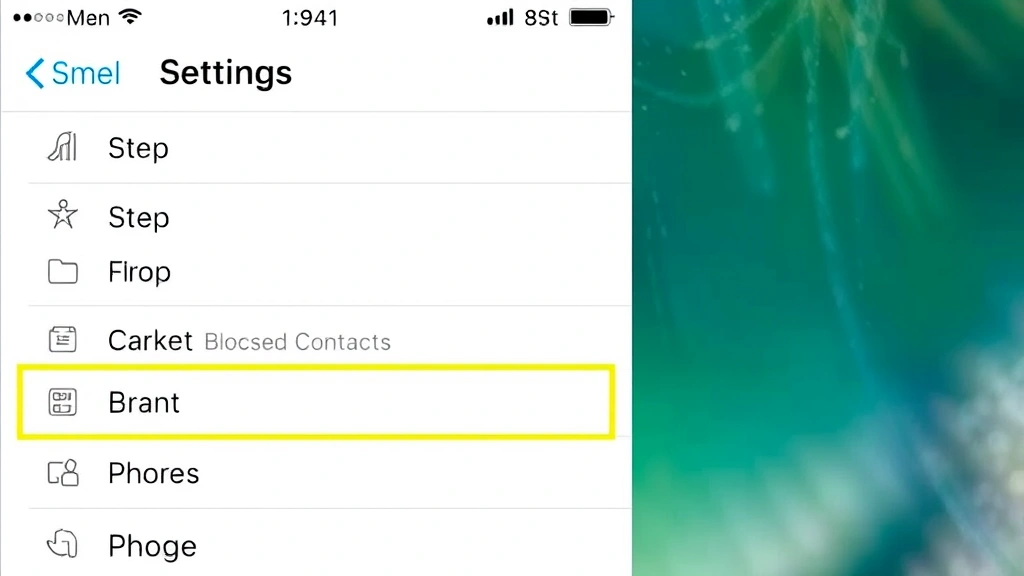
The most direct way to see blocked numbers on your iPhone is through the Settings app, which centralizes all your blocking preferences. This method works for phone calls, messages, and FaceTime, giving you a complete overview of everyone you’ve blocked across all communication channels. Here’s the step-by-step process:
- Open the Settings app on your iPhone
- Scroll down and tap Phone (for call blocking), Messages (for text blocking), or FaceTime (for video call blocking)
- Select Blocked Contacts from the menu
- Your complete list of blocked numbers and contacts will appear
- To unblock someone, tap Edit in the upper-left corner, then tap the red minus icon next to their name
- Tap Unblock to confirm
This Settings method is the most reliable way to access your blocked list because it shows all blocks across different communication types in one organized view. You can see exactly which contacts are blocked for calls, which are blocked for messages, and which are blocked for FaceTime. Many users prefer this centralized approach because it eliminates confusion about whether someone is blocked on specific apps or services.
Method 2: Check Blocked Contacts in Phone App
Your iPhone’s Phone app provides quick access to your blocked call list without navigating through Settings. This method is particularly useful if you want to check blocked numbers while you’re already managing calls. To access blocked contacts through the Phone app:
- Open the Phone app on your home screen
- Tap the Contacts tab at the bottom
- Tap the Info icon (circle with an “i”) in the upper-right corner
- Select Blocked Contacts from the menu
- Your blocked phone numbers will display in a list
This approach is faster when you’re actively using your Phone app and need to quickly reference your blocked list. The Phone app method shows only contacts blocked for calls, not those blocked for messages or FaceTime, so it’s more specific than the Settings approach. If you want to unblock a number on iPhone, this method allows you to do it directly from the Phone app without switching between multiple screens.
Method 3: Access Blocked Numbers Through Messages
The Messages app maintains a separate blocked list for text communications, and viewing it requires a slightly different process than checking phone call blocks. To see blocked numbers on iPhone through your Messages app:
- Open the Messages app
- Go to Settings → Messages → Blocked Contacts
- Your list of contacts blocked from sending you text messages will appear
- To unblock someone, tap Edit and select their contact, then tap Unblock
It’s important to understand that blocking someone in Messages doesn’t automatically block them from calling or FaceTiming you. You may have intentionally blocked someone only for text messages while allowing phone calls, so checking the Messages-specific blocked list gives you granular control over your communication preferences. This separation allows for more nuanced privacy management based on your specific needs with different contacts.
Method 4: Find Blocked Contacts in FaceTime
FaceTime has its own blocking system, and you can view contacts blocked specifically for video and audio calls through the FaceTime app settings. To access your FaceTime blocked list:
- Open the FaceTime app
- Navigate to Settings → FaceTime → Blocked Contacts
- Your FaceTime-blocked contacts will display
- To unblock someone, tap Edit, select the contact, and tap Unblock
Understanding the separation between different blocking types is essential for comprehensive privacy management. Someone might be blocked for FaceTime calls but not for regular phone calls, or vice versa. This flexibility means you have complete control over how different people can contact you through different channels. If you’re managing multiple blocking scenarios, checking each app individually ensures you have the full picture of your privacy settings.
Managing Your Blocked List Effectively
Once you know how to see blocked numbers on iPhone, managing your list becomes straightforward. Regularly reviewing your blocked contacts helps ensure you haven’t accidentally blocked someone important or that you’re maintaining appropriate privacy boundaries. Here are best practices for managing your blocked list:
Regular Audits: Check your blocked list monthly to ensure all blocks are still necessary. People change, circumstances evolve, and what seemed like a permanent block might no longer be relevant. Set a calendar reminder to review your blocked contacts quarterly.
Organize by Type: Keep track of why you blocked each contact—whether for harassment, spam, or personal reasons. This helps you decide whether to unblock them later. Some users maintain a separate notes file documenting their blocking decisions.
Handle Accidental Blocks: If you discover you’ve accidentally blocked someone important, unblocking a number on iPhone takes just a few taps. Consider reaching out to let them know you accidentally blocked them to avoid misunderstandings.
As noted by Consumer Reports’ technology reviews, regularly managing privacy settings is essential for maintaining control over your digital life. Your blocked list is an important privacy tool that deserves periodic attention.
Troubleshooting Common Issues
Sometimes users encounter issues when trying to see blocked numbers on iPhone or manage their blocked list. Here are solutions to common problems:
Blocked List Not Appearing: If your blocked contacts list is empty or not showing, ensure you’re on the latest iOS version. Go to Settings → General → Software Update and install any available updates. Older iOS versions sometimes have glitches with the blocking feature.
Blocked Contact Still Getting Through: If someone you blocked is still contacting you, they might be using a different phone number or method. Block the new number and consider enabling Filter Unknown Senders in Messages settings for additional protection.
Sync Issues Across Devices: If your blocked list isn’t syncing across your iPhone, iPad, and Mac, verify that you’re signed into the same iCloud account on all devices. Go to Settings → [Your Name] → iCloud and ensure you’re signed in.
Can’t Unblock a Contact: If the unblock option isn’t appearing, try force-closing the app and reopening it. Go to Settings → General → iPhone Storage and check if you have sufficient storage space, as low storage can sometimes prevent app functions from working properly.
Protecting Your Privacy Going Forward
Knowing how to see blocked numbers on iPhone is just one part of comprehensive privacy management. Beyond blocking, Apple provides several additional tools to protect yourself from unwanted communications and maintain control over your digital interactions.
Enable Do Not Disturb: Use Do Not Disturb to silence calls and notifications from everyone except your favorites. This is useful when you want peace without permanently blocking anyone. You can schedule it for specific times or activate it manually.
Filter Unknown Senders: In the Messages app, enable Filter Unknown Senders to separate messages from people not in your contacts. This keeps spam and unknown numbers in a separate tab, reducing clutter in your main inbox.
Report as Spam: When you receive suspicious calls or messages, use the report function to help Apple identify spam patterns. This contributes to better spam filtering for all users and helps train Apple’s systems to recognize problematic numbers.
Use Apple’s Privacy Features: Leverage features like iPhone privacy controls and app permissions to maintain comprehensive protection across your device. Regularly review which apps have access to your contacts, location, and other sensitive information.
According to Family Handyman’s technology guides, maintaining good digital hygiene through regular privacy audits is essential for long-term device security. Your iPhone’s blocking features are powerful tools that, when used correctly, provide robust protection against unwanted contact.
FAQ
Q: Will blocked contacts know they’re blocked?
A: No. When you block someone, they won’t receive a notification. Their calls go to voicemail, messages fail silently, and FaceTime requests appear to not go through. However, they might suspect they’re blocked if they never receive responses.
Q: Can I block someone without them knowing?
A: Yes. Blocking is completely silent—the blocked person receives no notification or indication that they’ve been blocked. This is why it’s important to manage your blocked list carefully.
Q: What happens to messages from blocked contacts?
A: Messages from blocked contacts are not delivered to you. They don’t appear in your message threads, and the sender doesn’t know their message failed. The message simply disappears.
Q: Can I see how many people I’ve blocked?
A: While iPhone doesn’t provide a total count, you can count your blocked contacts by viewing the list in Settings. The number of contacts shown in your blocked list is your total.
Q: Is my blocked list backed up to iCloud?
A: Yes. Your blocked contacts are synced across all Apple devices using the same iCloud account, and they’re included in your iCloud backup.
Q: Can I block someone from appearing in my contacts?
A: Blocking prevents communication but doesn’t hide the contact from your contacts list. To hide apps or organize your contacts differently, check out our guide on how to unhide apps on iPhone for related organization tips.
Q: What’s the difference between blocking and muting?
A: Blocking prevents all communication from someone, while muting (Do Not Disturb) simply silences notifications. Blocked contacts can’t reach you at all; muted contacts can still call and message, but you won’t see notifications.
Q: Can I block someone from specific apps only?
A: Yes. You can block someone for calls, messages, or FaceTime independently. Someone can be blocked for calls but not messages, giving you granular control.
Q: How do I block an unknown number?
A: Open the Phone app, find the number in your recents, tap the info icon, and select “Block this Caller.” You can also block unknown numbers by enabling “Filter Unknown Senders” in Messages settings.
Q: Will unblocking someone notify them?
A: No. Unblocking is silent—the person won’t be notified that you’ve unblocked them. They’ll simply be able to contact you again.
Q: Can I block international numbers?
A: Yes. You can block any phone number, including international numbers. The blocking works the same way regardless of where the caller is located.


