
Let’s cut straight to it: No, you cannot see blocked messages on iPhone once they’re blocked. When you block someone, their texts, calls, and FaceTime requests go into a digital void. Apple designed it that way on purpose—blocked means blocked, period. But here’s what trips people up: there’s a difference between messages that arrived before you blocked someone versus messages sent after. And if you’re wondering whether you can recover those blocked messages or unblock someone to peek at what they sent, we’ve got the real answers below.
The frustration is real. You block someone in anger, then later wonder what they were trying to say. Or you accidentally blocked a contact and need to know if they messaged you while blocked. This guide walks through exactly what happens to blocked messages on iPhone, how to manage your blocked list, and what your actual options are if you need to recover or review blocked content.
What Actually Happens to Blocked Messages on iPhone
When you block someone on iPhone, Apple doesn’t store their messages anywhere accessible to you. Think of it like a bouncer at a club—once someone’s on the list, their entry requests just get turned away at the door. No record kept, no backdoor access.
Here’s the technical reality:
- Text messages (SMS/iMessage) sent after blocking: They vanish. The sender might not even know they’re blocked at first—their message will appear to send normally on their end, but it never reaches your phone.
- iMessage specifically: If you’re using iMessage and block someone, they’ll eventually see a “Not Delivered” notification after a while. SMS messages from blocked numbers just silently fail.
- Phone calls: They go straight to voicemail, and you won’t see a missed call notification.
- FaceTime: Blocked callers can’t reach you at all.
The key thing to understand: blocking is permanent deletion for incoming messages. Apple doesn’t keep a “blocked messages” folder. There’s no archive. Once blocked, that person’s future communications simply don’t make it to your phone.
According to Apple’s official support documentation, when you block a contact, “calls, messages, and FaceTime requests from the blocked contact won’t reach you.” That’s the whole design. No exceptions, no hidden folder, no way to peek.
Can You See Messages Sent Before You Blocked Someone
This is where it gets interesting. Yes, you can absolutely see messages that arrived before you blocked someone. Those messages live in your Messages app like normal. Blocking only affects future communication.
Here’s the workflow:
- You have a conversation with someone (let’s call them “Alex”).
- Alex sends you messages over days or weeks. They show up in your Messages app normally.
- You get frustrated and block Alex.
- All those previous messages? Still there. You can read them whenever you want.
- But any new message Alex tries to send after the block? Gone forever.
This is actually why some people block someone, then unblock them later to check if they missed anything important. It’s a workaround, but it works. The old messages don’t disappear when you block—only future ones are stopped.
However, here’s the catch: if you delete the conversation before blocking, those messages are gone. Blocking doesn’t restore deleted threads. So if you deleted Alex’s conversation and then blocked them, you’ve lost those messages permanently. Even unblocking won’t bring them back.
To see messages from before a block, just open your Messages app and find the conversation. The thread will still be there with all the old messages intact. The person’s name might show as “Blocked Contact” or their number, but the message history remains.
How to View Your Blocked Contacts List
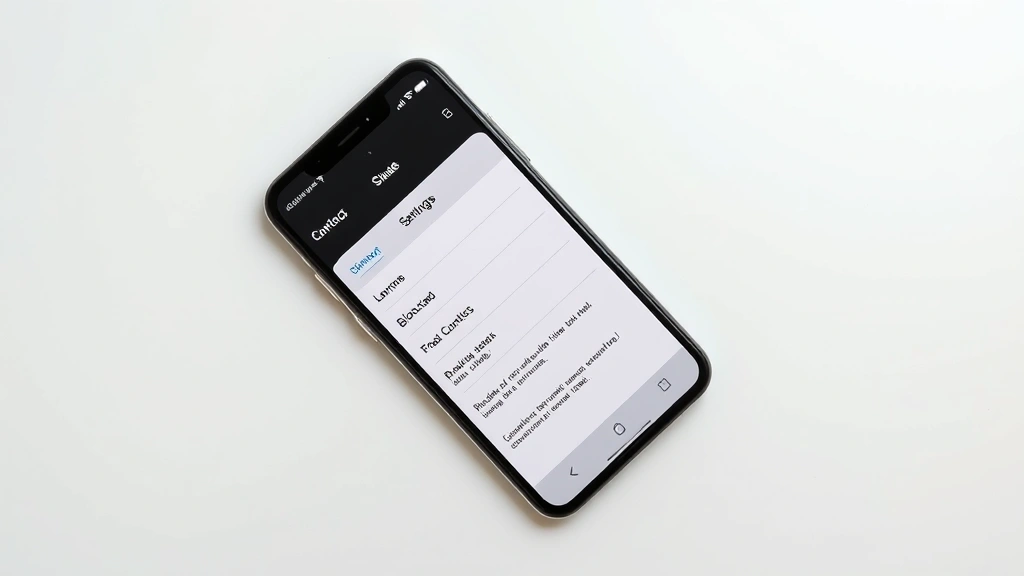
Want to see who you’ve actually blocked? It’s buried in Settings, but easy once you know where to look.
For blocking in the Messages app:
- Open Settings → Messages
- Scroll down and tap Blocked Contacts
- You’ll see a list of everyone you’ve blocked via Messages
For blocking in the Phone app:
- Open Settings → Phone
- Tap Blocked Contacts
- This shows people you’ve blocked from calling you
For blocking in FaceTime:
- Open Settings → FaceTime
- Tap Blocked Contacts
- See your FaceTime-specific blocks here
Important detail: these are separate lists. If you block someone in Messages, they’re not automatically blocked for calls or FaceTime. You have to block them in each app individually if you want a complete block.
This is actually useful if you want to partially block someone—like blocking their calls but allowing texts, or vice versa. Though honestly, if you’re blocking someone, you probably want them completely blocked across all platforms.
Pro Tip: Your blocked contacts list is private. No one can see who you’ve blocked, and blocked people can’t see that you’ve blocked them (though they’ll figure it out when their messages don’t deliver and calls go straight to voicemail).
Unblocking Someone to See Their Messages
So you blocked someone, and now you’re wondering if they tried to reach you. Can you unblock them to see if there are any messages waiting?
The answer: No, unblocking won’t show you messages they sent while blocked. Those messages are gone. They never reached your phone, so there’s nothing to recover by unblocking.
However, unblocking does serve a purpose: it allows you to receive their future messages again. Once you unblock, new messages from that person will come through normally.
To unblock someone:
- Go to Settings → Messages (or Phone, or FaceTime, depending on where you blocked them)
- Tap Blocked Contacts
- Find the person and swipe left (or tap Edit then the minus sign)
- Tap Unblock
Real talk: if you’re thinking about unblocking someone just to check if they messaged you, understand that you won’t find anything. The messages are deleted from Apple’s servers and your phone. Unblocking is only useful if you actually want to resume communication with that person.
One scenario where this matters: if you accidentally blocked someone, unblock them immediately to start receiving their messages again. Every minute they’re blocked, their messages are being discarded.
What About Blocked Calls and Voicemail
Blocked phone calls behave slightly differently than text messages, which confuses a lot of people.
When you block someone’s phone number:
- Their calls go straight to voicemail
- You don’t see a missed call notification
- They might not realize they’re blocked—their call will seem to ring, then go to voicemail, just like a normal missed call from their perspective
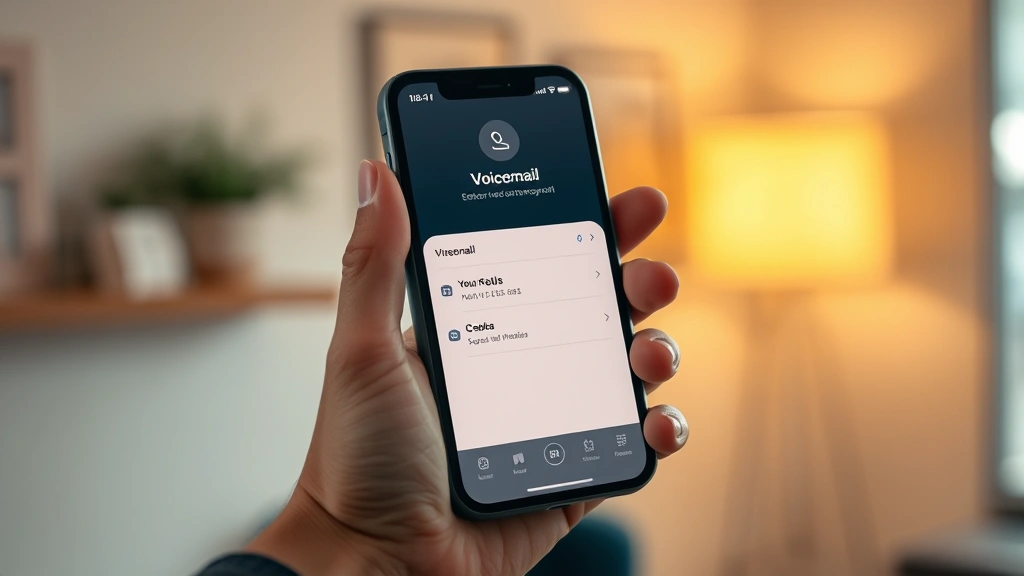
If they leave a voicemail: This is the tricky part. You can actually see blocked voicemails in your Voicemail tab. They’ll show up as a call from that number, but with “Blocked” noted. So unlike text messages, you can technically “see” that someone tried to contact you, and you can listen to their voicemail if you want.
This is different from text messages because voicemail is technically a call, not a message. Apple treats them differently in the system architecture.
To access blocked voicemails:
- Open the Phone app
- Go to the Voicemail tab
- Blocked voicemails will appear with a note or indicator
- You can tap and listen if you want
So here’s the weird asymmetry: you can see that a blocked person tried to reach you via voicemail, but you can’t see their text messages. This is by design—Apple separates the two systems.
Safety Note: If you’re blocking someone due to harassment, be aware that they can still leave voicemails. If this is a problem, consider deleting their voicemails or using Do Not Disturb to silence unknown callers. Apple’s support page on blocking contacts has additional privacy settings you can explore.
Using Third-Party Apps and iCloud Backups
Here’s a question that comes up a lot: “Can I use a third-party app to recover blocked messages?” The short answer is no, but let’s explain why and what you actually can do.
Why third-party apps won’t help: Blocked messages never reach your iPhone’s storage in the first place. They’re rejected at Apple’s server level before they even sync to your device. No app can recover data that was never stored. It’s like asking someone to retrieve a letter that was returned to the sender—it was never in your mailbox.
However, iCloud backups are a different story. If you backed up your iPhone before blocking someone, and you restore from that backup, you’d get back to a state where they weren’t blocked. But this restores your entire phone to that point in time—all your messages, photos, apps, everything. It’s not a surgical recovery.
More practically: if you use iCloud for Messages, your conversation history is backed up. But again, this only helps if you’re restoring the entire backup, not selectively recovering one person’s messages.
The real lesson here: if you think you might want to review someone’s messages later, screenshot them or forward them to yourself before blocking. It’s the only reliable way to preserve them.
According to tech experts at The Verge, Apple’s blocking system is intentionally designed to be permanent and non-recoverable. There are no backdoors, no admin tools, no workarounds. It’s by design for privacy and security reasons.
How to Prevent Message Loss Before Blocking
The best strategy is prevention. If you’re thinking about blocking someone, take steps to preserve important information first.
Screenshot important messages: Before you block, take screenshots of any messages you might need later. Store them in Photos or Notes. It’s not elegant, but it works.
Forward messages to yourself: In the Messages app, you can forward a message to a different contact (like yourself or a trusted friend). This creates a copy.
Copy and paste into Notes: Highlight text in Messages, copy it, then paste it into the Notes app. Create a folder called “Archived Messages” if you do this frequently.
Use “Mark as Unread” strategically: Before blocking, mark important conversations as unread so they stay at the top of your Messages list as a reminder to archive them first.
Export your entire conversation: On some iPhone models, you can long-press a conversation and use “Details” to see more options. Not all iPhones have a direct export feature, but you can at least review the entire thread before blocking.
Here’s a practical workflow if you’re about to block someone:
- Open the conversation with that person
- Scroll through and identify any important information (addresses, phone numbers, meeting details, etc.)
- Screenshot or copy those details into Notes
- Then proceed with blocking
This takes maybe 2-3 minutes and prevents regret later. Trust us—it’s worth it.
Another option: Mute instead of block. If you’re just tired of seeing someone’s messages but might want to read them later, consider muting the conversation instead. Go to the conversation, swipe left, and tap “Mute.” You’ll still receive messages, but they won’t send notifications. It’s a middle ground between blocking and staying connected.
For related information on managing your device’s contact settings, check out our guide on how to check if iPhone is unlocked, which covers other iPhone security and contact management features.
Frequently Asked Questions
Can blocked contacts see that I blocked them?
– Not directly. Apple doesn’t send a notification saying “you’ve been blocked.” However, they’ll figure it out pretty quickly when their calls go straight to voicemail and their text messages show as “Not Delivered” (for SMS) or never get a response. After a few attempts, it becomes obvious.
If I unblock someone, will I see the messages they sent while I had them blocked?
– No. Unblocking only allows future messages to come through. Messages sent while someone was blocked are permanently deleted and cannot be recovered. This is one of the most misunderstood aspects of blocking on iPhone.
Are blocked messages stored anywhere on my phone?
– No. Blocked messages never reach your iPhone. They’re rejected at Apple’s server level before syncing to your device. There’s no hidden folder, no archive, no recovery option. They’re gone.
Can I block someone from just one app (like Messages) but not others (like Phone)?
– Yes. Blocking in Messages, Phone, and FaceTime are separate. You can block someone in Messages but allow their calls, or vice versa. However, most people block across all platforms for a complete block.
What if I blocked someone by accident?
– Unblock them immediately. Go to Settings → Messages (or Phone/FaceTime) → Blocked Contacts, find them, and tap Unblock. They’ll start receiving your responses, and you’ll start receiving their future messages again. Any messages they sent while blocked are lost, but at least you can resume communication.
Can I see a list of people I’ve blocked on my iPhone?
– Yes. Go to Settings → Messages → Blocked Contacts (or Phone → Blocked Contacts, or FaceTime → Blocked Contacts). Each app has its own blocked list, so check all three if you want a complete picture.
Do blocked voicemails show up in my voicemail?
– Yes, unlike text messages, blocked voicemails do appear in your Voicemail tab. They’ll be marked as blocked, and you can listen to them if you want. This is one of the quirks of how Apple handles calls versus messages.
If I restore from an iCloud backup made before I blocked someone, will I get their messages back?
– You’ll restore your phone to the state it was in when the backup was made, which means that person won’t be blocked anymore. However, you’re restoring your entire phone—all apps, photos, messages, settings—to that point in time. You can’t selectively recover just one person’s messages. Also, if you had deleted their conversation before blocking, those messages are still gone even after the restore.
Is there any way to recover blocked messages using a third-party app?
– No. Blocked messages never reach your iPhone’s storage, so there’s nothing for an app to recover. Any app claiming to recover blocked messages is either a scam or will only show you messages that arrived before the block (which you can already see in your conversation history). Be wary of apps promising to recover deleted or blocked data.
What’s the difference between blocking and muting a conversation?
– Blocking stops all communication—you won’t receive messages, calls, or FaceTime requests, and they’ll see “Not Delivered” or go to voicemail. Muting silences notifications but you still receive messages; they just don’t alert you. Muting is useful if you want to ignore someone temporarily but keep the option to read their messages later.


