

You’re staring at a 50-page PDF, a sprawling webpage, or a massive spreadsheet. You need to find one specific word—fast. Instead of scrolling like a madman, you reach for the search function. But here’s the thing: most people barely scratch the surface of how to search a page for a word effectively. They hit Ctrl+F, type something, and hope for the best. That’s leaving serious efficiency on the table.
In this guide, I’m going to walk you through every practical method to search a page for a word, from basic keyboard shortcuts to advanced filtering techniques that’ll save you hours. Whether you’re hunting through contracts, debugging code, or finding that one email in a flooded inbox, you’ll know exactly what to do.
Keyboard Shortcuts: The Foundation
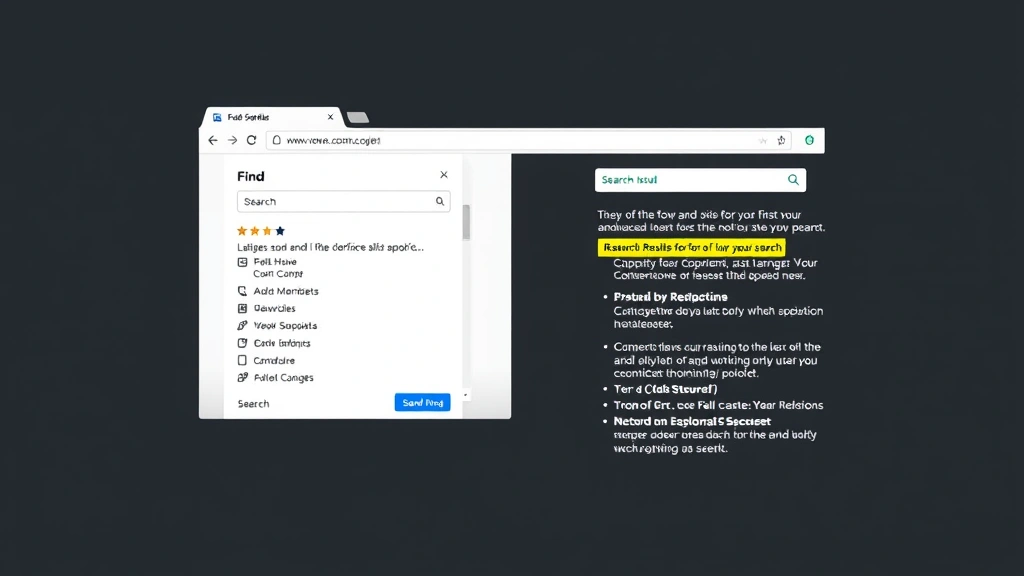
Let’s start with the absolute basics—the shortcuts that work almost everywhere. If you want to search a page for a word, your first move should always be the Find dialog box. On Windows, press Ctrl+F. On Mac, it’s Cmd+F. This opens the Find bar (or dialog) in nearly every application: web browsers, document readers, text editors, you name it.
Once that search box appears, type your word and hit Enter. The application highlights the first match. Press Enter again (or click the down arrow) to jump to the next occurrence. This is the bread and butter of page searching.
But there’s a hidden layer most people miss. If you want to search a page for a word and replace it, use Ctrl+H (Windows) or Cmd+Option+F (Mac). This opens Find & Replace, which is a game-changer when you’re dealing with multiple instances of the same typo or outdated term.
Pro Tip: In most browsers and applications, pressing F3 or Ctrl+G after your initial search jumps to the next match without reopening the Find dialog. It’s faster than clicking the down arrow repeatedly.
Using Browser Find Functions
When you’re searching a webpage, your browser’s Find function is your best friend. Here’s what you need to know:
- Chrome, Edge, Firefox: Ctrl+F opens the Find bar at the top right (or bottom left, depending on your browser). Type your search term and you’ll see “1 of 15” or similar, showing how many matches exist on the page.
- Safari: Cmd+F opens Find, and it highlights all matches on the page in yellow. This visual approach is actually really helpful when you’re scanning for context.
- Case sensitivity: Most browser searches are case-insensitive by default. If you need to match exact capitalization (like searching for “iPhone” vs “iphone”), look for a case-sensitive toggle—usually an “Aa” icon in the Find bar.
Here’s a real-world scenario: You’re on a product page trying to find the shipping policy. You search for “shipping,” and the browser shows “1 of 8.” You click through each match until you find the actual policy section instead of just mentions of “free shipping” in reviews. This is exactly why the match counter matters—it tells you how thorough your search needs to be.
One thing that trips people up: searching for a word on an infinite-scroll page (like Twitter or Instagram). The Find function only searches what’s currently loaded in memory. If the word you’re looking for is buried in older posts, you’ll need to scroll down to load more content, then search again.
Advanced Search Techniques
Now we’re getting into the stuff that separates amateurs from people who actually know how to search a page for a word like a pro.
Using Wildcards and Regular Expressions
Some applications—particularly text editors and advanced Find dialogs—support wildcards and regular expressions. These are patterns that match multiple variations of a word.
- Wildcard example: Searching for “colo?r” matches both “color” and “colour.”
- Regular expression example: Searching for “^[A-Z]” finds all words that start with a capital letter at the beginning of a line.
To use regex in most browsers, you’ll need browser extensions or developer tools. But in applications like Microsoft Word, Notepad++, or VS Code, regex is often built-in. Look for a “.*” icon or “Use regular expressions” checkbox in the Find dialog.
Whole Word Matching
This is critical when you want to search a page for a word without catching partial matches. Imagine you’re searching for “the”—without whole-word matching, you’ll also hit “there,” “them,” “other,” and “theater.” That’s noise.
In most Find dialogs, there’s a button labeled “Match entire word only” or “Whole words” (often shown as “ab” with a box around it). Enable this, and your search becomes laser-focused.
Real talk: This feature alone saves hours when you’re debugging code or editing documents. If you’re searching for a variable name or a specific phrase, always turn this on.
Searching PDFs Efficiently
PDFs are tricky because they’re essentially images with text layered on top. Not all PDFs are searchable—scanned documents without OCR (Optical Character Recognition) can’t be searched at all.
If you have a searchable PDF, use Ctrl+F (Windows) or Cmd+F (Mac) just like you would on a webpage. Most PDF readers—Adobe Acrobat, Preview (Mac), or built-in browser PDF viewers—support Find.
Here’s where it gets annoying: Some PDFs have weird formatting that breaks searches. For example, a word might be split across lines in the PDF’s text layer, so searching for “information” fails even though the word is clearly visible on the page. In these cases, try searching for just part of the word, like “informa.”
If your PDF isn’t searchable (you try Find and nothing happens), you have two options:
- Use OCR: Tools like Adobe Acrobat Pro can scan and OCR the document, making it searchable. Free alternatives include Google Drive (upload the PDF and it auto-OCRs) or online tools like ILovePDF.
- Convert to text: If you don’t need the formatting, convert the PDF to a text file or Word document. Searching plain text is always reliable.
Safety Note: Be cautious when uploading sensitive PDFs to online OCR tools. If the document contains personal or confidential information, use local software like Acrobat Pro instead.
Finding Words in Spreadsheets
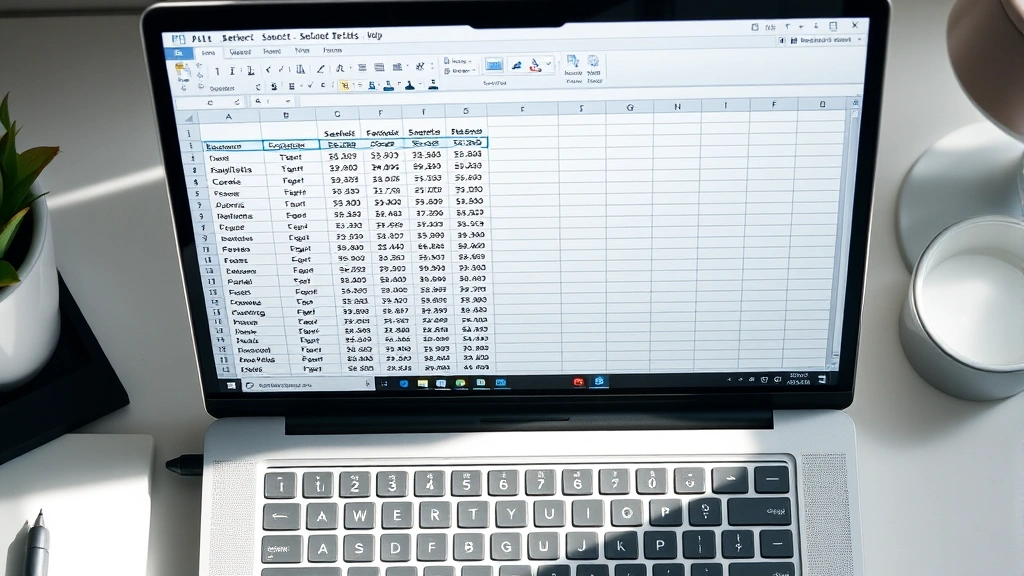
Spreadsheets like Excel or Google Sheets have their own search quirks. Ctrl+F opens Find, but it only searches the current sheet by default. If you’re working with a multi-sheet workbook and need to search a page for a word across all sheets, you’ll need to adjust your settings.
In Excel: Open Find & Replace (Ctrl+H), and before searching, click “Options.” You’ll see a dropdown for “Search” that says “By Rows” or “By Columns.” Below that, there’s another option: “Sheet” or “Workbook.” Select “Workbook” to search all sheets at once.
In Google Sheets: The Find function (Ctrl+F) searches the current sheet only. To search across sheets, you’ll need to use the Find & Replace tool from the menu (Edit > Find and Replace), which has better cross-sheet capabilities.
Here’s a pro move: If you’re trying to find duplicates across a spreadsheet, combine Find with conditional formatting or use dedicated features. Check out our guide on how to identify duplicates in Excel for more advanced techniques. You might also want to freeze columns or reorganize your data—see how to freeze a column in Excel and how to move a column in Excel for those strategies.
For more sophisticated filtering, creating a drop-down list in Excel lets you filter data more visually, which can be faster than searching when you’re dealing with structured data.
Email Search Strategies
Email is where search becomes critical. You’ve got thousands of messages, and you need to find that one confirmation email from 2019. Here’s how to search a page for a word in your email inbox:
Gmail: Click the search box at the top and type your search term. Gmail’s search is surprisingly powerful. You can use operators like:
- from: (e.g., “from:boss@company.com”) to search emails from a specific person
- subject: (e.g., “subject:invoice”) to search only subject lines
- has:attachment to find emails with attachments
- before: and after: (e.g., “after:2020/1/1”) to search by date
Combine these operators for precision. “from:boss@company.com subject:budget after:2023/1/1” finds budget emails from your boss sent after January 1, 2023.
Outlook: The search box is in the ribbon at the top. Outlook also supports advanced search syntax, though it’s less intuitive than Gmail. Use the “Advanced Find” option (Ctrl+Shift+F) for more control. You can search by sender, subject, date range, and even attachment type.
Real-world tip: If you’re drowning in emails and need to search a page for a word across multiple folders, create a search folder (in Outlook) or label (in Gmail) that automatically collects matching messages. This saves you from running the same search over and over.
For bulk email management, check out how to mass delete emails on Gmail—it pairs perfectly with search when you’re cleaning up your inbox.
Troubleshooting Common Issues
Search Returns No Results
You’re certain the word is on the page, but Find returns “0 matches.” Here’s what to check:
- Spelling: Typos kill searches. Double-check your spelling against what you see on the page.
- Extra spaces or hidden characters: Sometimes there are non-breaking spaces or special characters that don’t display visually. Try searching for just part of the word.
- Case sensitivity: If you searched for “Invoice” but the page only has “invoice,” turn off case-sensitive matching.
- Page not fully loaded: On dynamic websites, content loads as you scroll. Scroll down to load more content, then search again.
- Text in images: If the word is embedded in an image or screenshot, Find won’t detect it. You’ll need to manually read the page or use OCR on the image.
Too Many Results
Your search returned “1 of 847 matches,” and you’re drowning in noise. Narrow it down:
- Use whole-word matching: As mentioned earlier, this eliminates partial matches.
- Add context: Instead of searching for “date,” search for “date of birth” or “due date.”
- Use advanced operators: In email or specialized tools, use operators to filter by sender, date, or other metadata.
- Combine searches: Search for your word AND another word nearby. For example, in a contract, search for “payment” AND “due date” to find payment terms specifically.
Search Highlighting Disappears
You found your word, but the highlight vanished when you clicked elsewhere. This is normal—most applications only keep highlighting active while the Find dialog is open. Keep the Find bar open (don’t close it) to maintain highlighting.
Frequently Asked Questions
What’s the fastest way to search a page for a word?
– Ctrl+F (Windows) or Cmd+F (Mac) is the fastest method. It opens Find in nearly every application. Type your word and press Enter. No menus, no fuss. If you know the exact phrase or can add context to narrow results, you’ll find it even faster.
Can I search a page for a word across multiple documents at once?
– Not directly with the Find function. You’d need to search each document individually, or use specialized tools. For example, in Windows, you can use File Explorer’s search feature to find files containing specific text. In Mac, use Spotlight (Cmd+Space) and then search within files. For code, use IDE search features like VS Code’s multi-file search (Ctrl+Shift+F). For PDFs, some PDF managers let you index and search across multiple files.
Why doesn’t Find work on some websites?
– Some websites disable the Find function using JavaScript, or the text you’re looking for is in a dynamic area that hasn’t loaded yet. Try scrolling to load more content, or use your browser’s developer tools (F12) to inspect the page source and search there. Alternatively, copy the page content and paste it into a text editor, then search in that.
How do I search for special characters or symbols?
– Most Find functions treat special characters literally. If you’re searching for a dollar sign ($), just type $. For regex-enabled searches, you may need to escape special characters with a backslash (\$). In non-regex mode, special characters usually work as-is.
Is there a way to search a page for a word and highlight all matches at once?
– Yes, depending on the application. Most browsers highlight all matches on the page when you open Find. Safari is particularly good at this—all matches appear highlighted in yellow. In text editors like VS Code, all matches are highlighted automatically. In Word, use Find & Replace with “Highlight All” option.
Can I search for partial words or use wildcards?
– Yes, but it depends on the application. Most basic Find functions don’t support wildcards. However, text editors, IDEs, and advanced Find dialogs (like in Word) support them. Enable “Use wildcards” or “Regular expressions” in the Find dialog, then use patterns like “colo?r” (matches color/colour) or “\b[A-Z]\w+” (matches capitalized words). Check your application’s Find documentation for supported syntax.
What’s the difference between Find and Find & Replace?
– Find locates instances of a word. Find & Replace (Ctrl+H) both finds and replaces them with something else. Use Find & Replace when you need to change multiple instances of a word or phrase. It’s faster than finding each one manually and editing individually. Always preview replacements before applying them to avoid mistakes.


