
How to Scan with iPhone: Easy & Essential Guide
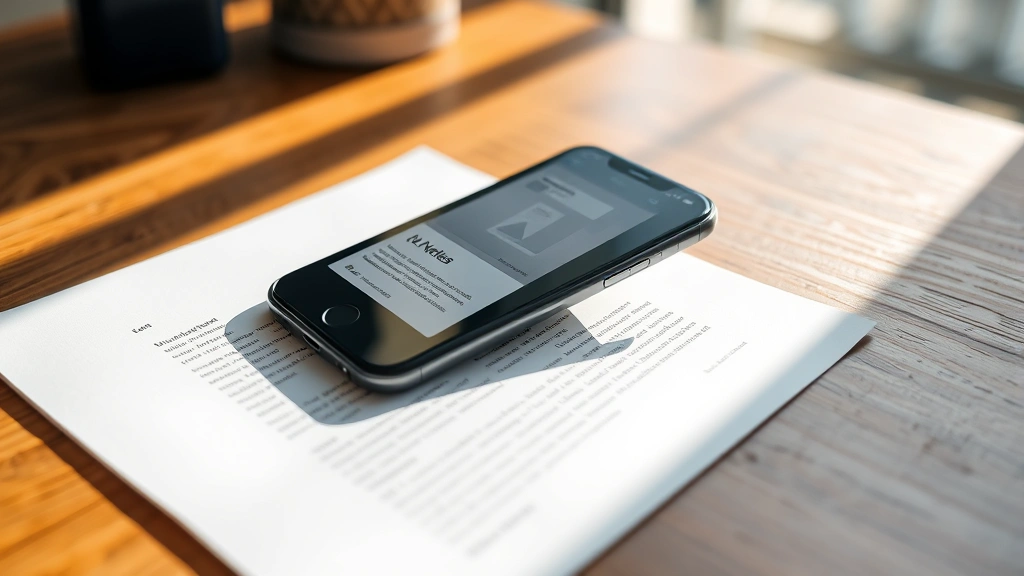
Your iPhone is a powerful scanning tool hiding in your pocket. Whether you need to digitize documents, capture receipts, or preserve important papers, learning how to scan with iPhone eliminates the need for bulky scanners. Apple’s built-in scanning technology makes this process seamless, fast, and surprisingly professional-quality. In just a few taps, you can transform physical documents into digital files ready to share, store, or edit.
Quick Answer: Open the Notes app, tap the camera icon, select “Scan Documents,” position your document in the frame, and tap the shutter button. Your iPhone automatically crops, enhances, and saves the scan. For more advanced options, use the Files app or third-party scanning apps like Adobe Scan. You can also scan using the Camera app’s built-in document detection feature available on newer iPhone models.
Using Notes App to Scan Documents
The Notes app is the easiest way to learn how to scan with iPhone because it requires zero additional downloads. This native Apple application combines simplicity with powerful functionality, making it perfect for beginners. Open the Notes app, create a new note or open an existing one, then tap the camera icon in the toolbar at the bottom of your screen.
When the camera menu appears, you’ll see three options: “Take Photo,” “Photo Library,” and “Scan Documents.” Select “Scan Documents” to activate the scanning mode. Your iPhone’s camera will automatically detect document edges and frame them perfectly. Position your document flat on a surface with good lighting, and your device will capture it automatically or you can manually tap the shutter button.
After scanning, you can adjust the document’s corners by dragging the blue anchor points if needed. The app offers automatic enhancement options including black and white, grayscale, and color modes. Choose your preferred filter, then tap “Save” to store the scan directly in your note. You can scan multiple pages into a single note, creating a complete document file instantly.
Key benefits of using Notes:
- Built-in feature—no app installation required
- Automatic document edge detection
- Multiple filter options for clarity
- Ability to scan multiple pages into one note
- Seamless iCloud syncing across devices
- Easy sharing directly from the note
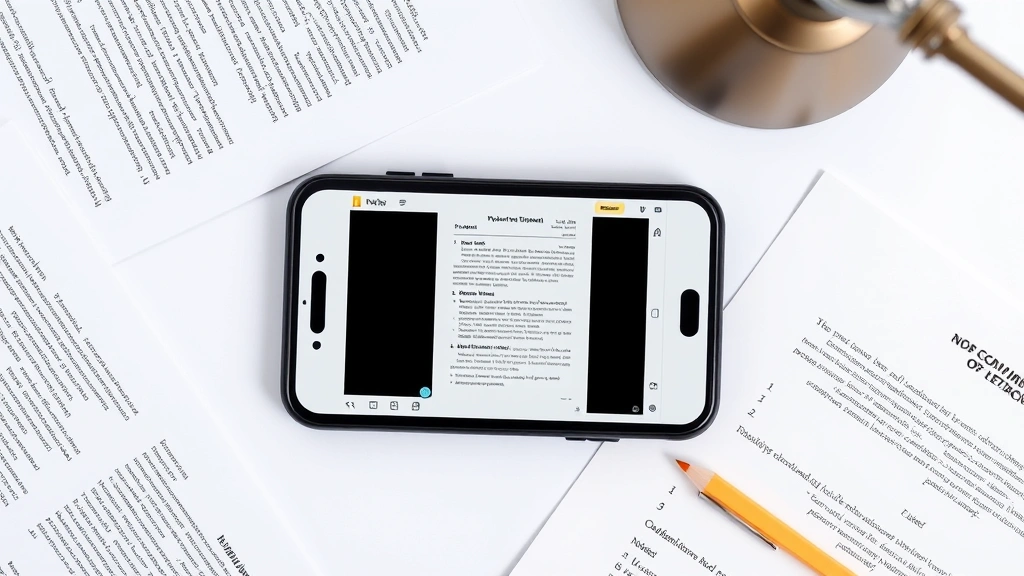
Scanning with the Camera App
Your iPhone’s Camera app offers another native method for how to scan with iPhone, particularly useful on iOS 15 and later models. This approach provides a slightly different workflow but delivers equally professional results. Open the Camera app and position it in portrait mode while aiming at your document.
On compatible iPhones, the Camera app automatically detects documents and displays a yellow document icon in the corner. Tap this icon to switch to document scanning mode, which enhances the image and applies intelligent cropping. The camera will automatically capture when it detects a properly framed document, or you can manually tap the shutter button to take control.
The scanned image saves directly to your Photos app, where you can access it immediately. From there, you can share it via email, Messages, or cloud storage services. This method works particularly well when you need quick, informal scans without navigating multiple app menus. However, the Camera app doesn’t offer as many enhancement filters as the Notes app scanning feature.
Camera app advantages:
- Automatic document detection on newer models
- Saves directly to Photos for quick access
- Minimal steps required
- Integrates with system-wide sharing options
- No additional menus or dialogs
Using Files App for Advanced Scanning
For users who need more control over how to scan with iPhone documents, the Files app provides advanced options. This method works on iOS 13 and later, offering greater flexibility for organizing scans. Open the Files app, navigate to the location where you want to save your scan, then tap the three-dot menu icon and select “Scan Documents.”
This launches the same powerful scanning interface as the Notes app but saves directly to your chosen folder location. You can create dedicated folders for different document types—receipts, contracts, medical records—and organize everything systematically. The Files app approach is ideal for professional users who process multiple documents regularly and need logical folder hierarchies.
You can also rename files immediately after scanning, add tags for searchable organization, and manage permissions for shared folders. This method integrates seamlessly with cloud storage services like iCloud Drive, Google Drive, and Dropbox. If you work in a professional environment requiring document management systems, the Files app approach provides the organizational structure you need.

Files app scanning benefits:
- Direct folder organization
- Immediate file naming and tagging
- Cloud service integration
- Professional document management
- Batch processing capability
- Permission and sharing controls
Best Practices for Quality Scans
Mastering how to scan with iPhone goes beyond knowing which app to use—proper technique ensures professional-quality results. Lighting is absolutely critical; position your document near a window or under bright indoor lighting to eliminate shadows. Avoid backlighting, which can wash out text and details. A desk lamp positioned at an angle works excellently for consistent results.
Keep your iPhone steady and parallel to the document surface. Hold the device at a slight angle (roughly 45 degrees) and ensure the entire document fits within the frame. For larger documents, scan multiple sections and overlap them slightly for seamless reassembly. The iPhone’s intelligent cropping will handle most alignment automatically, but starting with proper positioning prevents corrections later.
Clean your iPhone’s camera lens before scanning important documents. Dust and smudges significantly impact image quality, especially for text-heavy pages. Use a soft microfiber cloth to gently wipe the lens. For receipts and delicate papers, avoid placing your phone directly on the document—maintain a safe distance to prevent accidental damage.
Lighting setup recommendations:
- Use natural window light when possible
- Add a desk lamp for supplementary illumination
- Avoid harsh shadows across the document
- Position light sources at 45-degree angles
- Test different angles to find optimal clarity
- Avoid direct sunlight causing glare
The automatic enhancement filters available in both the Notes and Files apps can dramatically improve scan quality. Experiment with black and white mode for text-heavy documents—it increases contrast and readability. Use color mode for documents containing important color information, photos, or signatures. Grayscale works well for mixed content with reasonable color balance.
Organizing and Sharing Your Scans
Once you’ve mastered how to scan with iPhone, organizing your digital documents prevents frustration later. Create a logical folder structure based on document type: financial, medical, legal, personal. Within each category, organize by date or subject matter. This system makes retrieving specific documents quick and efficient when you need them.
Naming conventions matter significantly for searchability. Instead of generic names like “Scan001,” use descriptive titles: “2024-Tax-Return-Final” or “Car-Insurance-Policy-Renewal.” Include dates in YYYY-MM-DD format at the beginning of filenames for automatic chronological sorting. This practice saves enormous amounts of time when searching through hundreds of documents.
Sharing scanned documents is remarkably simple. From the Notes app, tap the share icon and choose your destination: email, Messages, AirDrop to nearby devices, or cloud services. For Files app scans, right-click the document and select share options. You can also generate links for cloud-stored documents, allowing others to access them without email attachments. According to WikiHow’s document management guides, proper organization systems reduce retrieval time by up to 80%.
Sharing options available:
- Email with automatic PDF conversion
- AirDrop to nearby Apple devices
- Cloud service uploads (iCloud, Google Drive, Dropbox)
- Messages and social platforms
- Generate shareable links
- Print-to-PDF functionality
Troubleshooting Common Scanning Issues
Even experienced users encounter occasional problems when learning how to scan with iPhone. If your scans appear blurry, check your iPhone’s camera lens for dirt or fingerprints—this is the most common cause. Ensure adequate lighting; blurry images often result from insufficient light causing the camera to use slower shutter speeds. Try moving closer to a light source or using a lamp.
If the document edge detection isn’t working properly, ensure your document has clear contrast against the background surface. White documents on white tables confuse the camera’s detection system. Place documents on colored surfaces or use a contrasting background. Also verify you’re using a compatible iPhone model; document scanning requires iPhone XS or later for optimal automatic detection.
Documents appearing skewed or rotated incorrectly can be fixed manually. After scanning, adjust the blue anchor points at each corner to correct the perspective. Drag each corner point to match the actual document edges. This manual correction takes seconds and produces perfectly aligned results. If the automatic enhancement filters aren’t improving your scans, try different filter options—black and white often works better for text-heavy documents.
If you’re unable to locate the “Scan Documents” option, ensure you’re running the latest iOS version. Go to Settings > General > Software Update to check for available updates. Older iOS versions may not include the scanning feature. Additionally, some third-party keyboards or accessibility settings can interfere with the camera functionality—try restarting your iPhone to reset these systems.
Quick troubleshooting checklist:
- Clean camera lens with soft cloth
- Increase lighting around document
- Use contrasting background surface
- Manually adjust corner points if needed
- Try different enhancement filters
- Update iOS to latest version
- Restart iPhone to reset systems
- Verify iPhone model compatibility
Third-Party Scanning Apps Worth Considering
While native iPhone features handle most scanning needs excellently, third-party apps offer specialized functionality for power users. Adobe Scan, available free on the App Store, provides professional-grade scanning with advanced OCR (optical character recognition) capabilities. This means you can search text within scanned documents and copy content directly from images. According to Consumer Reports’ technology reviews, Adobe Scan ranks among the top document scanning solutions for personal use.
Microsoft Lens offers similar functionality with seamless integration into Microsoft Office applications. If you work extensively with Word, Excel, or OneNote, Lens provides automatic document conversion and editing capabilities. Evernote’s scanning features integrate perfectly if you use Evernote for note-taking and document management. Dropbox also includes scanning functionality within its mobile app, ideal for users already storing documents in Dropbox.
For specialized needs, consider app-specific features: some apps offer automatic expense tracking for receipts, others provide signature capture for contracts. Lifehacker’s app reviews regularly evaluate scanning applications for efficiency and feature completeness. Most third-party apps offer free versions with premium subscriptions for advanced features like unlimited cloud storage or batch processing.
The choice between native iPhone features and third-party apps depends on your specific needs. Native features work perfectly for casual document scanning and storage. Third-party apps become valuable when you need OCR capabilities, specialized organization systems, or integration with professional software suites. Many users maintain both—using native features for quick scans and third-party apps for documents requiring advanced processing.
Popular third-party scanning apps:
- Adobe Scan (OCR, cloud integration)
- Microsoft Lens (Office integration)
- Evernote (note-taking integration)
- Dropbox (cloud storage integration)
- Scanbot (professional features)
- GeniusScan (advanced editing)
When evaluating third-party apps, consider privacy and security carefully. Check what data the app collects and how it stores your documents. Some apps require cloud account creation; ensure you’re comfortable with their privacy policies. Family Handyman’s technology guides emphasize the importance of reviewing app permissions before installation.
Advanced Tips for Power Users
Once you’re comfortable with basic how to scan with iPhone techniques, several advanced strategies can streamline your document management workflow. Batch scanning allows you to capture multiple pages quickly by holding down the shutter button and moving to the next page. The iPhone automatically detects each new document and adds it to your scan sequence. This technique works exceptionally well for processing stacks of receipts or multi-page documents.
Keyboard shortcuts can accelerate your workflow significantly. If you frequently scan documents, create a custom Shortcut using the Shortcuts app that launches your preferred scanning method with a single tap. You can even set up voice commands like “Hey Siri, scan a document” to activate scanning without touching your phone. This integration between iPhone app management and automation features creates powerful productivity systems.
OCR (optical character recognition) processing is available through third-party apps and some advanced features. OCR converts scanned images into searchable, editable text. This capability proves invaluable for archiving important documents—you can search scanned contracts by specific terms or copy text from receipts into spreadsheets. Processing time varies depending on document complexity and your app choice.
For users managing sensitive documents like financial records or medical information, consider encrypting your scanned files. Many cloud storage services offer encryption options, and third-party apps like Scanbot provide password protection. Store sensitive documents in encrypted folders separate from general files. This security practice protects your privacy if your iPhone is ever lost or compromised.
FAQ
Q: What iPhone models support document scanning?
A: All iPhone models can scan documents using the Notes or Files app. However, automatic document edge detection requires iPhone XS or later. Older models can still scan manually using the Camera app and cropping photos afterward.
Q: Can I scan documents in color, black and white, and grayscale?
A: Yes, the native scanning features offer all three options. After capturing your document, select your preferred filter before saving. You can rescan if you want to try different filters.
Q: How do I scan multiple pages into a single document?
A: In the Notes app, continue tapping the camera icon and selecting “Scan Documents” within the same note. Each scan adds to the existing note. In the Files app, you can also scan multiple pages sequentially into one PDF file.
Q: Can I edit scanned documents on my iPhone?
A: Native scanning apps don’t offer editing, but you can use third-party apps like Adobe Scan or Microsoft Lens for editing capabilities. Alternatively, scan the document and edit it on a Mac or computer using Preview or dedicated PDF editors.
Q: Is there a limit to how many documents I can scan?
A: No limit exists for scanning quantity, but storage space on your iPhone and cloud services will eventually fill up. Manage storage by regularly backing up documents to cloud services and deleting unnecessary files from your device.
Q: Can I scan receipts for expense tracking?
A: Yes, specialized apps like Expensify are designed specifically for receipt scanning and expense tracking. Alternatively, scan receipts using native features and organize them in folders by date and category for manual tracking.
Q: How do I ensure my scans are legally valid?
A: Scans are generally acceptable for personal records and most business purposes. For legal documents requiring official status, consult with relevant authorities—some situations require certified paper documents. Ensure your scans are clear, complete, and properly dated.
Q: Can I scan documents while traveling without internet?
A: Yes, all native scanning features work offline. You can scan documents anywhere and sync them to cloud services later when you regain internet connectivity. This makes iPhone scanning perfect for travel and fieldwork.
Q: What’s the best way to scan old photographs?
A: Use the same technique as document scanning—good lighting and steady positioning are crucial. For valuable photographs, consider using specialized photo scanning apps that offer enhanced restoration features. Handle originals carefully to prevent damage.
Q: Can I password-protect my scanned documents?
A: Native apps don’t offer built-in password protection, but you can use third-party apps like Scanbot or store files in password-protected cloud folders. Alternatively, encrypt documents after scanning using macOS or Windows encryption tools.


