
Your screen is sideways. Maybe you accidentally hit a keyboard shortcut, or someone’s messing with you. Either way, you’re staring at content rotated 90 degrees and wondering how to fix it. The good news? Learning how to rotate computer screen takes about two minutes, and you’ve got multiple ways to do it depending on your setup. Whether you’re on Windows, Mac, Linux, or running a Chromebook, we’ll walk you through every method that actually works.
Why does this matter? Sometimes you need portrait orientation for spreadsheets, coding, or document review. Sometimes it’s an accident. Either way, being able to quickly rotate your computer screen without panicking is a basic skill worth having in your toolkit.
Rotate Screen on Windows: The Quick Way
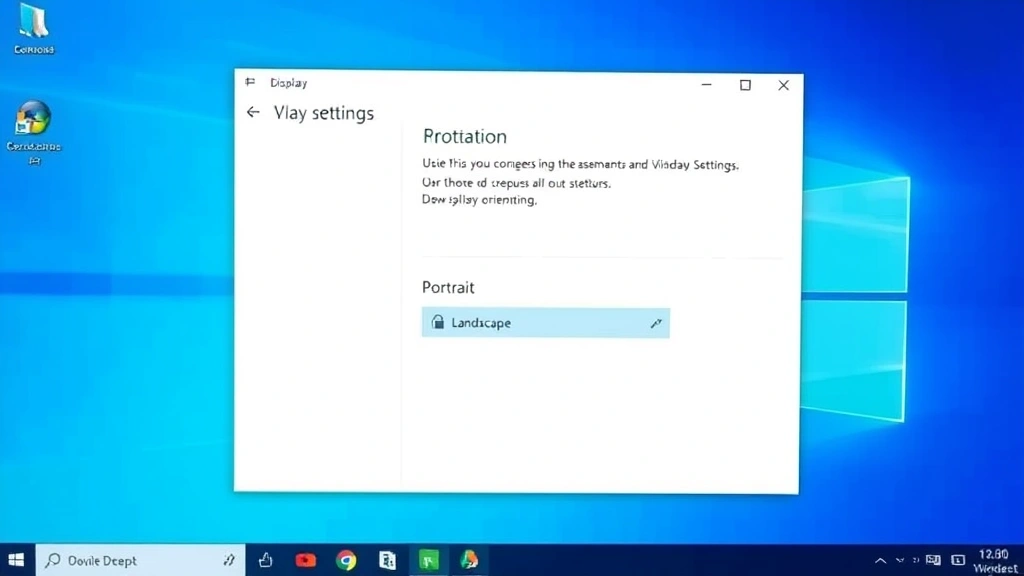
The fastest way to rotate your screen on Windows is using the built-in display settings. This works on Windows 10 and Windows 11, and it takes about 30 seconds.
- Right-click anywhere on your desktop (empty space, not on an icon or file)
- Select Display settings from the context menu
- Scroll down to find the Rotation option (usually under “Scale and layout”)
- Click the dropdown next to “Rotation” and select your preferred orientation: Landscape, Portrait, Landscape (flipped), or Portrait (flipped)
- Click Keep changes when prompted
Done. Your screen is now rotated. If you don’t see a rotation option in display settings, your graphics driver might need updating or your monitor doesn’t support software rotation.
There’s also a keyboard shortcut method on some systems. Try Ctrl + Alt + Arrow Keys (up, down, left, right). This works on Intel integrated graphics and some NVIDIA setups. Press Ctrl + Alt + Up Arrow to return to normal landscape orientation.
Pro Tip: If keyboard shortcuts don’t work, check your graphics control panel instead. For NVIDIA cards, right-click the desktop and select “NVIDIA Control Panel,” then navigate to Rotation settings. For AMD, use the Radeon Settings app. For Intel, use Intel Graphics Command Center.
Rotate Screen on Mac: System Preferences Route
Mac doesn’t have a native “rotate screen” feature like Windows does, because most Mac users don’t need it. But if you’re using an external monitor or have specific needs, here’s what you can do:
- Click the Apple menu and select System Preferences (or System Settings on newer Macs)
- Go to Displays
- Look for a Rotation dropdown if your monitor supports it
- Select your desired rotation angle
Honestly? Most Macs won’t show a rotation option because Apple’s philosophy is that you shouldn’t need it. If you’re on an M1/M2 Mac with an external display, you might have limited rotation support depending on the monitor.
Your better bet is using third-party software like Rotation, Display Menu, or Lungo if you regularly need to rotate your screen. These apps give you more control and work around Apple’s limitations.
Rotate Screen on Chromebook: The Easiest Method
Chromebooks make this dead simple. Here’s how to rotate your Chromebook screen:
- Press Ctrl + Shift + Refresh (the refresh key is at the top of your keyboard, usually where F3 would be on a regular laptop)
- Your screen rotates 90 degrees clockwise
- Press the same combination again to rotate another 90 degrees
- Keep pressing until you’re back to normal or at your desired orientation
That’s it. No menus, no settings buried in five layers. Chromebooks nailed the user experience here.
If you want more details on Chromebook-specific features, check out our guide on how to rotate screen on Chromebook, which covers additional display tricks and keyboard shortcuts you might find useful. We also have a companion piece on how to right click on a Chromebook if you’re new to the platform and discovering all its quirks.
Rotate Screen on Linux: Command Line and GUI Options
Linux gives you flexibility. You can rotate your screen through the GUI or command line, depending on your desktop environment.
GUI Method (GNOME/Ubuntu):
- Open Settings
- Go to Displays
- Find the Rotation dropdown
- Select your orientation (0°, 90°, 180°, 270°)
- Apply changes
Command Line Method (All Linux):
If you prefer the terminal, use the xrandr command:
- Open a terminal
- Type:
xrandr --output HDMI-1 --rotate left(replace HDMI-1 with your monitor name and “left” with “right”, “normal”, or “inverted”) - To find your monitor name, type:
xrandrand look for the connected display
This is powerful because you can script it, apply it remotely, or use it in automation workflows. Linux respects your choice to do things the hard way if you want precision.
Using Graphics Driver Settings for Advanced Rotation Control
Sometimes the operating system settings aren’t enough. Your graphics driver might offer more granular control, especially if you’re dealing with multiple monitors or unusual setups.
NVIDIA Graphics Control Panel:
- Right-click your desktop
- Select NVIDIA Control Panel
- Go to Rotation in the left sidebar
- Choose your display and rotation angle
- Apply
AMD Radeon Settings:
- Right-click desktop
- Select AMD Radeon Settings
- Navigate to Display → Rotation
- Select your monitor and rotation preference
Intel Graphics Command Center:
- Open Intel Graphics Command Center (search for it in Windows)
- Go to Display
- Find Rotation settings
- Apply your changes
The advantage of using driver settings is that they sometimes work when OS settings don’t, and they give you per-monitor control if you have multiple displays. According to monitor manufacturer guidelines, using driver-level rotation is often more reliable than OS-level rotation for sustained use.
Physical Monitor Rotation: When Software Isn’t Enough
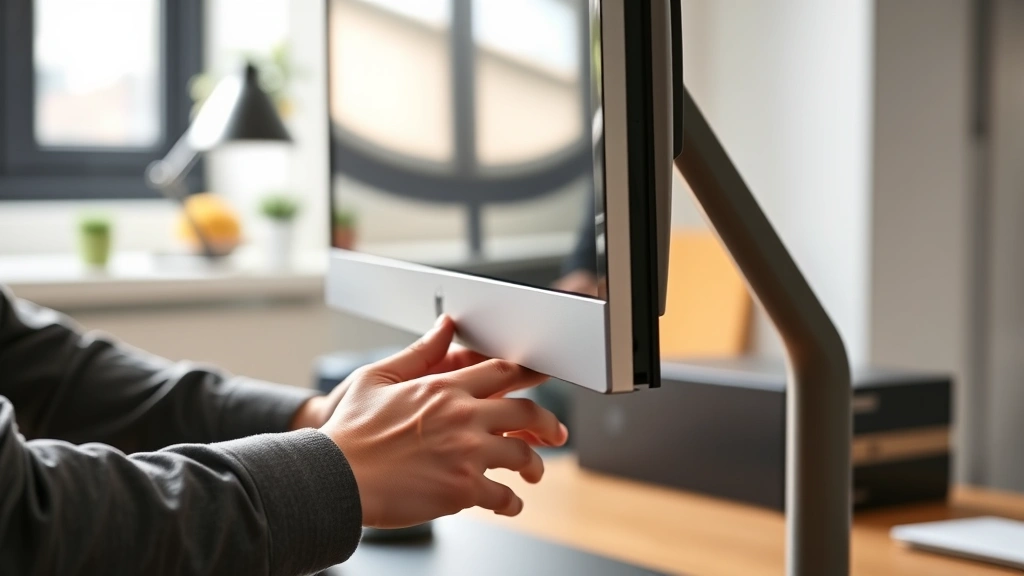
Here’s something people forget: your monitor might have a physical stand that rotates. Some monitors—especially higher-end ones—have built-in pivot functionality.
How to physically rotate your monitor:
- Check your monitor’s base. Does it have a rotating joint or pivot point?
- Gently grasp the monitor on both sides (not the screen itself, the bezel)
- Rotate the monitor 90 degrees to portrait orientation
- Adjust the stand height if needed to keep it stable
- Make sure all cables have enough slack and aren’t kinked
Why do this? Physical rotation is perfect for portrait-mode work like coding, document review, or spreadsheet editing. Your monitor’s built-in stand was designed for this. It’s often more comfortable than software rotation because you’re actually changing the physical display orientation, not just flipping the image.
Safety Warning: Don’t force your monitor if it doesn’t rotate smoothly. Some stands have hard stops at certain angles. If your monitor won’t budge, check the manual—it might not support rotation, or there might be a release mechanism you need to engage first. Forcing it can damage the pivot joint or the monitor itself.
Troubleshooting Rotation Issues: What to Do When It Won’t Work
Sometimes rotation just… doesn’t work. Here’s how to fix the most common problems.
Problem: No rotation option appears in display settings
Solution: Your graphics driver is outdated or missing. Visit your GPU manufacturer’s website (NVIDIA, AMD, or Intel) and download the latest driver. Restart your computer after installing. This fixes the issue 90% of the time.
Problem: Rotation option is grayed out
Solution: Check your monitor’s native resolution. Some monitors don’t support software rotation at certain resolutions. Try lowering your resolution temporarily, then attempt rotation. You can increase it back afterward. Also, check if your monitor is connected via DisplayPort—some older monitors have rotation issues with certain cable types.
Problem: Keyboard shortcut (Ctrl + Alt + Arrow) doesn’t work
Solution: This shortcut only works on Intel integrated graphics and some NVIDIA setups. If you have an AMD card, use AMD Radeon Settings instead. If you have a laptop with switchable graphics, make sure your integrated GPU is handling the display, not the dedicated GPU.
Problem: Screen rotates but everything looks blurry or distorted
Solution: Your monitor might not support software rotation at your current resolution. Try using physical rotation instead if your monitor has a pivot stand. If you must use software rotation, lower your resolution and see if the distortion clears up.
Problem: Rotation works but then resets after restart
Solution: Go back to your display settings and make sure you clicked Keep changes (Windows) or Apply (other systems). Some systems don’t save rotation settings by default. Also, check if your monitor has its own menu settings that override Windows rotation.
If none of these solutions work, try updating your BIOS (your computer’s firmware). This is less common, but sometimes BIOS updates include display-related fixes. Visit your motherboard or laptop manufacturer’s support page for BIOS update instructions.
Frequently Asked Questions
Can I rotate just one monitor if I have multiple displays?
– Yes. In Windows, go to Settings → Display, scroll down, and you’ll see all your connected monitors listed separately. Select the one you want to rotate, then change its rotation setting. Other monitors stay unchanged. On Mac and Linux, the same principle applies—select the specific display in the rotation menu before applying changes.
Will rotating my screen damage my monitor?
– No. Software rotation doesn’t damage anything. Physical rotation (using your monitor’s pivot stand) is also completely safe if done gently. Monitors are built to rotate. Just don’t force it if it doesn’t move smoothly.
Why would I ever need to rotate my screen?
– Portrait orientation is great for coding (you see more lines of code vertically), document editing, spreadsheets, and reading long-form content. Some people also use it for video calls where they want more vertical space. It’s also useful if you’re setting up a secondary monitor for specific tasks.
Does rotation work with all graphics cards?
– Most modern graphics cards support rotation, but older integrated graphics might not. NVIDIA, AMD, and Intel all support it in their drivers. If your card doesn’t support rotation, you’re probably using hardware from the early 2000s. Time for an upgrade anyway.
Can I rotate my laptop screen?
– Yes, using the same methods as a desktop. However, most laptop screens aren’t physically rotatable (they don’t have pivot stands). You can rotate the display software-wise, but the actual panel stays horizontal. For actual physical rotation, you’d need an external monitor with a rotating stand.
What if I accidentally rotated my screen and can’t see the menu to rotate it back?
– Use the keyboard shortcut. On Windows, press Ctrl + Alt + Up Arrow to return to normal landscape. On Chromebook, press Ctrl + Shift + Refresh until you’re back to normal. These shortcuts work even if you can’t see the screen properly.
Is there a way to set up automatic screen rotation based on device orientation?
– On Windows tablets and some 2-in-1 laptops with accelerometers, yes. Go to Settings → Display → Rotation lock and toggle it off. Your screen will rotate automatically when you flip your device. On desktops, you’d need third-party software to simulate this (which isn’t really practical).


