How to Right Click on MacBook: Easy & Essential Tips

Right-clicking on a MacBook might seem confusing at first, especially if you’re switching from Windows, but mastering this essential skill opens up powerful context menus and shortcuts. Whether you’re using a trackpad, Magic Mouse, or external mouse, how to right click on MacBook is straightforward once you understand the different methods available. This guide walks you through every approach, from the simplest two-finger tap to advanced keyboard combinations.
Quick Answer: The easiest way to right click on MacBook is using a two-finger tap on your trackpad. Simply place two fingers on the trackpad and tap simultaneously. Alternatively, hold Control and click with one finger, or enable secondary click in System Preferences for a dedicated right side of your trackpad. External mice with right-click buttons work just like on Windows computers.
- Magic Trackpad or built-in MacBook trackpad
- Magic Mouse or compatible wireless mouse
- Wired USB mouse with right-click capability
- Keyboard (Control key)
- Mac computer running macOS 10.5 or later
- System Preferences or System Settings access
Two-Finger Tap Method
The two-finger tap is the most intuitive and widely-used way to right click on MacBook trackpads. This method works on all modern MacBooks with Force Touch trackpads and is enabled by default on most systems. Simply place two fingers (typically your index and middle finger) on the trackpad surface and tap simultaneously to trigger the right-click context menu.
To perform a two-finger tap correctly, ensure both fingers make contact with the trackpad at the same moment. The timing is important—if you tap sequentially rather than simultaneously, macOS may not register it as a right-click. Practice makes perfect, and within a few attempts, the motion becomes second nature. This method works anywhere on the trackpad surface, so you don’t need to position your cursor at a specific location.
The two-finger tap is particularly useful when browsing the web, working in documents, or managing files. Right-clicking on links opens options to open in new tabs or windows. In Finder, it reveals options for renaming, moving, or deleting files. On desktop icons, it provides quick access to file properties and sharing options.
Pro tip: If two-finger tapping feels awkward, try using your thumb and index finger instead. Many users find this combination more comfortable and natural during extended work sessions.
Control-Click Keyboard Method
The Control-click method is a universal approach to right click on MacBook that works across all input devices. Hold down the Control key (located at the bottom-left of your keyboard) and simultaneously click with one finger on the trackpad or mouse. This keyboard combination triggers the same context menu as a traditional right-click, making it incredibly versatile.
Control-click is especially valuable when you’re using an external mouse without a right-click button or when your trackpad isn’t responding properly. It’s also the preferred method for many power users who appreciate keyboard shortcuts and consistent behavior across different applications. The Control-click method works in every macOS application, including Finder, web browsers, text editors, and professional software.
To execute Control-click effectively, use your non-dominant hand to hold Control while your dominant hand performs the click. This prevents accidental releases of the Control key. Unlike Windows PCs where right-clicking is a separate action, Mac’s Control-click integrates the keyboard and pointing device into one fluid motion.
For accessibility purposes, Control-click is particularly helpful for users with limited dexterity who find simultaneous two-finger tapping challenging. It also works with trackballs and other adaptive pointing devices, making it a truly inclusive option.
Secondary Click Settings
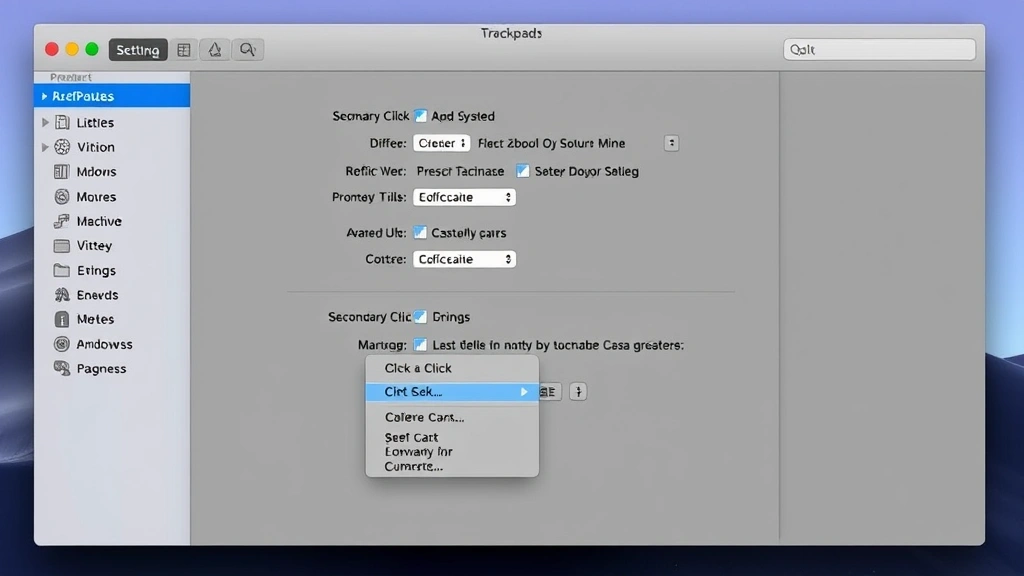
To customize how you right click on MacBook, access the Secondary Click settings in System Preferences. This feature allows you to designate a specific area of your trackpad for right-clicking, similar to how Windows laptops work. Open System Preferences (or System Settings on newer macOS versions), navigate to Trackpad, and find the “Point and Click” tab.
Within the Point and Click section, you’ll see options for “Secondary click.” Enable this feature and choose from several configurations: “Click in bottom right corner,” “Click in bottom left corner,” or “Two fingers.” The bottom-right corner option is popular among users transitioning from Windows, as it mimics familiar behavior. This setting makes how to right click on MacBook even more intuitive for those accustomed to traditional laptop trackpads.
After enabling Secondary Click, your chosen method becomes active immediately. You don’t need to restart your Mac or adjust any additional settings. The beauty of this customization is that it doesn’t disable other right-click methods—you can still use two-finger tap or Control-click alongside your designated secondary click area.
Experiment with different secondary click positions to find what feels most natural. Some users prefer the bottom-right corner because it’s easily accessible without moving their fingers, while others like the two-finger method for its flexibility and position-independence.
Using External Mouse
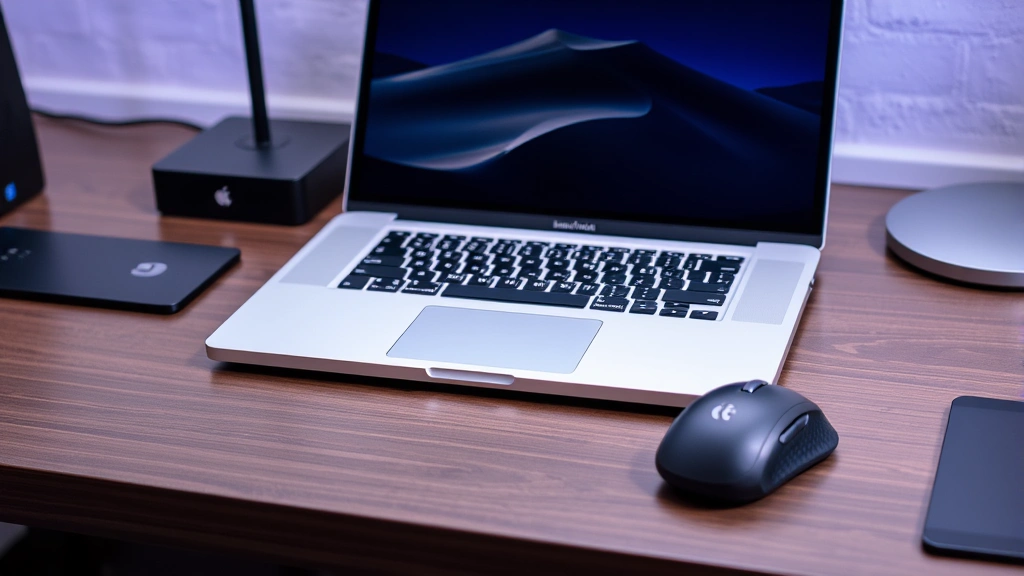
If you connect an external mouse to your MacBook, right click on MacBook becomes identical to Windows computers. Most third-party mice include dedicated right-click buttons that work seamlessly with macOS. Simply press the right button to trigger context menus, just as you would on any PC. Popular brands like Logitech, Microsoft, and Razer all manufacture Mac-compatible mice with fully functional right-click buttons.
Wireless mice connect via Bluetooth or USB receivers, while wired mice connect directly through USB ports (or USB-C with an adapter on newer MacBooks). Once connected, the right-click button functions immediately without requiring driver installation or system configuration. macOS recognizes the right-click action and displays the appropriate context menu for your current application or location.
External mice offer several advantages beyond right-clicking. They provide faster cursor movement, better precision for detailed work, and reduced hand strain during long computing sessions. Many professionals working in design, video editing, or data analysis prefer external mice for their ergonomic benefits and enhanced control.
When shopping for an external mouse, verify Mac compatibility before purchasing. Most modern mice work with macOS, but checking product specifications ensures you’ll have full functionality. Some gaming mice or specialized peripherals may require software installation for advanced features, though basic right-clicking works universally.
Magic Mouse Right-Click
Apple’s Magic Mouse is the premium trackpad-mouse hybrid designed specifically for Mac users. To right click on MacBook using Magic Mouse, enable the “Secondary click” feature in System Preferences under Mouse settings. By default, Magic Mouse doesn’t have a traditional right-click button; instead, it uses the same two-finger tap or designated corner-click methods as trackpads.
Magic Mouse’s multi-touch surface supports all standard right-click methods. You can tap with two fingers anywhere on the surface, or configure a secondary click zone in the bottom-right corner. The smooth glass surface and responsive touch detection make right-clicking feel natural and precise. Many creative professionals prefer Magic Mouse for its seamless integration with macOS and gesture support.
To check your Magic Mouse settings, go to System Preferences > Mouse and verify that “Secondary click” is enabled. If you previously used a different pointing device, your Magic Mouse may inherit those settings automatically. The mouse pairs via Bluetooth and requires minimal setup beyond initial pairing.
Magic Mouse also supports advanced gestures like swiping between pages and rotating objects in compatible applications. These multi-touch capabilities extend beyond basic right-clicking, offering a richer interaction model for users who take full advantage of macOS features.
Trackpad Settings & Customization
Mastering your MacBook’s trackpad settings empowers you to customize exactly how you right click on MacBook. Open System Preferences and navigate to Trackpad to access comprehensive configuration options. The “Point and Click” tab contains settings for tracking speed, clicking, and secondary click behavior. Adjust these parameters to match your personal preferences and working style.
Beyond secondary click, explore other trackpad settings that enhance your overall experience. “Tap to click” allows you to tap the trackpad instead of pressing down, reducing finger fatigue. “Click pressure” settings let you choose between light, medium, or firm pressure requirements. “Silent clicking” reduces noise for quiet work environments. These customizations work independently, so you can combine multiple settings for your ideal setup.
The “More Gestures” tab reveals additional multi-touch capabilities that complement your right-click skills. Swipe with three fingers to move between full-screen apps, pinch to zoom, or rotate to turn objects. Learning these gestures alongside right-clicking creates a comprehensive trackpad mastery that accelerates your workflow.
For users with accessibility needs, macOS offers alternative pointing methods including trackpad customization for reduced dexterity. Visit System Preferences > Accessibility > Pointer Control to explore options like sticky keys, which hold modifier keys like Control without requiring simultaneous pressing. These features make how to right click on MacBook accessible to everyone, regardless of physical abilities.
Troubleshooting Right-Click Issues
If right-clicking isn’t working on your MacBook, several troubleshooting steps can resolve the issue. First, verify that secondary click is enabled in System Preferences. Open Trackpad settings and confirm the secondary click option is activated. If it’s already enabled, try disabling and re-enabling it to refresh the setting.
Restart your Mac to resolve temporary software glitches affecting trackpad functionality. Many users report that right-click issues disappear after a simple restart. If the problem persists, check for macOS updates by going to System Preferences > Software Update. Outdated systems sometimes have trackpad bugs that Apple fixes in newer versions.
Clean your trackpad surface with a soft, slightly damp cloth to remove dirt, oils, or debris that might interfere with touch detection. Dried residue can prevent the trackpad from recognizing simultaneous finger contact, making two-finger taps unreliable. Avoid using harsh chemicals or excessive moisture that could damage the trackpad.
If you’re using an external mouse and right-click isn’t working, re-pair the device via Bluetooth. Go to System Preferences > Bluetooth, remove the mouse from the device list, and pair it again. For wired mice, try connecting to a different USB port. If issues persist across multiple input devices, contact Apple Support or visit an authorized service provider, as your Mac may require hardware repair.
According to WikiHow, resetting the SMC (System Management Controller) sometimes resolves trackpad issues on older MacBooks. For Intel-based Macs, shut down, then press Shift+Control+Option+Power simultaneously for 10 seconds. On Apple Silicon Macs, simply restart and hold the power button during startup.
FAQ
Can I right-click on a MacBook trackpad without two fingers?
Yes. You can use Control-click (hold Control and click with one finger) or enable the secondary click feature to designate a specific trackpad corner for right-clicking. Both methods work without two-finger contact.
Why isn’t my MacBook right-click working?
Check that secondary click is enabled in System Preferences > Trackpad. Clean your trackpad surface, restart your Mac, and update macOS if available. If issues persist with external mice, re-pair via Bluetooth or try a different USB port.
Is there a way to right-click on MacBook using only the keyboard?
While Control-click requires simultaneous keyboard and trackpad input, you can use keyboard shortcuts in many applications. For example, in Finder, select an item and press Ctrl+Space to show a quick action menu, which provides similar functionality to right-clicking.
Do all external mice work with MacBook right-click?
Most modern mice with right-click buttons work with MacBooks automatically. Verify Mac compatibility before purchasing. Some specialized gaming mice may require software, but basic right-clicking works universally on macOS.
How do I right-click on a MacBook Air or Pro?
All MacBook models use identical right-click methods: two-finger tap, Control-click, or secondary click settings. The process is the same regardless of which MacBook model you own.
Can I customize the right-click behavior on my MacBook?
Absolutely. Visit System Preferences > Trackpad > Point and Click to customize secondary click behavior. Choose between bottom-right corner, bottom-left corner, or two-finger tap. You can also adjust trackpad sensitivity and clicking pressure.
For comprehensive guidance on Mac-specific features, The Spruce offers detailed tutorials on maximizing your MacBook’s capabilities. Additionally, Instructables provides community-created guides for Mac users seeking alternative approaches. Lifehacker regularly publishes Mac productivity tips, including advanced trackpad techniques. For consumer-focused reviews and recommendations, Consumer Reports evaluates Mac peripherals and accessories.
Learning how to right click on MacBook is fundamental to efficient Mac usage. Whether you prefer two-finger taps, Control-click combinations, or external mice, you now have multiple methods to access context menus and enhance your productivity. Practice these techniques regularly, customize your settings in System Preferences, and soon right-clicking will become as natural on Mac as it is on Windows computers. For related Apple device management, check out our guides on how to connect Apple Pencil to iPad, how to reset AirPods Pro, how to turn off Apple Watch, how to clean iPhone charging port, and how to replace AirTag battery.