
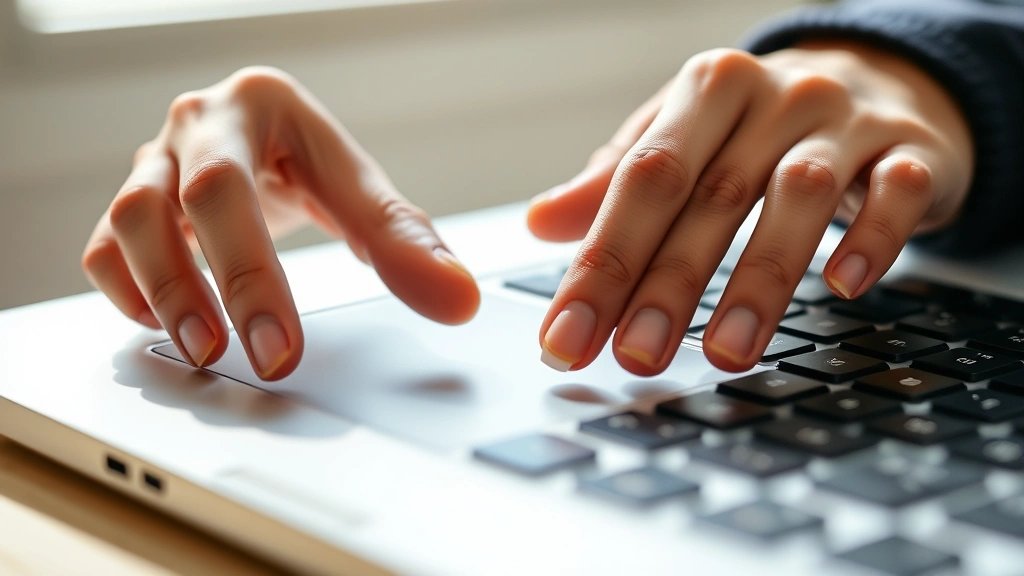
Right-clicking on a laptop can feel like a mystery if you’re new to computers or switching between devices. Unlike a desktop with a dedicated mouse, laptops come with trackpads that require a different technique. Whether you’re using Windows, Mac, or a Chromebook, knowing how to right click on laptop is essential for accessing context menus, copying files, and unlocking hidden options. This guide breaks down every method—from the most obvious to the workarounds that save your life when your trackpad is acting up.
How to Right Click on Windows Laptop Trackpad
Windows laptops are the most common machines out there, and right-clicking on the trackpad is straightforward once you know the trick. Most modern Windows trackpads support two-finger clicking, which is the primary method for right-clicking.
Two-Finger Tap Method (Most Common): Place two fingers on your trackpad simultaneously and tap. This registers as a right-click and brings up the context menu. It takes practice to get the timing right—you want both fingers to touch the pad at roughly the same moment. If you’re struggling, try tapping a bit more deliberately rather than lightly.
Some older Windows laptops use a different approach. Look at your trackpad surface—if there’s a visible line dividing it into left and right sections, you can click the right side of the trackpad with a single finger. This is the traditional method, though it’s less common on newer machines.
Pro Tip:
If two-finger tapping isn’t working, check your trackpad settings. Right-click the trackpad icon in your system tray, select “Touchpad settings,” and ensure “Right-click” or “Two-finger tap” is enabled under the context menu section. You might also need to adjust sensitivity if your taps aren’t registering.
The beauty of the two-finger method is that it’s intuitive once your muscle memory kicks in. Think of it like learning to use chopsticks—awkward at first, second nature after a week.
Right Clicking on Mac Trackpad (MacBook)
Apple’s trackpads are legendary for their responsiveness, and right-clicking works slightly differently than Windows. MacBooks don’t use the two-finger tap method by default—instead, they use two-finger click, which is more like a traditional right-click.
Two-Finger Click Method: Place two fingers on your MacBook trackpad and click (press down). This triggers a right-click and displays the context menu. The key difference from Windows is that you’re pressing down with two fingers, not just tapping. This feels more natural on Mac trackpads because of their pressure sensitivity.
Alternatively, you can enable “Tap to click” in System Preferences. Go to System Preferences → Trackpad → Point & Click and check “Tap to click.” Then, two-finger tapping works just like on Windows machines.
Secondary Click Option: Some Mac users prefer to enable “Click in the bottom-right corner” under the same trackpad settings. This lets you click the bottom-right corner of your trackpad to right-click. It’s less common but useful if two-finger clicking feels uncomfortable.
Mac trackpads are incredibly precise, so you shouldn’t have issues with accidental clicks. The pressure feedback is built into the hardware, making the experience smoother than many Windows trackpads.
Using an External Mouse to Right Click
If your trackpad is driving you crazy, an external mouse is the simplest solution. This is especially true if you’re doing a lot of right-clicking or have a physical disability that makes trackpad use difficult.
Wired USB Mouse: Plug it into a USB port (or USB-C adapter if your laptop is newer), and you’re good to go. Right-click works exactly like on a desktop—click the right mouse button. No setup needed.
Wireless Mouse: Most wireless mice use a USB receiver that plugs into your laptop. Some require driver installation, but modern mice work immediately after pairing. Bluetooth mice are even easier—enable Bluetooth on your laptop, put the mouse in pairing mode, and select it from your Bluetooth menu.
Consider investing in a quality mouse if you spend hours on your laptop. Brands like Logitech and Razer offer affordable options that’ll last years. A mouse with a good grip reduces hand fatigue compared to trackpad use, which is a real benefit if you’re working long shifts.
Budget Tip:
You don’t need an expensive gaming mouse to right-click effectively. A basic $15 USB mouse from any electronics store works perfectly fine. Save your money for a mouse with ergonomic design if comfort is your main concern.
Keyboard Shortcuts for Right Click Functions
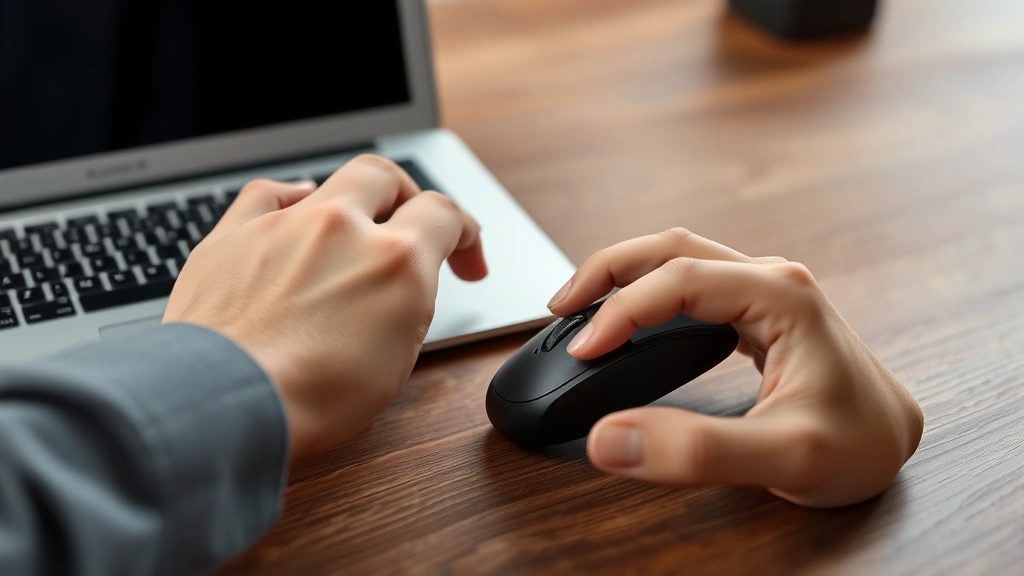
Sometimes your trackpad fails, your mouse dies, or you’re in a situation where physical clicking isn’t possible. Keyboard shortcuts are your backup plan. The most important one is the Application Key or Menu Key, which simulates a right-click.
Windows Keyboard Shortcut: Press Shift + F10 or the dedicated Menu Key (usually located between the right Alt and Ctrl keys). This opens the context menu as if you’d right-clicked. You can then navigate using arrow keys and press Enter to select an option.
Mac Keyboard Shortcut: Hold Control and click with one finger on the trackpad. This triggers a right-click action on Mac. It’s not as fast as two-finger clicking, but it works reliably when other methods fail.
These shortcuts are lifesavers during troubleshooting. I’ve used them countless times when a trackpad was malfunctioning but the keyboard was working fine. They also speed up workflow for power users who prefer keyboard navigation.
Advanced Tip:
On Windows, you can customize keyboard shortcuts in many applications. Some programs let you assign right-click functions to custom key combinations. Check the Settings or Preferences menu in your specific application to see if this is available.
How to Right Click on a Chromebook
Chromebooks are becoming more common in schools and offices, and right-clicking works differently than traditional Windows or Mac laptops. If you’re using a Chromebook, check out our detailed guide on how to right click on a Chromebook for complete instructions.
The quick version: most Chromebook trackpads support two-finger tap for right-click, similar to Windows. Some older Chromebooks require you to press the trackpad firmly in the bottom-right corner. The method depends on your specific model and Chrome OS version.
Chromebooks are designed for simplicity, so right-clicking is usually intuitive. The context menus are also simpler than Windows or Mac, with fewer options in most cases.
Troubleshooting Right Click Problems
Right-clicking isn’t working? Here are the most common issues and fixes.
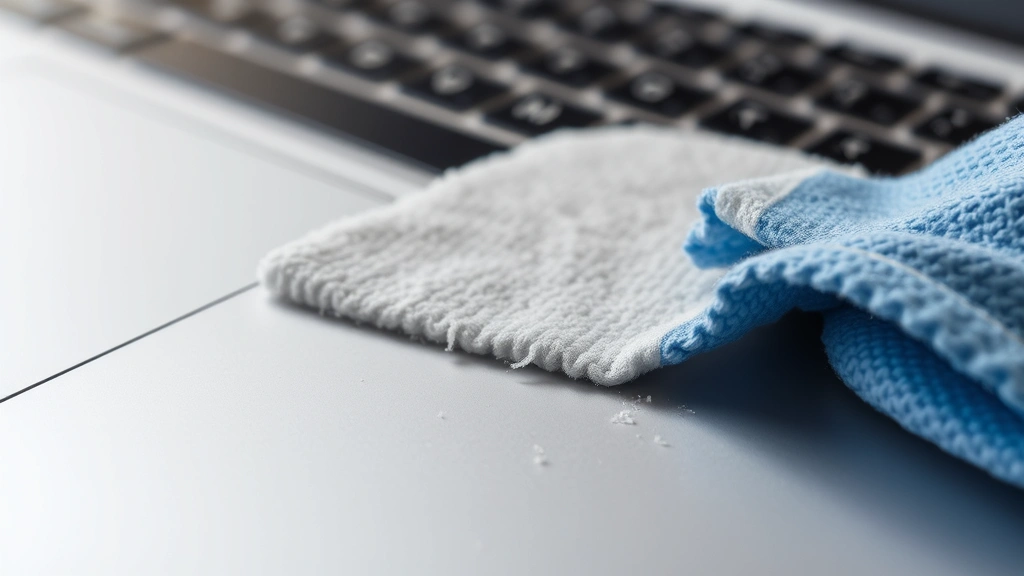
Trackpad Not Responding: First, restart your laptop. Seriously. This fixes 70% of trackpad issues. If that doesn’t work, clean your trackpad. Dust, oils, and debris can prevent proper contact. Use a soft, slightly damp microfiber cloth. For detailed instructions, check out our guide on how to clean a mousepad—the same principles apply to laptop trackpads.
Two-Finger Tapping Not Working (Windows): Open Settings → Devices → Touchpad. Scroll down to “Advanced gestures” and ensure “Right-click” is toggled on. If it’s already on, try turning it off and back on. Also check that your trackpad drivers are up to date. Visit your laptop manufacturer’s support website (Dell, HP, Lenovo, etc.) and download the latest touchpad drivers.
Mac Two-Finger Click Not Working: Go to System Preferences → Trackpad → Point & Click. Ensure “Click” is enabled and try adjusting the tracking speed. If the trackpad is physically damaged (unresponsive in certain areas), you may need hardware repair. Apple’s trackpads are durable but not invincible.
Right-Click Works But Menu Doesn’t Appear: Some applications disable right-click functionality for security or design reasons. Web browsers sometimes block right-click on certain websites. This is intentional, not a bug. Try right-clicking elsewhere to confirm your right-click is actually working.
Intermittent Right-Click Issues: This usually indicates a driver problem or a dirty trackpad. Update your drivers first (especially important if you recently updated Windows or macOS). If the problem persists, clean the trackpad thoroughly. Compressed air can help dislodge stubborn debris.
One-Finger Tap Registering as Right-Click: Your trackpad sensitivity is too high or your palm is touching the pad while you’re trying to click. Adjust sensitivity in trackpad settings or rest your palm more carefully. Wrist position matters more than you’d think.
According to Family Handyman’s tech section, preventive maintenance is key. Keep your workspace clean, avoid eating near your laptop, and use a keyboard cover if you’re in a dusty environment. These simple habits prevent most trackpad issues before they start.
If nothing works, your trackpad may be failing. Before replacing it, try connecting an external mouse to confirm the issue is with the trackpad and not your software. An external mouse is also a temporary workaround while you arrange repairs.
Frequently Asked Questions
Can I right-click with one finger on a Windows laptop?
– Not with a standard trackpad. You need two fingers for the two-finger tap method. However, some older Windows laptops have a divided trackpad where the right side is designated for right-clicking with one finger. Check your specific model’s manual. If your trackpad doesn’t support this, use a keyboard shortcut (Shift + F10) or connect an external mouse.
Why is my right-click not working on my MacBook?
– First, check that two-finger clicking is enabled in System Preferences → Trackpad → Point & Click. Restart your Mac if it’s recently been updated. Clean the trackpad with a soft, damp cloth to remove debris. If the issue persists, your trackpad may have a hardware problem requiring professional repair. Try using keyboard shortcuts (Control + Click) as a temporary solution.
Do I need to enable right-click in settings?
– On Windows, right-click is usually enabled by default, but it’s worth checking in Touchpad settings if it’s not working. On Mac, two-finger clicking is enabled by default in most cases. If you’ve disabled it, you’ll need to re-enable it in System Preferences. Chromebooks typically have right-click enabled by default as well.
Is there a difference between right-clicking and two-finger tapping?
– Functionally, they produce the same result—a context menu appears. The difference is physical: right-clicking is pressing the right mouse button, while two-finger tapping is touching two fingers to the trackpad simultaneously and tapping. On trackpads, two-finger tapping simulates a right-click.
What should I do if my trackpad is physically broken?
– Use an external mouse as a temporary workaround. Then, contact your laptop manufacturer or a repair shop for trackpad replacement. If your laptop is under warranty, this repair may be free. Out of warranty, trackpad replacement usually costs $100–$300 depending on the model. In the meantime, keyboard shortcuts and external mice keep you productive.
Can I customize what happens when I right-click?
– Yes, many applications allow customization of right-click menus. Check the Settings or Preferences menu within the specific program. On Windows, you can also use third-party software to create custom context menus for system-wide right-click actions. Mac offers similar customization through System Preferences and individual applications.
Is it bad to use my trackpad constantly?
– Not inherently, but trackpad use can cause hand fatigue and repetitive strain over long periods. If you spend 8+ hours daily on your laptop, consider using an external mouse to reduce strain. Proper posture and hand position matter more than the input device itself. Take regular breaks regardless of what you’re using.
How do I right-click on a touchscreen laptop?
– On touchscreen laptops, right-click using the trackpad or external mouse as normal. Touchscreens don’t have a native right-click gesture in most operating systems (though some applications support long-press). For best results, use your trackpad or mouse for right-clicking rather than relying on the touchscreen.


