
If you’ve recently switched to a Chromebook and found yourself frantically searching for the right-click menu, you’re not alone. The way to right click on a Chromebook isn’t always obvious—especially if you’re coming from Windows or Mac. The good news? Once you know the tricks, it becomes second nature. Whether you’re using a trackpad, mouse, or touchscreen, we’ll walk you through every method to access context menus and unlock hidden options on your Chromebook.
Right-clicking is one of those everyday computer skills that feels invisible until you can’t find it. On a Chromebook, the process differs slightly from traditional laptops, but it’s actually faster once you get the hang of it. Let’s break down exactly how to right click on a Chromebook so you can stop feeling like you’re wrestling with your device.
Right Click on Chromebook Trackpad: The Two-Finger Method
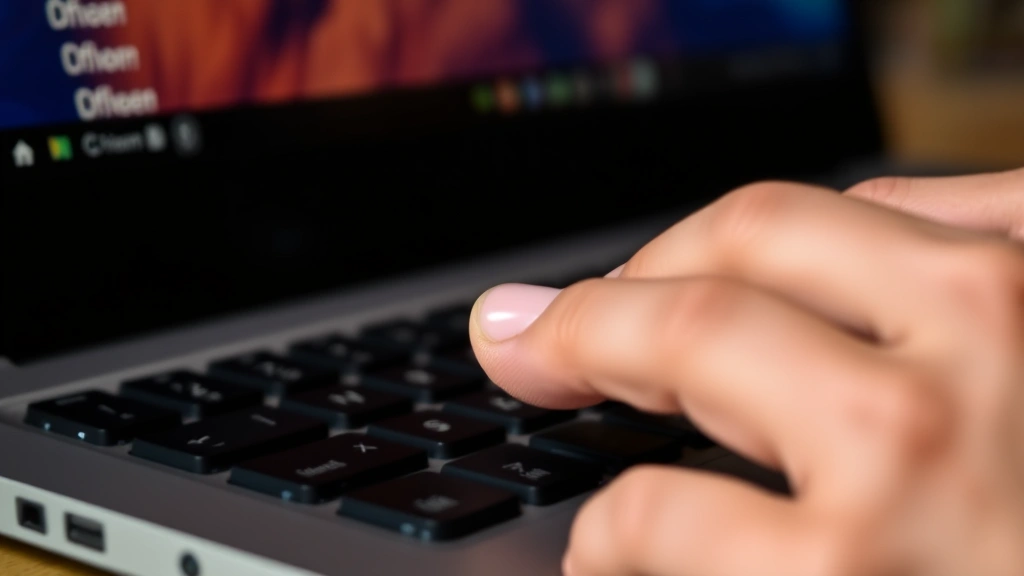
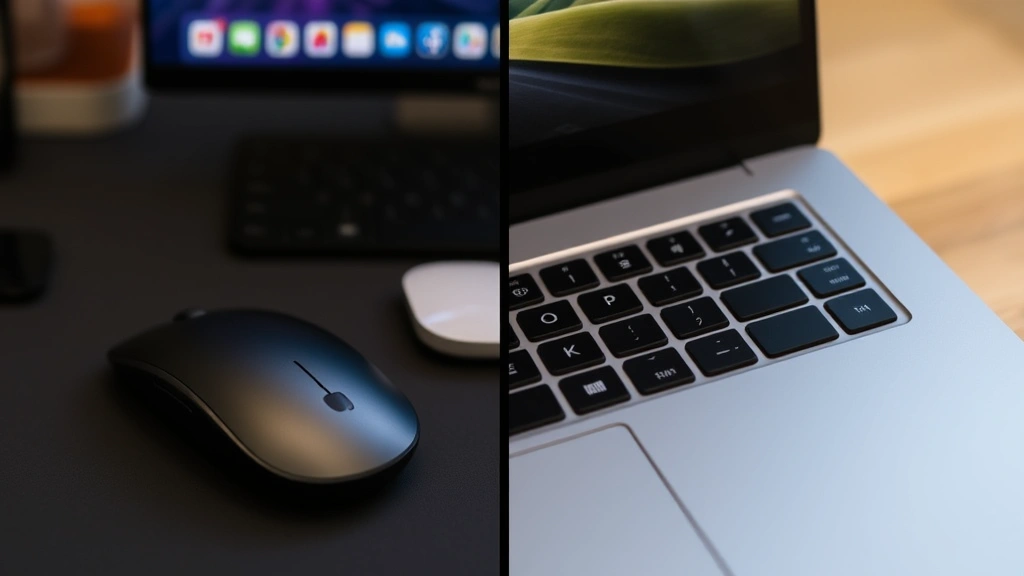
The most natural way to right click on a Chromebook is using the trackpad with a two-finger tap. This is the primary method most users rely on daily, and it works on virtually every Chromebook model with a standard trackpad.
Here’s how to do it:
- Place two fingers on the trackpad simultaneously
- Tap both fingers down at the same time (or press down with two fingers)
- A context menu will appear within a second or two
- Move your cursor to the option you want and click
The key is using two fingers at the same time—not one after the other. Think of it like a coordinated double-tap rather than sequential clicks. If you’re tapping instead of pressing, make sure both fingers contact the trackpad surface simultaneously. Some Chromebooks also support a sustained two-finger press, so you can hold two fingers down for a moment instead of tapping.
This method works in almost every application: web browsers, Google Docs, file managers, and native Chrome OS apps. The beauty of this approach is that it’s consistent across all Chromebook models, whether you’re using a budget ASUS, a premium Pixelbook, or anything in between.
Pro Tip: If the two-finger tap isn’t working, check your trackpad settings. Go to Settings > Device > Touchpad and ensure that right-click functionality is enabled. Some older Chromebooks or those with custom settings might have this toggled off.
Using an External Mouse to Right Click
If you’re using an external mouse with your Chromebook—whether it’s a wireless, Bluetooth, or USB-connected mouse—right-clicking works exactly like it does on any other computer. This is often the most familiar method for people transitioning from Windows or Mac.
Steps to right-click with an external mouse:
- Connect your mouse to the Chromebook via USB or Bluetooth
- Move your cursor to the item you want to right-click
- Press the right mouse button (or the button designated as secondary click)
- The context menu will appear immediately
Most external mice work out of the box with Chromebooks without needing drivers. If your mouse has programmable buttons, you can also customize which button triggers the right-click function in your mouse’s settings software (if available). For wireless mice, just make sure they’re properly paired with your Chromebook before attempting to use them.
External mice are particularly useful if you’re doing detailed work in photo editing, spreadsheets, or other applications where precision matters. The larger surface area and familiar button layout make it easier to right-click consistently without accidentally triggering other commands.
The Alt+Click Shortcut (Works Everywhere)
Here’s a lifesaver that works when the two-finger trackpad method isn’t cooperating: the Alt+Click keyboard shortcut. This is the universal right-click alternative on Chromebooks and works in virtually every situation.
Here’s the quick process:
- Hold down the Alt key on your Chromebook keyboard
- While holding Alt, click once with your trackpad or mouse
- The context menu will appear exactly as if you’d right-clicked normally
This shortcut is incredibly reliable because it doesn’t depend on trackpad settings or hardware capabilities. Whether your trackpad is acting up, you’re in an application with finicky right-click detection, or you simply prefer keyboard shortcuts, Alt+Click gets the job done. According to Google’s official Chromebook support documentation, this is one of the most consistent methods across all devices.
Many power users actually prefer this method because it’s faster once you develop muscle memory. You’re not fumbling to get two fingers positioned correctly on the trackpad—just hold Alt and click. Done.
Real talk: Some Chromebook keyboards label this key differently. On US keyboards, it’s clearly marked “Alt.” On international keyboards, look for “Alt” or sometimes “Option.” The function remains the same regardless of the label.
Right Click on Touchscreen Chromebooks

If you’re using a convertible or tablet-style Chromebook with a touchscreen, right-clicking requires a different approach since you don’t have a traditional trackpad or mouse.
Methods for touchscreen Chromebooks:
- Long-press method: Press and hold your finger on an item for 1-2 seconds until the context menu appears. This is the most intuitive approach on touchscreens.
- Two-finger tap: Tap the screen with two fingers simultaneously, similar to the trackpad method. Some touchscreen Chromebooks support this gesture.
- Stylus right-click: If your Chromebook supports a stylus (like some Samsung Chromebook models), you can often right-click by pressing a button on the stylus while tapping the screen.
- Keyboard shortcut: If your touchscreen Chromebook has a keyboard attached, the Alt+Click method still works perfectly.
The long-press method is generally the most reliable for pure touchscreen interaction. The timing matters—too quick and it registers as a regular tap, too slow and you might accidentally drag something. Aim for a solid 1-1.5 second hold before releasing your finger.
For hybrid Chromebooks with both touchscreen and trackpad, you have all options available. Most users find the trackpad methods more precise for detailed work and the touchscreen methods more convenient when the device is in tablet mode.
What to Do Once the Context Menu Appears
Once you’ve successfully triggered a right-click and the context menu appears, you’ll see several options. The exact menu changes depending on what you’re right-clicking, but here are the most common options you’ll encounter:
In web browsers (Chrome, Firefox, Edge):
- Open Link in New Tab: Opens the link in a background tab without leaving your current page
- Open Link in New Window: Creates a separate browser window for the link
- Copy Link: Copies the URL to your clipboard
- Save Link As: Downloads the file the link points to
- Inspect: Opens the developer tools to see the page’s HTML and CSS code
In file managers and folders:
- Cut: Removes the file and prepares it to be moved
- Copy: Creates a duplicate in your clipboard
- Paste: Inserts copied or cut items into the current folder
- Delete: Moves the file to trash
- Rename: Allows you to change the file name
- Properties: Shows detailed information about the file
In text editors and documents:
- Cut/Copy/Paste: Standard text editing commands
- Spelling suggestions: If you’ve misspelled a word, suggested corrections appear here
- Link options: Add, edit, or remove hyperlinks
The context menu is context-sensitive, meaning it only shows options relevant to what you clicked. Right-clicking on a blank area of a folder shows different options than right-clicking on a file within that folder. This smart filtering helps keep the menu clean and focused.
Troubleshooting Right-Click Issues
Sometimes right-clicking doesn’t work as expected. Before you assume your Chromebook is broken, try these troubleshooting steps.
Two-finger tap isn’t working:
- Check your trackpad settings: Go to Settings > Device > Touchpad
- Look for an option like “Enable right-click” or “Secondary click” and make sure it’s toggled on
- Try adjusting the trackpad sensitivity if it’s available in settings
- Restart your Chromebook (this fixes more issues than you’d expect)
- If the issue persists, try the Alt+Click method as a workaround
External mouse right-click not working:
- Ensure the mouse is properly connected and paired (for Bluetooth mice)
- Check that the mouse battery isn’t dead (for wireless mice)
- Try disconnecting and reconnecting the mouse
- Test the mouse on another device to confirm it’s not broken
- Go to Settings > Device > Mouse and verify settings are correct
Alt+Click not triggering context menu:
- Make sure you’re holding Alt before clicking (not clicking first, then holding Alt)
- Verify your Alt key isn’t stuck or malfunctioning by testing it in other applications
- Try the other Alt key if your keyboard has two (Alt on left and Alt Gr on right)
- Restart your browser or application and try again
Context menu appears but options are grayed out:
This usually means you don’t have permission to perform that action on the selected item. For example, you can’t delete files from certain system folders. Try right-clicking on a different file or folder to confirm the right-click function itself is working properly.
Safety Note: Be careful when using the Delete option from context menus. Files deleted from Chromebook folders go to Trash, where they can be recovered for a limited time. However, files deleted from external storage (USB drives, SD cards) are often permanently deleted. Always double-check before confirming a deletion.
Advanced Techniques and Keyboard Shortcuts
Once you’ve mastered the basic right-click methods, these advanced techniques can make you even more efficient on your Chromebook.
Keyboard-only right-click:
If you prefer to keep your hands on the keyboard, you can right-click without touching the trackpad:
- Use Tab to navigate to the item you want to right-click
- Press Shift+F10 (or Alt+F10 on some models) to open the context menu
- Use arrow keys to select an option and Enter to execute it
This method is slower than trackpad right-clicking but invaluable if you have trackpad issues or prefer keyboard navigation.
Right-click customization:
Some Chromebook applications allow you to customize what appears in context menus. For example, in Google Chrome, you can manage which options show up in the right-click menu by adjusting extension settings. Check the help documentation for specific applications to see what customization options are available.
Right-click in Chrome extensions:
Many Chrome extensions add their own options to context menus. If you right-click and see unfamiliar options, they likely come from installed extensions. You can manage which extensions add context menu items by going to Settings > Extensions and reviewing each extension’s permissions.
According to Chrome’s support center, context menu options from extensions are clearly labeled so you know which extension added them. This transparency helps you understand what’s happening on your device.
Copying links and images efficiently:
Right-click is the fastest way to copy image URLs or link addresses without opening them. Right-click an image and select “Copy image” or “Copy image address” to get the URL without downloading the entire image file. This saves bandwidth and time, especially useful if you’re on a limited connection.
For links, right-click and select “Copy link address” to grab the URL without visiting the page. This is particularly helpful for sharing links in emails or documents where you want just the URL without visiting the site first.
Creating new items in file managers:
Right-click in an empty area of a folder to create new files or folders. The exact options depend on your file manager, but typically you’ll see options to create new folders or files. This is often faster than using menu bars or keyboard shortcuts, especially if you frequently create new items.
Frequently Asked Questions
Why doesn’t right-click work on my Chromebook?
– The most common reason is that trackpad right-click is disabled in settings. Go to Settings > Device > Touchpad and enable “Secondary click” or “Right-click.” If you’re using an external mouse, ensure it’s properly connected. As a fallback, always use the Alt+Click keyboard shortcut, which works in virtually all situations.
Is right-click the same on all Chromebooks?
– The basic methods are the same across all Chromebooks: two-finger trackpad tap, external mouse right-click, and Alt+Click shortcut. However, specific menu options and settings locations might vary slightly depending on your Chromebook model and Chrome OS version. The core functionality remains consistent.
Can I right-click on a Chromebook without a trackpad?
– Yes, absolutely. You can use an external mouse, use the Alt+Click keyboard shortcut, or if your Chromebook has a touchscreen, use the long-press method. The Alt+Click method is the most universal option when you don’t have a trackpad.
What’s the difference between right-click and left-click on a Chromebook?
– Left-click selects or opens items. Right-click opens a context menu with additional options related to what you clicked. Right-click is typically used to access hidden or less common actions without cluttering the main interface.
Does the Alt+Click method work in all applications?
– Alt+Click works in the vast majority of Chrome OS applications and web apps. However, some specialized applications or games might not recognize this shortcut. In those cases, try the two-finger trackpad method or use an external mouse.
Can I customize what appears in right-click context menus?
– For Chrome browser menus, you can manage extensions that add context menu items by going to Settings > Extensions. For Chrome OS system menus, customization options are limited. However, individual applications like Google Docs or Sheets have their own context menu options that you can sometimes configure within the app’s settings.
Is right-clicking the same on touchscreen Chromebooks?
– No, touchscreen Chromebooks use different methods. The primary method is long-pressing (holding your finger for 1-2 seconds), which triggers the context menu. Some also support two-finger taps. If your touchscreen Chromebook has a keyboard attached, you can still use the Alt+Click method.
My Chromebook trackpad is very sensitive. Can I adjust the right-click sensitivity?
– Go to Settings > Device > Touchpad and look for sensitivity settings. You can usually adjust how responsive the trackpad is to touches. If the issue is specifically with two-finger taps not registering, try tapping more deliberately or holding the fingers down slightly longer before releasing.
What should I do if my right-click menu appears but is cut off at the edge of the screen?
– This sometimes happens when you right-click near the edge of your display. Simply click elsewhere to close the menu and try right-clicking again from a more centered location. The context menu will reposition itself to fit on the screen.
Can I right-click on links in Chrome on a Chromebook?
– Yes, right-clicking on links in Chrome works perfectly on Chromebooks using any of the methods described (two-finger tap, external mouse, or Alt+Click). You’ll see options like “Open link in new tab,” “Copy link address,” and other link-specific options.


