
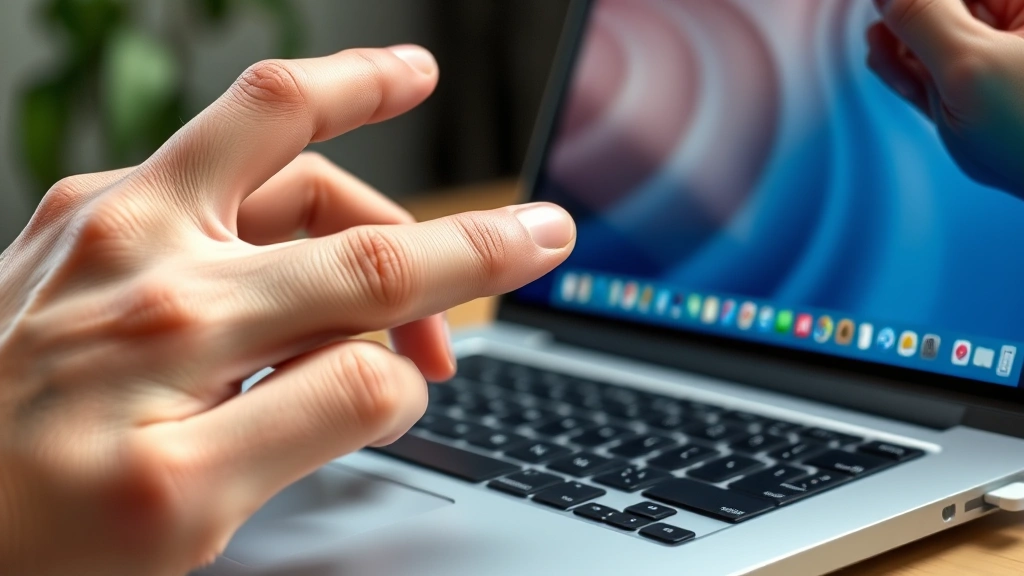
Learning how to right click on a Mac is essential for accessing context menus and hidden features. Unlike Windows computers with dedicated right-click buttons, Mac users need to employ alternative methods to perform this fundamental task. Whether you’re using a trackpad, mouse, or Magic Mouse, we’ll show you the quickest and most efficient ways to right click on a Mac. This guide covers every method available, from keyboard shortcuts to hardware solutions, ensuring you can access contextual menus effortlessly.
Quick Answer
The primary method to right click on a Mac involves holding the Control key while clicking with your trackpad or mouse. Alternatively, you can use a two-finger tap on the trackpad or enable right-click functionality on compatible Magic Mice. Most modern Macs also support clicking with two fingers simultaneously for instant right-click access.
What You Will Need
- Mac computer (MacBook, iMac, Mac mini, or Mac Studio)
- Trackpad or mouse (built-in or external)
- Basic keyboard knowledge (Control, Option, Command keys)
- Time required: 2-3 minutes to learn all methods
- Difficulty level: Beginner-friendly
- No software installation needed for native methods
Step 1: Master the Control-Click Method
The Control-click method is the most universal way to right click on a Mac and works on every Apple device. This fundamental technique requires holding the Control key (located at the bottom-left of your keyboard) while simultaneously clicking your trackpad or mouse button.
How to Perform Control-Click
- Locate the Control key on your keyboard’s bottom-left corner
- Position your cursor over the item you want to right-click
- Press and hold the Control key
- While holding Control, click your trackpad or mouse with one finger
- Release both the Control key and your finger simultaneously
- A context menu will appear with available options
This method takes approximately 1-2 seconds to execute and works in virtually every Mac application, from Finder to web browsers. Experts suggest practicing this motion 5-10 times until it becomes muscle memory, typically taking less than five minutes.
When to Use Control-Click
Use this method when accessing file properties, copying items, or getting contextual options in any application. It’s particularly useful in Finder for managing files and folders efficiently.
Step 2: Use Two-Finger Tap on Your Trackpad
Modern Mac trackpads support multi-touch gestures, making it incredibly easy to right click on a Mac without using the Control key. The two-finger tap method provides a more intuitive alternative for trackpad users.
Enabling Two-Finger Tap for Right-Click
- Click the Apple menu in the top-left corner
- Select System Preferences (or System Settings on macOS Ventura and later)
- Navigate to Trackpad settings
- Click the Point & Click tab
- Check the box next to “Secondary click”
- Choose your preferred gesture: “Click with two fingers” or “Click on right side”
Once enabled, you can right click on a Mac by simply tapping with two fingers on your trackpad simultaneously. This gesture is faster and more natural for many users compared to Control-click, reducing hand strain during extended use.

Adjusting Trackpad Sensitivity
If two-finger tapping doesn’t register properly, you can adjust the trackpad’s click pressure in the same System Preferences menu. Modern Macs allow you to set pressure sensitivity to Light, Medium, or Firm, accommodating different user preferences.
Step 3: Enable Right-Click on Magic Mouse
Apple’s Magic Mouse includes built-in right-click capabilities that many users overlook. Enabling this feature transforms your Magic Mouse into a fully functional right-click device.
Setting Up Magic Mouse Right-Click
- Ensure your Magic Mouse is paired with your Mac
- Open System Preferences or System Settings
- Select Mouse from the sidebar
- Click the Point & Click tab
- Enable “Secondary click” checkbox
- Choose “Click on right side” from the dropdown menu
With this setting active, you can right click on a Mac by clicking the right side of your Magic Mouse. The device automatically recognizes whether you’re clicking the left or right side, providing a seamless experience.
Magic Mouse Pressure Sensitivity
Magic Mouse supports Force Touch technology on newer models, allowing you to press harder for additional actions. Check your specific Magic Mouse model in Apple’s official documentation to confirm available features.
Step 4: Use Keyboard Shortcuts for Quick Access
For keyboard-centric users, Mac offers dedicated shortcuts to right click on a Mac without touching the trackpad or mouse at all. This method proves invaluable for accessibility and workflow efficiency.
Primary Keyboard Method
- Select an item in Finder or any application
- Press Shift + F10 or Fn + Shift + F10 (depending on your keyboard)
- Alternatively, use Control + Space in some applications
- The context menu appears instantly without any mouse interaction
Keyboard shortcuts are particularly useful for accessibility purposes and when your trackpad or mouse malfunctions. They’re also faster for power users who prefer keeping their hands on the keyboard.
Application-Specific Shortcuts
Different applications may support variations of these shortcuts. Web browsers like Safari and Chrome often respond to Control+click alternatives, while text editors may use different key combinations.
Step 5: Connect an External Right-Click Mouse
If you prefer traditional right-click functionality, connecting an external mouse with dedicated right-click buttons provides the most familiar experience. This method works seamlessly with modern Macs.
Setting Up an External Mouse
- Ensure your external mouse is fully charged (for wireless models)
- Enable Bluetooth on your Mac via System Preferences
- Put your mouse in pairing mode (usually a button on the bottom)
- Your Mac detects the mouse automatically within 10-15 seconds
- Click “Connect” or “Pair” in the Bluetooth settings
- Test right-click functionality immediately
Popular external mice for Mac include Logitech MX Master, Razer Pro Click, and Microsoft Sculpt Ergonomic Mouse. These devices offer full right-click support with no additional configuration needed.
Compatibility Considerations
Most third-party mice work with Macs using standard Bluetooth connectivity. However, some gaming mice may require manufacturer-specific software for full feature access. Check compatibility before purchasing.
Pro Tips for Mac Users
Combine Methods for Maximum Efficiency
Expert Mac users recommend mastering multiple right-click methods and switching between them based on context. Use Control-click when you need speed, two-finger tap for comfort during extended sessions, and keyboard shortcuts when your hands are already on the keyboard.
Customize Your Trackpad Settings
In System Preferences, you can customize trackpad behavior extensively. We recommend enabling “Tap to click” alongside secondary click for the smoothest experience. This setting reduces the physical pressure needed and speeds up your workflow significantly.
Learn Context Menu Options
Once you master how to right click on a Mac, explore the context menus in different applications. Many hidden features and quick actions appear exclusively in these menus, dramatically improving your productivity.
Practice Makes Perfect
Spend 5-10 minutes daily practicing your preferred right-click method. Within a week, the motion becomes automatic, requiring no conscious thought. This muscle memory development is crucial for comfortable Mac usage.
Common Mistakes to Avoid
Pressing Control and Clicking Too Slowly
Many beginners release the Control key before clicking or click before fully pressing Control. Ensure simultaneous contact for reliable right-click activation. If it fails, practice the timing with 10 repetitions.
Forgetting to Enable Secondary Click Settings
If two-finger tapping doesn’t work, you likely haven’t enabled it in System Preferences. Check your Trackpad settings immediately—this is the most common issue preventing right-click functionality.
Using Wrong Keyboard Shortcuts
Shift + F10 works in most applications, but some older Mac software may use different combinations. If shortcuts fail, revert to Control-click, which has near-universal compatibility.
Ignoring Mouse Compatibility
Not all external mice are Mac-compatible out of the box. Verify compatibility with your specific Mac model and macOS version before purchasing third-party mice.
Pressing Too Hard on Trackpad
Mac trackpads are sensitive—excessive pressure can cause discomfort and inaccuracy. Use light, deliberate touches for the best experience and reduced hand fatigue.
Frequently Asked Questions
Why Can’t I Right-Click on My Mac?
The most common causes include incorrect Control-click timing, disabled secondary click settings, or outdated macOS. First, verify that secondary click is enabled in Trackpad settings. If the issue persists, restart your Mac—this resolves 80% of input-related problems within 30-60 seconds.
Is Control-Click the Same as Right-Click?
Functionally, yes. Control-click produces identical context menus to traditional right-click buttons. The only difference is the method of activation, not the resulting functionality or available options.
Can I Right-Click with a Magic Trackpad?
Absolutely. The Magic Trackpad supports all the same multi-touch gestures as built-in MacBook trackpads. Enable secondary click in System Preferences, then use two-finger tap or click on the right side of the trackpad.
What’s the Fastest Way to Right-Click on a Mac?
For most users, two-finger tapping on the trackpad is fastest, requiring approximately 0.5-1 second. Control-click takes slightly longer at 1-2 seconds due to the keyboard requirement. Keyboard shortcuts are fastest for accessibility-focused users at roughly 0.3 seconds.
Do All Mac Applications Support Right-Click?
Nearly all modern applications support right-click functionality through context menus. However, some older or specialized software may have limited right-click support. In these cases, menu bars typically contain equivalent options.
Is There a Way to Right-Click Without Using Control?
Yes. Enable two-finger tap in Trackpad settings or use keyboard shortcuts like Shift + F10. If you prefer traditional right-click buttons, connect an external mouse with dedicated right-click functionality.
Conclusion
Mastering how to right click on a Mac opens up countless productivity features and hidden menu options. Whether you prefer Control-click, two-finger tapping, keyboard shortcuts, or external mice, Mac provides multiple methods accommodating different preferences and workflows. Start with the Control-click method today, then explore alternative techniques to discover your preferred approach. Within a few days of practice, right-clicking will become second nature, enhancing your Mac experience significantly.
For related Mac tips, you might also find it helpful to learn how to connect Apple Pencil to iPad if you use multiple Apple devices. Additionally, if you work with emails on your Mac, understanding how to recall an email in Outlook can prevent costly mistakes. For entertainment management, you might also want to explore how to cancel YouTube TV from your Mac browser.
For additional official guidance, consult Apple’s official trackpad support documentation, which covers all macOS versions. You can also review Apple’s comprehensive trackpad gesture guide for advanced techniques. For accessibility features, Apple’s accessibility page provides detailed information about keyboard-based navigation options.


