
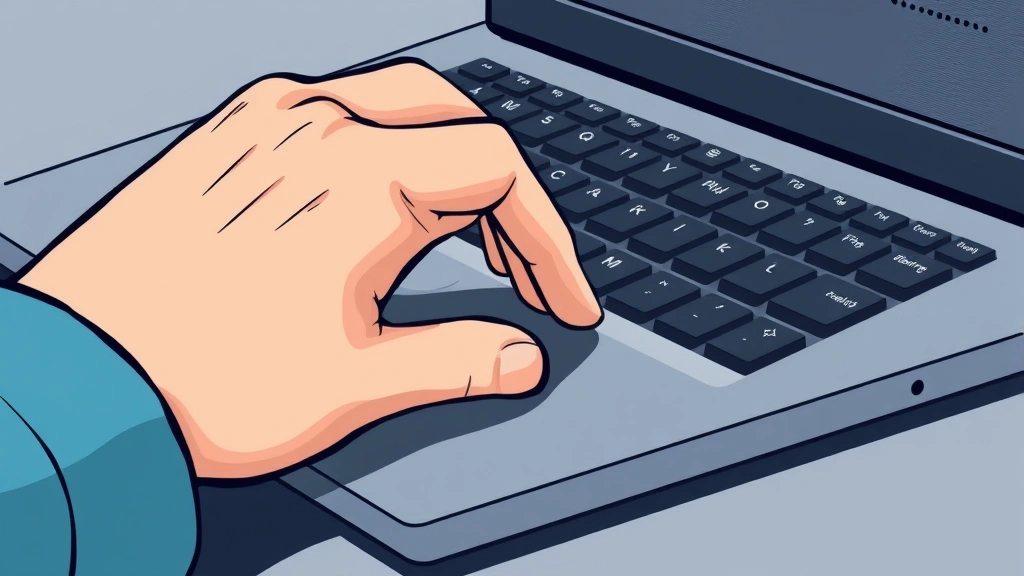
Right-clicking on a laptop isn’t always intuitive—especially if you’re new to trackpads or switching between devices. Unlike a desktop mouse with a dedicated right-click button, how to right click on a laptop depends on your device type, operating system, and trackpad setup. The good news? Once you know the basics, it becomes second nature. This guide walks you through every method so you can master right-clicking whether you’re using Windows, Mac, or Chromebook.
Why Right-Clicking Matters
Before we dive into the how-to, let’s talk about why right-clicking is so important. A right-click opens a context menu—a list of options specific to whatever you clicked on. Need to delete a file? Right-click. Want to copy text? Right-click. Need to check file properties or access settings? You guessed it: right-click.
Think of right-clicking like having a hidden menu in every corner of your screen. Without it, you’d spend twice as long navigating through menus and toolbars. It’s one of those features that feels optional until you can’t use it—then suddenly everything feels broken.
The challenge with laptops is that trackpads don’t have physical left and right buttons like a traditional mouse. Manufacturers solved this problem in different ways depending on the brand and model, which is why the process varies.
Right-Clicking on Windows Laptops
Most Windows laptops use one of two methods for right-clicking on the trackpad. The specific approach depends on your laptop model and trackpad type.
Method 1: Two-Finger Tap (Most Common)
This is the easiest and most intuitive method on modern Windows laptops:
- Place two fingers on the trackpad simultaneously
- Tap both fingers at the same time (don’t press hard—a light tap works)
- The context menu appears instantly
This works on almost all Windows laptops made in the last 10 years. It’s smooth, fast, and becomes automatic once you get used to it. The key is using two fingers at the exact same moment—if one finger taps slightly before the other, it might register as a two-finger scroll instead.
Method 2: Click with Two Fingers (Alternative)
If tapping doesn’t work, try this:
- Place two fingers on the trackpad
- Press down (click) while keeping both fingers in contact
- Release and the context menu appears
Some older or budget Windows laptops respond better to this method. It’s slightly less common than the two-finger tap, but it’s worth trying if tapping alone doesn’t trigger the right-click.
Method 3: Bottom-Right Corner Click
On certain Windows laptops (particularly older models), right-clicking works by clicking in the bottom-right corner of the trackpad:
- Move your cursor to the desired location
- Click the bottom-right corner of the trackpad
- The context menu appears
This method is less common on modern laptops but still exists on some budget or older models. If neither of the first two methods work, this might be your answer.
Pro Tip: If you’re unsure which method your laptop uses, try the two-finger tap first. It works on roughly 85% of modern Windows laptops. If it doesn’t work, move to the two-finger click, then the corner click. You’ll find your method within three attempts.
Right-Clicking on Mac Laptops
Mac laptops (MacBooks) handle right-clicking differently than Windows machines, but it’s equally straightforward once you know the trick.
Method 1: Two-Finger Tap (Standard)
The most common way to right-click on a Mac:
- Place two fingers on the trackpad
- Tap with both fingers simultaneously
- The context menu (called the “secondary click menu” in Mac terminology) appears
This works on virtually all modern MacBooks. The trackpad is more sensitive than Windows trackpads, so even a very light tap registers.
Method 2: Click While Holding Control
If you prefer not to use two fingers, try this classic Mac method:
- Position your cursor over the item you want to right-click
- Hold down the Control (⌃) key on your keyboard
- Click the trackpad normally (one finger)
- Release Control and the context menu appears
This works on all Macs, even older models. It’s less intuitive than the two-finger tap, but some users prefer it because it’s more deliberate.
Method 3: Enable Right-Click in System Preferences
Some Mac users disable two-finger tapping in their trackpad settings. If right-clicking isn’t working, you might need to enable it:
- Click the Apple menu and select System Preferences (or System Settings on newer macOS versions)
- Choose Trackpad
- Click the Point & Click tab
- Check the box next to Secondary click or Right click
- Select Click in bottom right corner or Click with two fingers (your preference)
Once enabled, your Mac is ready for right-clicking using whichever method you selected.
Mac Quirk: Some older MacBook models don’t support trackpad right-clicking at all. If you’re using a MacBook from before 2009, the Control+Click method is your only option. For everyone else, two-finger tapping is the gold standard.
Right-Clicking on Chromebooks

Chromebooks are different beasts. They run Chrome OS, not Windows or macOS, so right-clicking works a bit differently. If you need more details on Chromebook navigation, check out our guide on how to flip screen on Chromebook.
Method 1: Two-Finger Tap (Standard)
Most Chromebooks use the same two-finger tap method as Windows and Mac:
- Place two fingers on the trackpad
- Tap both fingers simultaneously
- The context menu appears
This is the quickest way on modern Chromebooks.
Method 2: Long Press (Alternative)
Some Chromebooks respond to a long press instead:
- Place one finger on the trackpad over the item you want to right-click
- Press and hold for 1-2 seconds without moving
- The context menu appears
This method is less common but useful if two-finger tapping isn’t working.
Method 3: Alt+Click (Keyboard Shortcut)
You can also use your keyboard:
- Hold the Alt key
- Click the trackpad normally (one finger)
- Release Alt and the context menu appears
This is particularly useful if you’re having trackpad issues. For more Chromebook-specific tips, see our article on how to turn off caps lock on Chromebook.
Using an External Mouse
If trackpad right-clicking is frustrating or unreliable, an external mouse is a game-changer. Most laptops support Bluetooth or USB mice seamlessly.
Connecting a Wireless Mouse
- Turn on the mouse and put it in pairing mode (usually a button on the bottom)
- On your laptop, go to Settings (Windows) or System Preferences (Mac)
- Select Bluetooth or Devices
- Click Add Device or Pair New Device
- Select your mouse from the list and confirm pairing
Once paired, right-clicking works exactly like on a desktop—just click the right button.
Using a Wired USB Mouse
Wired mice are even simpler: just plug them in. Your laptop recognizes them instantly, and right-clicking works immediately without any setup.
Real Talk: If you spend hours daily on your laptop, an external mouse is worth the $15-30 investment. Trackpad right-clicking is fine for occasional use, but it can get tiring. Plus, having a mouse improves precision for design work, photo editing, and gaming. Think of it like upgrading from a basic pen to a good one—the difference is noticeable.
For more on keeping your input devices clean and functional, check out our guide on how to clean a mousepad.
Troubleshooting Right-Click Issues
Sometimes right-clicking just doesn’t work. Here are the most common problems and fixes.
Right-Click Isn’t Registering
Problem: You’re attempting to right-click but nothing happens.
Solutions:
- Make sure you’re using two fingers simultaneously. If one finger taps a split second before the other, it registers as a regular click instead.
- Check your trackpad settings. On Windows, open Settings > Devices > Touchpad and ensure right-click is enabled. On Mac, go to System Preferences > Trackpad > Point & Click and verify the option is checked.
- Update your trackpad drivers. On Windows, right-click the Start menu, select Device Manager, expand Mice and other pointing devices, right-click your trackpad, and select Update driver. For help with this, see our article on how to force close on Windows—sometimes you need to close a frozen app before updating drivers.
- Restart your laptop. Sometimes trackpad drivers need a reboot to function properly.
Right-Click Is Too Sensitive or Too Slow
Problem: Right-clicking triggers too easily, or it’s sluggish.
Solutions:
- Adjust sensitivity in trackpad settings. On Windows, open Settings > Devices > Touchpad and look for sensitivity sliders. On Mac, go to System Preferences > Trackpad > Point & Click and adjust tracking speed.
- Disable accidental activation. Many trackpads have a setting to prevent right-clicks when you’re typing. Enable this if you’re accidentally triggering context menus.
- Clean your trackpad. Dust and oils reduce responsiveness. Use a slightly damp microfiber cloth to gently wipe the surface.
Right-Click Works Sometimes But Not Always
Problem: Right-clicking is inconsistent.
Solutions:
- Practice your technique. Make sure both fingers tap at exactly the same moment. Slightly staggered taps register as regular clicks.
- Check for software conflicts. Some apps (particularly older software or games) can interfere with trackpad functionality. Try right-clicking in a different application to isolate the issue.
- Update your operating system. On Windows, go to Settings > Update & Security > Windows Update. On Mac, click the Apple menu and select Software Update. For more on checking your system, see our guide on how to check Windows version.
Keyboard Shortcuts as Alternatives
If right-clicking isn’t working or you prefer keyboard shortcuts, these alternatives accomplish the same goals:
Windows Keyboard Shortcuts
- Shift + F10: Opens the context menu for the selected item (works almost everywhere)
- Menu Key: If your keyboard has a Menu key (usually between the right Alt and right Ctrl), pressing it opens the context menu
- Alt + F10: Alternative method on some applications
Mac Keyboard Shortcuts
- Control + Click: The classic Mac right-click equivalent (mentioned earlier, but worth repeating)
- Command + Option + I: Opens developer tools in browsers (different from right-click menu, but useful)
Chromebook Keyboard Shortcuts
- Alt + Click: Right-click equivalent on Chromebooks
- Search + Click: Alternative on some Chromebooks (the Search key is the magnifying glass icon)
These shortcuts are lifesavers when your trackpad isn’t cooperating. Memorizing Shift + F10 on Windows alone will save you countless frustrations.
Frequently Asked Questions
Why isn’t my right-click working on my laptop?
– The most common culprits are disabled trackpad settings, outdated drivers, or incorrect finger placement. Start by checking your trackpad settings to ensure right-click is enabled. If that doesn’t work, update your drivers or try using Shift + F10 as a keyboard alternative. If you’re using two fingers, make sure both tap at exactly the same moment—even a tiny delay registers as a regular click.
Can I right-click on a Chromebook?
– Yes. Most Chromebooks support two-finger tapping for right-clicks, just like Windows and Mac laptops. If that doesn’t work, try holding Alt and clicking, or use a long press (hold one finger for 1-2 seconds). Some older Chromebooks may have limited right-click support, but the vast majority of modern models work fine.
Is two-finger tapping the same on all laptops?
– The concept is the same, but sensitivity and responsiveness vary. Windows trackpads often require a slightly firmer tap, while Mac trackpads are more sensitive. Chromebooks fall somewhere in between. The best approach is to experiment with light, simultaneous taps and adjust based on your device’s response.
What if I can’t figure out how to right-click on my specific laptop?
– Use keyboard shortcuts instead. Shift + F10 works on Windows, Control + Click on Mac, and Alt + Click on Chromebooks. These are reliable alternatives that bypass trackpad issues entirely. You can also connect an external mouse for traditional right-clicking.
Do I need to press hard when two-finger tapping?
– No. A light tap is usually sufficient. Pressing too hard can actually prevent the trackpad from registering the gesture correctly. Think of it like tapping a doorbell—a gentle tap is all you need. If you’re pressing hard and nothing happens, try using less pressure.
Can I customize right-click behavior on my laptop?
– Yes. On Windows, go to Settings > Devices > Touchpad to adjust right-click settings. On Mac, open System Preferences > Trackpad > Point & Click. You can usually choose between two-finger tap, corner click, or disable it entirely if you prefer keyboard shortcuts.

Is an external mouse necessary for laptops?
– No, but it’s highly recommended if you use your laptop for extended periods. Trackpad right-clicking works fine for casual use, but an external mouse is more comfortable, faster, and more precise. For professional work, gaming, or design tasks, a mouse is practically essential.
What’s the difference between right-clicking and the context menu?
– Right-clicking is the action (the gesture or button press). The context menu is the result—the list of options that appears. When you right-click, a context menu opens. The terms are related but distinct.


