How to Retrieve Deleted Texts on Android: Easy & Complete Guide

Accidentally deleted an important text message on your Android phone? Don’t panic—there are several proven methods to recover deleted texts, from built-in backup features to third-party recovery apps. This comprehensive guide walks you through every option, from the simplest to the most advanced, so you can retrieve those messages quickly.
Quick Answer: The easiest way to retrieve deleted text messages on Android is to restore from a Google account backup if you have one enabled. If that doesn’t work, check your messaging app’s trash folder, use Google One’s backup feature, or employ a dedicated data recovery app like EaseUS MobiSaver or PhoneRescue. Act fast—the sooner you stop using your phone, the better your chances of recovery.
Tools & Materials You’ll Need
- Android smartphone with deleted texts
- Google account credentials (associated with your phone)
- Wi-Fi or mobile internet connection
- Computer (optional, for some recovery methods)
- USB cable (if using computer-based recovery)
- Data recovery software (EaseUS MobiSaver, PhoneRescue, or similar)
- Sufficient storage space on your device
Method 1: Restore from Google Account Backup
The most straightforward way to retrieve deleted text messages on Android is through your Google account backup. Google automatically backs up SMS messages, call logs, and other data when you have backup enabled. This method works best if you’ve never disabled backups and your phone is still connected to the same Google account.
Step-by-step instructions:
- Open your Android phone’s Settings app
- Scroll down and tap System or About Phone (varies by manufacturer)
- Select Backup or Google Account
- Verify that backup is enabled and note the last backup date
- If your texts were deleted after the last backup, this method won’t help
- To restore, go to Settings > System > Reset options > Erase all data (factory reset)
- During setup, choose to restore from your Google account backup
Important note: Factory resetting your phone will erase all current data. Only use this method if you’re prepared for a complete device reset, or if you’re setting up a new Android phone and want to restore your old data.
Method 2: Check Your Messaging App’s Trash Folder
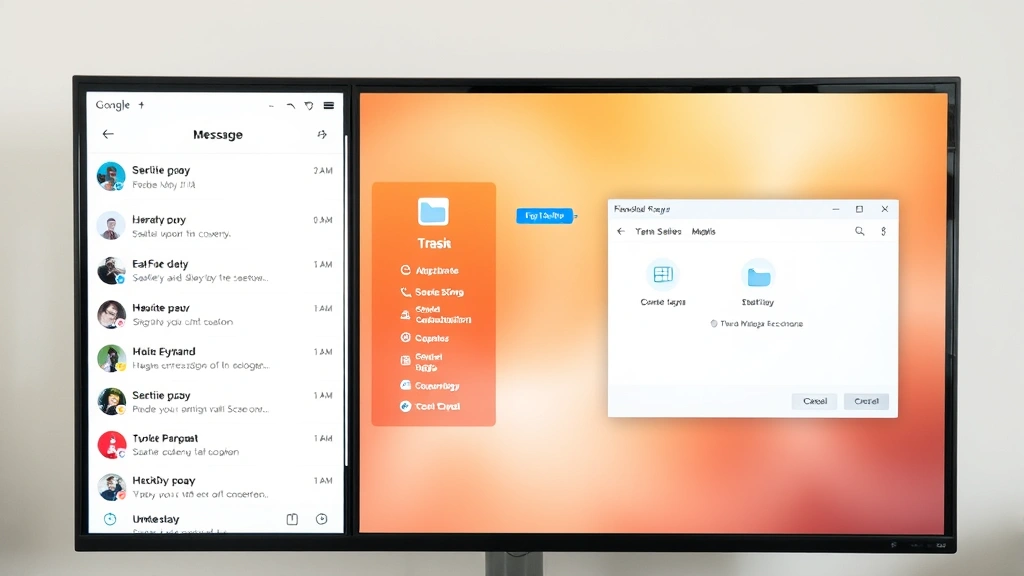
Many modern Android messaging apps include a trash or archive folder where deleted texts temporarily reside before permanent deletion. This is the safest recovery method because it doesn’t require any complex procedures or third-party apps. How to retrieve deleted text messages on Android often starts with simply checking this built-in feature first.
For Google Messages (default Android messaging app):
- Open the Messages app
- Tap the three-dot menu icon in the top right corner
- Select Trash or Deleted
- Long-press the conversation you want to restore
- Tap Restore to move it back to your inbox
For Samsung Messages:
- Open Messages app
- Tap the menu button (three dots or lines)
- Choose Archived or Trash
- Select the messages you want to recover
- Tap Restore or Move to Inbox
If your messaging app doesn’t have a trash feature, the texts are likely permanently deleted from that app’s storage. In this case, you’ll need to try other methods on this list.
Method 3: Use Google One Backup Service
Google One (formerly Google Drive) offers enhanced backup capabilities for Android devices. If you’ve subscribed to Google One, your phone data—including SMS messages—may be backed up to the cloud. This method to retrieve deleted text messages on Android works if you had automatic backup enabled before deletion occurred.
How to check and restore from Google One:
- Visit one.google.com on your computer or phone
- Sign in with your Google account
- Navigate to Storage > Backups
- Look for your Android device name
- Check the backup date to confirm it includes the period when your texts existed
- Click on the backup to see what data is included
- To restore, go to your Android phone’s Settings > System > Backup > Restore from Google One
According to WikiHow’s comprehensive guides, Google One backups typically include SMS messages, contacts, and app data. However, the restore process usually requires a factory reset or setup of a new device.
Method 4: Use a Third-Party Data Recovery App
If backup methods don’t work, third-party data recovery applications can scan your Android device’s storage for deleted text messages. These apps search for recoverable data fragments before they’re overwritten. The success rate depends on how much new data has been written to your phone since deletion.
Popular recovery apps for Android:
- EaseUS MobiSaver – Recovers SMS, contacts, photos, and videos from Android devices
- PhoneRescue for Android – Specializes in text message recovery with a user-friendly interface
- DiskDigger – Free app that can recover various file types including messages
- Recuva Mobile – Lightweight recovery tool for Android
- FonePaw Data Recovery – Comprehensive recovery solution for multiple data types
General steps for using recovery apps:
- Download and install a reputable recovery app from Google Play Store
- Grant the app necessary permissions (storage, file access)
- Open the app and select Recover SMS or Messages
- Allow the app to scan your device (this may take 10-30 minutes)
- Preview recoverable messages once the scan completes
- Select the texts you want to restore
- Save or export the recovered messages
Important: Stop using your phone immediately after discovering the deletion. Every photo taken, app installed, or file downloaded can overwrite the deleted text data, making recovery impossible. The sooner you attempt recovery, the higher your success rate.
Method 5: Recover Deleted Text Messages via Computer
For advanced users, connecting your Android phone to a computer allows you to use more powerful data recovery software. This method offers greater control and often higher recovery rates than mobile apps alone. Programs like Dr.Fone, EaseUS MobiSaver for Android, and similar tools can access your device’s internal storage more thoroughly.
Steps for computer-based recovery:
- Download recovery software on your computer (Windows or Mac)
- Connect your Android phone to the computer via USB cable
- Enable USB Debugging on your phone: Go to Settings > Developer Options > USB Debugging (if Developer Options aren’t visible, tap Build Number seven times in About Phone)
- Allow the computer to recognize your device
- Open the recovery software and select Recover from Android Device
- Choose SMS/Messages as the data type to recover
- Start the scanning process (may take 30-60 minutes)
- Preview results and select messages to recover
- Save recovered texts to your computer or phone
As reviewed by Consumer Reports, computer-based recovery methods are generally more effective than mobile-only solutions because they access deeper storage layers. However, they require technical knowledge and may void warranties if your phone is still under coverage.
Prevention Tips: How to Avoid Losing Texts Again
Once you’ve recovered your deleted text messages on Android, implement these preventive measures to avoid future data loss. Proactive backup strategies are far easier than reactive recovery attempts.
Enable automatic backups:
- Go to Settings > System > Backup > Backup to Google Drive
- Ensure the toggle is ON
- Select your Google account
- Choose backup frequency (daily recommended)
Use Google One for enhanced protection:
- Subscribe to Google One (100GB plan starts at $1.99/month)
- Enable automatic device backup in Settings
- Verify backups are running weekly
Archive instead of delete:
- In your messaging app, use archive features instead of permanently deleting conversations
- Archived messages stay in your account but don’t clutter your inbox
- You can easily restore archived messages if needed
Export important messages:
- Periodically export important text conversations to email or cloud storage
- Use apps like SMS Backup+ to automatically backup texts to Gmail
- Store critical information in notes apps with cloud sync enabled
If you’re also concerned about device storage, you might find it helpful to understand how to format an SD card to free up space, which prevents the need to delete texts due to storage constraints. Similarly, learning how to clear cache on your devices can help maintain optimal performance.
Why Acting Quickly Matters for Text Recovery
The window for successfully recovering deleted text messages on Android is surprisingly narrow. When you delete a text, Android doesn’t immediately erase the data—instead, it marks that storage space as available for new data. Until something else writes over it, recovery is possible. However, every app update, photo sync, or cache clear narrows your chances.
Timeline for recovery success:
- Within 24 hours: 85-95% recovery rate with proper methods
- 1-7 days: 60-80% recovery rate depending on phone usage
- 1-4 weeks: 30-50% recovery rate as new data overwrites old storage
- Beyond 4 weeks: Less than 10% recovery rate in most cases
This is why immediately stopping phone usage and attempting recovery is critical. Avoid taking photos, installing apps, or using your phone for anything except the recovery process itself.
FAQ
Q: Can I recover deleted text messages on Android without a backup?
A: Yes, third-party recovery apps can scan your device’s storage for deleted messages even without a backup. However, success depends on how much new data has been written since deletion. The sooner you attempt recovery, the higher your chances.
Q: Is it safe to use third-party recovery apps?
A: Reputable apps from established developers (EaseUS, PhoneRescue, DiskDigger) are generally safe. Always download from the official Google Play Store and check reviews before installing. Avoid apps with excessive permission requests or poor ratings.
Q: Will factory resetting my Android phone recover deleted texts?
A: Only if you restore from a Google account backup during the setup process. A factory reset alone deletes everything on your device. Only use this method if you’re prepared to lose current data or if you’re setting up a new phone.
Q: How long do deleted texts stay recoverable on Android?
A: Typically 1-4 weeks, depending on your phone usage. The more you use your device, the faster new data overwrites deleted messages. Act within 24 hours for the best recovery chances.
Q: Can I recover deleted texts from a specific contact?
A: Yes, most recovery apps let you filter by sender or contact name. After scanning, you can preview messages and select only those from specific contacts to restore.
Q: Do I need to root my Android phone to recover deleted texts?
A: Most recovery apps work without rooting, but rooting provides deeper access to storage and may improve recovery rates. However, rooting voids warranties and carries security risks. Try non-root methods first.
Q: What if my phone screen is cracked—can I still recover texts?
A: Yes, you can connect a cracked phone to a computer via USB and use desktop recovery software. The physical damage doesn’t affect the storage where texts are located, though you may need to enable USB debugging if possible.
Q: Are recovered deleted text messages complete, or are they corrupted?
A: Most recovered texts are complete and readable. However, if the storage area was partially overwritten, some messages may be incomplete or unreadable. Recovery success varies by individual message.
Q: Can I prevent accidental text deletion in the future?
A: Yes, enable automatic backups through Google account settings, use archive instead of delete in your messaging app, and consider using SMS Backup+ to automatically backup texts to Gmail. Some phones also offer enhanced trash recovery features.
Q: Is there a way to recover texts deleted years ago?
A: Unlikely. After several weeks or months, deleted data is usually completely overwritten. Your best option would be if you have a cloud backup from that time period, though most services only keep recent backups.
For additional guidance on data management, check out resources on HowStuffWorks, which covers various tech recovery topics. You might also explore Lifehacker’s tech guides for more device management tips. Additionally, Family Handyman offers practical how-to advice that complements tech recovery strategies. If you’re interested in related device management topics, learning how to reformat an SD card can help maintain optimal device performance.