
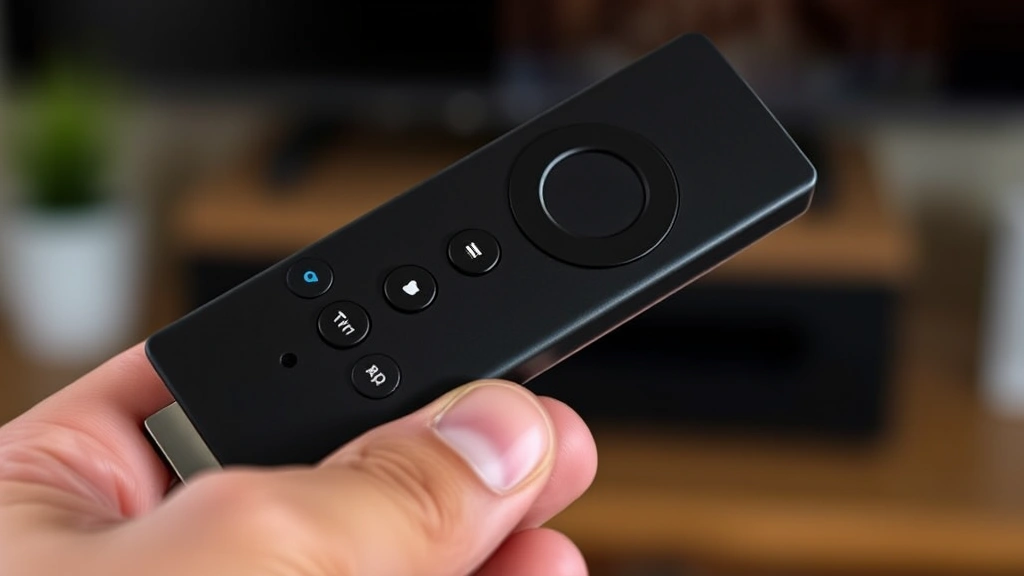
Your Firestick is freezing. Apps are crashing. The remote won’t respond. Sound familiar? Before you panic or throw the thing across the room, here’s the truth: knowing how to restart Firestick is one of the easiest troubleshooting moves you can make, and it solves about 80% of streaming problems. This guide walks you through every method—soft restart, hard restart, factory reset—and tells you exactly when to use each one.
A restart clears your device’s RAM, closes stubborn apps, and refreshes your connection without erasing anything. It’s like hitting the reset button on your brain after a long day. In most cases, a simple restart gets your Firestick humming again in under two minutes.
Quick Answer: The 30-Second Restart
If you’re in a hurry: Unplug your Firestick from the power outlet for 30 seconds, then plug it back in. Wait for the Amazon logo to appear (about 1-2 minutes), and you’re done. That’s it. This works about 90% of the time for buffering, freezing, and app crashes.
If that doesn’t work, try holding down the Select and Play/Pause buttons on your remote for 10 seconds. Your Firestick will restart automatically.
Still stuck? Keep reading—we’ve got three more methods plus troubleshooting tips.
Why You Need to Restart Your Firestick
Your Firestick is basically a tiny computer. Like any computer, it accumulates temporary files, runs out of RAM, and sometimes gets its wires crossed. A restart clears all that junk and gives the processor a fresh start.
Common problems a restart fixes:
- Apps freezing or crashing – The app’s memory got corrupted.
- Buffering and slow playback – Network connection needs to re-establish.
- Remote not responding – Bluetooth connection dropped.
- Audio/video sync issues – The processor got overloaded.
- Stuck on loading screen – App didn’t close properly.
Think of it like this: your Firestick’s brain is running 47 background processes and it forgot to close three of them. A restart tells the brain to shut everything down and start fresh. No data lost. No settings changed. Just a clean slate.
According to Amazon’s official support documentation, restarting is the first troubleshooting step for 90% of Firestick issues.
Method 1: Soft Restart (Remote Method)
This is the easiest method and the one I recommend starting with. You’re not unplugging anything—just using the remote to tell your Firestick to restart.
Here’s exactly what to do:
- Make sure your remote has fresh batteries. (Dead batteries are the #1 reason this doesn’t work.)
- Point the remote at your Firestick.
- Hold down the Select button (the circular center button) and the Play/Pause button simultaneously.
- Keep holding for 10 full seconds. You’ll see a restart notification pop up on your TV.
- Release the buttons and wait 1-2 minutes for the device to fully reboot.
Your Firestick will show the Amazon logo, then take you back to the home screen. That’s your signal that the restart is complete.
Pro Tip: If nothing happens, your remote batteries are probably dead. Swap in new ones and try again. Seriously, this is the most common culprit.
Method 2: Hard Restart (Physical Reset)
When the remote method doesn’t work, go old school. A hard restart means physically cutting power to the device. This is slightly more aggressive than the remote method, but it’s still completely safe and doesn’t erase anything.
Step-by-step:
- Locate the power cable connected to your Firestick. (It’s usually plugged into the back of your TV or into a wall outlet.)
- Unplug the cable completely from the power source.
- Wait exactly 30 seconds. (I know it feels like forever. Resist the urge to plug it back in at 15 seconds.)
- Plug the cable back in.
- Watch for the Amazon logo to appear on your TV. This usually takes 30-60 seconds.
- Wait another 30 seconds after the home screen loads to make sure everything is fully initialized.
That’s it. Your Firestick has now completed a full restart cycle and cleared its memory.
Safety Note: Always unplug from the power outlet, not just from the Firestick itself. If your Firestick is powered via USB from your TV, unplug the USB cable instead.
Method 3: Restart from Settings Menu
This method gives you the most control because you’re restarting through the actual operating system. It’s slightly slower than the other methods, but it’s useful if you want to see the restart happening in real-time.
Follow these steps:
- From the home screen, navigate to Settings using your remote.
- Scroll down to My Fire TV (or Device on older models).
- Select Restart.
- A confirmation dialog will appear asking if you’re sure. Select Yes or Restart.
- Your Firestick will immediately begin the restart process. You’ll see the screen go black, then the Amazon logo will appear.
- Wait 1-2 minutes for the full restart to complete.
This method is great because it gives your Firestick a clean shutdown before the restart, which is technically the safest approach. However, it only works if your Firestick is responsive enough to navigate the menu. If your device is completely frozen, use Method 2 instead.
When to Do a Factory Reset Instead
Here’s the important distinction: restarting is different from resetting.
A restart clears temporary memory and closes apps. Your settings, apps, and login info stay intact.
A factory reset erases everything and returns your Firestick to brand-new condition. You’ll lose all installed apps, login credentials, and preferences.
Only do a factory reset if:
- Your Firestick is so broken that restarting didn’t help.
- You’re selling or giving away the device.
- You want to start completely fresh and troubleshoot from scratch.
- You’ve tried all three restart methods and nothing worked.
How to factory reset (if you really need to):
- Go to Settings → My Fire TV → Reset to Factory Defaults.
- Select Reset and confirm.
- Your Firestick will restart and erase everything. This takes 5-10 minutes.
- When it’s done, you’ll see the initial setup screen like you just unboxed it.
If factory reset doesn’t fix the problem, you’re looking at a hardware issue, and it’s time to contact Amazon support or consider replacing the device.
Troubleshooting: What If It Still Won’t Work?
You’ve tried restarting and nothing changed. Here’s what to check next:
The Remote Still Doesn’t Work After Restart
Your remote might have lost its Bluetooth pairing. Try this:
- Restart your Firestick using the hard restart method (unplug for 30 seconds).
- Once it’s back on, hold the Home button on your remote for 10 seconds.
- This forces the remote to re-pair with your Firestick.
- You should see a pairing notification on your TV.
If that doesn’t work, your remote batteries are probably dead. Swap them out and try again. (Seriously, this is the answer to 70% of “remote not working” problems.)
Apps Still Crash After Restart
Individual apps sometimes have bugs. Try this:
- Go to Settings → Apps → Manage Installed Applications.
- Select the problematic app.
- Choose Force Stop and then Clear Cache.
- Exit and reopen the app.
If the app still crashes, uninstall it and reinstall it from the Amazon Appstore. This is like a targeted restart just for that one app.
Still Buffering After Restart
This is usually a network issue, not a Firestick issue. Check your WiFi:
- Go to Settings → Network.
- Select your WiFi network and choose Forget.
- Reconnect to the network and re-enter your password.
- Run a speed test to make sure you have at least 5 Mbps for HD streaming (25 Mbps for 4K).
If your internet is slow, that’s not a Firestick problem—that’s an ISP problem. Contact your internet provider or move your router closer to your TV.
Firestick Won’t Turn On After Hard Restart
This is rare, but here’s what to do:
- Wait 5 full minutes. Sometimes the restart takes longer than expected.
- Check that the power cable is fully inserted into both the Firestick and the wall outlet.
- Try a different power outlet. Your current outlet might be dead.
- Unplug for 60 seconds instead of 30, then plug back in.
- If nothing happens, you might have a hardware failure. Contact Amazon customer support for a replacement.
For more info on device troubleshooting across your tech ecosystem, check out our guides on how to reboot iPhone and how to reset AirTag—similar concepts, different devices.
Frequently Asked Questions
Does restarting my Firestick erase my apps and settings?
– No. A restart only clears temporary memory and closes running apps. Your installed apps, login information, preferences, and watch history all stay exactly as they were. It’s completely safe.
How long does a Firestick restart take?
– The actual restart process takes 1-2 minutes from the time you unplug (or trigger the restart) until the home screen appears. Wait another 30 seconds after the home screen loads to make sure everything is fully initialized. Total time: about 2-3 minutes.
Can I restart my Firestick while it’s playing a video?
– Technically yes, but you shouldn’t. Stop what you’re watching first, then restart. This prevents any potential file corruption, especially if you’re using the hard restart method (unplugging).
What’s the difference between restart and factory reset?
– A restart clears temporary memory and closes apps but keeps your settings and installed apps. A factory reset erases everything and returns the device to brand-new condition. Only factory reset if restarting doesn’t fix the problem or if you’re selling the device.
Why does my Firestick need restarting so often?
– Firesticks run a version of Android, and like any computer, they accumulate temporary files and memory leaks over time. If your Firestick needs restarting more than once a week, you might have a problematic app installed. Try uninstalling recently added apps to see if that helps.
Can I restart my Firestick with a voice command?
– Not directly. You can’t say “Alexa, restart my Firestick.” However, you can use the remote method (hold Select + Play/Pause) or navigate to Settings and restart from there. Both are quick enough that a voice command wouldn’t save much time anyway.
Is it safe to unplug my Firestick without restarting first?
– Yes, it’s safe. Firesticks are designed to handle sudden power loss. However, it’s better practice to restart through the menu or remote if possible, since that gives the system time to close apps gracefully. That said, if your device is completely frozen, unplugging is your only option.
Should I restart my Firestick regularly, even if it’s working fine?
– Not necessary, but it doesn’t hurt. Some people restart their Firestick once a month as preventative maintenance. If your device is working fine, there’s no need to restart. Only restart when you’re experiencing problems or if you notice performance degradation.
My Firestick restarted on its own. Is that bad?
– Usually not. Amazon sometimes pushes automatic updates that require a restart. Check your Settings → My Fire TV → About to see if there’s a pending update. If you see one, let it install and restart. That’s normal behavior.
Can I restart my Firestick from my phone?
– Not directly through the Firestick app. However, if you have an Alexa-compatible smart home setup, you might be able to control it through Alexa routines, but it’s not straightforward. Your easiest options are the remote method or navigating to Settings on your TV.
The Bottom Line: Knowing how to restart Firestick is your first line of defense against freezing, buffering, and app crashes. Start with the remote method (Select + Play/Pause for 10 seconds). If that doesn’t work, unplug for 30 seconds. Both take just a couple of minutes and solve the vast majority of Firestick problems without losing any of your data or settings. Keep this guide bookmarked for the next time your streaming device acts up.


