
Look, Microsoft Edge comes pre-installed on Windows, and a lot of people want it gone. Whether it’s taking up space, you prefer Chrome, Firefox, or Safari, or you just don’t want Microsoft tracking your browsing habits—the desire to remove Microsoft Edge is totally legitimate. The tricky part? How to remove Microsoft Edge without breaking your system or leaving behind junk files that slow things down.
Here’s the real talk: Windows makes this harder than it should be. Edge is baked into the operating system in ways that older browsers weren’t. But it’s absolutely doable, and I’m going to walk you through every method—from the easy way to the nuclear option—so you can pick what works for your skill level and comfort zone.
Why Remove Microsoft Edge?
Before we dive into the how, let’s talk about the why. Microsoft Edge has gotten better over the years—it’s actually a decent browser now, built on Chromium like Chrome and Opera. But there are solid reasons people want it off their machine:
- Disk space: Every app takes up room. If you’re not using Edge, why keep it?
- System resources: Background processes can drain RAM and CPU, even when you’re not actively using the browser.
- Privacy concerns: Some folks don’t trust Microsoft’s data collection practices and prefer open-source alternatives.
- Preference: You already have a browser you like. Keeping Edge around is just clutter.
- Work requirements: Some corporate environments need specific browsers only.
The frustration most people hit? Windows makes it surprisingly difficult to fully remove Edge because it’s integrated into the OS. You can’t just right-click and delete it like you would a third-party app. But don’t worry—we’ve got solutions.
Check Your Windows Version First
This matters more than you’d think. The methods to remove Microsoft Edge vary depending on whether you’re running Windows 10 or Windows 11, and which build you’re on. Before you start, you need to know what you’re working with.
Head to Settings > System > About and look for your Windows version and OS build. You can also check your Windows version using the command line if you prefer. Write down the version number—you’ll want it handy.
Why? Because Windows 11 Home and Pro editions have restrictions on what you can remove, and certain builds have patched out some of the older removal methods. Knowing your exact setup prevents wasted time trying fixes that won’t work for your system.
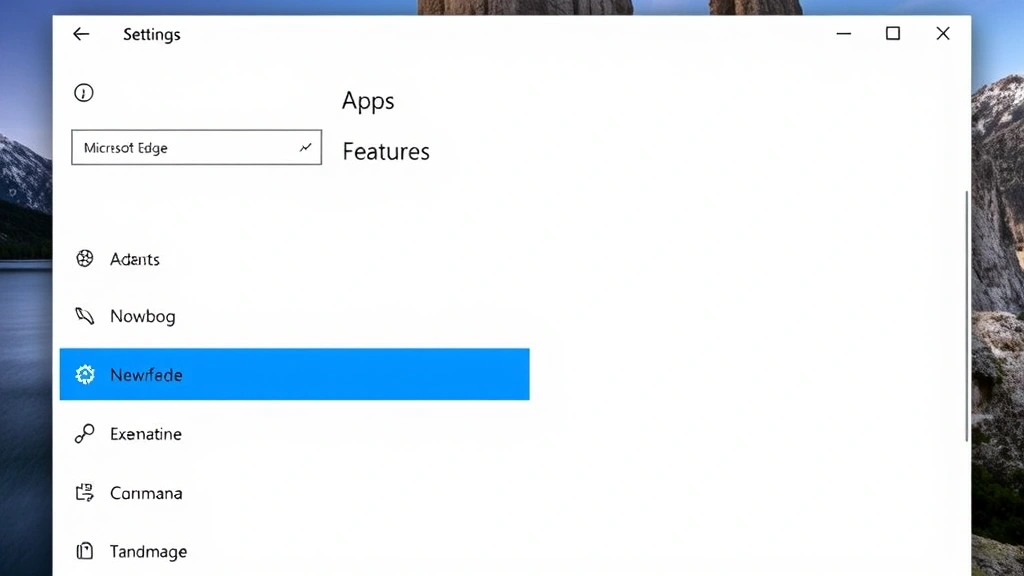
Method 1: Uninstall via Settings (Easiest)
This is the path of least resistance, and it works for most people. It won’t remove Edge completely—Windows keeps core components—but it’ll get the browser app off your system.
- Open Settings (Win + I is the keyboard shortcut)
- Navigate to Apps > Apps & Features
- Scroll down until you find Microsoft Edge
- Click on it to expand the options
- Select Uninstall
- A confirmation dialog will pop up asking if you want to remove it. Click Uninstall again
- Wait for the process to finish (usually takes 30 seconds to 2 minutes)
That’s it. The Edge browser is now gone from your system. You won’t see it in your Start menu, taskbar, or anywhere else.
Pro Tip: If the uninstall button is grayed out, you might be running a version of Windows where Edge is locked. Try Method 2 or 3 instead. Also, make sure Edge isn’t currently running—close it completely before attempting removal.
The limitation here? Windows keeps some Edge components running in the background for system integration (like handling web links). If you want a truly complete removal, you’ll need to go deeper.
Method 2: Remove via Control Panel
This is the old-school approach, and it sometimes works when the Settings method doesn’t. It’s basically the same thing, just accessed differently.
- Open Control Panel (search for it in the Start menu)
- Go to Programs > Programs and Features
- Look for Microsoft Edge in the list
- Click on it once to select it
- Click the Uninstall button at the top
- Confirm the removal when prompted
If neither Settings nor Control Panel work, you’re probably dealing with a Windows version where Edge is considered a system component. That’s when you move to the advanced methods.
One thing to know: Control Panel is technically deprecated in newer Windows versions, but it still works. Microsoft is slowly pushing everyone toward the Settings app, but for some tasks, Control Panel is still more reliable. Think of it like the old tool that still works perfectly fine even though the company released a new version.
Method 3: PowerShell Removal (Advanced)

This is where things get more technical. PowerShell is Windows’ command-line tool, and it can do things the GUI can’t. This method works on Windows 10 and 11, even when the standard uninstall methods fail.
Safety Warning: PowerShell is powerful—it can break your system if you make mistakes. Follow these instructions exactly. Don’t modify commands or add extra parameters unless you know what you’re doing. If you’re uncomfortable with command lines, stick with Methods 1 or 2.
- Right-click the Start button and select Terminal (Admin) or Windows PowerShell (Admin) depending on your Windows version
- Click Yes when the User Account Control prompt appears
- Copy and paste this command exactly:
Get-AppxPackage -Name "Microsoft.MicrosoftEdge" | Remove-AppxPackage - Press Enter and wait for the command to complete
- Close PowerShell
If that command doesn’t work, try this alternative:
- Open PowerShell as Admin (same as above)
- Paste:
Get-AppxPackage *Edge* | Remove-AppxPackage - Press Enter
This second command is broader—it removes anything with “Edge” in the name. It’s more aggressive but sometimes necessary on stubborn systems.
What’s happening here? PowerShell is directly removing the app package from your Windows installation, bypassing the GUI entirely. This works even when Edge is set as a system component because you’re operating at a deeper level.
The downside: If something goes wrong, you might need to reinstall Windows or use system restore. That’s why I emphasized following the commands exactly. If you’re not confident, use Method 1 or 2 and accept that some Edge components will remain.
Method 4: Registry Editor Approach
This is the nuclear option. The Windows Registry is where the operating system stores configuration settings for everything. Modifying it can fix stubborn problems, but one wrong edit can cause serious issues.
Safety Warning: Editing the Registry is risky. If you’re not experienced with it, skip this method. A single mistake could require a system restore or reinstall. Only attempt this if Methods 1-3 have failed and you’re comfortable with technical troubleshooting.
If you do want to proceed, here’s the general approach:
- Press Win + R to open the Run dialog
- Type
regeditand press Enter - Click Yes when the User Account Control prompt appears
- Navigate to:
HKEY_LOCAL_MACHINE\\SOFTWARE\\Microsoft\\Windows\\CurrentVersion\\Uninstall - Look for an entry labeled something like
{56EB18F8-B008-4CBD-B6D2-8C97FE7E9062}(the exact GUID varies) - Right-click it and select Delete
- Close Registry Editor
The problem with this method? Finding the right registry entry is like finding a needle in a haystack. Windows stores Edge under a cryptic GUID (Global Unique Identifier) that’s different on every system. You could spend an hour searching and still not find it.
That’s why I recommend this as a last resort. If you’ve made it this far and still haven’t removed Edge, it’s probably because your Windows version has locked Edge as a core system component—and at that point, you’re fighting the OS itself.
Clean Up Leftover Files
Even after you’ve removed the Edge browser, leftover files and cache data might still be hanging around on your hard drive. These don’t hurt anything, but they do take up space.
Here’s where to look:
- C:\\Program Files (x86)\\Microsoft\\Edge – The main Edge installation folder
- C:\\Users\\[YourUsername]\\AppData\\Local\\Microsoft\\Edge – User profile data and cache
- C:\\Users\\[YourUsername]\\AppData\\Local\\Microsoft\\EdgeUpdate – Update files
You can manually delete these folders if they exist. If you get permission errors, boot into Safe Mode first—it gives you more control over system files.
Alternatively, use a cleanup tool like CCleaner (the free version is fine) to scan for and remove leftover Edge files. It’s safer than manually digging around in system folders because it knows which files are safe to delete.
Pro Tip: Don’t just delete the main Edge folder. Windows might recreate it if you do a system update. The AppData folders are where the real junk accumulates, so focus on cleaning those out.
One more thing: Check your browser shortcuts. If Edge is pinned to your taskbar or Start menu, right-click it and select Unpin from taskbar or Remove from Start. These are just shortcuts, not the actual app, but they clutter your interface.
Prevent Edge from Reinstalling
Here’s a frustration many people face: You remove Edge, and Windows Update reinstalls it a few weeks later. This happens because Microsoft pushes Edge as a critical component.
To prevent this, you have a few options:
- Disable Windows Update temporarily: After removing Edge, pause Windows Update for 35 days (Settings > Update & Security > Pause updates). This gives Edge time to stop being pushed. Not ideal, but it works.
- Use Group Policy (Windows Pro/Enterprise only): Open Group Policy Editor (Win + R, type
gpedit.msc), navigate to Computer Configuration > Administrative Templates > Windows Components > Microsoft Edge, and set “Allow Microsoft Edge to start and load the start pages at system startup” to Disabled. This prevents Edge from auto-launching. - Accept it and move on: Honestly, if Windows keeps reinstalling Edge, it might be easier to just leave it and ignore it. It’s not hurting anything if you’re not using it.
The reality? Microsoft really wants Edge on your system. They’re betting that if it’s there, you’ll use it eventually. Fighting this is like fighting gravity—you can do it, but you’ll be fighting forever.
Frequently Asked Questions
Will removing Microsoft Edge break Windows?
– No, not if you use the methods I’ve outlined. Windows 10 and 11 can function perfectly fine without Edge. However, some features that rely on Edge (like certain web protocol handlers) might not work. For example, if an app tries to open a link and Edge is set as the default handler, it will fail. You can fix this by setting Chrome, Firefox, or another browser as your default.
Can I reinstall Edge if I change my mind?
– Yes, absolutely. You can reinstall Edge from the Microsoft Store or download it directly from Microsoft’s website. It takes about 2 minutes. There’s no penalty for removing and reinstalling—Windows doesn’t lock you out or anything.
What’s the difference between removing Edge and disabling it?
– Removing Edge deletes the browser application from your system. Disabling it (through Services or Task Scheduler) leaves the files there but prevents it from running. Removal is cleaner and frees up disk space. Disabling is less risky because you can re-enable it without reinstalling.
Will removing Edge affect my other browsers?
– No. Chrome, Firefox, Safari, and other browsers will work exactly the same with or without Edge installed. They don’t depend on Edge in any way.
Is it safe to delete Edge files from the Program Files folder manually?
– It’s risky. Windows might be using some of those files, even if Edge isn’t actively running. Use the uninstall methods I described instead. If you must manually delete files, do it in Safe Mode and make sure Edge isn’t running in the background.
Why does Windows make it so hard to remove Edge?
– Because Microsoft considers Edge a core part of the operating system now, not just an app. It’s integrated into Windows in ways that older browsers weren’t. Microsoft also has financial incentives to keep Edge on your system—they want you using their browser and their search engine (Bing). It’s not a conspiracy, just business.
Can I remove Edge on Windows Home edition?
– Yes, you can use Methods 1, 2, or 3. However, Windows Home has fewer administrative tools than Pro or Enterprise, so you might hit limitations. If the standard methods don’t work, try the PowerShell method. If that fails, you’re probably out of luck without doing a clean Windows install.
Does removing Edge improve performance?
– Slightly. You’ll free up a few hundred megabytes of disk space and potentially reduce background processes. But if you’re expecting a massive speed boost, you’ll be disappointed. Edge is relatively lightweight compared to other apps. The real performance gains come from closing unnecessary browser tabs and disabling startup programs.


