

You’ve copied text from a website, pasted it into your Word document, and now it looks like a rainbow exploded on your screen. Bold here, italic there, weird colors, strange fonts—the formatting is a mess. Or maybe you inherited a document from a colleague that’s been formatted so many different ways it’s practically unreadable. Sound familiar?
Removing formatting in Word is one of those skills that separates people who just tolerate their documents from people who actually control them. The good news: it’s not complicated, and once you know the tricks, you’ll wonder how you ever lived without them.
This guide walks you through every method to how to remove formatting in Word—from the simple one-click nuclear option to surgical strikes that preserve exactly what you want to keep. Whether you’re dealing with a single word or an entire document, we’ve got you covered.
Clear All Formatting at Once
This is the nuclear option. When you need to strip absolutely everything—fonts, sizes, colors, bold, italic, underlines, all of it—and start fresh, this is your move.
Step-by-step:
- Select the text you want to clean up. Click at the start, then hold Shift and click at the end. Or triple-click a paragraph to select it all at once.
- Go to the Home tab on the ribbon (it’s the first tab, so you’re probably already there).
- Look for the Clear Formatting button. It looks like an eraser with an “A” on it. Click it.
- Done. All formatting vanishes, and you’re left with plain text in the default font and size.
Real talk: this method is aggressive. If you’ve got a document where only certain parts need cleaning, you’ll want to be selective about what you highlight before clicking that button. Otherwise, you might nuke formatting you actually wanted to keep.
The Clear Formatting button lives in the Font group on the Home tab. If you can’t find it, look for a tooltip that says “Clear Formatting” when you hover over icons. In some versions of Word, it might be tucked into a dropdown menu under the font options.
Pro Tip: Keyboard shortcut lovers, rejoice. Press Ctrl+M (Windows) or Cmd+M (Mac) to clear direct formatting without touching your mouse. This works on selected text and is faster than clicking through menus.
Clear Direct Formatting Only
Here’s where it gets nuanced. Word distinguishes between two types of formatting: direct formatting (the stuff you applied manually—like making text bold or changing its color) and style-based formatting (the formatting that comes from paragraph or character styles).
Sometimes you want to strip away the manual formatting but keep the style-based stuff intact. This method does exactly that.
- Select your text.
- Press Ctrl+Spacebar (Windows) or Cmd+Spacebar (Mac).
- The direct formatting clears, but any formatting tied to the paragraph’s style remains.
Why does this matter? Imagine you’ve got a heading that’s supposed to be 18pt blue Arial (that’s the style), but someone also made it bold and underlined it (direct formatting). Using this shortcut removes the bold and underline but keeps the 18pt blue Arial intact. It’s like erasing pencil marks from a printed document—the printing stays, but your handwritten notes disappear.
This is especially useful when you’re working with documents that have consistent styles. It lets you reset individual instances without affecting the overall document structure. According to Microsoft’s official support documentation, this is one of the most overlooked features in Word, but once you understand it, you’ll use it constantly.
Remove Specific Formatting (Bold, Italic, Color)
Maybe you don’t want to nuke everything. Maybe you just want to remove the bold, or kill the red text, or strip out the italic formatting while keeping everything else.
Here’s how to surgically remove individual formatting elements:
Remove Bold:
- Select the bold text.
- Press Ctrl+B (Windows) or Cmd+B (Mac), or click the Bold button on the toolbar.
- The bold disappears, everything else stays.
Remove Italic:
- Select the italic text.
- Press Ctrl+I (Windows) or Cmd+I (Mac), or click the Italic button.
Remove Underline:
- Select the underlined text.
- Press Ctrl+U (Windows) or Cmd+U (Mac), or click the Underline button.
Remove Font Color:
- Select the colored text.
- Go to Home > Font Color (the “A” with a colored bar underneath).
- Click the dropdown arrow next to it.
- Select Automatic to return to the default text color.
This approach gives you precision. You’re not clearing everything; you’re targeting specific formatting problems. It’s like using a targeted stain remover instead of bleaching the entire shirt.
The Paste Special Method
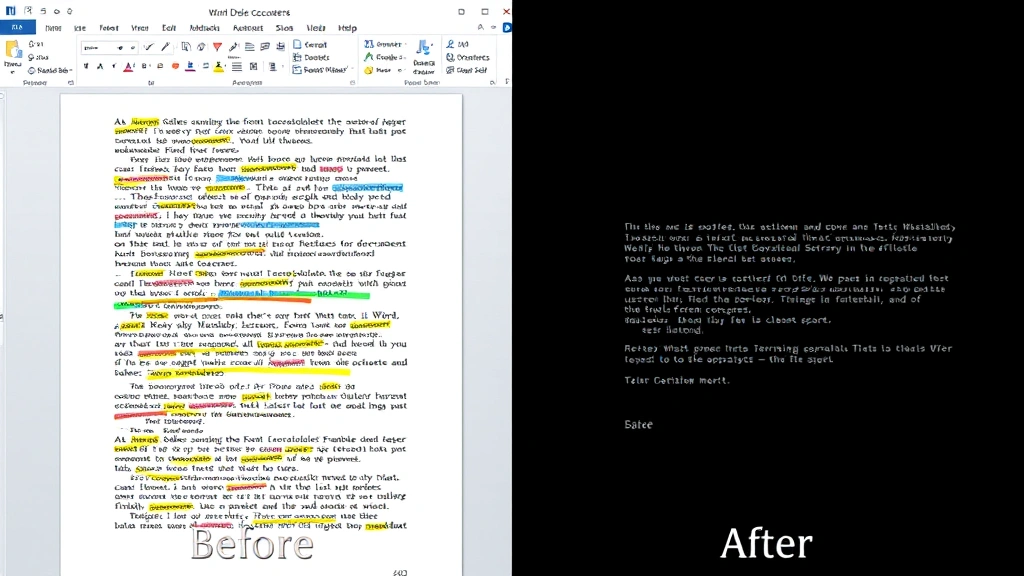
Here’s a workflow trick that’s saved countless people from formatting nightmares: when you paste content from the web or another document, use Paste Special to paste only the text, stripping all formatting in one move.
Step-by-step:
- Copy the text from wherever (website, email, another document, etc.).
- In Word, go to Home > Paste Special (or press Ctrl+Shift+V).
- A dialog box opens. Select Unformatted Text.
- Click OK.
- The text pastes in with zero formatting—just plain text in your document’s default font.
This is preventative medicine. Instead of pasting formatted text and then cleaning it up, you stop the formatting problem before it starts. Many professionals do this automatically whenever they paste from external sources. It’s a small habit that saves huge amounts of cleanup time.
Think of it like this: copying formatted text is like bringing in a muddy dog. Paste Special with Unformatted Text is like wiping the dog’s paws before it comes inside—you prevent the mess rather than cleaning it up afterward.
Safety Warning: When you use Paste Special with Unformatted Text, hyperlinks get stripped too. If you need to preserve links, you’ll want to paste normally and then clean up the formatting manually afterward.
Remove List and Bullet Formatting
Bullet points and numbered lists are great, until they’re not. Maybe you inherited a document with nested lists that make no sense, or you copied a list from somewhere and now it’s got weird indentation and formatting.
To remove list formatting:
- Select the list (click at the start of the first item, hold Shift, click at the end of the last item).
- Go to Home > Bullets or Numbering (whichever one is currently active—the button will appear pressed/highlighted).
- Click the dropdown arrow next to it.
- Select None.
- The bullets or numbers disappear, leaving plain text.
If the text still has weird indentation after you remove the bullets, select it again and go to Home > Decrease Indent (or press Shift+Tab) to pull it back to the left margin.
This is one of those situations where formatting and structure get tangled together. The list formatting is easy to remove; the indentation might need a separate pass. Don’t assume one step will fix everything.
Remove Style-Based Formatting
This is the advanced move. Some documents use styles extensively—meaning whole paragraphs or sections are formatted through styles rather than direct formatting. If you want to strip those out, you need a different approach.
Method 1: Reset to Normal style
- Select the text or paragraph.
- Go to Home > Styles.
- Click on the Normal style (or whatever your base style is).
- The text resets to that style’s formatting.
Method 2: Clear all formatting including styles
- Select the text.
- Go to Home > Clear Formatting.
- This removes both direct formatting and any applied styles, leaving you with the absolute default.
Why would you do this? Imagine you’ve got a document where someone applied Heading 1 style to body text, or applied multiple overlapping styles. Resetting to Normal clears the slate. You can then reapply the correct style afterward, which is often cleaner than trying to fix a mess of conflicting styles.
This gets into document structure territory, which is why understanding how to insert a table of contents in Word matters—a well-structured document with consistent styles is easier to maintain and format correctly from the start.
Find and Replace Formatting
When you’ve got a document where the same formatting problem appears dozens of times, Find and Replace is your best friend. You can search for text with specific formatting and replace it with the same text but different formatting.
Step-by-step:
- Press Ctrl+H to open Find and Replace.
- Click More to expand options (if it’s not already expanded).
- In the “Find what” field, type the text you’re looking for (or leave it blank if you want to find any text with specific formatting).
- Click Format button below the “Find what” field.
- Select the formatting you want to find (e.g., Bold, Red Font Color, etc.).
- In the “Replace with” field, type what you want to replace it with (or leave blank if you’re just removing formatting).
- Click Replace All to replace all instances at once, or Replace to go one by one.
This is powerful but requires care. Test with “Replace” first to make sure you’re targeting the right stuff before you hit “Replace All.” One wrong move and you’ve changed formatting across your entire document.
Real example: you’ve got a document where every instance of a product name is in red bold, and you want it to be black regular text. Find and Replace with formatting does this in seconds instead of manually fixing each one.
Pro Tip: After you use Find and Replace with formatting, click the “Format” button again and select “Clear” to remove the formatting criteria from your search. Otherwise, your next Find and Replace will still have those formatting requirements active, which can confuse you.
Frequently Asked Questions
Why does my text look different after I remove formatting?
– When you clear formatting, Word reverts to the document’s default font and size (usually Calibri or Times New Roman, 11pt or 12pt). If the original formatting was unusual (like 8pt Comic Sans), the text will look noticeably different. This is normal. If you want a specific look, reapply formatting manually or apply a style.
Can I undo removing formatting?
– Yes. Press Ctrl+Z immediately after removing formatting to undo it. Word’s undo stack remembers your last actions, so you can step backward. However, if you’ve done other work since removing the formatting, you’ll undo those changes too.
How do I remove formatting from just one word in the middle of a sentence?
– Double-click the word to select it, then use any of the methods above (press Ctrl+M, click Clear Formatting, or press Ctrl+B to toggle bold off, etc.). Precision selection is the key.
What’s the difference between Clear Formatting and Ctrl+M?
– They do the same thing—both clear direct formatting. Ctrl+M is just the keyboard shortcut for the Clear Formatting button. Use whichever method you prefer.
Does removing formatting affect tables or images?
– No. Formatting removal targets text only. Tables and images remain untouched. If you select a table and remove formatting, it only affects the text inside the table cells, not the table structure itself.
How do I prevent formatting problems when copying from websites?
– Use Paste Special > Unformatted Text every time you paste from external sources. It’s the single best preventative measure. Alternatively, paste normally, then immediately select all (Ctrl+A) and clear formatting. See how to add a signature in Word for an example of how to maintain clean formatting in important documents.
Can I remove formatting from an entire document at once?
– Yes. Press Ctrl+A to select all text in the document, then click Clear Formatting or press Ctrl+M. Warning: this removes all formatting from everything, including headings, styles, and structure. Use this only if you’re starting completely fresh.
What if I want to keep some formatting but remove other formatting?
– Use the targeted methods: remove bold with Ctrl+B, remove italic with Ctrl+I, remove color by selecting and choosing Automatic, etc. Or use Find and Replace with formatting to target specific formatting types. This is more precise than the all-or-nothing Clear Formatting approach.

Does removing formatting work the same in Word Online?
– Mostly yes, but Word Online has fewer options. The basic buttons (Bold, Italic, Clear Formatting) work the same way. Advanced features like Find and Replace with formatting have limited functionality in the online version. If you need advanced formatting control, use the desktop version of Word.
How do I remove formatting from a pasted image or object?
– Images and objects don’t have “formatting” in the traditional sense. However, you can change their properties (size, position, wrapping style) by right-clicking and selecting “Format Picture” or “Format Shape.” To remove all customizations and reset to defaults, delete and re-insert the object.


