How to Reformat SD Card: Easy & Essential Guide
SD cards are essential storage devices for cameras, phones, tablets, and gaming consoles, but over time they can become cluttered, corrupted, or simply need a fresh start. Learning how to reformat SD card is one of the most valuable skills any tech user can master—it takes just minutes and solves countless performance issues. Whether you’re preparing a card for a new device, fixing read/write errors, or clearing sensitive data before selling or donating your equipment, reformatting is the solution you need.
The good news? How to reformat SD card is straightforward and doesn’t require advanced technical knowledge. You can accomplish this on Windows, Mac, or directly through your device using built-in tools. This guide walks you through every method, explains why reformatting matters, and addresses common concerns so you can confidently manage your SD card storage.
Quick Answer
To reformat an SD card on Windows: Insert the card, right-click it in File Explorer, select “Format,” choose FAT32 or exFAT, name it, and click Start. On Mac, use Disk Utility: insert the card, select it, click Erase, choose a format (Mac OS Extended or exFAT), and confirm. On smartphones or cameras, access Settings > Storage > SD Card > Format. Always back up your data first—reformatting erases everything permanently.
Tools & Materials You’ll Need
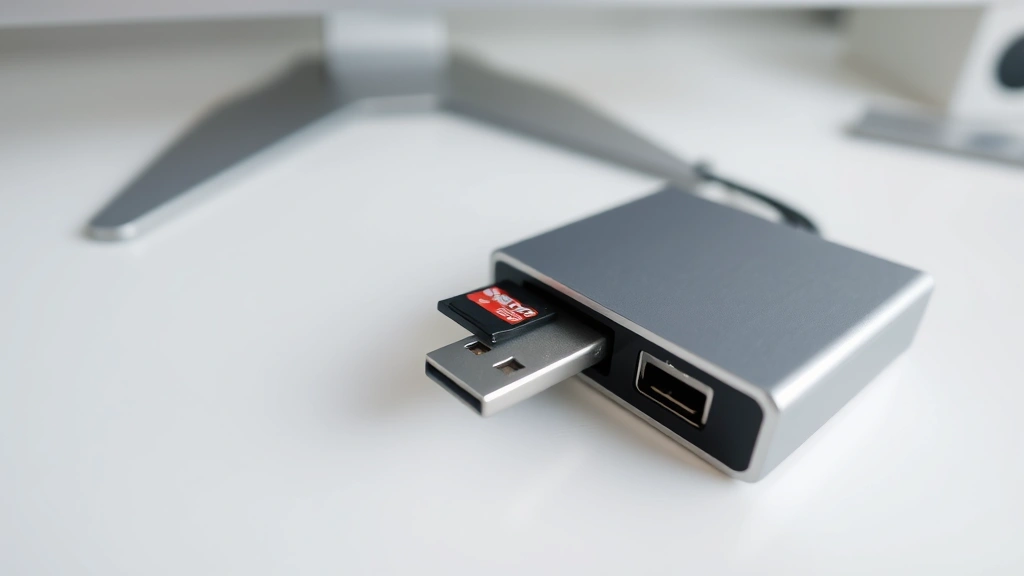
- SD card reader (USB or built-in to your computer)
- Computer (Windows PC or Mac) or compatible device (smartphone, camera, tablet)
- USB cable (if your device requires one to connect to a computer)
- External hard drive or cloud storage (for backing up data before reformatting)
- Optional: SD card formatting software like EaseUS Partition Master or AOMEI Partition Assistant for advanced options
Why You Should Reformat Your SD Card
Reformatting your SD card isn’t just about clearing space—it’s about maintaining optimal performance and security. Over time, SD cards can develop file system errors, fragmentation, and corrupted sectors that slow down read/write speeds and cause compatibility issues. How to reformat SD card properly restores the card to factory-like condition, eliminating these problems entirely.
Security is another critical reason. If you’re selling, recycling, or donating a device with an SD card, reformatting ensures that deleted files cannot be recovered by data recovery tools. Unlike simply deleting files, which leaves data traces behind, reformatting overwrites the file system structure, making recovery nearly impossible. Additionally, if your SD card isn’t recognized by a new device or shows read-only errors, reformatting often resolves these compatibility issues instantly.
Performance improvement is also significant. A fragmented or error-filled SD card may struggle with large file transfers, 4K video recording, or rapid photo bursts. Reformatting clears these bottlenecks, allowing your camera or phone to write data more efficiently. This is especially important for content creators, photographers, and anyone using their SD card for demanding tasks.
Before You Start: Essential Preparation
Back up all your data before proceeding. Reformatting permanently erases everything on the SD card with no recovery option (in most cases). Connect your SD card to your computer and copy all important files to an external hard drive, USB flash drive, or cloud storage service like Google Drive, OneDrive, or iCloud.
Once your data is safe, check your SD card’s capacity and current file system. On Windows, right-click the card and select Properties to see its size and format. On Mac, select the card in Finder and check the Get Info window. This information helps you choose the right file system during reformatting. Also, ensure your SD card reader is functioning properly—if your computer doesn’t recognize the card, try a different USB port or card reader before assuming the card is damaged.
Close any programs accessing the SD card before reformatting. This includes file managers, photo editing software, and backup applications. If the card is write-protected (some cards have a physical lock switch on the side), switch it to the unlocked position. Write protection prevents any modifications, including reformatting.
How to Reformat SD Card on Windows
Step 1: Insert and Locate Your SD Card
Insert your SD card into a card reader connected to your Windows computer. Wait a few seconds for the system to recognize it. Open File Explorer and locate your SD card—it typically appears as a removable drive with a name like “Removable Disk (E:)” or a custom name you’ve assigned.
Step 2: Access the Format Menu
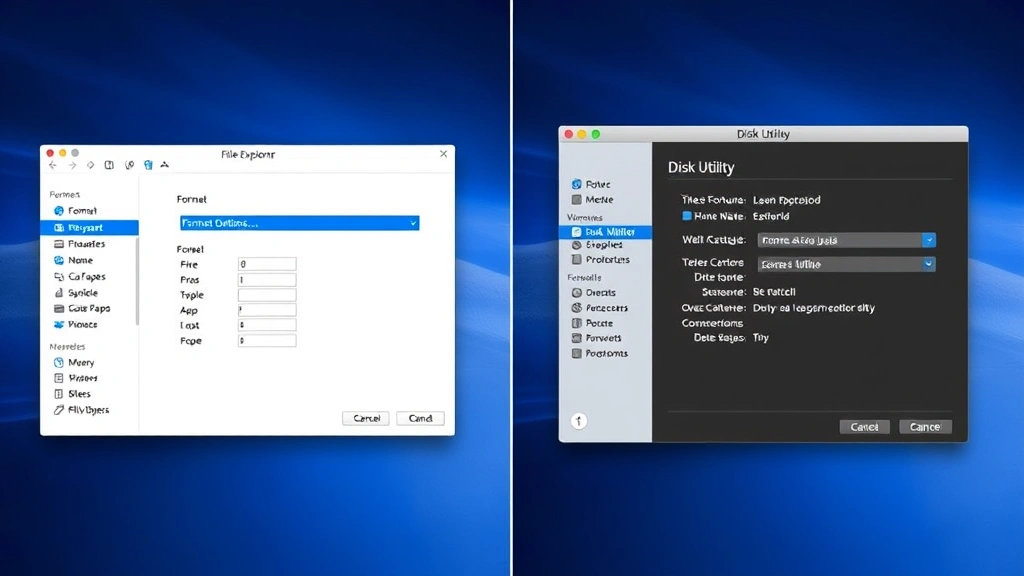
Right-click on the SD card drive and select “Format” from the context menu. A dialog box will appear with formatting options. If you don’t see the Format option, your card may be write-protected or the reader isn’t functioning properly.
Step 3: Choose Your File System
The file system dropdown menu offers several options: NTFS, FAT32, and exFAT. For most SD cards and universal compatibility, FAT32 is recommended. However, if your card is 64GB or larger, or if you need to store files larger than 4GB, use exFAT instead. NTFS is primarily for Windows-only use and may not work with cameras, phones, or gaming consoles. This choice significantly impacts how your device recognizes and uses the card.
Step 4: Name Your Card and Confirm
Enter a volume label (name) for your SD card—something descriptive like “Camera Card” or “Backup Storage.” This helps you identify the card later. Leave the “Perform a quick format” checkbox checked unless you’re concerned about data security and want a full format (which takes much longer but more thoroughly erases data). Click Start, then confirm the warning message that appears.
Windows will reformat your SD card within seconds (quick format) or minutes (full format). Once complete, your card is ready to use. You’ll see it as an empty drive in File Explorer.
How to Reformat SD Card on Mac
Step 1: Insert Your SD Card
Insert your SD card into your Mac’s SD card slot (if available) or use a USB SD card reader. Your Mac should automatically mount the card on your desktop and in Finder’s sidebar.
Step 2: Open Disk Utility
Open Disk Utility by pressing Command+Space to launch Spotlight, typing “Disk Utility,” and pressing Enter. Alternatively, navigate to Applications > Utilities > Disk Utility. This is Mac’s built-in tool for managing storage devices and reformatting SD cards.
Step 3: Select Your SD Card
In Disk Utility’s left sidebar, click on your SD card (not the volume underneath it). Make sure you’ve selected the correct device—selecting the wrong drive could erase important data from your Mac. The card typically shows a generic name like “Untitled” or your custom name.
Step 4: Click Erase and Choose Format
Click the “Erase” button at the top of the window. A dialog will appear asking for a name and format. For maximum compatibility across devices, choose exFAT. If you’re using the card exclusively on Mac devices, Mac OS Extended (Journaled) works well. For older cameras and gaming consoles, FAT32 may be necessary, though it limits file sizes to 4GB.
Step 5: Confirm and Wait
Enter your desired card name and click Erase. Mac will reformat the card within seconds. Once the process completes, your SD card is ready for use and will appear empty in Finder.
How to Reformat SD Card on Your Device
Many devices allow you to reformat SD cards directly without a computer, which is convenient for quick formatting on the go.
Smartphone (Android): Insert your SD card, go to Settings > Storage or Settings > Device Care > Storage, find your SD card, and select “Format SD Card” or “Erase SD Card.” Confirm the action—this typically takes 10-30 seconds. Your phone will immediately recognize the freshly formatted card.
Digital Camera: Insert the SD card into your camera, access the menu (usually via a dedicated button), navigate to Settings or Setup, find Format Card or Format Memory Card, and confirm. Most cameras complete this in seconds. This method is ideal because it formats the card for your specific camera’s requirements.
Gaming Console (Nintendo Switch, PlayStation, Xbox): Insert your SD card, go to System Settings > Storage or Data Management, select your SD card, and choose Format. Follow the on-screen prompts. This ensures optimal compatibility with your console’s file system.
Tablet (iPad or Android Tablet): If your tablet has an SD card slot, access Settings > Storage > SD Card and look for a Format or Erase option. Some tablets require a computer connection to reformat cards; check your device’s manual if you don’t see this option in Settings.
Troubleshooting Common Issues
SD Card Not Recognized: If your computer or device doesn’t detect the SD card, try these solutions: (1) Clean the gold contacts on the card with a soft, dry cloth; (2) Try a different USB port or card reader; (3) Restart your computer or device; (4) Check if the card is write-protected by looking for a small switch on its side and sliding it to unlock. If none of these work, the card may be physically damaged.
“Cannot Format” Error: This usually indicates write protection is enabled. Check the physical lock switch on the SD card and slide it to the unlocked position. If the card has no switch, it may be software-locked. On Windows, open Command Prompt as Administrator and type: diskpart, then list disk, identify your card’s number, and type select disk X (replace X with your card’s number), followed by attributes disk clear readonly.
Reformatting Takes Too Long: If you’re performing a full format rather than a quick format, it may take 10-30 minutes depending on card capacity. This is normal. If it’s taking longer than an hour, cancel the operation and try a quick format instead. Alternatively, use dedicated SD card formatting software like HowStuffWorks recommends for persistent issues.
Card Still Shows Old Files After Reformatting: This shouldn’t happen with a proper reformat, but if it does, the card may not have formatted completely. Try reformatting again using a different method (e.g., if you used Windows, try a third-party tool). Ensure you’re looking at the correct drive in File Explorer or Finder.
Computer Crashes During Formatting: Avoid interrupting the formatting process. If your computer crashes, don’t panic—simply restart and try again. Your SD card isn’t permanently damaged. Insert it again and attempt reformatting using the same method or a different approach.
Understanding File Systems and Formats
Choosing the right file system is crucial when you learn how to reformat SD card for specific purposes. The three main options are:
FAT32: The oldest and most universally compatible format. It works with virtually every device—cameras, gaming consoles, phones, tablets, and computers. The major limitation is that individual files cannot exceed 4GB, which is problematic for 4K video or large backup files. FAT32 is ideal for general-purpose SD cards used across multiple devices.
exFAT: A modern format that supports files larger than 4GB while maintaining broad compatibility. Most newer cameras, phones, and computers recognize exFAT. It’s the best choice for content creators working with 4K video, large photo libraries, or high-capacity cards (64GB and above). exFAT offers a good balance between compatibility and functionality.
NTFS: Windows’ native file system, offering excellent performance and support for files over 4GB. However, most cameras, gaming consoles, and older phones don’t recognize NTFS. Use NTFS only if your SD card is exclusively for Windows computers. For cross-device use, avoid NTFS.
Mac OS Extended (HFS+): Optimized for Mac computers but rarely compatible with cameras, phones, or gaming consoles. Choose this only if your card is exclusively for Mac use. For universal compatibility, exFAT is superior.
When in doubt, exFAT is the safest choice for modern SD cards, offering compatibility with most devices while supporting large files. For older equipment or devices that specifically require FAT32, use that format instead.
FAQ
Q: Will reformatting my SD card erase everything?
A: Yes, reformatting completely erases all data on the card. This is why backing up your files beforehand is absolutely critical. Once you confirm the reformat, recovery is extremely difficult or impossible.
Q: How long does it take to reformat an SD card?
A: A quick format typically takes 10-30 seconds, regardless of card capacity. A full format can take 10-30 minutes depending on the card’s size and your computer’s speed. Most users should choose quick format unless they have security concerns.
Q: Can I reformat a damaged SD card?
A: If the card is physically damaged or has bad sectors, reformatting may not work. However, if the card is simply corrupted or unrecognized, reformatting often fixes the problem. If reformatting fails repeatedly, the card is likely damaged beyond repair.
Q: What’s the difference between formatting and deleting files?
A: Deleting files removes references to them but leaves the actual data on the card, allowing recovery with specialized tools. Formatting erases the entire file system structure and overwrites the partition table, making recovery nearly impossible. For security and data protection, formatting is far superior.
Q: Is it safe to reformat my SD card frequently?
A: Yes, frequent reformatting doesn’t damage SD cards. They’re designed to handle thousands of write cycles. However, excessive full formats (not quick formats) can theoretically reduce the card’s lifespan slightly, though this is rarely a practical concern for consumer use.
Q: Can I reformat my SD card on my phone?
A: Most modern smartphones (Android and iOS) allow direct SD card formatting through Settings. However, not all phones support SD cards anymore. Check your device’s specifications. If your phone doesn’t have an SD card slot or the option isn’t in Settings, you’ll need to use a computer.
Q: What should I do if my SD card is write-protected?
A: Look for a small physical switch on the side of the card and slide it to the unlocked position. If there’s no switch or unlocking it doesn’t work, the card may be software-locked. On Windows, use the Command Prompt method described in the troubleshooting section to clear the write-protection attribute.
Learning how to reformat SD card is an essential skill that solves performance issues, ensures security, and prepares your storage for new uses. Whether you’re using Windows, Mac, or reformatting directly on your device, the process is straightforward and takes just minutes. By following this comprehensive guide and understanding the different file systems available, you’ll confidently manage your SD cards and keep them performing optimally. For additional information on storage management, consider reviewing WikiHow’s storage guides or Consumer Reports’ tech recommendations. Remember to always back up your data first, and don’t hesitate to try different methods if your first attempt encounters issues. Your SD card will thank you with faster performance and improved reliability.
If you’re managing multiple devices and storage solutions, you might also find it helpful to learn about how to clear app cache on iPhone to free up space on your primary device, or explore how to allocate more RAM to Minecraft if you’re gaming. For Apple users, understanding how to connect Apple Pencil to iPad can help you maximize your device ecosystem. Additionally, learning how to turn off Find My iPhone is useful when selling or gifting devices that previously used SD card storage.