How to Reboot iPhone: Easy and Essential Guide
Knowing how to reboot iPhone is one of the most valuable troubleshooting skills every Apple user should master. Whether your device is freezing, apps are crashing, or you’re experiencing connectivity issues, a simple restart often resolves the problem faster than you’d expect. This comprehensive guide walks you through every method to reboot your iPhone, from the quickest force restart to a complete factory reset, ensuring your device runs smoothly regardless of your model or iOS version.
Quick Answer: To reboot your iPhone, press and hold the power button and volume button simultaneously until the “slide to power off” screen appears. Slide to turn off your device, wait 30 seconds, then press the power button to turn it back on. This soft restart takes about two minutes and resolves most common issues without losing data.
Tools and Materials Needed
- Your iPhone (any model)
- A charged battery or access to a charger
- Your Apple ID and password (for factory resets)
- Internet connection (recommended for troubleshooting)
- A computer with iTunes or Finder (optional, for advanced resets)
Soft Restart: The Standard Method
A soft restart is the gentlest way to reboot iPhone and should be your first troubleshooting step. This method preserves all your data, apps, and settings while giving your device a fresh start. The process takes just a couple of minutes and works on all iPhone models currently in use.
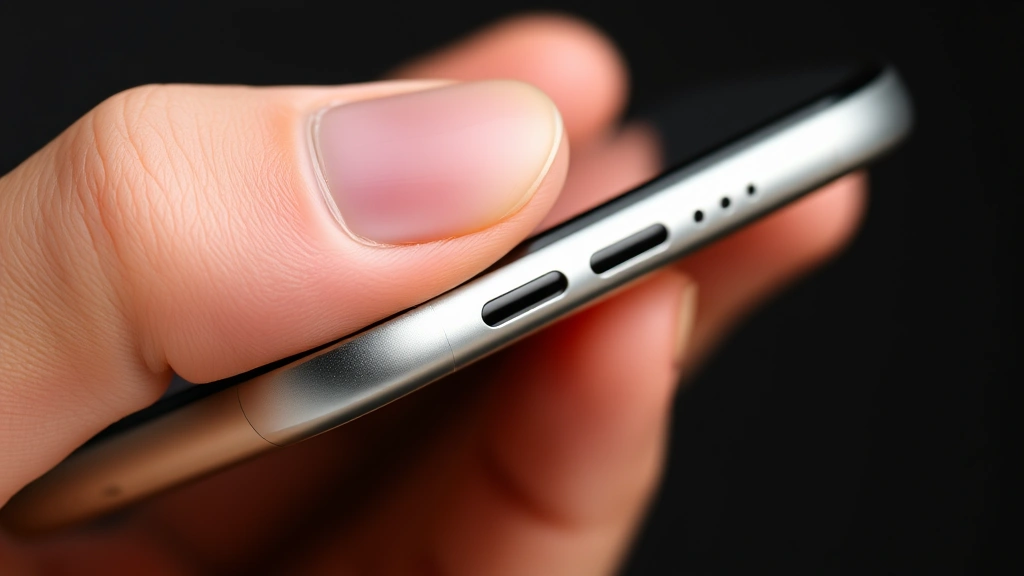
To perform a soft restart, locate the power button on your iPhone’s side or top edge. Press and hold it along with the volume up button (or volume down, depending on your model) until you see the “slide to power off” screen. Don’t worry if you see “Emergency SOS” appear first—just keep holding the buttons. Once the power off slider appears, release the buttons and drag the slider from left to right. Wait approximately 30 seconds for your iPhone to completely shut down, then press the power button again until the Apple logo appears.
This straightforward approach resolves approximately 70% of common iPhone issues, including app crashes, slow performance, and minor software glitches. How to reboot iPhone using this method is so effective because it clears your device’s RAM and resets background processes without affecting permanent storage.

Force Restart: When Your iPhone Won’t Respond
A force restart becomes necessary when your iPhone is completely frozen, unresponsive, or stuck on the Apple logo. Unlike a soft restart, a force restart immediately powers down your device without waiting for the shutdown sequence to complete. This method is safe and won’t cause data loss, making it an excellent emergency troubleshooting option.
For iPhone X and newer models, quickly press and release the volume up button, then quickly press and release the volume down button. Immediately after, press and hold the side power button until the Apple logo appears on your screen—this typically takes 10-15 seconds. For iPhone 8 and earlier models, press and hold both the top (or side) button and the home button simultaneously until the Apple logo appears.
The force restart method is particularly useful when your device becomes completely unresponsive to normal touches or when apps continuously crash. According to WikiHow, force restarting is one of the most effective troubleshooting techniques for mobile devices experiencing severe software issues. This aggressive restart clears all active processes and can resolve problems that a standard soft restart cannot fix.
Reboot Methods by iPhone Model
Different iPhone models require slightly different button combinations when you want to reboot iPhone, so it’s important to know your device’s specific method. Understanding your model ensures you perform the restart correctly without accidentally triggering other features like Emergency SOS or Siri.
iPhone 15, 14, 13, 12, 11, and X Series
These modern models use the side button and volume buttons. Press and hold the side button with either the volume up or volume down button until the power off slider appears. Drag to power off, wait 30 seconds, then press the side button to restart.
iPhone 8 and Earlier
These models feature a home button at the bottom. Press and hold the top (or side) button along with the home button simultaneously until you see the Apple logo. This combination triggers a force restart on these older devices.
iPhone SE (All Generations)
The iPhone SE uses the same method as iPhone 8 and earlier models, utilizing the side button and home button combination for both soft and force restarts.
If you’re unsure about your specific model, check your device’s settings by going to Settings > General > About, where you’ll see your iPhone model clearly labeled. Knowing your exact model helps you troubleshoot other issues too—for instance, if you’re experiencing wireless connectivity problems, you might also want to learn about how to turn off Apple Watch devices that might be interfering with your iPhone’s Bluetooth connection.
Recovery Mode Reset: Advanced Troubleshooting
Recovery mode represents a more advanced approach to how to reboot iPhone and should be used when standard restarts fail to resolve persistent issues. This method allows you to reinstall iOS while preserving your data through iCloud backup, making it ideal for software corruption problems.
To enter recovery mode, connect your iPhone to a computer with iTunes (on Windows or older macOS) or Finder (on macOS Catalina or later). Press and hold the power button and volume down button simultaneously until the “Connect to iTunes” or “Connect to Finder” screen appears. Your computer will recognize the device and prompt you to either update or restore iOS. Choose “Update” to reinstall the latest iOS version while keeping your data intact.
Recovery mode differs from a standard restart because it actually modifies your iOS installation. This process typically takes 15-30 minutes and requires a stable internet connection. As noted by The Spruce, recovery mode resets are particularly effective for resolving persistent software issues that regular restarts cannot fix. If you’re experiencing app-related problems, you might also benefit from learning how to clear app cache on iPhone before attempting a recovery mode reset.
Factory Reset: Complete Device Refresh
A factory reset provides the most comprehensive way to reboot iPhone, completely erasing all data and returning your device to its original state. This option should only be used when you’re preparing to sell your iPhone, experiencing severe persistent issues, or want a completely fresh start.
Navigate to Settings > General > Transfer or Reset, then select “Erase All Content and Settings.” You’ll be prompted to enter your Apple ID password and confirm your choice. The process takes 5-15 minutes depending on your device and data volume. Before performing a factory reset, ensure you’ve backed up all important data to iCloud or your computer, as this action permanently removes everything from your device.
For additional security when selling or giving away your iPhone, you can also perform a factory reset through iCloud.com if you’ve enabled Find My iPhone. Log into iCloud, select Find My, choose your device, and select “Erase iPhone.” This remote reset ensures your personal data never reaches the next user.
According to Consumer Reports, factory resets are essential for data security when transferring devices. If you have Apple accessories like AirPods, remember to reset AirPods Pro separately before performing a factory reset, as they won’t automatically unpair from your erased device.
What to Do After Rebooting Your iPhone
After you’ve successfully rebooted your iPhone, taking a few additional steps ensures optimal performance and helps identify whether your restart resolved the original problem. These post-restart actions maximize the benefits of your reboot and prevent future issues.
Check for iOS Updates: Go to Settings > General > Software Update to ensure you’re running the latest iOS version. Apple regularly releases updates that fix bugs and improve performance, so installing available updates often prevents future issues that would require another restart.
Monitor App Performance: Open the apps you were having trouble with and verify they’re working correctly. If problems persist after rebooting, the issue might be app-specific rather than system-wide. In such cases, try uninstalling and reinstalling the problematic app.
Verify Connectivity: Test your Wi-Fi and cellular connections to ensure they’re stable. Restart your router if you’re experiencing Wi-Fi issues, and toggle airplane mode off and on to reset cellular connections.
Check Battery Health: If your iPhone was shutting down unexpectedly before the reboot, check your battery health in Settings > Battery > Battery Health & Charging. A degraded battery might require replacement if health drops below 80%.
If you rely on wireless accessories, take time to verify they’re still properly connected. You can check AirPod battery levels and ensure your devices are synced correctly with your freshly rebooted iPhone.
When You Should Reboot Your iPhone
Understanding when to reboot iPhone helps you maintain optimal performance and prevent more serious issues from developing. Regular reboots, even when your device seems fine, contribute to long-term reliability and smooth operation.
Performance Issues: If your iPhone feels sluggish, apps are slow to open, or you notice stuttering in animations, a restart often restores snappy performance. These symptoms typically indicate RAM is full or background processes are consuming excessive resources.
App Crashes: When specific apps repeatedly crash or freeze, reboot your iPhone before uninstalling the app. Many app crashes result from temporary software glitches that a restart resolves.
Connectivity Problems: Inability to connect to Wi-Fi, Bluetooth pairing issues, or cellular signal problems frequently resolve with a restart. A reboot resets your network stack and often restores stable connections.
Battery Drain: If your battery percentage drops unusually fast, a restart can help identify whether a rogue app is consuming power. After rebooting, monitor battery usage in Settings > Battery to pinpoint problematic apps.
After Software Updates: Reboot your iPhone after installing major iOS updates to ensure all changes take effect properly. This practice prevents compatibility issues and ensures new features function correctly.
Before Important Tasks: Restarting your iPhone before important calls, video conferences, or time-sensitive activities ensures your device is running at peak performance and won’t experience unexpected issues during critical moments.
Monthly Maintenance: Even if your iPhone works perfectly, consider rebooting it once monthly as preventive maintenance. This practice clears accumulated temporary files and prevents performance degradation over time. If you’re managing multiple Apple devices, you might also want to periodically turn off your Apple Watch and restart it as part of your overall device maintenance routine.
For iPhone users who frequently deal with large photo libraries, regular reboots combined with periodic cleanup help maintain performance. You can enhance your maintenance routine by learning how to delete duplicate photos on iPhone, which frees up storage space and prevents your device from becoming sluggish.
FAQ
Will rebooting my iPhone delete my data?
No, a standard soft restart or force restart will not delete any of your data. These methods simply power your device off and back on. Only a factory reset permanently removes data, and even then, you can restore from an iCloud backup afterward.
How often should I reboot my iPhone?
There’s no strict rule, but rebooting your iPhone weekly or monthly as preventive maintenance is a good practice. If you experience issues, restart immediately. Regular reboots prevent performance degradation and keep your device running smoothly.
What’s the difference between a soft restart and a force restart?
A soft restart uses the standard power-down procedure where your iPhone gracefully shuts down. A force restart immediately powers down without completing the shutdown sequence. Force restart is necessary when your device is completely frozen or unresponsive.
How long does it take to reboot an iPhone?
A standard soft restart takes 2-3 minutes total. A force restart takes 1-2 minutes. Recovery mode resets take 15-30 minutes, and factory resets typically take 5-15 minutes depending on your device and data volume.
Can I reboot my iPhone while it’s charging?
Yes, you can safely restart your iPhone while it’s charging. In fact, if your battery is very low, it’s wise to charge your device before performing a restart to ensure the process completes successfully.
What should I do if my iPhone won’t turn back on after a restart?
If your iPhone won’t power back on after a restart, try charging it for at least 30 minutes, as the battery might be completely drained. If it still won’t turn on, connect it to a computer and try recovery mode through iTunes or Finder.
Does rebooting fix all iPhone problems?
While rebooting resolves many common issues, it won’t fix hardware problems like a damaged screen or faulty battery. If problems persist after multiple restart attempts, your iPhone might need hardware repair or professional service.
Can I schedule automatic reboots on my iPhone?
iOS doesn’t offer automatic restart scheduling, but you can manually set reminders to reboot your device weekly. Some users set calendar reminders for Sunday evenings to reboot before the work week begins.
Understanding how to reboot iPhone empowers you to troubleshoot common issues independently and maintain your device’s performance over time. Whether you need a quick soft restart or a more comprehensive factory reset, the methods outlined in this guide provide solutions for every situation. Regular reboots, combined with proper maintenance practices like clearing app cache and managing your photo library, ensure your iPhone remains reliable and responsive for years to come. For additional device management tips, explore resources like Family Handyman which offers comprehensive tech maintenance guides, or check out HowStuffWorks for deeper technical explanations of how your iPhone operates.