
You just unboxed your new Beats headphones. They’re sleek, they look premium, and you’re ready to use them. But then you hit that first speed bump: how to put Beats in pairing mode. It sounds straightforward, but if you’ve never done it before, it can feel like you’re missing some secret handshake. The good news? It’s genuinely simple once you know where to look and what to listen for.
Whether you’re dealing with Beats Studio Pro, Beats Fit Pro, Beats Solo 3, or any other model in the Beats lineup, the core process is almost identical. The tricky part isn’t the pairing itself—it’s knowing that your headphones are actually in pairing mode. Most people don’t realize they’ve succeeded until they see their device pop up on their phone’s Bluetooth list. That’s when the relief hits.
In this guide, we’ll walk you through exactly how to put your Beats in pairing mode, what to do if it doesn’t work, and how to troubleshoot the most common hiccups. By the end, you’ll be connected and ready to go.
What Is Pairing Mode, Anyway?
Let’s start with the basics. Pairing mode is when your Beats headphones are actively listening for a Bluetooth connection from a nearby device. Think of it like your headphones raising their hand and saying, “I’m here, and I’m ready to connect to something.” Without pairing mode, your phone or laptop has no way to find your headphones on the Bluetooth network.
When you first unbox Beats, they usually come pre-charged (though not always fully). The moment you power them on for the first time, many models automatically enter pairing mode for about 15 minutes. This is Apple’s way of making the first-time setup as frictionless as possible. But after that initial window closes, you’ll need to manually activate pairing mode if you want to connect to a different device.
Here’s the real-talk part: pairing mode is temporary. Your Beats won’t stay in pairing mode forever—they’ll drop out after a few minutes of inactivity. If you’re slow to find your device’s Bluetooth settings, you might miss the window and have to start over. It’s annoying, but it’s a safety feature to preserve battery life.
Step-by-Step: How to Put Beats in Pairing Mode
The process is straightforward, but precision matters. Here’s the exact sequence:
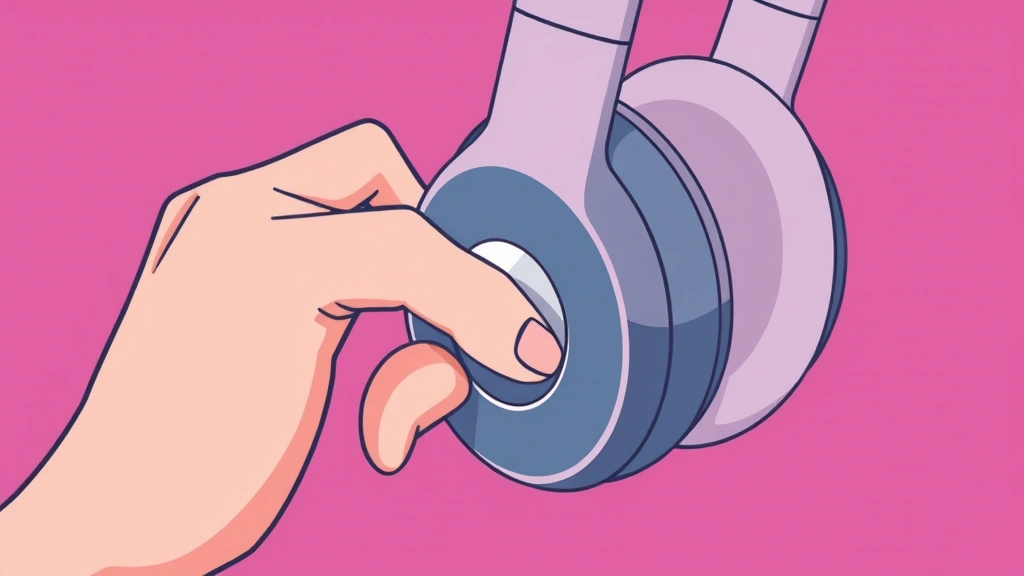
- Make sure your Beats are powered on. This is obvious, but it’s worth stating. If your headphones are off, you can’t put them in pairing mode. Look for the power button—it’s usually on one of the ear cups or on the side of the headband. Press and hold until you see a light indicator (usually red or white) or hear a power-on chime.
- Locate the Bluetooth button or pairing button. This is where things vary slightly by model. On most Beats (Solo 3, Studio Pro, Fit Pro), there’s a dedicated button that looks like a small circular indent or a button with a Bluetooth symbol. On some older models, it might be integrated into the power button itself.
- Press and hold the pairing button for 5-10 seconds. This is the critical step. You’re not tapping it once—you’re holding it down. Most Beats models require you to hold the button until you hear a distinctive audio cue (usually a voice saying “pairing” or a series of beeps) or see a flashing light. Don’t let go too early.
- Wait for the confirmation. Once you’ve held the button long enough, your Beats will give you feedback. This might be an LED light that flashes in a specific pattern, a voice prompt, or a combination of both. This is your signal that pairing mode is active.
- Go to your device’s Bluetooth settings and select your Beats. On an iPhone, iPad, or Mac, open Settings → Bluetooth, and look for your Beats model in the available devices list. Tap or click to connect. Your device will pair automatically.
That’s it. The entire process takes about 30 seconds if you know what you’re doing. The confusion usually comes from step three—people either don’t hold the button long enough or they’re not sure when to stop holding.
Visual and Audio Cues: How to Know It Worked
Here’s the thing about Beats: they’re pretty good at telling you what’s happening, but only if you know how to interpret the signals. Different models use different feedback mechanisms, so let’s break down what you should expect.
LED Light Indicators: Most modern Beats have an LED on one of the ear cups. When you activate pairing mode, this light typically flashes in a specific pattern—often white or blue, flashing at regular intervals. Some models use a combination of colors. A solid light usually means the headphones are powered on but not in pairing mode. A flashing light means you’re in the pairing window.
Audio Cues: Many Beats models will play a voice prompt or a series of beeps when you enter pairing mode. You might hear “pairing” or “ready to connect” depending on the model and your language settings. If you hear this, you’re golden. Your Beats are actively searching for a device to connect to.
Haptic Feedback: Some newer Beats models (like the Fit Pro) include subtle vibrations or haptic feedback when you activate pairing mode. It’s not always obvious, but if you feel a small vibration or pulse, that’s a good sign you’ve successfully triggered the pairing sequence.
The key is knowing your specific model. Check the manual or the Beats support page for your exact model to see which feedback mechanism applies. If you’re not getting any feedback at all, the battery might be too low, or you might need to reset the headphones entirely.
Model-Specific Differences (Because They’re Not All the Same)
Beats has released dozens of models over the years, and while they’re all similar, there are some annoying variations. Let’s cover the most common ones.
Beats Solo 3 Wireless: Press and hold the power button (located on the right ear cup) for about 5 seconds. You’ll see a flashing red light, then a flashing blue light. Once the blue light appears, you’re in pairing mode. The blue flashing pattern is your signal.
Beats Studio Pro: These have a dedicated Bluetooth button on the left ear cup. Press and hold it for about 5 seconds until you hear the voice prompt “pairing” and see a flashing white light. This is one of the most straightforward models.
Beats Fit Pro: These are earbuds, so the button is tiny. You’ll find the pairing button on the back of the charging case, not on the earbuds themselves. Press and hold the button on the case for about 15 seconds until you see a white light flashing. Alternatively, you can hold the button on the right earbud itself for about 5 seconds.
Beats Studio 3: Similar to Solo 3, but look for the power button on the left ear cup. Hold it for about 5 seconds until you see a flashing blue light.
Beats X: These are older, but still in use. Press and hold the power button for about 5 seconds until you hear “pairing mode” or see a flashing light.
The pattern is consistent: find the power or pairing button, hold it for 5-10 seconds, and wait for feedback. But the exact location and timing can vary, so knowing your model is helpful.
Troubleshooting When Things Go Wrong
Sometimes, despite your best efforts, your Beats won’t enter pairing mode. Here are the most common culprits and how to fix them.
The Battery Is Too Low: If your Beats are nearly dead, they might not have enough juice to activate pairing mode. Plug them in and charge for at least 15-20 minutes, then try again. A completely drained battery is a common reason pairing fails silently.
You’re Not Holding the Button Long Enough: This is the number one mistake. Most people tap the button once or hold it for only 2-3 seconds. You need to hold it for the full 5-10 seconds, even if you don’t hear anything immediately. Keep holding until you get feedback.
The Pairing Window Has Closed: Remember, pairing mode is temporary. If you wait too long before checking your device’s Bluetooth settings, the pairing window might have closed. Start over: press and hold the pairing button again.
Your Device’s Bluetooth Is Off: This is obvious but easy to overlook. Make sure your phone, tablet, or computer has Bluetooth enabled before trying to pair. On most devices, you’ll find this in Settings → Bluetooth. Toggle it on if it’s off.
Interference or Distance Issues: Bluetooth can be finicky. If your Beats are too far from your device (more than 30 feet), pairing might fail. Also, other wireless devices (like microwaves, routers, or cordless phones) can cause interference. Move closer to your device and away from other wireless electronics.
The Headphones Are Already Paired to Another Device: Beats can remember multiple devices, but they can only be actively connected to one at a time. If your Beats are currently paired to your laptop, they might not be discoverable on your phone. Disconnect them from the other device first, then try pairing again. You can do this by going into that device’s Bluetooth settings and selecting “Forget” for your Beats.
Pro Tip: If nothing works, it’s time to reset. Hold down the pairing button for 15+ seconds (some models require up to 20 seconds) until you see the light flash a specific pattern or hear a reset confirmation. This wipes all previous pairings and returns your Beats to factory settings. After a reset, they’ll automatically enter pairing mode, and you can start fresh.
Pairing Multiple Devices to Your Beats
One of the best features of Beats is the ability to pair them with multiple devices. You can have your Beats connected to your iPhone, iPad, Mac, and even your Apple Watch simultaneously. They’ll remember all of these devices, and you can switch between them relatively easily.
To add a second (or third, or fourth) device, the process is almost identical to the first pairing:
- On your new device, go to Bluetooth settings and turn Bluetooth on.
- On your Beats, press and hold the pairing button for 5-10 seconds to enter pairing mode.
- Your new device should see your Beats in the available devices list. Tap or click to pair.
- Your Beats will now remember this device alongside any others you’ve previously paired.
The key difference is that your Beats won’t automatically connect to the new device every time it’s nearby. Instead, they’ll prioritize the device they were last connected to. To switch between devices, you’ll typically need to manually select your Beats from the Bluetooth menu on the new device.
If you want to remove a device from your Beats’ memory, go to that device’s Bluetooth settings and select “Forget” for your Beats. This doesn’t delete the headphones themselves—it just removes them from that device’s pairing list. Your Beats will still remember all your other devices.
When to Reset Your Beats Completely
Sometimes, pairing issues are so stubborn that a full reset is the only solution. Resetting your Beats erases all previous pairings and returns them to factory settings. It’s the nuclear option, but it works.
How to Reset Your Beats:
- Power on your Beats.
- Locate the pairing button (usually on the ear cup or charging case).
- Press and hold the button for 15-20 seconds. You might hear a voice prompt or see a light flash in a specific pattern. Don’t let go.
- After 15-20 seconds, you should hear a confirmation sound (often a power-down chime followed by a restart sound) or see the light flash in a distinctive pattern that indicates a reset.
- Your Beats will power off and then power back on automatically. They’re now reset to factory settings.
- When they power back on, they’ll automatically enter pairing mode for about 15 minutes, just like when they were brand new.
After a reset, you’ll need to pair your Beats with your devices all over again. Make sure your device’s Bluetooth is on, and your Beats should appear in the available devices list within seconds.
One important note: resetting your Beats does not erase any firmware updates or custom settings you might have configured through the Beats app. It only clears the pairing information. If you’ve customized sound settings or other preferences through the Beats app, those will remain intact.
Frequently Asked Questions
How long does pairing mode last on Beats?
– Pairing mode typically lasts about 5-15 minutes, depending on the model. If you don’t connect a device during this window, pairing mode will time out, and your Beats will exit the pairing state. You’ll need to activate pairing mode again by pressing and holding the pairing button.
Why aren’t my Beats showing up in my Bluetooth list?
– The most common reasons are: (1) Your Beats aren’t actually in pairing mode, (2) Your device’s Bluetooth is off, (3) Your Beats’ battery is too low, or (4) Your Beats are too far away from your device. Try holding the pairing button longer, make sure Bluetooth is enabled on your device, charge your Beats, and move closer to your device.
Can I pair Beats with Android devices?
– Yes, absolutely. Beats are Bluetooth headphones, so they work with any Bluetooth-enabled device, including Android phones and tablets. The pairing process is identical—just go to your Android device’s Bluetooth settings and select your Beats from the available devices list.
Do I need to put my Beats in pairing mode every time I use them?
– No. Once your Beats are paired with a device, they’ll automatically reconnect to that device the next time you turn them on (assuming Bluetooth is enabled on that device). You only need to manually activate pairing mode if you’re connecting to a new device or if the automatic reconnection fails.
What if my Beats are paired but not connecting?
– This is different from pairing. If your Beats are already paired but won’t connect, try: (1) Turning your Beats off and back on, (2) Turning Bluetooth off and back on on your device, (3) Forgetting the Beats from your device’s Bluetooth settings and re-pairing them, or (4) Resetting your Beats entirely if nothing else works.

Can I pair Beats with multiple devices at the same time?
– Your Beats can be paired with (remembered by) multiple devices, but they can only be actively connected to one device at a time. If you’re listening to music on your iPhone and you want to switch to your Mac, you’ll need to disconnect from the iPhone first or manually select your Beats from the Mac’s Bluetooth menu.
Why does my Beats keep disconnecting from my device?
– Frequent disconnections usually indicate a weak Bluetooth signal, interference from other devices, or a low battery. Try moving closer to your device, moving away from sources of interference (like microwaves or routers), and ensuring your Beats are adequately charged. If the problem persists, try forgetting the device and re-pairing.


