
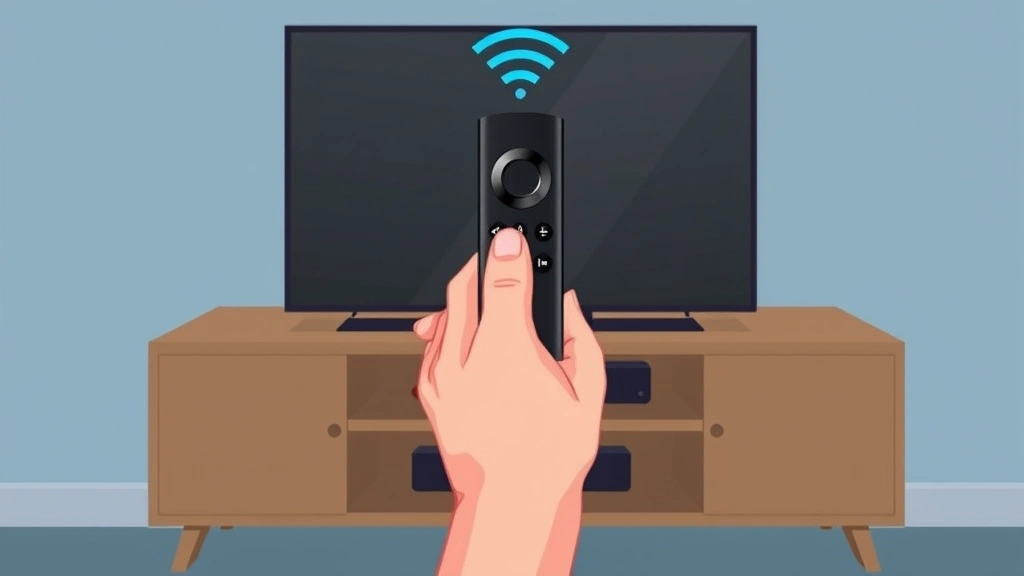
Your Firestick remote just arrived, or maybe it’s been sitting in a drawer for months. Either way, you’re staring at it thinking, “Now what?” Here’s the real talk: programming your Firestick remote is dead simple, but there are a few tricks that separate “it kinda works” from “this thing is actually perfect.” In this guide, we’ll walk through how to program Firestick remote controls step-by-step, troubleshoot when things go sideways, and show you some power-user moves that’ll make you wonder why you didn’t do this sooner.
The good news? You don’t need any special tools, a PhD in tech, or even patience. Most people get their Firestick remote working in under five minutes. The bad news? If you skip a step or miss a detail, you’ll be cursing at your TV for hours. We’re going to make sure that doesn’t happen.
What You Need Before Starting
Before you even touch your remote, gather these items:
- Your Firestick (obviously) – plugged in and powered on
- The remote – new or reset, doesn’t matter
- Fresh batteries – seriously, dead batteries are the #1 reason people think their remote is broken
- Your Firestick on the home screen – not in a menu, not in an app, just the main screen
- A clear line of sight – between remote and Firestick (about 20 feet works)
That’s it. No USB cables, no apps to download, no registration codes. The Firestick remote uses Bluetooth (or IR on older models), so as long as your Firestick is on and your remote has juice, you’re golden.
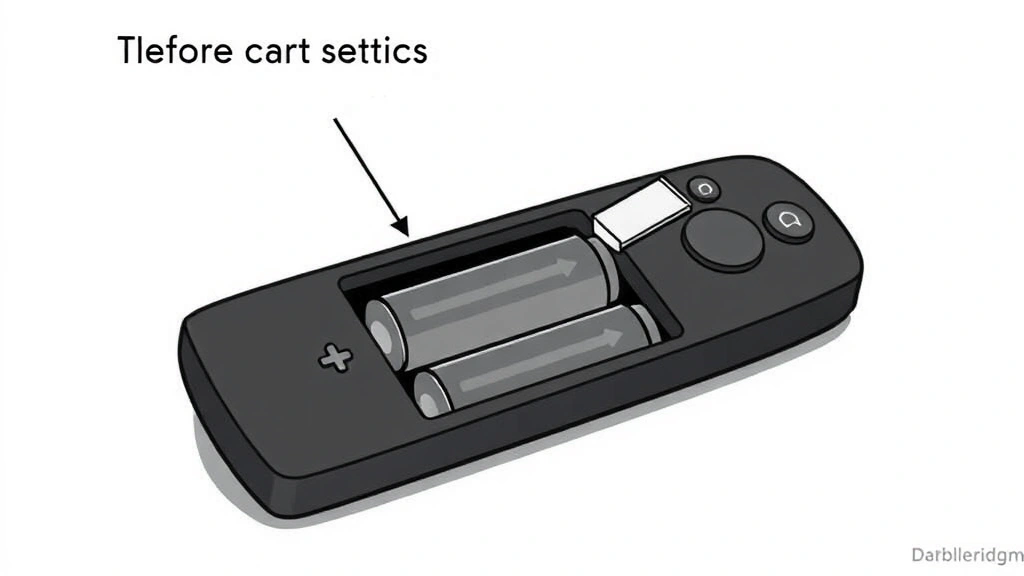
Pro Tip: If you just bought the remote, check the battery compartment. Manufacturers often ship with a plastic tab under the batteries to prevent accidental drain. Pull that out first. I know it sounds obvious, but I’ve helped three people “troubleshoot” their remote only to find that tab still in place.
Basic Pairing: The Standard Method
This is the method that works 95% of the time. If your Firestick remote won’t program using this approach, we’ll cover alternatives in the next section.
- Turn on your Firestick and wait for the home screen to fully load. This usually takes 10-15 seconds.
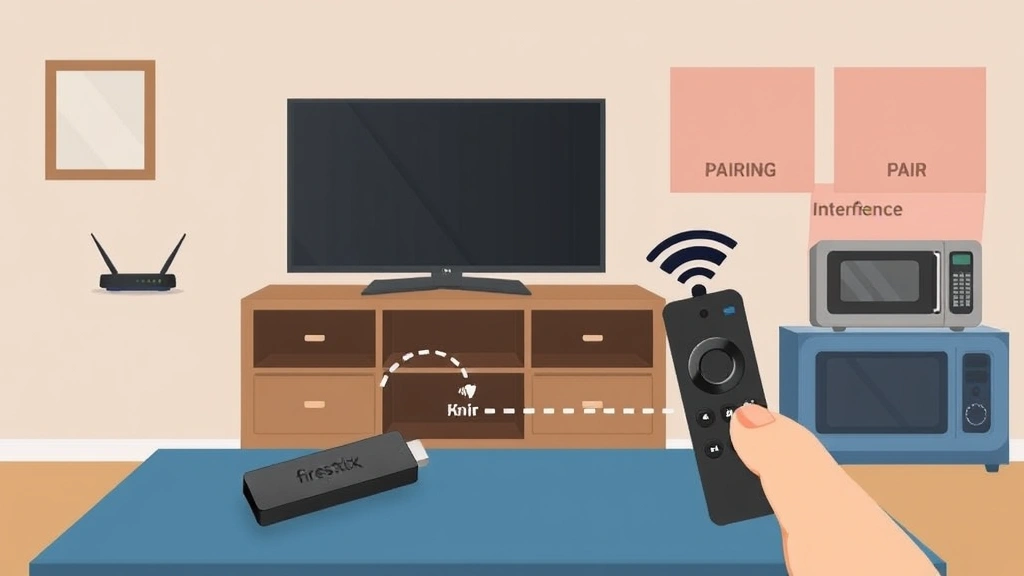
- Hold the remote about 6 inches away from the Firestick device (the little box itself, not the TV). The IR sensor or Bluetooth receiver is on the front.
- Press and hold the Home button (the one with the Amazon logo) for about 10 seconds. You should see a light on the remote blink or the screen might show a pairing notification.
- Release the button and wait. The Firestick will search for the remote and connect within 5-10 seconds. You’ll see a confirmation message on your TV screen.
- Test it – press the menu button or volume up. If it responds, you’re done.
Seriously, that’s it. The reason this works so well is because the Firestick is designed to pair with remotes automatically when you hold Home. Amazon made this intentionally simple because they know people lose remotes, buy new ones, and don’t want to jump through hoops.
If you’re using an older Firestick (1st or 2nd gen), the process is identical. If you have a Firestick 4K or newer, same deal. The beauty of how to program Firestick remote controls is that Amazon kept it consistent across models.
Alternative Programming Methods
Sometimes the standard method doesn’t work on the first try. Here are the other ways to program your Firestick remote:
Method 2: Using the Firestick Settings Menu
If holding Home doesn’t work, try this:
- On your Firestick home screen, navigate to Settings (usually in the top right)
- Go to Remotes & Bluetooth Devices
- Select Pair Remote or Add a New Device
- Hold your remote’s Home button again for 10 seconds
- The Firestick will search for available remotes in pairing mode
This method is great if your remote is brand new and has never been paired to anything. It forces the Firestick into a more aggressive search mode.
Method 3: Resetting the Remote First
If neither of the above works, your remote might be paired to a different device or stuck in a weird state. Here’s how to reset it:
- Remove the batteries from the remote
- Wait 10 seconds
- Reinsert the batteries
- Try the Home button hold again immediately
Think of this like a hard restart on your phone. Sometimes remotes get confused about which device they’re supposed to talk to, especially if you’ve used the same remote with multiple Firesticks. For a deeper dive, check out our guide on how to reset Firestick remote.
Method 4: IR vs. Bluetooth Considerations
Here’s something most people don’t realize: older Firesticks use infrared (IR), while newer models use Bluetooth. If you’re mixing old remotes with new devices (or vice versa), you might run into compatibility issues.
IR remotes: Need a clear line of sight. They work like old TV remotes. If your remote is IR and it’s not working, make sure there’s nothing blocking the Firestick’s front sensor.
Bluetooth remotes: Don’t need line of sight. They can work through walls. These are standard on Firestick 4K and newer.
To check which type you have, look at the remote’s manual or Amazon’s product page. If you’re not sure, try the Home button hold from behind the TV. If it works, it’s Bluetooth. If not, it’s IR and you need a clear path.
Troubleshooting When It Won’t Work
Okay, you’ve tried everything above and your remote still won’t program. Let’s get surgical about this.
The Remote Lights Up But Nothing Happens
This usually means the Firestick isn’t in pairing mode. Try this:
- Unplug your Firestick for 30 seconds
- Plug it back in and wait for the home screen to fully load
- Immediately try the Home button hold again
Sometimes the Firestick’s Bluetooth stack gets confused, especially if you’ve paired multiple devices recently. A full power cycle clears this out.
The Remote Doesn’t Light Up At All
Dead batteries. Seriously. Replace them with brand new ones. Don’t use the old ones you found in a junk drawer. Go buy fresh Energizer or Duracell. I’m not being dramatic – I’ve seen this waste an hour of troubleshooting time more times than I can count.
You Get an Error Message Like “Remote Not Found”
This means the Firestick is looking but can’t find your remote. Try these steps in order:
- Make sure your remote is in pairing mode (usually indicated by a blinking light)
- Move closer to the Firestick (within 3 feet)
- Remove any USB hubs or wireless devices nearby – they can interfere with Bluetooth
- If you’re using a Fire TV Cube instead of a Firestick, the pairing method is slightly different. Check Amazon’s support site or try a full factory reset of the Cube
The Remote Pairs But Then Disconnects
This is frustrating. Your remote works for 30 seconds, then dies. Usually it means:
- Interference: Microwaves, wireless routers, and USB 3.0 devices can all mess with Bluetooth. Move your router away from your Firestick if possible
- Weak batteries: Even if the remote lights up, weak batteries can cause disconnects. Replace them
- Outdated Firestick firmware: If your Firestick hasn’t updated in a while, you might have a Bluetooth bug. Go to Settings > About > Check for Updates
Safety Warning: Don’t use a remote with corroded batteries or visible damage. Corroded batteries can leak and damage the remote’s circuit board. If you see white or blue powder in the battery compartment, toss the remote and get a new one.
Advanced Setup & Customization
Once your remote is paired, you can do some cool stuff beyond just basic navigation.
Customizing the Alexa Button
Most newer Firestick remotes have an Alexa button (the microphone icon). You can customize what this does:
- Go to Settings > Remotes & Bluetooth Devices
- Select your remote
- Choose “Alexa Voice Remote Settings”
- Customize what voice commands do
This is where you can set up things like “Alexa, turn on the TV” or “Alexa, play The Office.”
Setting Up Universal Remote Functionality
Your Firestick remote can actually control your TV’s volume and power if you set it up right. This is called “IR learning” or “universal remote setup.”
- Go to Settings > Remotes & Bluetooth Devices
- Select your remote
- Look for “Learn IR Codes” or “Program TV Controls”
- Point your TV remote at the Firestick remote and press the buttons you want to teach it
This is genuinely useful. Instead of juggling two remotes, your Firestick remote can handle both devices. Fair warning: this is finicky on some models. If it doesn’t work after a few tries, don’t waste more time on it.
Pairing Multiple Remotes
You can pair up to 4 remotes to a single Firestick. This is perfect for households with multiple people or if you want a backup remote. To add another remote, simply repeat the pairing process. The Firestick will recognize it as a new device and add it to your list. For more details, see our guide on how to pair Amazon Fire Stick remote.
Using Multiple Remotes
Here’s something people don’t think about: what happens when you have multiple Firesticks or multiple remotes?
Each remote can be paired to one Firestick at a time, but you can pair multiple remotes to the same Firestick. So if you have two Firesticks in different rooms, you’ll need separate remotes for each. You can’t pair one remote to two Firesticks simultaneously.
However, if you want to move a remote from one Firestick to another, just repeat the pairing process. The remote will “forget” the old Firestick and connect to the new one. It’s not instant – you might see it try to connect to the old device first – but it works.
If you’re managing multiple Firesticks and want to know more advanced setup options, check out Amazon’s official documentation or consider exploring how to jailbreak Firestick if you’re looking to customize your setup beyond standard options.
Maintenance & Best Practices
Once your remote is working, keep it that way with these simple practices:
Battery Management
Replace batteries every 6-12 months, depending on usage. Don’t wait for them to die completely. A weak battery is the #1 cause of remote problems. According to Family Handyman, proper battery maintenance can extend device lifespan by years.
Storage
Keep your remote in a cool, dry place. Don’t leave it in direct sunlight or in hot cars. Extreme temperatures can damage the battery and the circuit board.
Cleaning
If your remote gets sticky (thanks, spilled soda), use a slightly damp microfiber cloth to clean it. Don’t submerge it or pour water on it. Let it dry completely before using.
Keeping Firmware Updated
Your Firestick regularly receives firmware updates that include remote compatibility fixes. Make sure your Firestick is set to auto-update. Go to Settings > About > Check for Updates.
Pro Tip: If you ever need to troubleshoot remote issues in the future, the first thing to do is check for Firestick updates. Amazon pushes remote fixes regularly, and an outdated Firestick is often the real culprit behind pairing problems.
For more guidance on maintaining your Firestick setup, This Old House’s tech section has some solid recommendations on device longevity.
Frequently Asked Questions
Do I need to program my Firestick remote, or does it come ready to use?
– It depends. Some remotes come pre-paired to a specific Firestick at the factory. If you’re buying a remote separately, you’ll need to pair it using the methods above. If you bought a Firestick and remote bundle, they might already be paired. Just try using the remote – if it works, you’re done.
Can I use an old Firestick remote with a new Firestick?
– Usually yes, but compatibility varies. Older IR remotes might not work with newer Bluetooth-only Firesticks. Check Amazon’s compatibility chart for your specific models. If you’re unsure, try pairing it. Worst case, it won’t work and you’ll know.
What if my remote stops working after it was already paired?
– First, replace the batteries. If that doesn’t work, reset the remote by removing batteries for 10 seconds and reinserting them. Then try pairing again. If it still doesn’t work, your remote might be dead and needs replacement.
Can I pair a third-party remote to my Firestick?
– Some third-party remotes work, but Amazon’s official remote is always your best bet. If you want to try a third-party option, check reviews to make sure it’s compatible with your Firestick model. Compatibility is hit-or-miss outside of Amazon’s ecosystem.
How do I unpair a remote from my Firestick?
– Go to Settings > Remotes & Bluetooth Devices, select your remote, and choose “Forget” or “Unpair.” The remote will no longer control that Firestick. You can re-pair it anytime by holding the Home button.
Why does my remote work sometimes but not other times?
– This is usually a battery or interference issue. Try fresh batteries first. If that doesn’t help, check for nearby wireless devices (especially microwaves or routers) that might be causing interference. Move those away from your Firestick if possible.
Is there a way to program my remote without the Firestick on?
– No. The Firestick has to be powered on and in pairing mode to recognize a new remote. This is by design for security reasons.
What’s the difference between an Alexa Voice Remote and a standard Fire TV remote?
– The Alexa Voice Remote has a built-in microphone and can handle voice commands. A standard remote is just buttons. Both can control your Firestick, but the Alexa version gives you voice control options. If you want voice commands, you need the Alexa version.
Can I program my Firestick remote to control other devices besides the Firestick?
– Yes, through the IR learning feature we mentioned earlier. Your remote can learn to control your TV’s volume and power. Some advanced setups allow control of soundbars and other devices, but this depends on your remote model and the device’s IR compatibility.
How long does it take to pair a remote?
– Usually 5-10 seconds once you start the pairing process. If it takes longer than 30 seconds, something’s wrong. Stop and try again.


