
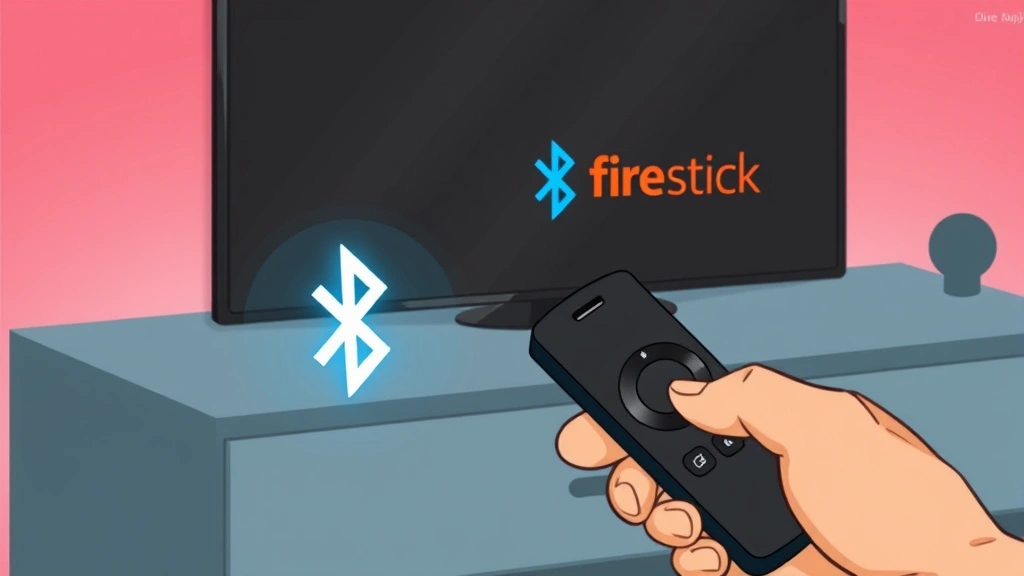
Your Fire Stick remote stopped working mid-episode. You’re holding it, pressing buttons, and nothing happens. Frustrating, right? The good news: how to pair Amazon Fire Stick remote is one of the easiest tech fixes you’ll ever do. Most people get it working in under five minutes. No special tools, no tech degree required. Just a few simple steps and you’re back to streaming.
This guide walks you through every method—from the basic pairing process to troubleshooting when things get stubborn. Whether you’re setting up a brand-new remote or reconnecting an old one that’s gone silent, we’ve got you covered.
Quick Answer: How to Pair in 30 Seconds
If you just need the fast version: Hold the Home and Menu buttons simultaneously for 10 seconds until the LED on your Fire Stick blinks orange. Your remote is now paired. That’s it. Most people never need to read past this sentence.
But if that didn’t work, or you want to understand what’s actually happening, keep reading. The full story matters when you’re dealing with tech that’s being stubborn.
Why Your Remote Lost Connection in the First Place
Before we fix it, let’s talk about why how to pair Amazon Fire Stick remote becomes necessary. Remotes don’t just unpair for no reason. Understanding the cause helps prevent it from happening again.
Dead batteries are the #1 culprit. This is obvious but worth stating: a remote with dead batteries can’t communicate with anything. Replace them first. Seriously. I can’t tell you how many people think their remote is broken when it’s just out of juice.
Interference is the second reason. WiFi routers, cordless phones, microwave ovens—they all broadcast signals on the 2.4 GHz band. If your Fire Stick is sitting next to a router or your kitchen is five feet away, interference can drop the connection. Move the Fire Stick away from the router, and the pairing often sticks.
Distance matters too. The Fire Stick’s Bluetooth range is about 30 feet in open space. Walls and metal objects reduce that significantly. If your Fire Stick is in a cabinet behind your TV, it’s fighting an uphill battle.
Finally, sometimes the Fire Stick itself just needs a reset. Software glitches happen. It’s not a character flaw; it’s just technology being technology.
The Basic Pairing Method: Home + Menu Button Hold
This is the standard method that works 90% of the time. Your Fire Stick is designed to be paired this way out of the box.
- Make sure your remote has fresh batteries. Use AA batteries, alkaline preferred. Rechargeable batteries work but are less reliable for IR devices. Pop the battery cover off the back of the remote and slide in two fresh AAs.
- Position yourself within 10 feet of the Fire Stick. You don’t need to be close, but you need line-of-sight. The remote uses infrared, which needs a clear path to the receiver on the Fire Stick.
- Point the remote at the Fire Stick. This matters more than people think. You’re not just waving it in the general direction of your TV. Point it directly at the device.
- Hold down the Home button and Menu button at the same time. The Home button is the one with the house icon. Menu is the button with three horizontal lines. Press both and hold them down.
- Keep holding for about 10 seconds. Don’t let go early. You’ll see the LED light on the front of your Fire Stick start blinking orange. That’s your signal that pairing is happening.
- Release the buttons. The LED will stop blinking. Your remote is paired.
That’s the entire process. If it worked, you’re done. If not, move to the next section.
Advanced Pairing: Using the Setup Button (For Newer Models)
Some newer Fire Stick remotes have a dedicated Setup button. This is actually more reliable than the Home + Menu method, even though fewer people know about it.
- Locate the Setup button on the back of your remote. It’s a small recessed button, usually near the battery compartment. You might need a paperclip or pen to press it.
- Hold the Setup button down for 10 seconds. Again, you’re looking for the orange LED blink on the Fire Stick. That’s your confirmation.
- Release the button. Pairing complete.
The Setup button method is cleaner because it’s less ambiguous. You’re not trying to hold two buttons perfectly at the same time. This is why I recommend it if your remote has one.
Pro Tip: If you can’t find the Setup button, your remote probably doesn’t have one. That’s fine. The Home + Menu method works just as well. Don’t force it.
Bluetooth Pairing Step-by-Step (For Alexa Voice Remotes)
If you have an Alexa Voice Remote (the one with the microphone and Alexa button), the pairing process is slightly different because it uses Bluetooth instead of infrared.
- Make sure your Fire Stick is turned on and you’re at the home screen. Navigate to Settings > Remotes and Bluetooth Devices.
- Select “Other Bluetooth Devices” or “Pair a New Device.” The exact wording depends on your Fire Stick model and software version.
- Put your Alexa Voice Remote into pairing mode. Hold down the Home button and the left navigation button simultaneously for 10 seconds. The LED on the remote will pulse white.
- Wait for the Fire Stick to detect the remote. It usually takes 5-10 seconds. The remote should appear in the list on your screen.
- Select the remote from the list. Confirm pairing. You might see a brief loading screen.
- Test it out. Press a button on the remote. If the Fire Stick responds, you’re paired.
Bluetooth remotes are generally more reliable than infrared once they’re paired, but the initial pairing can be finicky. If this doesn’t work on the first try, go to the troubleshooting section below.
Troubleshooting When Pairing Fails
Sometimes the simple methods don’t work. Here’s what to do when you’re stuck.
The LED Won’t Blink Orange
If you’re holding the buttons and the LED on the Fire Stick isn’t blinking, the signal isn’t getting through. This usually means one of three things:
- Battery issue: Replace the batteries in your remote immediately. Seriously, don’t skip this step. Use new alkaline AAs, not old ones you found in a drawer.
- Infrared receiver blocked: The Fire Stick has a small IR receiver. If it’s covered by dust, a sticker, or something else, the signal can’t reach it. Check the front of your device and clean it gently with a soft cloth.
- Distance or angle problem: Move closer to the Fire Stick and point the remote directly at it. Infrared is line-of-sight only. It doesn’t bend around corners or through walls.
The LED Blinks but Nothing Happens
The Fire Stick is receiving the signal, but it’s not responding. This is usually a software glitch.
- Restart the Fire Stick: Unplug it from power for 30 seconds, then plug it back in. Wait for it to boot up completely (about a minute). Then try pairing again.
- Forget and re-pair: If you have access to the Fire Stick settings (using another remote or the Fire TV app on your phone), go to Settings > Remotes and Bluetooth Devices > Forget All. Then try the pairing process again from scratch.
- Check for interference: Move your WiFi router away from the Fire Stick, or move the Fire Stick away from the router. Also, keep the remote away from your microwave while it’s running.
Pairing Works Temporarily, Then Stops
This is the most annoying scenario. Your remote pairs, works for a few minutes, then dies. Usually it’s interference or distance.
- Reposition your Fire Stick: Move it to a more central location in your room, away from metal objects and electronics.
- Check your WiFi setup: If you have a 2.4 GHz WiFi network, it might be interfering with your remote’s signal. Some routers let you switch to 5 GHz only, which eliminates this problem. Check your router settings or contact your internet provider.
- Try a different remote: If you have another Fire remote, try pairing that one. If it works reliably, your original remote might be failing hardware-wise and needs replacement.
The Remote Pairs But Buttons Don’t Work
This is different from the remote not pairing at all. The pairing succeeded, but the buttons are unresponsive.
- Clean the button contacts: Sometimes dust gets under the buttons. Gently pry off the battery cover and use a cotton swab with a tiny bit of isopropyl alcohol to clean the metal contacts inside. Let it dry completely before reassembling.
- Check for stuck buttons: Press each button on the remote a few times. If one feels stuck or doesn’t click properly, that’s your problem. You might need a replacement remote.
- Reset the remote: Remove the batteries, wait 10 seconds, and reinstall them. This clears the remote’s memory and can fix weird behavior.
Managing Multiple Remotes on One Fire Stick
What if you have more than one remote? Maybe you have an old infrared remote and a new Alexa Voice Remote. Can they both pair to the same Fire Stick?
Yes. A single Fire Stick can handle multiple paired remotes simultaneously. This is actually useful if you have remotes in different rooms or if one breaks.
To pair a second remote, just follow the same pairing steps you used for the first one. The Fire Stick will add it to the list of paired devices. Both remotes will work at the same time.
If you want to unpair a specific remote, go to Settings > Remotes and Bluetooth Devices, select the remote you want to remove, and choose Forget. That remote will no longer work with that Fire Stick, but you can always re-pair it later.
One caveat: if you have an Alexa Voice Remote paired, it might take priority over an infrared remote in some situations. The Alexa remote has more functionality, so Amazon designed it to be the “primary” device. But both will work.
Frequently Asked Questions
Do I need the original remote to pair a new one?
– No. You can pair a new remote without the original one. As long as your Fire Stick is powered on and accessible, you can pair any compatible remote to it. You don’t need the original remote present.
Can I pair a Fire Stick remote to a different Fire Stick?
– Yes. Fire Stick remotes aren’t locked to a specific device. You can unpair a remote from one Fire Stick and pair it to another. This is handy if you have multiple Fire Sticks in your home or if you move to a new place.
How long does the pairing process take?
– The actual pairing usually takes 10-30 seconds. The button-holding part is about 10 seconds, and the Fire Stick needs another 10-20 seconds to confirm the connection. If it’s taking longer than a minute, something’s wrong. Try again or move to troubleshooting.
What if my remote is too old to pair?
– Fire Stick remotes are generally backward-compatible for several generations. However, if your remote is 5+ years old, it might not work with newer Fire Stick models. Amazon’s website lists compatible remotes for each device. If you’re unsure, check there or contact Amazon support. Replacement remotes are inexpensive (usually $20-30).
Can I pair my Fire Stick remote to my TV?
– No. Fire Stick remotes are designed specifically for Fire Stick devices. They won’t pair with your TV, soundbar, or other devices. However, many Fire Stick remotes have universal remote functionality for controlling your TV’s volume and power. That’s different from pairing and doesn’t require any special setup.
Why does my remote keep losing connection?
– Persistent disconnection usually points to interference, distance, or a failing remote. Try repositioning your Fire Stick away from WiFi routers and other electronics. If that doesn’t help, test with a different remote. If the new remote works reliably, your old one is probably dying and needs replacement. If the new remote also disconnects, your Fire Stick might have a hardware issue.
Is there a way to pair without holding buttons?
– Not with the physical remote. However, you can use the Fire TV app on your phone to control your Fire Stick, and you can pair Bluetooth remotes through the Fire Stick settings menu if you have another way to navigate (like a phone app). But the button-hold method is the standard and most reliable way to pair a physical remote.
What’s the difference between pairing and connecting?
– “Pairing” and “connecting” are often used interchangeably when talking about Fire Stick remotes, but technically pairing is the process of establishing a relationship between two devices. Once paired, they automatically connect when both are powered on. You don’t need to re-pair every time you use the remote. One pairing lasts until you forget the device or factory reset something.
Do I need WiFi for the remote to work?
– Infrared remotes (the standard ones) do not need WiFi. They communicate directly with the Fire Stick using infrared light. Alexa Voice Remotes do need WiFi because they send voice commands to Amazon’s servers. But the basic pairing process for infrared remotes works even if your WiFi is down.
Can I pair a third-party remote to my Fire Stick?
– Some third-party remotes are designed to work with Fire Sticks, but not all. Check the product description before buying. If a remote claims Fire Stick compatibility, it should pair using the same methods described in this guide. However, Amazon doesn’t officially support all third-party remotes, so compatibility can be hit-or-miss.

Additional Resources: For more detailed information on Fire Stick setup and troubleshooting, Amazon’s official Fire Stick support page is comprehensive. If you’re experiencing broader Fire Stick issues, Family Handyman’s Fire Stick setup guide covers the full installation process. For streaming troubleshooting, This Old House’s tech section has solid walkthroughs. And if you’re interested in expanding your Fire Stick capabilities, you might explore advanced customization options. For general smart home device connectivity, Bob Vila’s streaming device reviews provide context on how Fire Sticks compare to other options.
Next Steps: Once your remote is paired and working, check out our guides on how to connect Fire Stick remote for advanced features and how to pair Firestick remote for additional pairing scenarios. If you’re looking to do more with your Fire Stick, you might also be interested in integrating smart home devices like Ring doorbells with your Fire Stick ecosystem.


