
Trying to figure out how to open a PDF in Google Docs? You’re not alone. A lot of people struggle with this because it feels like it should be obvious, but Google’s interface doesn’t always make it crystal clear. The good news: it’s actually dead simple once you know where to click. Whether you want to convert a PDF to an editable document, collaborate with others on a scanned file, or just view something in Google Docs, we’ve got you covered.
Google Docs has become the go-to tool for online document editing and collaboration. One of its sneaky powers is the ability to upload and convert PDFs into editable documents. This is incredibly useful if you’ve got a scanned contract, a form you need to fill out, or even just a PDF that you want to edit and share with a team. The process takes about 30 seconds, and we’re going to walk you through every step.
The Fastest Way to Open a PDF in Google Docs
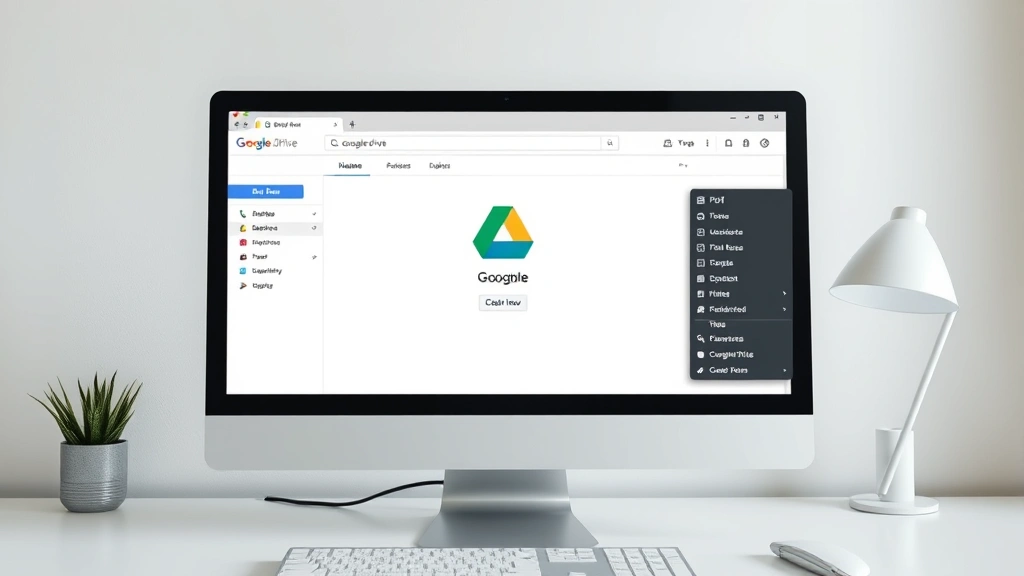
Let’s cut to the chase. The quickest method to open a PDF in Google Docs is to upload it directly to Google Drive, then right-click and select “Open with Google Docs.” That’s it. No weird workarounds, no third-party tools needed. You’ll have your PDF converted and ready to edit in under a minute.
Here’s the exact process:
- Go to Google Drive (drive.google.com)
- Click the “+ New” button on the left side
- Select “File upload”
- Choose your PDF from your computer
- Once uploaded, right-click the PDF file
- Hover over “Open with”
- Click “Google Docs”
- Wait a few seconds while Google converts the file
- Your PDF is now open and editable in Google Docs
That’s genuinely all there is to it. The file stays in your Google Drive, and you now have an editable version. The original PDF remains untouched, so you’re not losing anything.
Pro Tip: If you’re uploading multiple PDFs, you can batch upload them all at once. Just hold Ctrl (or Cmd on Mac) and click multiple files before uploading. Then convert each one individually.
Using Google Drive to Upload and Convert Your PDF
Google Drive is the backbone of the entire Google Docs ecosystem. Think of it like a filing cabinet in the cloud that’s always accessible and syncs across all your devices. When you upload a PDF here, you’re giving Google permission to process and convert it.
The upload process is straightforward, but there are a few things worth knowing:
- File size limits: Google Drive lets you upload files up to 5TB (yes, terabytes), so your PDF is definitely not too big
- Format support: PDFs, JPEG, PNG, GIF, and even some Microsoft formats can be converted
- Processing time: Small PDFs convert in seconds; larger or more complex ones might take 30 seconds to a minute
- Quality matters: Scanned PDFs with clear text convert better than blurry or handwritten ones
To upload a PDF to Google Drive manually:
- Open Google Drive in your browser
- Click “+ New” button (top left)
- Select “File upload”
- Navigate to your PDF and click “Open”
- Google Drive uploads the file (you’ll see a progress bar)
- Once done, you can rename it by right-clicking and selecting “Rename”
One thing that trips people up: after you upload, the file appears in Google Drive as a PDF file, not automatically as a Google Doc. You need to explicitly convert it using the “Open with Google Docs” method we mentioned earlier. This is actually a good thing because it means your original PDF stays safe and unchanged.
If you’re working with sensitive documents, remember that anything in Google Drive is subject to your Google account’s security settings. Make sure your account has a strong password and two-factor authentication enabled. For more detailed guidance on managing your Google account security, check out resources like Google’s official account security page.
Opening a PDF Directly from Google Drive
Once your PDF is uploaded to Google Drive, opening it in Google Docs is where the magic happens. Here’s what you need to know:
Method 1: Right-Click Conversion
- Find your PDF file in Google Drive
- Right-click on it
- Select “Open with”
- Click “Google Docs”
- Wait while Google processes the file (usually 10-30 seconds)
- The PDF opens in a new tab as an editable Google Doc
Method 2: Double-Click Preview, Then Convert
- Double-click the PDF in Google Drive
- The PDF opens in Google’s PDF viewer
- Look for the three-dot menu (top right)
- Select “Open with Google Docs”
- A new tab opens with your converted document
The converted version gets saved as a new file in Google Drive with the same name plus “(1)” or similar. So if your original is “contract.pdf,” the Google Doc version will be “contract (1)” or “contract – Google Docs.” You can rename it to whatever you want.
Safety Warning: When you convert a PDF to Google Docs, formatting might shift slightly. Complex layouts, special fonts, and precise positioning don’t always translate perfectly. Always review the converted document to make sure everything looks right before sharing or printing.
Converting PDF to Google Docs Format
Converting a PDF to Google Docs format is more than just opening it—it’s actually transforming the file into an editable document. This is where things get interesting and occasionally frustrating.
When Google converts your PDF, it’s using optical character recognition (OCR) technology to read the text and rebuild it as an editable document. This works great for most PDFs, but there are some scenarios where it struggles.
What converts well:
- Standard text documents (reports, letters, articles)
- Forms with typed text
- Scanned documents with clear, black text on white background
- PDFs created from Microsoft Word or similar software
- Multi-page documents with consistent formatting
What converts poorly:
- PDFs with images as text (screenshots, photos of documents)
- Handwritten content
- Complex layouts with multiple columns and text boxes
- PDFs with unusual fonts or special characters
- Scanned documents that are blurry or at an angle
- PDFs with embedded graphics and overlaid text
After conversion, you’ll notice the document is now fully editable. You can select text, delete paragraphs, add comments, and share it with collaborators. The converted Google Doc maintains most of the original formatting, including bold text, italics, headings, and basic tables.
One important thing: the conversion is one-way. Once you’ve converted a PDF to Google Docs, you can export it back to PDF if you want, but you can’t “revert” to the original PDF version through Google Docs. That’s why the original PDF stays in your Drive—it’s your safety net.
Tips for Working with Scanned PDFs and OCR
Scanned PDFs are a different beast than native PDFs created from digital documents. When you scan a physical document with your phone, a scanner, or a multifunction printer, you’re creating an image file. Google Docs can read these using OCR (optical character recognition), but the quality depends heavily on how good the scan is.
If you’re planning to scan documents and convert them to Google Docs, here’s what you need to do:
Before scanning:
- Make sure your document is clean and flat
- Use good lighting—shadows and glare mess up OCR
- Scan at 300 DPI (dots per inch) minimum for best results
- Avoid scanning at an angle; keep the document straight
- Use a scanner or a dedicated scanning app, not just a photo
For smartphone scanning, apps like Google Drive’s built-in scanner or Adobe Scan are specifically designed to handle document scanning and auto-correct angles and lighting.
After uploading to Google Docs:
- Review the OCR results carefully—it’s not 100% accurate
- Look for garbled text, especially in headers and footers
- Check numbers and dates carefully (these get misread often)
- Fix any obvious errors before sharing the document
- If the scan quality is poor, the OCR will be worse; consider re-scanning
Google’s OCR technology is actually pretty impressive, but it’s not magic. Handwriting, faded text, and poor-quality scans will always be problematic. If you’re working with important documents, spend the extra 30 seconds to get a good scan.
For more information about document management best practices, Family Handyman has some practical tips on organizing documents, and This Old House offers guidance on document storage for home projects.
Troubleshooting Common PDF Opening Issues
Sometimes things don’t go smoothly. Here are the most common problems and how to fix them:
Problem: “Open with Google Docs” option doesn’t appear
Solution: This usually means Google Drive doesn’t recognize the file as a PDF. Try downloading the file and re-uploading it. Make sure the filename ends in “.pdf” (lowercase). If it’s a corrupted PDF, you might need to use a different tool to repair it first.
Problem: The PDF opens in Google Drive’s PDF viewer instead of converting to Docs
Solution: You might have accidentally double-clicked instead of right-clicking. Go back to Drive, right-click the file, and explicitly select “Open with → Google Docs.” Don’t just open it normally.
Problem: The converted Google Doc looks nothing like the original PDF
Solution: Complex layouts don’t always convert perfectly. This is especially true for PDFs with multiple columns, text boxes, or unusual formatting. The content is there, but the layout might be off. You’ll need to manually fix the formatting in Google Docs.
Problem: Text is garbled or unreadable in the converted document
Solution: This happens with scanned PDFs that have poor quality or unusual fonts. Try downloading the original PDF and re-scanning it at higher quality, or use a dedicated OCR tool like Adobe Acrobat which sometimes handles difficult PDFs better.
Problem: The file is too large to convert
Solution: While Google Drive supports huge files, conversion might fail on extremely large PDFs (over 100MB). Try splitting the PDF into smaller chunks using a PDF tool, then convert each part separately.
Problem: Shared PDFs won’t open in Google Docs
Solution: You need edit or view access to the file. Ask the person who shared it to give you the appropriate permissions. Once you have access, you can convert it.
Best Practices for Editing PDFs in Google Docs
Once you’ve successfully opened your PDF in Google Docs, you’re entering edit territory. Here’s how to make the most of it:
Naming and Organization
When Google converts a PDF, it creates a new file. Rename it something clear so you don’t end up with “contract (1)” and “contract (2)” and “contract (3)” cluttering your Drive. Use descriptive names like “Client Contract – Final” or “Invoice 2024-01-15.”
Formatting Cleanup
After conversion, take a few minutes to clean up the formatting. The OCR process might leave extra spaces, weird line breaks, or inconsistent heading styles. Go through and fix these so the document looks professional. This is especially important if you’re planning to print or share it with others.
Collaboration Features
One of the biggest advantages of converting to Google Docs is that you can now share it and collaborate in real-time. Click the “Share” button and invite team members. They can comment, suggest edits, or make changes directly. This is way more powerful than emailing PDFs back and forth.
Version Control
Google Docs automatically saves every change and keeps a version history. If you mess something up, you can always revert to an earlier version. Click “File → Version history → See all versions” to browse the timeline of changes.
Exporting Back to PDF
Once you’re done editing, you can export the Google Doc back to PDF format. Click “File → Download → PDF Document.” This is useful if you need to send a finalized, non-editable version to someone else. For guidance on similar document management tasks, check out our article on how to add a table of contents in Word, which covers related document formatting skills.
Protecting Your Work
If you’re working with sensitive documents, use Google Drive’s sharing settings carefully. You can restrict who can view, comment, or edit. For documents that need extra security, consider keeping them in a shared drive rather than your personal Drive, where you can set more granular permissions.
Mobile Access
Once converted to Google Docs, you can access and edit the document from your phone using the Google Docs app. This is handy if you’re on the go and need to make quick changes. Just remember that some complex formatting might not display perfectly on mobile.
Frequently Asked Questions
Can I open a PDF in Google Docs without uploading it to Google Drive?
– No, you need to upload the PDF to Google Drive first. That’s where the conversion happens. You can’t directly open a PDF from your computer in Google Docs without going through Drive. However, the upload process takes about 10 seconds, so it’s not a big deal.
Will the converted Google Doc look exactly like the original PDF?
– Not always. Simple documents usually convert perfectly, but complex layouts, multiple columns, and special formatting might shift around. The text content is preserved, but you might need to do some manual formatting cleanup.
What happens to my original PDF after I convert it to Google Docs?
– Your original PDF stays exactly as it was in Google Drive. Converting creates a new, separate Google Docs file. The original PDF is never modified or deleted. You now have two files: the original PDF and the editable Google Doc version.
Can I convert multiple PDFs to Google Docs at the same time?
– You can upload multiple PDFs at once, but you need to convert each one individually to Google Docs. The upload is batch-friendly, but the conversion is a one-at-a-time process. With multiple files, it might take a few minutes total.
Is there a file size limit for converting PDFs to Google Docs?
– Google Drive supports files up to 5TB, but conversion might be slow or fail on extremely large PDFs (over 100MB). Most business documents are way smaller than this, so it’s rarely an issue. If you hit a limit, try splitting the PDF into smaller sections.
What if my PDF has handwritten notes or signatures?
– Google’s OCR can’t reliably read handwriting. The signature or handwritten text will appear in the converted document as an image or garbled text. If handwriting is critical, you might need to manually re-type those sections or use a specialized OCR tool designed for handwriting.
Can I edit the PDF directly without converting it to Google Docs?
– Google Drive’s PDF viewer lets you view PDFs, but you can’t edit them directly. To make changes, you need to convert to Google Docs. Alternatively, you could use Google Forms to create fillable PDFs, but that’s a different workflow.
Is the converted Google Doc automatically saved to my Drive?
– Yes. When you convert a PDF to Google Docs, the new document is automatically saved to your Google Drive. Google Docs also auto-saves every change you make, so you don’t have to worry about losing work.
Can I convert a PDF back to its original format after editing?
– Yes. Once you’ve edited a PDF in Google Docs, you can export it back to PDF format by clicking “File → Download → PDF Document.” You can also export as Word, Excel, or other formats. The original PDF in your Drive remains untouched.
What’s the best way to share a converted PDF document with others?
– Use Google Docs’ sharing features. Click the “Share” button and add email addresses or create a shareable link. You can set permissions to view-only, comment-only, or edit. This is much better than emailing files back and forth because everyone sees the latest version in real-time.


