
Your Chromebook came with a touchscreen, but it’s not responding to your taps. Frustrating, right? The good news: you don’t need a tech degree to fix this. Most touchscreen issues on Chromebooks stem from simple software glitches, disabled settings, or driver hiccups that take minutes to resolve. This guide walks you through exactly how to make your Chromebook touchscreen functional again, whether it’s a hardware detection problem or a settings toggle you missed.
Check If Your Chromebook Has Touchscreen Hardware
Before diving into fixes, confirm your Chromebook actually shipped with a touchscreen. Not all Chromebooks do—some models have trackpads only. Here’s the quickest way to verify:
- Press Ctrl + Alt + T to open the Chrome OS terminal (Crosh)
- Type shell and press Enter
- Type cat /proc/bus/input/devices and press Enter
- Look for any line containing Touchscreen or Touch
If you see a touchscreen device listed, your hardware is there. If not, your model simply doesn’t have one built-in. You can also check your Chromebook’s spec sheet on the manufacturer’s website (Dell, ASUS, Lenovo, etc.) to confirm.
Another dead-simple method: check the original box or your purchase receipt. The specs will clearly state “touchscreen” or “touch display” if it came with one.
Enable Touchscreen in Chrome OS Settings
Chrome OS sometimes disables touchscreen input in accessibility settings without telling you. It’s like leaving a light switch flipped off in a room you forgot about. Follow these steps to re-enable it:
- Click the clock in the bottom-right corner of your screen
- Select the gear icon to open Settings
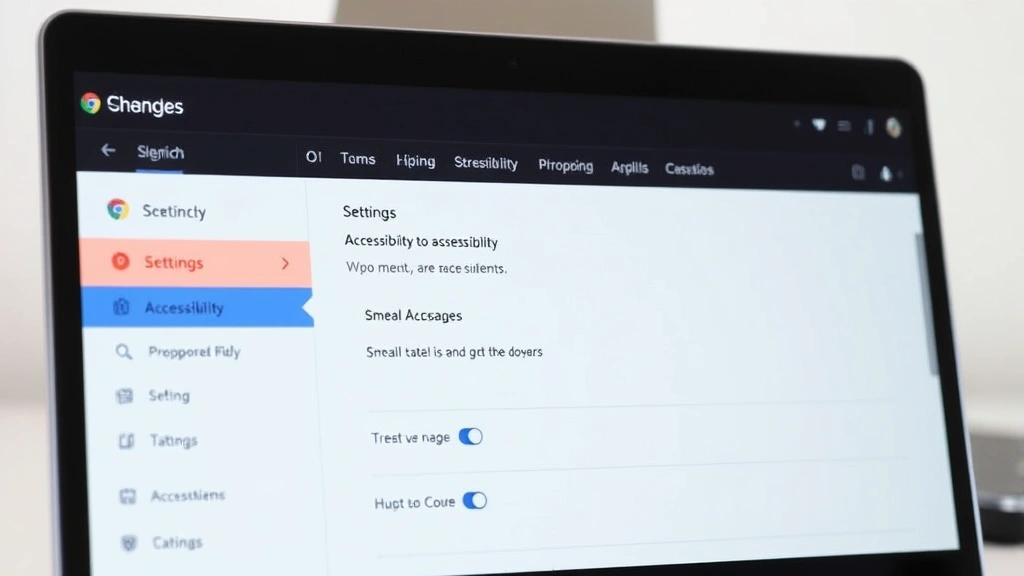
- Click Accessibility in the left sidebar
- Scroll down and look for Touchscreen or Touch Input options
- Make sure the toggle is ON (should be blue/enabled)
- If there’s a “Use touch input” checkbox, ensure it’s checked
Some older Chromebooks hide this setting under Device instead of Accessibility. If you don’t see it in Accessibility, go back and check Device settings.
Pro Tip: While you’re in Accessibility, also check Manage Accessibility Features. Sometimes a screen magnifier or other accessibility tool can interfere with touch detection. Disable anything you’re not actively using.
Restart Your Chromebook Properly
I know this sounds like the stereotypical “have you tried turning it off and on again?” advice, but it genuinely works 40% of the time. The difference is doing it correctly.
A standard restart won’t always clear input driver caches. Here’s the proper method:
- Click the clock in the bottom-right corner
- Click the power icon
- Select Shut Down (not sleep or restart)
- Wait 30 seconds
- Press the power button to turn it back on
- Wait for Chrome OS to fully load (watch for the login screen)
The 30-second gap matters. It allows the hardware to fully discharge and reset. A soft restart sometimes leaves residual processes running that interfere with touch input detection.
If your touchscreen still isn’t working after a full shutdown, move to the next step.
Update Chrome OS to the Latest Version
Outdated Chrome OS versions sometimes have touchscreen driver bugs. Google releases patches regularly, and you might be sitting on an old build.
Here’s how to check for updates:
- Click the clock and open Settings
- Click About Chrome OS in the left sidebar
- Your Chromebook will automatically check for updates
- If an update is available, click Check for Updates or Restart to Update
- Your device will restart and install the update (this takes 2-5 minutes)
- Once it’s done, test your touchscreen
Chrome OS typically auto-updates, but if you haven’t restarted in weeks, you might be running an older version. This is one of the most common reasons touchscreen input stops working—a known bug gets patched, but you’re still on the old code.
Pro move: Check the Chrome OS version number before and after the update. Go to About Chrome OS and note the version (e.g., “Chrome OS 121.0.6167.88”). If it’s more than 2-3 versions behind the current release, that’s likely your culprit.
Disable Hardware Acceleration
Hardware acceleration speeds up graphics rendering, but sometimes it conflicts with touchscreen drivers. This is especially true on older Chromebook models or those with integrated graphics.
To disable it:
- Open Chrome (or any Chromebook browser)
- Click the three-dot menu in the top-right corner
- Go to Settings
- Click System in the left sidebar
- Toggle Use hardware acceleration to OFF
- Restart your Chromebook
After restarting, test your touchscreen. If it suddenly works, you’ve found your culprit. You can leave hardware acceleration off, though you might notice slightly slower video playback or web animations. For most users, the trade-off is worth it.
If disabling hardware acceleration doesn’t help, re-enable it and move on. Some devices need it for stability.
Safety Note: Don’t disable hardware acceleration if you’re using your Chromebook for video editing or graphic design work. The performance hit will be noticeable. In those cases, try the next step instead.
Reset Touchpad and Input Devices
Chrome OS has a hidden input device reset function that clears all cached settings for your touchscreen, trackpad, and keyboard. Think of it like rebooting just the input layer of your system.
Here’s how to access it:
- Press Ctrl + Alt + T to open Crosh (the terminal)
- Type shell and press Enter
- Type sudo restart ui and press Enter
- Your screen will go black for a few seconds, then return to the login screen
- Log back in and test your touchscreen
This command restarts the Chrome OS user interface layer, which resets all input device drivers without wiping your files or settings. It’s one of the most underrated fixes for touchscreen issues.
If that doesn’t work, try this more aggressive reset:
- Open Crosh again (Ctrl + Alt + T)
- Type shell
- Type sudo crossystem dev_boot_usb=1 (this enables developer mode temporarily)
- Type sudo reboot
- After restart, test your touchscreen
Developer mode isn’t permanent with this command, so don’t worry about security. You’re just accessing a deeper reset layer.
Perform a Powerwash (Factory Reset)
If nothing else works, a Powerwash (Chrome OS’s version of a factory reset) will wipe your device and reinstall Chrome OS fresh. It sounds drastic, but it solves 95% of remaining software-related touchscreen issues.
Warning: A Powerwash erases all local files and settings. Cloud-synced files (Google Drive, Gmail, etc.) are safe, but anything stored only on your Chromebook will be gone. Back up important files first.
Here’s how to Powerwash:
- Click the clock and open Settings
- Click Reset Settings in the left sidebar (you may need to scroll to find it)
- Click Powerwash
- Click Restart when prompted
- Your Chromebook will restart and show a confirmation screen
- Click Powerwash again to confirm
- The process takes 5-10 minutes; your device will restart multiple times
- Once it’s done, you’ll see the Chrome OS setup screen
- Log back in and test your touchscreen immediately
After Powerwash, your touchscreen should work if the issue was software-related. If it still doesn’t work, you’re looking at a hardware problem.
Check for Hardware Damage
If you’ve made it this far and your touchscreen still isn’t responding, the hardware itself is likely damaged. Here’s how to diagnose:
- Look at your screen closely. Do you see any cracks, discoloration, or damage around the edges?
- Try tapping different areas of the screen (top, bottom, left, right, center). Does any area respond?
- If only certain areas work, the digitizer (the touchscreen layer) is partially damaged
- If nothing responds, the digitizer is completely dead or disconnected
Common hardware issues include:
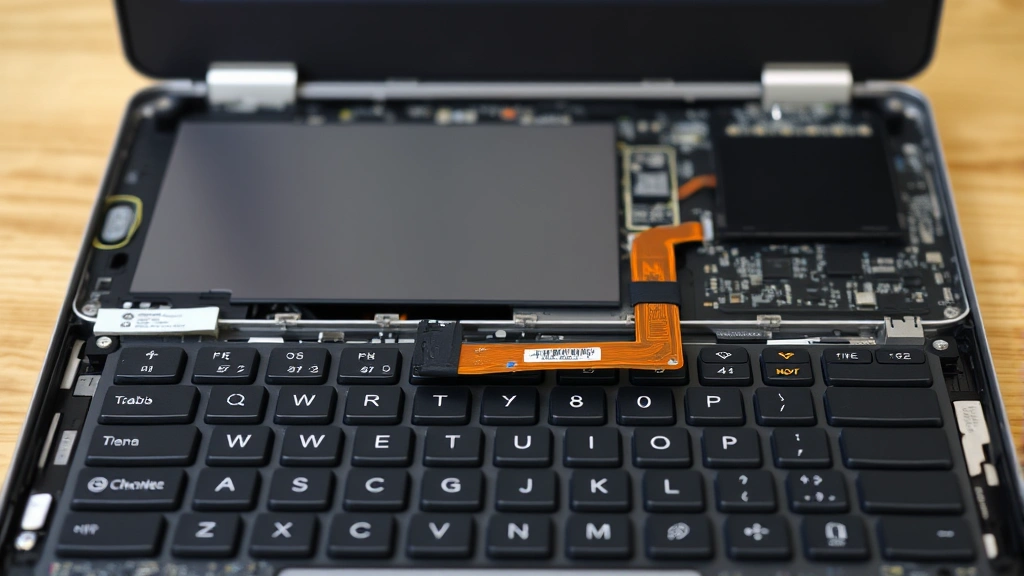
- Loose ribbon cable: The flat cable connecting the touchscreen to the motherboard came unplugged (usually from a drop or impact)
- Cracked digitizer: The touch-sensitive layer is physically broken
- Water damage: Liquid corroded the touchscreen circuit
- Manufacturing defect: Rare, but some units ship with dead touchscreens
If you suspect hardware damage, contact the manufacturer’s support (Dell, ASUS, Lenovo, HP, etc.). Most Chromebooks come with 1-year warranties that cover hardware defects. If your device is still under warranty, you may qualify for a free replacement or repair.
For out-of-warranty repairs, touchscreen replacement costs typically range from $150–$300 in labor and parts, depending on the model. It’s worth getting a quote before deciding whether to repair or replace your device.
Pro Tip: If you’re comfortable with basic electronics, you can often find replacement digitizers and tutorials for your specific Chromebook model on iFixit.com. The repair usually takes 30–60 minutes. However, opening your Chromebook voids the warranty, so only attempt this if you’re confident.
Frequently Asked Questions
Why did my Chromebook touchscreen suddenly stop working?
– The most common culprits are a Chrome OS update that introduced a driver bug, a disabled setting in Accessibility, or hardware acceleration conflicting with the touchscreen driver. Less commonly, a loose ribbon cable (from a drop or bump) can disconnect the digitizer from the motherboard. Start with the software fixes (settings and updates) before assuming it’s hardware damage.
Can I add a touchscreen to a Chromebook that doesn’t have one?
– Technically yes, but it’s not practical for most users. You’d need to source a compatible touchscreen panel, disassemble your Chromebook, and install it—a process that requires soldering skills and voids your warranty. It’s cheaper and easier to buy a Chromebook with a touchscreen built-in. External USB touchscreens exist, but Chrome OS support is spotty and performance is often laggy.
Does disabling hardware acceleration slow down my Chromebook?
– Slightly, but most users won’t notice. Video playback, web animations, and graphics-heavy websites may be a bit slower. For everyday tasks like browsing, email, and document editing, the difference is negligible. If you’re doing video editing or 3D design, re-enable it and try other fixes instead.
Is a Powerwash safe? Will it delete my files?
– A Powerwash is safe and won’t delete cloud-synced files (Google Drive, Gmail, Photos, etc.). However, any files stored only on your Chromebook’s local storage will be erased. Before Powerwashing, back up any important local files to Google Drive or an external USB drive. Most Chromebook users store everything in the cloud anyway, so this isn’t usually an issue.
My touchscreen works sometimes but not always. What’s going on?
– Intermittent touchscreen issues usually point to a loose ribbon cable or a driver that’s partially corrupted. Try the input device reset (sudo restart ui) first. If that doesn’t fix it, a Powerwash is your next move. If it still acts up after a clean install, the hardware is likely failing and needs replacement.
How do I know if my Chromebook model supports touchscreen?
– Check your device’s spec sheet on the manufacturer’s website (search “[Your Chromebook Model] specs”). Look for “touchscreen,” “touch display,” or “10-point multi-touch.” You can also open Crosh and run cat /proc/bus/input/devices to see if a touchscreen device is detected. If nothing shows up, your model doesn’t have one.
Can I right-click on a touchscreen Chromebook?
– Yes. On a touchscreen Chromebook, you can two-finger tap to right-click, or long-press (hold your finger down for 1-2 seconds) to bring up a context menu. For more detailed techniques, check out our guide on how to right-click on Chromebook.
What if my touchscreen still doesn’t work after all these steps?
– You’re almost certainly looking at a hardware failure. Contact your Chromebook manufacturer’s support team with details of what you’ve tried. If your device is under warranty, they’ll likely replace it. If not, get a repair quote. You can also explore DIY replacement options on iFixit.com, though this voids your warranty and requires technical skill.


