
Your iPhone holds everything—photos, messages, banking apps, personal emails. So when someone picks up your phone, the last thing you want is them scrolling through your life. Locking your iPhone screen isn’t just about preventing casual snooping; it’s your first line of defense against identity theft, unauthorized purchases, and privacy breaches. The good news? Apple makes this dead simple, and we’re going to walk you through every method so you can pick what works best for your situation.
Let’s be real: most people know they can lock their screen, but they’re not doing it effectively. They’re leaving their phones on default settings, missing out on stronger security options, or accidentally disabling features that would protect them. This guide covers the basics, the advanced moves, and the mistakes that leave you vulnerable.
The Basic Screen Lock: Your First Defense
Here’s the foundation: every iPhone comes with the ability to lock its screen immediately. This isn’t complicated, but understanding how it works matters.
The Quick Lock: Press the side button (on newer iPhones) or the top button (on older models) once to put your phone to sleep. The screen goes dark, and your device is locked. That’s it. Simple. But here’s the catch—if someone knows your passcode, they’re in.
The Emergency Lock: If you’re in a sketchy situation and need to lock your phone fast, press the side button and volume button simultaneously. This brings up the Emergency SOS screen, which locks your phone immediately and requires authentication to proceed.
The reason this matters is that understanding the layers of locking helps you build a real security strategy. Think of it like locking your front door—the lock itself is just the start. You also need good lighting, maybe a camera, and neighbors who watch out for you.
According to Apple’s official security documentation, the basic lock screen is your gateway to all other security features. Without it properly configured, Face ID and Touch ID won’t work correctly.
Setting Up Face ID for Secure Locking
Face ID is Apple’s facial recognition system, and it’s genuinely one of the best features for how to lock iPhone screen securely. Your face is essentially your password—and it’s unique to you.
How to Set Up Face ID:
- Open Settings on your iPhone
- Tap Face ID & Passcode (or Biometric & Security on some models)
- Enter your current passcode
- Tap Set Up Face ID
- Position your face in the circle on the screen
- Move your head slowly in a circle to capture all angles of your face
- Complete the second scan (Apple requires two scans for accuracy)
- Tap Done
Why Face ID Works: It uses advanced sensors to map your facial features in 3D. It’s not fooled by photos, and it adapts over time as your face changes slightly. You’re wearing glasses? Face ID still works. Grew a beard? It adjusts.
Pro Tip: Set up Face ID with and without glasses if you wear them regularly. Go back into Face ID settings and tap Set Up an Alternate Appearance. This gives your phone multiple reference points and makes authentication faster.
The security here is genuinely solid. According to Apple’s Face ID security overview, the odds of a random person unlocking your phone with Face ID are roughly 1 in 1,000,000 (compared to 1 in 50,000 with Touch ID). That’s not hype—that’s actual cryptographic security.
Real Talk: Face ID doesn’t work perfectly in every situation. Direct sunlight can be finicky, and if you’re wearing a mask, you’ll need to use your passcode or add a mask unlock option in iOS 15.4 and later. Also, if your phone is on a table and you’re looking down at it, Face ID might not recognize you at certain angles.
Using Touch ID (Fingerprint) to Lock Your iPhone
If your iPhone has a home button (iPhone 8 and earlier, or iPhone SE models), Touch ID is your biometric lock option. It’s faster than Face ID in some situations and works reliably even when your face is covered.
Setting Up Touch ID:
- Go to Settings > Touch ID & Passcode
- Enter your passcode
- Tap Add a Fingerprint
- Place your finger on the home button
- Hold steady while the phone scans your fingerprint
- Lift and replace your finger multiple times to complete the scan
- Repeat for any additional fingers (you can add up to five)
The Strategy: Most people add their dominant hand’s index and middle fingers. But here’s a smarter approach: add your thumbs (both of them), your index fingers, and maybe one more finger you use frequently. This gives you flexibility. If one finger is wet or dirty, you have backups.
Touch ID has one advantage over Face ID: it works instantly when your phone is already unlocked and you’re using apps that require authentication (like your banking app). No delay. No angle issues. Just touch and go.
Security Level: Touch ID is secure enough for most people. The false positive rate is about 1 in 50,000, which is solid. The only real vulnerability is if someone has your fingerprint on a glass surface and tries to create a fake finger—but that’s spy-movie stuff, not real-world threat.
Creating a Strong Passcode
Here’s where most people mess up. They use a passcode that’s either too simple or too complicated. The goal is something strong that you’ll actually remember.
Your Passcode Options:
- 6-Digit Numeric: The default. Decent security, easy to remember. Not the strongest, but better than a 4-digit code.
- Custom Alphanumeric: Letters, numbers, and symbols. Much stronger. But you need to remember it, and typing it is slower.
- 4-Digit Numeric: Don’t do this. It’s easier to guess and remember, but the security trade-off isn’t worth it.
Setting a Strong Passcode:
- Go to Settings > Face ID & Passcode (or Touch ID & Passcode)
- Tap Change Passcode
- Enter your current passcode
- Choose your new passcode type (you’ll be prompted to select the format)
- Enter your new code twice to confirm
What Makes a Passcode Strong:
- At least 8 characters (longer is better)
- Mix of uppercase, lowercase, numbers, and symbols
- Nothing based on your birthday, anniversary, or obvious patterns (like 123456)
- Nothing that appears in your social media (no pet names, kid names, etc.)
Real Talk: If you use a custom alphanumeric passcode, Apple will ask you to enter it regularly—especially after reboots. That’s by design. It keeps you from forgetting it. Embrace it.
For additional security guidance, check out the FBI’s recommendations on creating strong passwords. While they focus on online accounts, the principles apply to your iPhone passcode too.
Auto-Lock Settings: The Unsung Hero
This is the feature that actually saves you. Auto-lock is what happens when you don’t touch your phone for a set amount of time—it locks automatically. This is your safety net for moments when you forget to manually lock your screen.
How to Set Auto-Lock:
- Go to Settings > Display & Brightness
- Tap Auto-Lock
- Choose your preferred time: 30 seconds, 1 minute, 2 minutes, 3 minutes, 4 minutes, 5 minutes, or Never
The Right Setting for You:
- 30 Seconds: Maximum security. Your phone locks almost immediately. Good if you’re in public or high-risk environments.
- 1-2 Minutes: Sweet spot for most people. Balances convenience and security. You can set your phone down, grab a coffee, and it’s locked when you get back.
- 5 Minutes: More convenient, but riskier. If you leave your phone on a table at work, someone could access it within that window.
- Never: Don’t do this. Ever. Your phone will stay unlocked until you manually lock it, which defeats the entire purpose of security.
Pro Move: If you’re at home or in a safe environment, you might set auto-lock to 2 minutes. But if you’re traveling or in public spaces, drop it to 30 seconds. You can change this setting anytime—it takes 10 seconds.
According to NIST’s mobile device security guidelines, automatic lock after a short period of inactivity is one of the most effective security practices. It’s simple, passive, and actually prevents breaches.
The Reality: Auto-lock isn’t flashy, and it’s not something you think about. But it’s the reason you don’t end up with a compromised phone after leaving it on a coffee shop table. Set it to 1-2 minutes and forget about it.
Lock Screen Customization Without Compromising Security
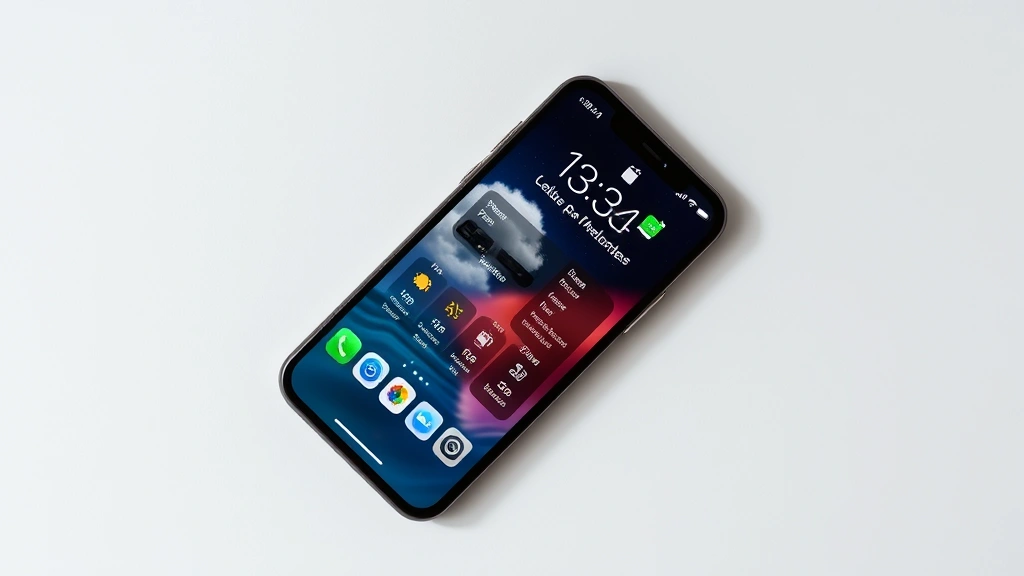
iOS 16 introduced serious lock screen customization. You can now change fonts, colors, and widgets on your lock screen. The good news? You can do all this without weakening your security. In fact, custom lock screens can actually improve your awareness of what’s on your phone.
Customizing Your Lock Screen Safely:
- Long-press your current lock screen
- Tap the + button to create a new lock screen or tap Edit to modify the current one
- Tap the time display to change fonts and colors
- Tap the area below the time to add widgets (weather, calendar, fitness, etc.)
- Tap Done when finished
What’s Safe to Show on Your Lock Screen:
- Weather widget (shows temperature, conditions—nothing personal)
- Calendar (shows your events—only if you’re comfortable with this)
- Fitness rings or activity data (no personal info)
- Clock and date (obviously safe)
- Reminders (depends on what your reminders say)
What’s NOT Safe:
- Widgets that show your email preview (someone can see incoming messages)
- Banking app widgets (shows account info)
- Messages preview (your conversations are visible without unlocking)
- Anything with account numbers, addresses, or sensitive data
The Lock Screen Photo Decision: You can set a custom photo on your lock screen. Choose something you like, but remember: anyone who picks up your phone sees this image. No sensitive locations, no personal documents, no screenshots of private conversations. A nice landscape photo? Perfect. Your home address on a package? No.
Advanced Locking Features Most People Don’t Know About
Once you’ve got the basics down, there are several advanced features that make your iPhone lock even more secure. These aren’t complicated, but they’re powerful.
1. Require Authentication for Sensitive Apps
Your banking app, password manager, and health apps should all require Face ID or Touch ID every single time you open them. This is separate from your phone lock.
- Go to Settings > Face ID & Passcode (or Touch ID & Passcode)
- Scroll down to Apps Using Face ID
- Toggle on any app that should require authentication every time
2. USB Restricted Mode
This prevents someone from plugging your iPhone into a computer and extracting data through USB.
- Go to Settings > Face ID & Passcode
- Scroll to Allow Access When Locked
- Turn off USB Accessories
Now, if someone tries to plug your phone into a computer, it will require your passcode first. They can’t bypass this.
3. Erase Data After Failed Attempts
This is extreme, but it’s available. After 10 failed attempts to enter your passcode, your iPhone can automatically erase all data.
- Go to Settings > Face ID & Passcode
- Scroll down and toggle on Erase Data
Real Talk: This is overkill for most people. It’s useful if you’re carrying extremely sensitive data or traveling to high-risk areas. For the average person, it’s more likely to cause problems (accidental erasure) than prevent them.
4. Lockdown Mode (iOS 16+)
Apple introduced Lockdown Mode for people facing targeted attacks (journalists, activists, etc.). It’s extreme and disables some functionality, but it’s the most secure option available.
- Go to Settings > Privacy & Security > Lockdown Mode
- Toggle it on
When Lockdown Mode is active, your phone blocks certain features: FaceTime calls from unknown numbers are blocked, some attachments won’t load, and many advanced features are disabled. It’s not for everyday use, but it’s there if you need it.
5. Two-Factor Authentication for Your Apple ID
This isn’t directly about locking your screen, but it protects your account. If someone gets your passcode somehow, they still can’t access your Apple ID without a second verification method.
- Go to Settings > [Your Name] > Password & Security
- Make sure Two-Factor Authentication is turned on
- Add a trusted phone number or device that can receive verification codes
According to CISA (Cybersecurity and Infrastructure Security Agency), two-factor authentication is one of the most effective ways to prevent account compromise, even if your password is stolen.
Troubleshooting Common Locking Issues
Face ID Stopped Working
The Problem: Your face changed (beard, glasses, weight loss), or something’s blocking the camera.
The Fix:
- Check that the TrueDepth camera (top of your phone) isn’t covered or dirty. Wipe it with a soft cloth.
- Make sure you’re holding your phone at a normal angle (not too far away or too close).
- Go to Settings > Face ID & Passcode and tap Reset Face ID, then set it up again.
- If you’ve changed your appearance significantly, set up an Alternate Appearance.
Touch ID Not Recognizing Your Finger
The Problem: Your finger is wet, dirty, or the sensor is dirty.
The Fix:
- Dry your finger completely and try again.
- Clean the home button with a soft, dry cloth.
- If the button itself is damaged, you may need a repair.
- Go to Settings > Touch ID & Passcode and re-scan your fingerprint.
Passcode Lock Screen Won’t Appear
The Problem: Your phone locks, but the passcode screen doesn’t show up, or Face ID/Touch ID keeps failing.
The Fix:
- Force restart your iPhone: Press Volume Up, press Volume Down, then press and hold the side button until the Apple logo appears.
- Go to Settings > Face ID & Passcode and toggle off all biometric options, then toggle them back on.
- If this persists, you may need to restore your iPhone in Recovery Mode.
Auto-Lock Isn’t Working
The Problem: Your phone stays unlocked even after the time you set.
The Fix:
- Go to Settings > Display & Brightness > Auto-Lock and make sure it’s not set to Never.
- Check if you have any apps running in the background that might be preventing lock (some work apps or video apps do this).
- Force restart your phone.
Someone Keeps Guessing Your Passcode
The Problem: You suspect someone knows your code.
The Fix:
- Change your passcode immediately. Go to Settings > Face ID & Passcode > Change Passcode.
- If you think someone has access to your Apple ID, change your Apple ID password too: Settings > [Your Name] > Password & Security > Change Password.
- Check your Apple ID login history for suspicious activity: Settings > [Your Name] > Password & Security > Login History.
For more detailed security troubleshooting, you can also check Apple’s official support page on iPhone security.
Frequently Asked Questions
Can someone unlock my iPhone with a photo of my face?
– No. Face ID uses advanced 3D mapping technology, not just facial recognition. A photo won’t work because it’s 2D. Even a mask or prosthetic face would be extremely difficult to use. Apple tested this extensively, and the odds of someone spoofing Face ID are astronomically low (1 in 1 million).
What happens if I forget my passcode?
– You’ll need to restore your iPhone using a computer with iTunes, iCloud, or Apple Configurator. This will erase all data unless you have a backup. This is why backing up your phone regularly is important. If you forget your Apple ID password, you can reset it through Apple’s website, but you’ll need access to your recovery email or phone number.
Is it better to use Face ID or Touch ID?
– Both are secure. Face ID is faster and works without touching your phone. Touch ID is more reliable in certain conditions (bright sunlight, masks, etc.). Use whichever feels more natural to you. You can actually use both if your phone supports it.
Should I enable Erase Data after failed attempts?
– Probably not, unless you’re carrying extremely sensitive information or facing targeted attacks. It’s too easy to accidentally trigger (kids trying to unlock your phone, you forgetting your code after a long time away). For most people, the risk of accidental data loss outweighs the security benefit.
Can I unlock my iPhone with my eyes closed?
– No. Face ID requires your eyes to be open and looking at the phone. This is intentional—it prevents someone from unlocking your phone while you’re sleeping or unconscious.
What’s the difference between locking and sleeping?
– Locking means your screen is off and requires authentication to access. Sleeping is when the screen turns off automatically after a period of inactivity. Your phone is locked once it goes to sleep, but you can also lock it manually without it sleeping.
Can I set different auto-lock times for different locations?
– Not automatically. iOS doesn’t have location-based auto-lock settings. However, some third-party apps claim to do this. Your best bet is to manually change your auto-lock setting when you’re in different environments, or just keep it at 1-2 minutes universally.
Is it safe to use the same passcode for my iPhone and other devices?
– No. If one device is compromised, all your devices become vulnerable. Use unique, strong passwords for each important account and device. Your iPhone passcode especially should be unique because it controls access to everything else (Apple ID, banking apps, etc.).
What should I do if my iPhone is stolen?
– Immediately use Find My iPhone (via iCloud.com or another device) to locate it, lock it remotely, or erase it. Then call your carrier and have them disable the SIM card. Contact your bank and change passwords for sensitive accounts. Report the theft to local police and your insurance company if applicable.
Does using a passcode drain my battery?
– No. Face ID and Touch ID use minimal battery. Your passcode doesn’t consume power at all—it’s just data. The only time battery is used is when you’re actively authenticating (scanning your face or fingerprint), and that’s negligible.


