
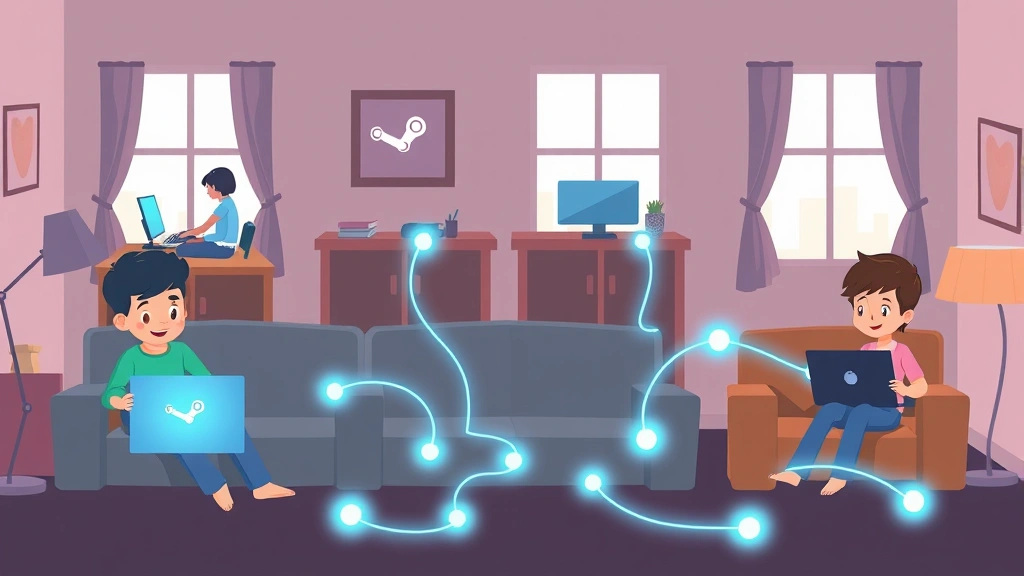
Trying to share games with family members who live across town—or across the country? The good news: Steam Family Sharing lets you do exactly that, even from a different house. The tricky part? Getting it set up right without accidentally locking yourself out of your own account or breaking the terms of service.
Real talk: Steam Family Sharing can feel confusing at first. You’re dealing with account permissions, library access, and device management all at once. But once you nail the setup, your whole family can play thousands of games without buying multiple copies. That’s a massive win for your wallet.
In this guide, we’ll walk through exactly how to join Steam Family from a different house, troubleshoot common problems, and make sure you’re doing it the right way. Let’s dig in.
What Is Steam Family Sharing?
Steam Family Sharing is Valve’s official feature that lets you share your game library with up to five other family members. Think of it like sharing a Netflix account, but for video games. Instead of each person buying their own copy of a $60 game, one purchase covers the whole household.
Here’s how it actually works: One person (the library owner) authorizes their account on a shared computer. Family members can then log into their own accounts on that same machine and access the owner’s games. It’s not perfect—only one person can play a shared game at a time—but for most families, it’s a game-changer.
The key difference when you’re joining from a different house is that the setup requires a bit more planning. You can’t just hand off your password. Instead, you need to properly authorize the device and manage who has access.
Requirements Before You Start
Before you attempt to join Steam Family from a different house, make sure you’ve got these basics covered:
- A Steam account for each family member who wants to participate
- A computer (Windows, Mac, or Linux) that will be the “family library” device
- Internet connection on that device (obviously)
- Access to the account holder’s login credentials temporarily during setup
- The account holder’s email address if you need to verify anything later
One thing a lot of people miss: Steam Family Sharing works best when everyone has their own Steam account. If you’re sharing a single account across multiple people, you’re breaking Steam’s terms of service. Each person needs their own login.
Also, check your Windows version or operating system on the device you’ll be using. Steam Family Sharing works on Windows, macOS, and Linux, but make sure your OS is up to date. Outdated systems can cause authentication issues.
Pro Tip: Before starting, write down the account holder’s Steam username and password somewhere secure (like a password manager). You’ll need it during setup, and having it handy prevents fumbling around later.
Step-by-Step: How to Join Steam Family from Different House
Here’s the actual process. Follow these steps in order, and you’ll avoid 90% of the headaches people run into.
Step 1: The Account Holder Logs In (On the Family Device)
This is the critical first move. The person who owns the game library needs to be physically present at the computer that will become the “family library” device, or they need to remote in temporarily.
- Open Steam on the family device
- Log in using the account holder’s credentials (the person whose games everyone will share)
- Go to Steam Menu → Settings
- Click on the Family tab
- You’ll see an option that says “Authorize Library Sharing on Other Devices” or similar wording (exact text varies by update)
This is where a lot of people get stuck. The menu structure changes slightly with Steam updates, so if you don’t see exactly what we’re describing, look for anything related to “Family Library” or “Authorize Devices.”
Step 2: Enable Family Library Sharing
Once you’re in the Family settings:
- Check the box that says “Authorize Library Sharing on Other Devices” or “Allow Library Sharing”
- Steam will ask for confirmation—click Yes or OK
- You might see a list of devices already authorized. That’s normal.
- Write down the device name or note that this device is now authorized
At this point, the account holder’s library is technically “open” for sharing. But the family members still can’t access it yet—we need to set up their individual accounts.
Step 3: Family Members Log In With Their Own Accounts
Now here’s where it gets real: Each family member logs out of the account holder’s profile and logs in with their own Steam account.
- Click Steam Menu → Change User or log out completely
- Select or create the family member’s account
- Enter their own Steam login credentials
- Let Steam fully load their profile
This is the moment where family members realize: “Wait, I don’t see the owner’s games.” That’s normal. The games appear in the library, but there’s one more authorization step.
Step 4: Authorize the Device for Family Library Access
Once the family member is logged in:
- Go to Steam Menu → Settings
- Click the Family tab again
- Look for “Family Library Sharing” or “Library Sharing” options
- You should see the account holder’s name listed as an authorized library owner
- Make sure there’s a checkmark or toggle next to their name indicating they’re authorized
If you don’t see the account holder listed, go back and make sure Step 2 was completed correctly. Sometimes you need to restart Steam for changes to sync.
Authorizing Your Device for Family Library
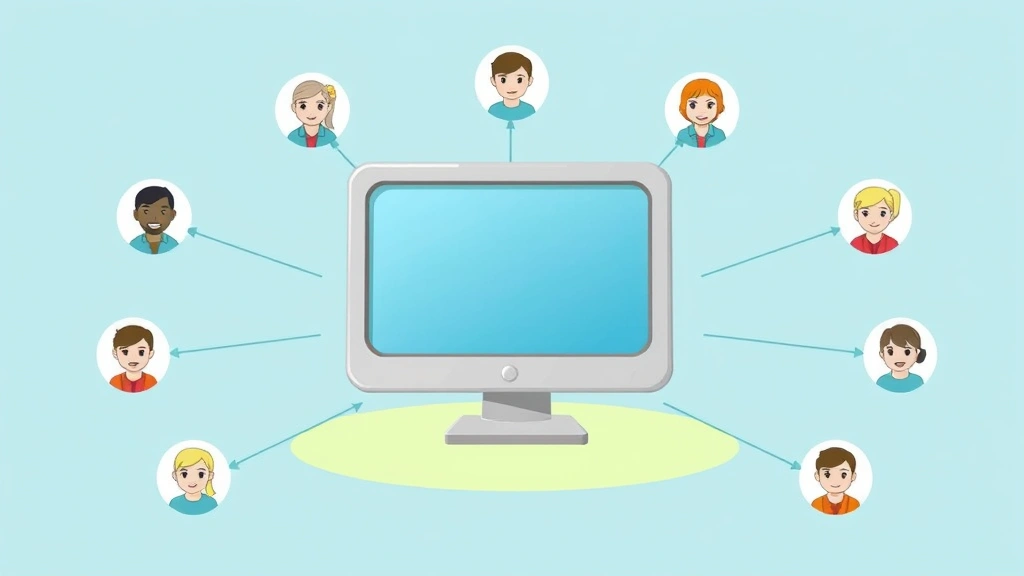
This is the backbone of the whole setup, so let’s break it down further.
When you “authorize” a device for family library sharing, you’re telling Steam: “This computer is a family device. Multiple people will log in here, and they should all have access to shared libraries.”
Here’s what actually happens behind the scenes:
- The account holder’s library gets linked to that specific device
- Any account that logs into that device can access the shared games
- Steam remembers this device as a “trusted” machine
- If the account holder logs in on a different device, their games might not be available there (depending on settings)
The key thing: Only one person can play a shared game at a time. If your brother is playing Elden Ring from the shared library, you can’t start it simultaneously. You’ll get a message saying the game is in use. This is Steam’s way of preventing abuse.
Safety Warning: Don’t authorize every device you ever touch. Only authorize the actual family computer. If you authorize your laptop, your phone, or your friend’s PC, you’re creating security risks and potentially violating Steam’s terms of service. Stick to one family device.
If you need to remove authorization later—say, you move and don’t need that old computer anymore—you can do it from any device by going to Steam → Settings → Devices and deauthorizing from there.
Common Problems & Fixes
Even with perfect instructions, things go sideways. Here are the most common issues and how to actually fix them.
Problem 1: “Games Don’t Appear in Library”
Why it happens: The device isn’t properly authorized, or Steam needs a restart to sync.
Fix:
- Restart Steam completely (close it entirely, then reopen)
- Restart the computer if restarting Steam doesn’t work
- Go back to Settings → Family and verify authorization is enabled
- Log out and log back in with the family member’s account
- Check that you’re looking at the library view (not just installed games)
Problem 2: “You Don’t Have Permission to Play This Game”
Why it happens: The game owner’s account isn’t properly linked to the device, or Steam is being overly cautious about regional restrictions.
Fix:
- Have the account owner log in on the same device at least once
- Go through Settings → Family and re-confirm authorization
- Wait 24 hours. Sometimes Steam’s servers take time to sync permissions across regions.
- Check if the game has regional restrictions (some games can’t be shared in certain countries)
Problem 3: “Can’t Log In / Account Locked”
Why it happens: Steam detected unusual login activity and locked the account for security.
Fix:
- Check the email associated with the account for a Steam Guard notification
- Confirm the login through the email link
- If you have Steam Guard enabled (which you should), use the code from your authenticator app or email
- Wait a few hours before trying again if Steam is being stubborn
If you’re having persistent authentication issues, check Steam’s official support page for your specific error code.
Problem 4: “Only One Person Can Play at a Time”
Why it happens: This isn’t actually a problem—it’s how the system works. But it catches people off guard.
What to do: Accept it. If you want multiple people playing the same game simultaneously, each person needs their own copy. That’s Steam’s anti-piracy measure, and it’s non-negotiable. Plan your gaming sessions accordingly.
Best Practices & Safety Tips
Setting up Steam Family Sharing is one thing. Doing it safely and smartly is another.
Use Strong Passwords
The account holder’s password is now effectively shared (at least temporarily during setup). Make sure it’s strong: mix of uppercase, lowercase, numbers, and symbols. At least 12 characters. No dictionary words.
Better yet, use a password manager. Services like Bitwarden or 1Password make it easy to generate and share complex passwords securely without actually typing them out.
Enable Steam Guard on All Accounts
Steam Guard is a two-factor authentication system. It protects your account even if someone gets your password. Enable it on every family member’s account.
To enable Steam Guard:
- Log into your Steam account
- Go to Account → Manage My Account
- Click Account Security
- Follow the prompts to enable Steam Guard (authenticator app or email)
This is non-negotiable if you’re sharing libraries. One compromised account could compromise everyone’s access.
Only Authorize One Device
This bears repeating: Don’t get trigger-happy with device authorization. Authorize only the actual family computer. If you authorize your work laptop, your tablet, and your friend’s gaming PC, you’re creating a security nightmare.
Each authorized device is a potential entry point. Keep it simple.
Understand the Legal Implications
Steam Family Sharing is officially supported by Valve, so you’re not breaking any laws. But the terms of service are strict: it’s for family members only. If you’re sharing with roommates, coworkers, or friends who aren’t related, you’re technically violating the terms.
More importantly, Valve monitors for abuse. If they detect that you’re sharing with non-family members or running a “game rental” scheme, they can revoke access.
Set Up a Family Account Manager
If you have multiple family members, designate one person as the “account manager.” This person handles adding new family members, removing old devices, and managing permissions. It prevents confusion and reduces the chance of someone accidentally changing settings.
Document Everything
Write down:
- Which account owns which library
- Which device is authorized for family sharing
- Who has access and from where
- When the setup was completed
This sounds excessive, but when someone can’t access their games six months later, this documentation saves hours of troubleshooting.
Regular Security Audits
Once a month, go to Steam → Settings → Devices and review authorized devices. If you see a computer you don’t recognize or don’t use anymore, deauthorize it immediately.
Also check your account activity. If you see login attempts from weird locations, change your password and enable Steam Guard if you haven’t already.
Frequently Asked Questions
Can I join Steam Family from a different house if I don’t know the account holder’s password?
– No. The account holder needs to log in on the family device at least once to authorize it for library sharing. You can’t work around this. However, they don’t need to stay logged in—once authorization is enabled, they can log out and the family members can log in with their own accounts.
What happens if the account holder moves and wants to use their library on a different device?
– They can authorize a new device just like before. However, they can only have one device authorized for family library sharing at a time. If they authorize a new device, the old one loses access. This is intentional—it prevents abuse.
Can we share games across multiple computers, or just one?
– Just one. Steam Family Sharing only works on a single authorized device. If you want family members to access games on different computers, each computer needs its own setup with the same account holder authorizing it. But remember: the account holder can only have one device authorized at a time.
Is Steam Family Sharing free?
– Yes, completely free. It’s built into Steam. You don’t pay anything extra.
What if someone in the family buys their own game? Can they keep it private?
– Yes. When a family member logs in with their own account, they can choose which games to share with the library. Games they buy with their own money stay in their personal library by default. They can manually add them to the family library if they want, or keep them private.
Can I use Steam Family Sharing if I’m not actually related to the other people?
– Technically, Steam’s terms say it’s for family members only. But enforcement is loose. That said, Valve reserves the right to revoke access if they detect abuse. If you’re sharing with close friends or roommates, you’re taking a risk. It’s not worth it if you value your account.
How many people can join Steam Family?
– Up to 6 total people can be part of a Steam Family group (including the account holder). So one account holder plus up to 5 family members.
What if I forget which device is authorized?
– Go to Steam → Settings → Devices and you’ll see a list of all authorized devices. You can also see which devices have library sharing enabled.
Can I revoke access for one person without affecting everyone else?
– Not directly. If you remove authorization from a device, everyone loses access. However, if you just want to remove one person’s ability to play, you can remove their account from the device itself (they won’t be able to log in). But the easiest approach is to deauthorize the device and then re-authorize it, which kicks everyone off temporarily.
What if someone plays a shared game and ruins my save files?
– This is a real concern. Each account has separate save files, so technically they can’t ruin your saves. But if you’re both playing the same game and someone deletes their own saves, that’s their problem. Steam doesn’t provide a way to lock specific save files.
Does Steam Family Sharing work for DLC and season passes?
– Yes. If the account holder owns DLC or season passes, family members can access them too when playing shared games.
What about games that require a separate launcher (like Epic, Origin, etc.)?
– Steam Family Sharing only covers games in Steam. If a game uses a separate launcher or account (like Valorant, which you might need to uninstall if it’s causing issues), you’ll need to handle those separately. Each person needs their own account for those platforms.
Can I share games across different countries?
– Generally yes, but some games have regional restrictions. A game purchased in the US might not be playable in certain other countries due to licensing. Steam will tell you if there’s a regional issue when you try to access it.
What if I want to manage subscriptions like Xbox Game Pass through Steam?
– Xbox Game Pass is separate from Steam. If you’re using Game Pass, that’s a different system entirely and has its own family sharing rules. Check Xbox’s support documentation for those details.
If I’m managing other services like Audible, do I need to handle those separately?
– Yes. Services like Audible subscriptions are completely separate from Steam. Each service has its own family sharing system (or doesn’t have one at all). You’d need to manage those independently.
Can I use Steam Family Sharing if I also use Roku or other streaming devices?
– No. Steam Family Sharing is only for PC gaming on computers. It doesn’t extend to streaming devices like Roku or other platforms. Those have their own separate sharing systems.
What if I need to delete or reset an Apple ID that’s associated with a family account?
– That’s outside Steam’s scope. If you’re managing Apple accounts alongside Steam (which is unlikely but possible), check Apple’s documentation for those procedures. Steam and Apple don’t interact.
One final thought: Steam Family Sharing is genuinely one of the best deals in gaming. A single $60 purchase can cover an entire household. But it only works if you set it up right from the start. Take your time with the setup, follow these steps exactly, and you’ll save thousands of dollars over the years. Your future self will thank you.


