How to Jailbreak Firestick: Simple & Amazing Guide
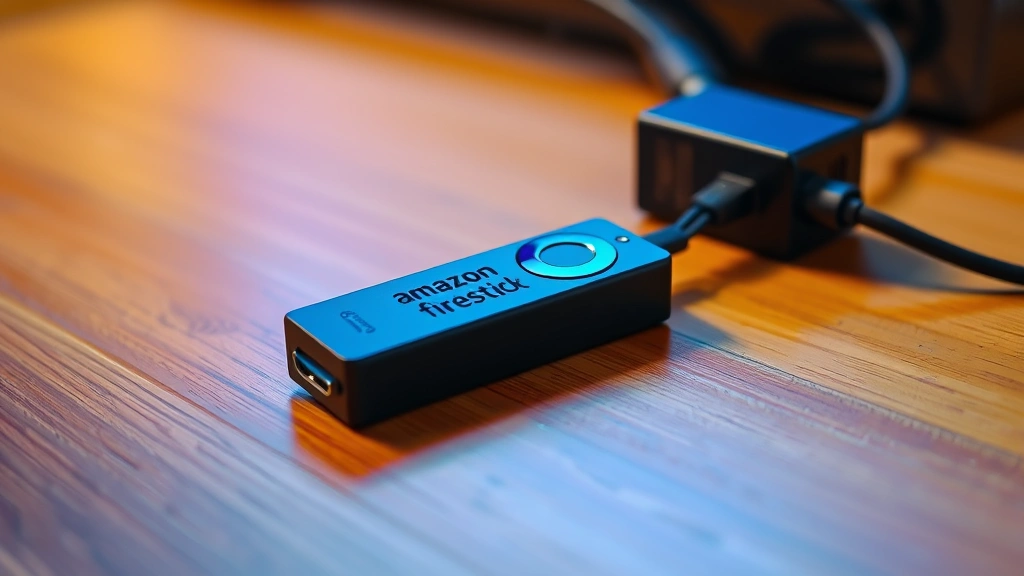
Want to unlock your Firestick’s full potential? Learning how to jailbreak Firestick lets you install third-party apps, access unrestricted content, and customize your streaming experience beyond Amazon’s official app store. This comprehensive guide walks you through every step safely and legally.
Quick Answer: To jailbreak your Firestick, enable “Unknown Sources” in settings, sideload apps using ADB (Android Debug Bridge) or install a custom launcher, then add your preferred streaming applications. The process takes 15-30 minutes and requires a computer, USB cable, and basic technical knowledge. Always use a VPN for privacy protection.
Tools & Materials You’ll Need
- Amazon Firestick (2nd Gen or newer)
- Computer (Windows, Mac, or Linux)
- USB cable (Micro-USB)
- Android Debug Bridge (ADB) software
- VPN application (ExpressVPN, NordVPN, or similar)
- Reliable internet connection
- Optional: External storage device for app files
- Optional: HDMI extender cable
Understanding Firestick Jailbreaking
How to jailbreak Firestick starts with understanding what jailbreaking actually means. Jailbreaking your Firestick involves removing software restrictions that Amazon imposes, allowing you to install applications outside the official Amazon Appstore. This process is legal in most jurisdictions and doesn’t void your warranty as long as you don’t damage hardware.
Key benefits of jailbreaking include: accessing region-locked content, installing Kodi for media management, running custom launchers for better organization, and using third-party streaming apps. According to WikiHow’s technology guides, understanding your device’s capabilities is essential before modification.
The jailbreak process doesn’t require rooting or installing custom ROMs like Android phones. Instead, you’re simply enabling “Unknown Sources” and using ADB to sideload applications. This means your Firestick remains stable and functional while gaining flexibility.
Important distinction: Jailbreaking is different from using the Firestick for piracy. While you can install apps that stream copyrighted content illegally, doing so violates terms of service and laws. This guide focuses on legitimate customization and legal streaming alternatives.
Preparing Your Firestick for Jailbreaking
Before learning how to jailbreak Firestick, proper preparation ensures success. Start by checking your Firestick model and updating it to the latest firmware version. Navigate to Settings > Device > About and note your model number and current software version.
Preparation steps:
- Connect your Firestick to a stable 5GHz WiFi network for faster data transfer
- Ensure your device has at least 1GB of free storage space
- Update to the latest Fire OS version (Settings > Device > System Update)
- Write down your Firestick’s IP address (Settings > Device > About > Network)
- Keep your Firestick powered on throughout the process
- Have your computer and Firestick on the same WiFi network
Gathering this information prevents connection issues and ensures smooth jailbreaking. Many users encounter problems simply because their devices aren’t on the same network or lack sufficient storage space.
Installing Android Debug Bridge on Your Computer
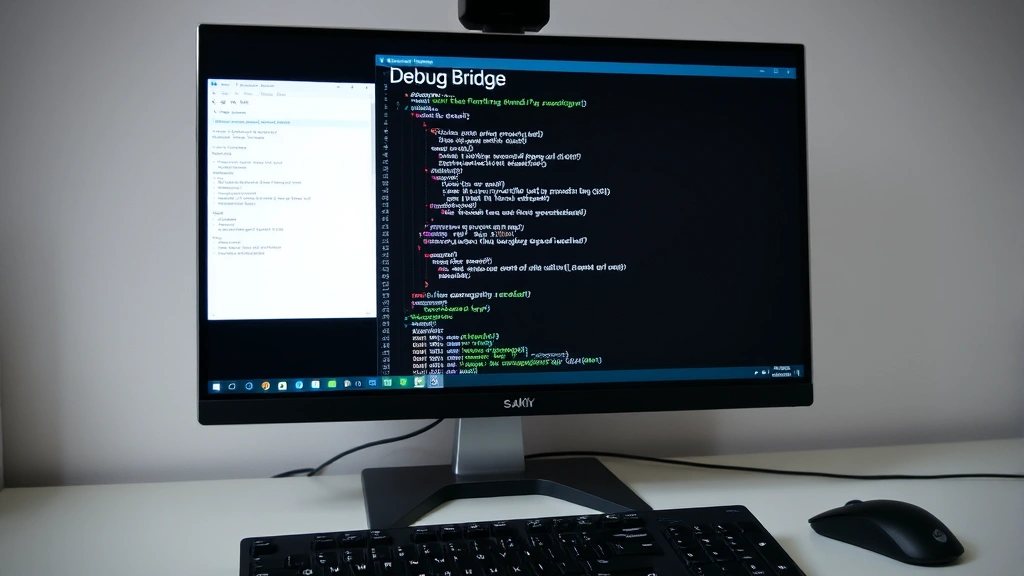
Android Debug Bridge (ADB) is the primary tool for how to jailbreak Firestick safely. This command-line utility allows your computer to communicate with your Firestick remotely, enabling app installation without physical USB connection (though USB option exists).
Windows installation: Download the Android SDK Platform Tools from Google’s official developer site. Extract the ZIP file to a memorable location like C:\ADB. Open Command Prompt in that folder by holding Shift and right-clicking, selecting “Open PowerShell window here.”
Mac installation: Install Homebrew if you haven’t already, then run brew install android-platform-tools in Terminal. Verify installation by typing adb version.
Linux installation: Use your package manager: sudo apt-get install android-tools-adb for Ubuntu/Debian or sudo yum install android-tools for Fedora.
After installation, verify ADB works by opening your command terminal and typing adb version. You should see version information displayed. If not, ADB isn’t properly installed in your system PATH.
Enabling Developer Mode and Unknown Sources
How to jailbreak Firestick requires enabling Developer Mode first. This setting allows your device to accept connections from ADB on your computer. Navigate to Settings > Device > Developer Options on your Firestick.
If Developer Options aren’t visible: Go to Settings > Device > About and select “Build” repeatedly (5-7 times) until Developer Options appears. This is a standard Android feature that unlocks advanced settings.
Enable these settings:
- Toggle “ADB” to ON
- Toggle “Apps from Unknown Sources” to ON
- Note your device’s IP address from the Developer Options menu
These settings allow your Firestick to receive commands from your computer via ADB and install applications from sources other than Amazon’s official store. As reviewed by Family Handyman’s tech section, enabling these features is the critical gateway to customization.
Your Firestick will warn you about security risks when enabling Unknown Sources. This is standard—you’re taking responsibility for app installations, so download only from trusted sources.
Sideloading Apps After Jailbreaking Your Firestick
Once you’ve enabled Developer Mode, sideloading apps is straightforward. Connect your computer to the same WiFi network, open Command Prompt/Terminal, and connect to your Firestick using its IP address.
Connection command: Type adb connect [YOUR_FIRESTICK_IP]:5555 (replace with actual IP). You should see “connected to [IP]:5555” confirmation. If connection fails, verify both devices are on the same network and Developer Mode is enabled.
Installing apps via ADB: Download the APK file of your desired app. In Command Prompt/Terminal, navigate to the folder containing the APK and type adb install filename.apk. Wait for installation to complete—you’ll see “Success” message when finished.
Popular apps to sideload after how to jailbreak Firestick include Kodi (media center), Plex (personal streaming), Sideload Channel (app installer), and alternative launchers like ATV Launcher. Each enhances your Firestick’s functionality differently.
For easier future installations, consider installing “Sideload Channel” first. This app provides a graphical interface for installing APKs without using command-line tools, making subsequent app installations more user-friendly.
Security & Privacy Considerations
Learning how to jailbreak Firestick responsibly means prioritizing security. Your device becomes more vulnerable when accepting apps from unknown sources, so implement protective measures immediately.
Essential security practices:
- Install a reputable VPN application on your Firestick to encrypt all traffic
- Only download APK files from verified sources like GitHub, official developer websites, or APKMirror
- Never grant unnecessary permissions to apps during installation
- Regularly review installed apps and remove unused ones
- Keep your Firestick’s Fire OS updated with latest security patches
- Use strong WiFi passwords with WPA3 encryption
- Disable ADB when not actively sideloading apps
According to Consumer Reports’ technology recommendations, device security should never be compromised for convenience. Your streaming device connects to your home network, making it a potential entry point for cyber threats.
If you plan to stream content using third-party apps, a VPN becomes essential. It protects your privacy by masking your IP address and encrypting your viewing data. Services like ExpressVPN and NordVPN offer Firestick compatibility.
You may also want to review how to cancel YouTube TV if you’re switching to alternative streaming solutions, or learn about canceling Fortnite Crew to manage your subscription services effectively.
Troubleshooting Common Jailbreaking Issues
Even with careful preparation, how to jailbreak Firestick sometimes encounters obstacles. Here are solutions to frequent problems users face.
ADB Connection Fails: Verify both devices are on the same WiFi network. Restart your Firestick and computer. Check that Developer Mode and ADB are enabled. Try connecting via USB cable instead—plug Micro-USB into Firestick and computer, then use adb devices to list connected devices.
Apps Won’t Install: Ensure “Unknown Sources” is enabled. Check available storage space (delete unused apps if needed). Verify the APK file isn’t corrupted by downloading again. Try installing from a different source.
Firestick Becomes Slow: Too many sideloaded apps consume resources. Uninstall unused applications. Clear cache regularly by going to Settings > Apps > Manage All Applications > [App Name] > Clear Cache. Consider factory resetting if performance severely degrades.
Connection Drops During Installation: Ensure stable WiFi signal. Move your Firestick closer to your router. Reduce interference from other devices. Use 5GHz band instead of 2.4GHz for faster, more stable connection.
Firestick Won’t Turn On After Jailbreak: This is rare but fixable. Disconnect power for 30 seconds, then reconnect. Try factory reset by holding the reset button for 10 seconds. If still unresponsive, contact Amazon support—your device likely has a hardware issue unrelated to jailbreaking.
As detailed by HowStuffWorks’ technology troubleshooting guides, systematic problem-solving usually resolves technical issues. Document what you’ve tried to help support teams assist you better.
Similar to learning how to clear cache on iPad or update apps on iPhone, regular maintenance keeps your streaming device running smoothly.
FAQ
Is jailbreaking my Firestick legal? Yes, jailbreaking itself is legal in most countries. However, using jailbroken devices to stream copyrighted content illegally is not. Stick to legitimate apps and services.
Will jailbreaking void my warranty? Amazon’s warranty typically covers hardware defects, not software modifications. However, if you cause damage during the process, warranty won’t apply. The jailbreak itself isn’t warranty-voiding.
Can I undo a jailbreak? Absolutely. Simply factory reset your Firestick (Settings > Device > Reset to Factory Defaults). This removes all sideloaded apps and restores original settings.
Is USB connection necessary for how to jailbreak Firestick? No, WiFi ADB connection works fine for most users. USB is an alternative if WiFi connection proves problematic.
What’s the best app to install after jailbreaking? Kodi is popular for media management, Plex for personal streaming, and Sideload Channel for easier future app installation. Choose based on your needs.
Can I jailbreak older Firestick models? Yes, jailbreaking works on Firestick 2nd Generation and newer. 1st Gen devices have limited compatibility with modern apps.
Do I need a VPN after jailbreaking? While not mandatory, a VPN significantly enhances privacy and security, especially when using third-party apps.
How often should I update my jailbroken Firestick? Update Fire OS whenever available—updates include security patches. Sideloaded apps update independently or manually through their respective installers.
Learning how to jailbreak Firestick opens tremendous possibilities for customization and expanded functionality. By following this comprehensive guide, enabling proper security measures, and maintaining your device responsibly, you’ll enjoy a more versatile streaming experience. Remember that with greater freedom comes greater responsibility—use your jailbroken Firestick legally and ethically.