

Page numbers seem like they should be simple, right? Just slap a number on each page and call it done. But if you’ve ever wrestled with how to insert page numbers in Word and ended up with numbers on your title page (when you didn’t want them), or watched them mysteriously disappear halfway through your document, you know it’s more nuanced than it looks. The good news? Once you understand the mechanics, inserting page numbers in Word becomes genuinely effortless—and we’re going to walk you through every scenario you’ll actually encounter.
Think of page numbering like the foundation of a house. Get it right from the start, and everything else builds cleanly. Get it wrong, and you’re retrofitting frustration into every page. This guide covers the real-world situations: basic numbering, skipping the title page, restarting numbers in different sections, and troubleshooting the quirks that trip people up.
How to Insert Basic Page Numbers in Word
Let’s start with the simplest scenario: you want page numbers on every page, formatted the same way throughout. This is the foundation, and once you nail it, everything else makes sense.
- Open your Word document and click on the Insert tab at the top of the ribbon.
- Look for the Page Number button (it’s usually grouped with headers and footers). Click it.
- A dropdown menu appears with position options: Top of Page, Bottom of Page, Page Margins, Current Position. Choose where you want your numbers. Most professional documents use bottom-center or top-right.
- Select a design style from the gallery. Word offers simple numbers, numbers with decorative elements, and numbers with chapter information.
- That’s it. Word automatically applies the page numbers to every page in your document.
The beauty of this approach is that Word does the heavy lifting. You’re not manually typing “1” on page one and “2” on page two. The field code updates automatically as you add or delete content, so your numbering stays accurate even if your document grows to 500 pages.
Pro Tip: Page numbers live in the header or footer of your document. If you want to see or edit them later, double-click near the top or bottom of any page to open the header/footer editing mode. This is crucial for advanced tweaks.
Skip Page Numbers on Your Title Page (and Other Pages)
Here’s where people get frustrated. You’ve inserted page numbers, but now they appear on your title page, and that’s a formatting no-go for most professional documents. The fix requires understanding a feature called “Different First Page.”
- Go to the Insert tab and click Header & Footer (or double-click the header area on your title page).
- On the ribbon, you’ll see a Design tab (this appears when you’re editing headers/footers). Look for the checkbox labeled “Different First Page” and check it.
- Word now treats your first page differently from the rest. Since page numbers are in the header/footer, unchecking “Different First Page” means the first page won’t display them.
- Close the header/footer editing mode by clicking elsewhere in your document or pressing Ctrl+Home.
Boom. Your title page is clean, and numbering starts on page two (which becomes “Page 2” in the numbering, or you can manually restart it as “Page 1″—we’ll cover that next).
What if you want to skip page numbers on multiple pages throughout the document, not just the first? That requires section breaks, which we’ll cover in the next section.
Restart Page Numbering in Different Sections
Imagine you’re writing a report with a cover page, a table of contents, and then the main content. You want the cover and TOC in Roman numerals (i, ii, iii), and the main section in regular numbers (1, 2, 3). This is where section breaks become your best friend.
Why sections matter: A section is a portion of your document with its own formatting rules. Headers, footers, and page numbering can all be independent per section. Without sections, your entire document follows one set of rules.
- Position your cursor where you want the new section to begin (e.g., at the start of your main content).
- Go to the Layout tab (or Page Layout in older Word versions) and click Breaks.
- Select “Next Page” under the Section Breaks options. This creates a section break and moves your cursor to a new page.
- Now, with your cursor in the new section, go to Insert > Page Number and choose your format (e.g., “1, 2, 3”).
- To restart numbering at “1” in this new section, right-click on the page number and select “Edit Field” or go to Insert > Page Number > Page Number Format and check “Start at: 1”.
For the earlier section (cover and TOC), repeat the process but choose Roman numerals as your format.
Safety Warning: Section breaks can be invisible and cause confusion later. If page numbers suddenly disappear or jump unexpectedly, check for hidden section breaks. Go to Home > Show/Hide ¶ to reveal all formatting marks, including section breaks (they appear as dotted lines with “Section Break” text).
Format and Customize Page Numbers in Word
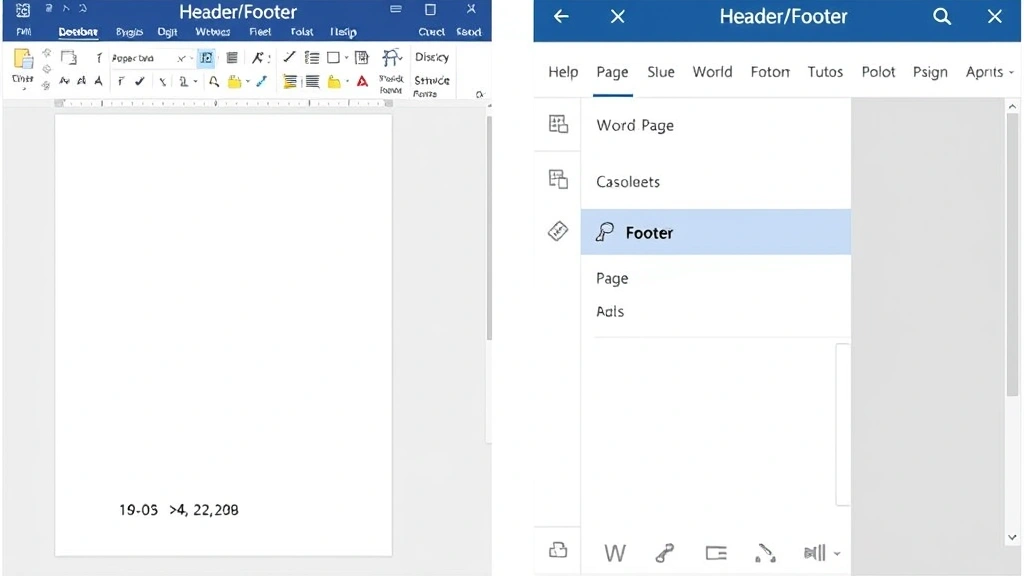
Once your page numbers are in place, you might want to style them. Maybe you want “Page 1 of 5” instead of just “1”. Or you want them in a different font size, color, or position.
Adding “Page X of Y” format:
- Double-click the header or footer where your page number appears.
- Select the page number field (click on it).
- Go to Insert > Page Number and choose a format that includes the total page count, like “Page X of Y”.
- Word automatically calculates the total, so even as your document grows, the count updates.
Changing font, size, and color:
- Double-click the header/footer to edit it.
- Select the page number text (triple-click to select the entire field).
- Use the standard formatting tools: Home > Font, Font Size, Font Color.
- You can make page numbers bold, italic, smaller, larger, or any color you want.
Aligning page numbers: Page numbers inherit their alignment from the paragraph they’re in. If you want your page number centered but the rest of your footer left-aligned, place the page number in a separate paragraph or use tabs to position it.
Common Page Numbering Problems & Fixes
Real talk: page numbering in Word can be finicky. Here are the issues we see most often and how to actually solve them.
Problem 1: Page numbers appear on the title page when they shouldn’t.
– Solution: Use the “Different First Page” option (covered above). This is the correct, built-in method.
Problem 2: Page numbers disappear or show incorrect numbers halfway through.
– Likely cause: An accidental section break or a “Link to Previous” setting that got unchecked. Check for section breaks by showing formatting marks (Ctrl+* or Ctrl+Shift+8). If you see a section break where you don’t want one, position your cursor right before it and press Delete to remove it. If the page numbers simply stopped updating, right-click the field and select “Update Field” or press F9.
Problem 3: Page numbering restarts unexpectedly or skips numbers.
– Likely cause: You have multiple sections, and one is set to restart numbering. Right-click the page number in the problem area and check the field settings. Look for “Page” fields that have a \r switch (restart) or \* MERGEFORMAT code. To fix, edit the field and remove the restart instruction, or manually set the start number.
Problem 4: Headers or footers aren’t showing, so page numbers are invisible.
– Likely cause: The header/footer is set to “Hide” or the margins are so large that the header/footer falls outside the printable area. Go to Insert > Header & Footer > Header (or Footer) and make sure you’re not in a hidden state. Also check Layout > Margins and ensure your margins aren’t extreme.
Problem 5: Page numbers show in the document but not in Print Preview or when printed.
– Likely cause: Headers and footers are sometimes hidden in Print Preview by default. In Print Preview, look for an option like “Print Layout” or check File > Print > Settings to ensure headers and footers are included.
Understanding Headers, Footers & Page Numbers
Page numbers don’t exist in isolation—they live in headers or footers. Understanding this relationship prevents a lot of confusion.
What’s a header? The header is a section at the top of every page where you can place text, images, or page numbers. It’s outside the main document body, so changes to the header don’t affect your document content.
What’s a footer? Same idea, but at the bottom of the page.
When you insert a page number, Word automatically places it in either the header or footer (depending on which position you choose). If you later want to edit the page number’s appearance, font, or alignment, you double-click the header/footer area to enter editing mode.
Key insight: Headers and footers can be different for odd and even pages, different for the first page, and different for each section. This is why page numbering is so flexible—and why it can seem complicated if you don’t understand the underlying structure.
For a deeper dive into how documents are structured and how to work with multiple document versions, check out our guide on how to make a copy of a Word document, which covers file management and document organization best practices.
Advanced Techniques for Complex Documents
Odd/Even page numbering: Some professional documents use different headers/footers on odd and even pages. For example, odd pages might have the document title on the right, and even pages might have the chapter name on the left. To set this up:
- Go to Insert > Header & Footer > Header > Edit Header.
- On the Design tab, check “Different Odd & Even Pages.”
- Now the header/footer for odd pages is separate from even pages. Customize each independently.
Chapter-based page numbering: If your document has chapters and you want each chapter to restart numbering, use section breaks (as covered earlier) and set each section to start at page 1.
Conditional page numbering: What if you want page numbers everywhere except certain pages? Unfortunately, Word doesn’t have a built-in “conditional” feature for this. The workaround is to use sections with different first-page settings or to manually delete page numbers from specific pages (though this is fragile and not recommended for large documents).
Page numbers with chapter titles: Some documents show “Chapter 2 – Page 5” instead of just “5”. This requires a combination of styles and field codes. Microsoft’s official Word documentation covers this under “Field Codes,” but it’s advanced and usually overkill unless you’re writing a book or thesis.
Linking to previous sections: When you edit the header/footer in one section, Word asks if you want to “Link to Previous.” If checked, your header/footer matches the previous section. If unchecked, it’s independent. This is powerful but can cause confusion—if you change a page number format in one section and it affects all sections, check this setting.
Frequently Asked Questions
Can I start page numbering at a number other than 1?
– Yes. Right-click the page number field and select “Edit Field.” In the dialog, look for “Page Format” and set “Start at” to your desired number. Alternatively, use the Insert > Page Number > Page Number Format menu and check the “Start at” option.
How do I remove page numbers from a specific page without affecting others?
– The cleanest way is to create a section break before and after that page, then in the middle section, use “Different First Page” and leave the first page’s header/footer empty. This is a bit hacky for a single page, but it works. For a more elegant solution, consider whether you really need to remove numbering—most professional documents number every page.
What if my page numbers are in the header but I want them in the footer (or vice versa)?
– Unfortunately, Word doesn’t have a “move” command. You’ll need to delete the existing page numbers and insert new ones in the desired location. Go to Insert > Page Number and choose the new position, then manually delete the old numbers from the header/footer.
Can I use different page number formats in different sections?
– Absolutely. Use section breaks to divide your document, then in each section, insert page numbers with the desired format. Roman numerals in one section, Arabic numerals in another—no problem. Just make sure “Link to Previous” is unchecked for each section’s header/footer.
Why do my page numbers keep resetting to 1?
– You likely have section breaks with the “restart numbering” setting enabled. Check for section breaks by showing formatting marks. If you see unexpected section breaks, delete them. If the breaks are intentional but the restart isn’t, right-click the page number and check the field settings to disable the restart switch.
Do page numbers count toward my document’s word count?
– No. Page numbers in headers and footers are separate from the main document body, so they don’t affect your word count. Word > Word Count only counts the text in the document itself.
Can I have page numbers on only the right-hand pages?
– Not directly with a single setting. However, you can use sections and “Different Odd & Even Pages” to place page numbers only on odd pages (right-hand pages in a two-sided document). In the even-page header/footer, simply don’t insert a page number.
What’s the difference between “Page Number” and “Field Code” for page numbers?
– When you insert a page number via Insert > Page Number, Word creates a field code (usually { PAGE }) that automatically updates. If you manually type a number, it won’t update when you add or delete pages. Always use the Insert method to ensure your numbers stay accurate.
How do I insert page numbers in a Word template?
– The process is identical. Insert page numbers as usual, save the document as a template (File > Save As > Save as type: Word Macro-Enabled Template), and future documents created from that template will have page numbers built in.
Can I have custom page numbers, like “Page A, Page B, Page C”?
– Not with the standard page number feature. You’d need to use field codes or manually edit the page number field. For example, you could modify the field to use a custom format, but this is advanced and usually not worth the effort. If you truly need custom numbering, consider whether a different document structure might work better.
—
Final thoughts: Page numbering in Word is powerful once you understand the fundamentals: page numbers live in headers/footers, sections allow independent formatting, and the “Different First Page” option is your go-to for skipping the title page. Most of the frustration people experience comes from not knowing these concepts exist, not from Word being broken. Now that you’ve got the knowledge, you’re equipped to handle any numbering scenario—whether it’s a simple one-section document or a complex multi-section report with different numbering schemes. If you’re working on structured documents with multiple components, you might also find it helpful to explore how to organize and manage multiple files, similar to how you’d approach managing email organization in Outlook for document distribution workflows.
For additional resources on document formatting best practices, Family Handyman (while traditionally focused on home improvement) and This Old House demonstrate how clear, numbered instructions improve readability—a principle that applies directly to your Word documents. And if you’re preparing documents for professional distribution, remember that OSHA and other regulatory bodies often require specific formatting, including consistent page numbering, for compliance documents.


