

You’re staring at a spreadsheet with 500 rows of data, and you just realized you need to insert 20 rows in the middle without destroying your formulas or formatting. Your stomach drops. Sound familiar? Learning how to insert multiple rows in Excel is one of those skills that separates people who wrestle with spreadsheets from people who make spreadsheets work for them.
The good news: it’s not complicated once you know the moves. Whether you’re adding blank rows for data entry, inserting rows to reorganize existing information, or making space for new calculations, Excel gives you multiple ways to get it done quickly. And unlike some software quirks, Excel’s row insertion actually respects your existing data and formulas—no surprises.
Let me walk you through the fastest, most reliable methods to insert multiple rows without the headache.
Method 1: Select and Right-Click (Fastest for Most People)
This is the method I use 90% of the time because it’s intuitive and requires zero memorization.
- Click the row number where you want to start inserting. If you need to insert 5 rows, click on the row number itself (not a cell inside the row). The entire row will highlight in blue.
- Hold Shift and click the row number that’s the same distance down as the number of rows you need. For example, if you’re at row 10 and need 5 rows, hold Shift and click row 15. You’ll now have rows 10–15 selected (that’s 6 rows selected, which will insert 5 new rows above your starting point).
- Right-click on your selected rows. A context menu appears.
- Click “Insert 5 Rows Above” (the number changes based on how many rows you selected). Excel inserts that many blank rows and pushes your existing data down.
That’s it. Your formulas stay intact, your formatting below the insertion point moves with the data, and you’re done in 10 seconds.
Pro Tip: If you’re inserting rows at the end of your data, you don’t need to select multiple rows. Just right-click the row below where you want to insert and choose “Insert.” Excel will add one row. Repeat as needed or select multiple rows upfront to do it all at once.
Method 2: Using the Insert Menu (Most Control)
When you need more control—like inserting rows with specific formatting or when you’re working with a protected sheet—the Insert menu gives you options.
- Select the rows where you want to insert new ones (same process as Method 1: click the row number, Shift+click to select multiple).
- Go to the Home tab in the ribbon (should be active by default).
- Find the “Insert” button in the Cells group. It’s usually near the top-right of the Home tab.
- Click the dropdown arrow next to Insert and choose “Insert Sheet Rows.”
This method is identical in outcome to right-clicking, but some people prefer using the menu because it’s more visible and less prone to accidental clicks.
Safety Note: If your sheet is protected or you have merged cells in the insertion area, Excel will warn you before proceeding. Don’t panic—it’s just making sure you know what you’re doing.
Method 3: Keyboard Shortcuts (Power User Move)
If you’re inserting rows constantly, keyboard shortcuts will save you hours over time.
- Select your rows by clicking a row number and Shift+clicking another.
- Press Ctrl++ (plus sign) on your keyboard. On a Mac, it’s Cmd++.
- A dialog box appears asking whether to shift cells down or insert entire rows. Choose “Entire row” and click OK.
This is lightning-fast once it becomes muscle memory. The trade-off: you have to remember the keyboard combination, and it’s easy to mess up if you’re not careful about which rows you’ve selected.
Method 4: Insert Copied Rows (When You Need Formatting)

Here’s a trick most people don’t know: you can copy existing rows and insert them as new rows. This is gold when you want the new rows to match the formatting, borders, or even partial formulas of existing rows.
- Select the rows you want to copy (click the row number, Shift+click to select multiple). These rows should have the formatting you want to replicate.
- Copy them (Ctrl+C or Cmd+C).
- Right-click on the row where you want to insert the new rows.
- Choose “Insert Copied Cells” from the context menu.
- Excel inserts new rows with the same formatting as your copied rows, pushing existing data down.
This method is slower than the others, but it’s a lifesaver when you’re building a template or working with heavily formatted spreadsheets. Think of it like copying a template block instead of starting from scratch.
Handling Formulas and Cell References
Here’s what keeps people up at night: “Will my formulas break if I insert rows?”
Short answer: usually not. Excel is smart about this.
When you insert rows, Excel automatically adjusts relative cell references in your formulas. If you have a formula in row 20 that references row 10, and you insert 5 rows starting at row 12, the formula will adjust to reference row 15 instead. Excel shifts the reference down along with the data.
Absolute references stay put. If you used dollar signs in your formula (like $A$1), those won’t change when you insert rows. That’s intentional—absolute references are locked in place.
Example: Say you have a SUM formula in row 50 that adds up rows 10–49. You insert 10 new rows at row 25. The formula automatically becomes SUM(10:59) instead of SUM(10:49). Your calculation stays correct because Excel moved the end point down with your data.
The only time this gets tricky is with adding up columns that use named ranges or external references. If you’re linking to another sheet or workbook, test your formulas after inserting rows to make sure the references still point where you intended.
Pro Tip: Before inserting rows in a complex spreadsheet, save a backup copy. It takes 30 seconds and saves your life if something unexpected happens. Use the method described in our guide on making copies of documents as a reference for creating backups of important files.
Common Mistakes That Wreck Your Data
Mistake 1: Selecting the wrong number of rows. You want to insert 10 rows but only select 5. You end up with half of what you need and have to do it again. Solution: always count carefully. Select from row A to row A+N (where N is the number of rows you want to insert).
Mistake 2: Inserting rows in a sorted range without re-sorting. If you’ve sorted your data alphabetically and then insert rows in the middle, your sort order breaks. The new blank rows sit there unalphabetized. Always re-sort after inserting rows if sorting matters for your data.
Mistake 3: Forgetting to adjust formulas that reference specific row numbers. If you have a formula that says “take the value from row 50,” and you insert 10 rows above it, your formula now points to the wrong place. Excel won’t catch this because the formula is technically valid—it just references the wrong data. Check your formulas manually after inserting rows in critical areas.
Mistake 4: Inserting rows inside a pivot table or data range. Excel will yell at you (usually with a warning), but if you ignore it, you can corrupt your pivot table or break your data range. Don’t do this. If you need to add data to a pivot table, refresh the source data range first, then refresh the pivot table.
Mistake 5: Not accounting for hidden rows. If you have hidden rows in your selection, inserting will still work, but you might end up with rows in unexpected places. Unhide all rows before inserting if you’re not sure what’s hidden.
Pro Tips for Large Datasets
Inserting 100+ rows at once? Use Method 1 or 3, but do it in batches if your spreadsheet is slow. Excel can handle large insertions, but older machines might lag. Insert 50 rows, wait for the screen to refresh, then insert the next batch.
Inserting rows with complex formatting? Use Method 4 (Insert Copied Rows). It preserves borders, colors, fonts, and conditional formatting. Much faster than manually formatting 50 new rows.
Need to insert rows at multiple locations? Don’t do it all at once. Insert rows starting from the bottom of your spreadsheet and work your way up. This prevents row numbers from shifting and causing confusion. If you insert from the top down, every insertion shifts the row numbers of everything below it, and you’ll lose track of where you are.
Working with linked formulas? After inserting rows, press Ctrl+Shift+F9 (or Cmd+Shift+F9 on Mac) to recalculate all formulas in the spreadsheet. This ensures that any external links or complex calculations update correctly.
For more advanced spreadsheet manipulation, check out our guides on moving columns in Excel, combining cells in Excel, and separating names in Excel. These techniques work together to help you restructure data efficiently.
According to Microsoft’s official Excel support documentation, inserting rows is one of the most common data management tasks, and the methods we’ve covered here are the officially recommended approaches. If you’re working with very large datasets (10,000+ rows), Microsoft recommends using the Insert menu rather than right-click for better performance.
Real Talk: If you’re inserting rows constantly, your spreadsheet might be outgrowing Excel. Consider whether a database or a tool like Airtable or Google Sheets would serve you better. Sometimes the best solution isn’t a better technique—it’s a better tool.
Frequently Asked Questions
Can I insert multiple rows without selecting them first?
– Not really. You need to select at least one row to tell Excel where to insert new rows. The fastest way is to click one row number, hold Shift, and click another row number to select multiple rows at once. Then right-click and insert.
What happens to my formulas when I insert rows?
– Excel automatically adjusts relative cell references in your formulas. If a formula references row 10 and you insert rows above it, the formula will update to reference the new row number. Absolute references (with dollar signs, like $A$1) stay locked in place and don’t change.
Can I undo inserting rows if I make a mistake?
– Yes. Press Ctrl+Z (or Cmd+Z on Mac) immediately after inserting rows. Excel will undo the insertion and restore your data. You can undo multiple times if needed, but once you close the file, you can’t undo anymore.
Why does Excel sometimes prevent me from inserting rows?
– This usually happens if your sheet is protected, you have merged cells in the insertion area, or you’re trying to insert rows in a special range like a pivot table. Excel will show a warning explaining the issue. Unprotect the sheet, unmerge cells, or try inserting in a different location.
Is there a limit to how many rows I can insert at once?
– Excel has a hard limit of 1,048,576 total rows per sheet. You can’t insert more rows than that, but in practice, you’ll never hit this limit. You can insert tens of thousands of rows at once if your computer can handle it, though performance might slow down.
How do I insert rows with the same formatting as existing rows?
– Use Method 4: Insert Copied Rows. Copy the rows you want to match, right-click where you want to insert, and choose “Insert Copied Cells.” The new rows will have identical formatting, borders, and colors. This is much faster than manually formatting new rows.
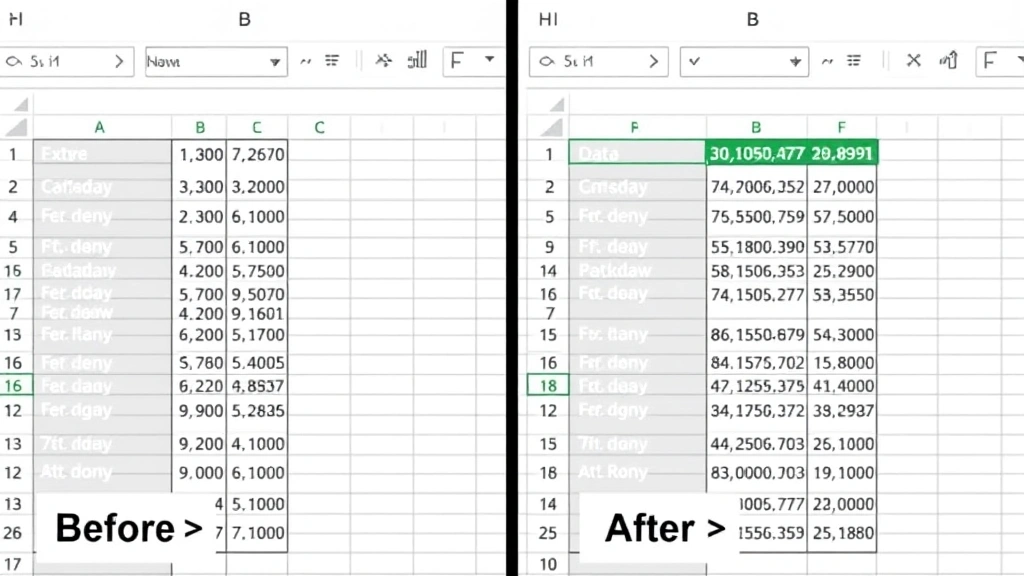
Can I insert rows in the middle of a sorted dataset without breaking the sort?
– You can insert rows, but they won’t automatically sort themselves. After inserting, you’ll need to re-sort your data to include the new rows. Select all your data (including the new rows), then use the Data menu to sort. Your new rows will fall into their correct positions based on your sort criteria.
What’s the difference between “Insert Rows Above” and “Insert Rows Below”?
– “Insert Rows Above” puts new rows above your selected row. “Insert Rows Below” puts them below. Right-clicking on row 10 and choosing “Insert Rows Above” adds rows between rows 9 and 10. Choosing “Insert Rows Below” adds rows between rows 10 and 11. Always double-check which option you’re using to avoid inserting in the wrong place.


