
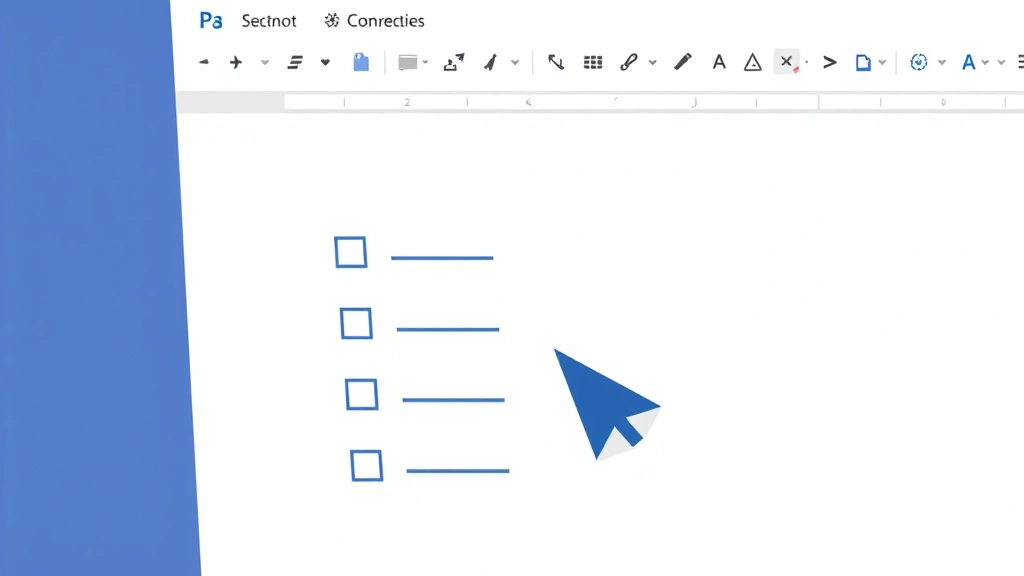
Checkboxes in Word are one of those features that feels hidden until you need them—then you wonder why it took so long to find. Whether you’re building a to-do list template, creating a form for your team, or designing a survey document, knowing how to insert checkbox in Word will save you from manually typing box symbols or settling for ugly workarounds. The good news? It’s straightforward once you know where to look, and I’ll walk you through every method.
Let’s be real: most people either don’t know this feature exists or they’ve wasted time trying to fake it with text boxes and borders. We’re going to fix that right now.
Method 1: Using the Developer Tab (Most Reliable)
The Developer tab is your secret weapon for inserting interactive checkboxes in Word. This is the method I recommend because it gives you actual functional checkboxes that users can click to toggle on and off—not just static symbols.
Step 1: Enable the Developer Tab
- Open Word and go to File in the top menu
- Click Options (at the bottom of the menu)
- Select Customize Ribbon from the left sidebar
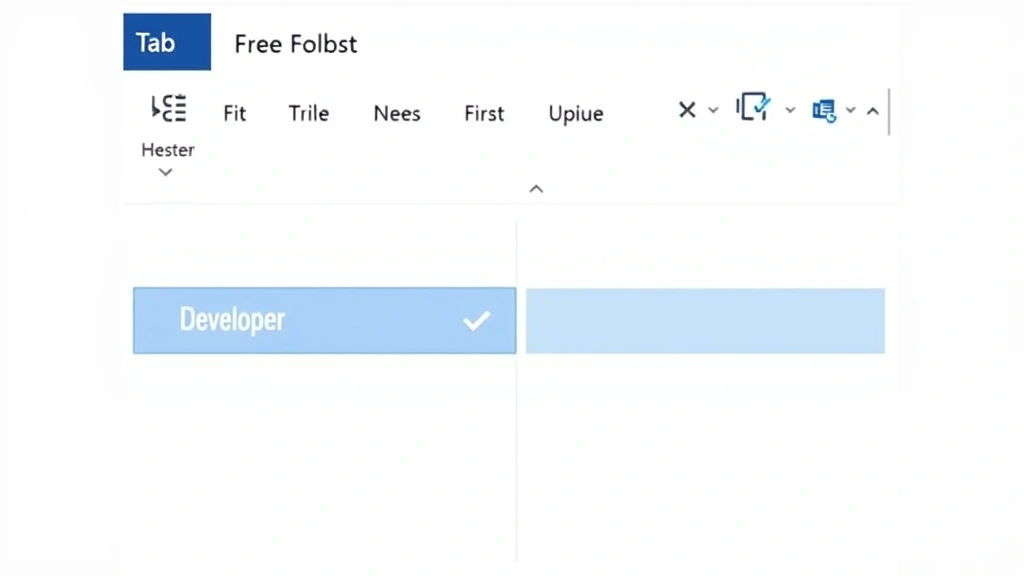
- In the right panel under “Main Tabs,” check the box next to Developer
- Click OK
You’ll now see the Developer tab appear in your ribbon menu. This is permanent—you only do this once per installation.
Step 2: Insert the Checkbox
- Click the Developer tab
- Look for the Controls group on the ribbon
- Click the Checkbox Content Control button (it looks like a small box with a checkmark)
- The checkbox will appear where your cursor was positioned
That’s it. You now have a functional checkbox. Users can click it in the document, and it will toggle between checked and unchecked states. This works in Word 2016, 2019, Office 365, and Word for Mac.
Pro Tip: If you want to create multiple checkboxes in a list, insert the first one, then copy and paste it as many times as needed. This is faster than inserting them individually.
Method 2: Insert Checkbox Using Symbols
Not every situation calls for interactive checkboxes. Sometimes you just need a static checkbox symbol—maybe for a printed document or a template where users will print and handwrite. The Symbols method is perfect for that.
Here’s how:
- Position your cursor where you want the checkbox
- Go to the Insert tab in the ribbon
- Click Symbol (usually on the right side of the Insert tab)
- Click More Symbols at the bottom of the dropdown
- In the Symbol dialog box, change the font dropdown to Wingdings
- Scroll down or search for checkbox symbols—they’re typically in the middle section
- You’ll see options like ☐ (unchecked) and ☑ (checked). Select the one you want
- Click Insert and then Close
This method gives you a symbol that looks professional and prints cleanly. The downside? It’s not interactive—it’s just a character. But for forms people will fill out by hand or print-and-scan workflows, it’s perfect.
Shortcut for the Impatient: Once you’ve inserted a checkbox symbol this way, Word remembers it. Next time you go to Insert > Symbol, your checkbox will appear in the “Recently Used” section at the top. This saves you from digging through Wingdings every time.
Method 3: The Wingdings Font Trick
Here’s a faster method if you’re comfortable with fonts: you can type a checkbox directly by changing the font to Wingdings and typing a specific character code.
The Process:
- Type the letter o (lowercase letter O, not zero)
- Select that letter
- Change the font to Wingdings using the font dropdown in the Home tab
- The “o” will transform into a checkbox symbol ☐
For a checked box, type the letter p and apply Wingdings. You’ll get ☑.
This method is lightning-fast once you remember the trick. It’s great for quick templates or when you’re building something and don’t want to navigate menus repeatedly. The tradeoff? Your document contains hidden font formatting that might confuse someone else editing it later. Make sure to document this if you’re sharing the template.
Method 4: Content Controls for Interactive Forms
If you’re building a form that multiple people will fill out digitally, content controls are the professional approach. This creates a form where users can tab through fields and check boxes without accidentally messing up your formatting.
Setting Up Content Control Checkboxes:
- Enable the Developer tab (see Method 1 if you haven’t already)
- Click Design Mode on the Developer tab to enter form-building mode
- Position your cursor where you want the checkbox
- Click Checkbox Content Control (the checkbox icon in the Controls group)
- Right-click the checkbox and select Properties
- Here you can set a title (like “I agree to the terms”) and customize how it behaves
- Click Design Mode again to exit and lock the form
Once you’ve locked the form with Design Mode off, users can click checkboxes to toggle them, but they can’t accidentally delete or move them. This is essential for professional forms.
Pro Tip: Use content controls for any document you plan to distribute. They protect your formatting and make the user experience smooth. Think of them like training wheels for your form—they keep people from going off the rails.
Formatting and Customizing Your Checkboxes
Once you’ve inserted checkboxes, you’ll probably want to customize them. Here’s what you can do:
Change Checkbox Size
Select the checkbox and use the font size dropdown in the Home tab to make it larger or smaller. A 14pt checkbox is usually readable without being overwhelming. For accessibility, avoid going smaller than 12pt.
Change Checkbox Color
- Select the checkbox
- Go to the Home tab
- Click the arrow next to the font color button (the “A” with a colored bar)
- Choose your color
This is useful for highlighting important checkboxes or color-coding different sections of a form.
Add Spacing Around Checkboxes
Checkboxes look better with breathing room. After your checkbox, add a tab or two before your text label. This prevents the text from cramming right against the box.
Create a List of Checkboxes
The best way to maintain alignment is to use a table. Create a two-column table: left column for checkboxes, right column for labels. This keeps everything neat and professional, especially if you have many items.
Common Issues and Fixes
“My checkbox isn’t clickable.”
You’re probably using a static symbol (Method 2 or 3) instead of a content control. If you need an interactive checkbox, use Method 1 or 4. If you intentionally used a symbol, that’s correct—symbols aren’t meant to be clicked.
“The Developer tab won’t show up.”
Make sure you’re using a version of Word that supports it (2016 or later). If you’re using Word Online or a very old version, the Developer tab might not be available. Try using Method 2 (Symbols) instead, which works everywhere.
“My checkboxes look different on someone else’s computer.”
This usually happens with symbol-based checkboxes if the Wingdings font renders differently. Use content controls (Method 1 or 4) for consistency across computers. Content controls use Word’s built-in checkbox, which looks the same everywhere.
“I can’t edit the form after adding checkboxes.”
You probably forgot to turn off Design Mode. Go to the Developer tab and click Design Mode to toggle it off. This “locks” your form and makes it editable by users but prevents accidental changes to the structure.
“Checkboxes disappeared when I saved as PDF.”
Interactive checkboxes don’t always transfer to PDF perfectly. If you need a PDF with checkboxes, export as PDF from Word (File > Export as PDF) rather than printing to PDF. Better yet, keep the Word version as your master and create a separate PDF version with static symbols for printing. For detailed PDF editing on Mac, check out how to edit a PDF on Mac for additional guidance on working with checkbox-heavy documents.
Using Checkbox Templates
If you’re building something you’ll reuse (like a checklist, survey, or form), save it as a template. This way, every time you open it, you get a fresh copy with your checkboxes intact.
Save as Template:
- Build your document with checkboxes and formatting
- Go to File > Save As
- Change the file type dropdown to Word Template (.dotx)
- Give it a descriptive name (like “Team Checklist Template”)
- Click Save
Next time you want to use it, go to File > New and search for your template by name. Word will open a fresh copy, leaving the original untouched.
For related document management, you might also find it helpful to understand how to double space in Word for formatting templates with proper spacing, or explore how to create a dropdown in Excel if you’re managing checkbox data in spreadsheets.
Real-World Examples Where Checkboxes Shine
To-Do Lists – The obvious one. Create a template with checkboxes so you can print or digital it weekly without rebuilding.
Project Status Forms – Track which tasks are complete with checkboxes. Pair this with how to BCC in Outlook to distribute forms to teams without revealing recipient lists.
Client Intake Forms – Use content control checkboxes so clients can fill out digital forms. This beats email back-and-forth.
Compliance Checklists – Safety, training, or audit checklists need clear, professional checkboxes. According to OSHA guidelines, documentation with checkboxes is standard practice for workplace compliance.
Surveys and Questionnaires – Checkboxes for multiple-choice questions. You can then import responses into a spreadsheet for analysis.
Permission and Consent Forms – Legal documents often use checkboxes for clarity. Make sure your checkbox is clearly visible and professional-looking.
Advanced Tips for Power Users
Linking Checkboxes to Macros
If you’re comfortable with VBA (Visual Basic for Applications), you can link checkboxes to macros that trigger actions. For example, checking a box could auto-populate a date field or hide/show sections of the document. This is advanced territory, but it’s possible if you need automation.
Creating Dependent Checkboxes
Use conditional formatting (available in some Word templates) to make certain checkboxes only appear or become editable when other checkboxes are checked. This creates a more interactive form experience.
Accessibility Considerations
Make sure your checkboxes are large enough (at least 12pt font) and have sufficient color contrast if you’re using colored checkboxes. Screen readers work better with content control checkboxes (Method 1 and 4) than with symbol-based ones. If accessibility is critical, test your document with a screen reader.
Quick Comparison: Which Method Should You Use?
Method 1 (Developer Tab): Best for interactive forms. Use this if people will fill out your document digitally and you want clickable checkboxes.
Method 2 (Symbols): Best for static documents and printing. Use this if you’re creating a document people will print and fill by hand.
Method 3 (Wingdings): Best for speed. Use this if you know the trick and are building something quick for yourself.
Method 4 (Content Controls): Best for professional forms. Use this if you’re distributing a form to multiple people and want to protect your formatting.
When in doubt, use Method 1 or 4. They’re the most reliable and work across Word versions and platforms.
Frequently Asked Questions
Can I insert checkboxes in Word Online?
– Word Online has limited support for checkboxes. You can use the Symbols method (Method 2), but the Developer tab isn’t available. For full checkbox functionality, download the desktop version of Word.
Why can’t I see the checkbox I inserted?
– The checkbox might be too small or the same color as your background. Try selecting it (click where you inserted it and use Ctrl+A to select all), then increase the font size. If it’s still invisible, delete and try again with a larger size.
Can I make checkboxes that auto-calculate (like, count how many are checked)?
– Not directly in Word. However, if you export your form responses to Excel, you can use formulas to count checked boxes. For that workflow, check out how to create a dropdown in Excel for setting up data collection templates.
Do checkboxes work in PDF versions of my Word document?
– Interactive checkboxes sometimes work in PDFs, depending on how you export. Static symbol checkboxes always work. If you need reliable checkboxes in PDF, use static symbols or export specifically as an interactive PDF (File > Export as PDF, then check “Create bookmarks”).
Can I customize the appearance of content control checkboxes?
– Limited customization. You can change size and color, but you can’t change the actual checkbox shape. If you need custom appearance, use symbol-based checkboxes instead.
What’s the difference between a checkbox and a radio button?
– Checkboxes allow multiple selections. Radio buttons (also available in the Developer tab) allow only one selection per group. Use checkboxes for “Select all that apply” and radio buttons for “Choose one option.”
Can I print a document with checked checkboxes?
– Yes. Print normally (Ctrl+P or File > Print). The checkboxes will print in their current state (checked or unchecked).
How do I remove a checkbox?
– Click the checkbox to select it and press Delete. If you can’t select it, you might be in a protected form. Go to Developer > Design Mode to unlock it first.
Are there keyboard shortcuts for toggling checkboxes?
– Not built-in, but you can create them using macros if you’re comfortable with VBA. Otherwise, users need to click checkboxes with the mouse.
Can I insert checkboxes in Word for Mac?
– Yes, all methods work in Word for Mac. The interface is slightly different (menus are in different places), but the functionality is identical. The Developer tab is available under Word > Preferences > Ribbon & Toolbar.
—
Final Thought: Learning how to insert checkbox in Word is one of those small skills that pays dividends. Whether you’re building a simple to-do list or a complex form for your organization, checkboxes make your documents look professional and function smoothly. Start with Method 1 if you need interactivity, or Method 2 if you just need a clean symbol. Either way, you’re now equipped to handle any checkbox situation Word throws at you.


