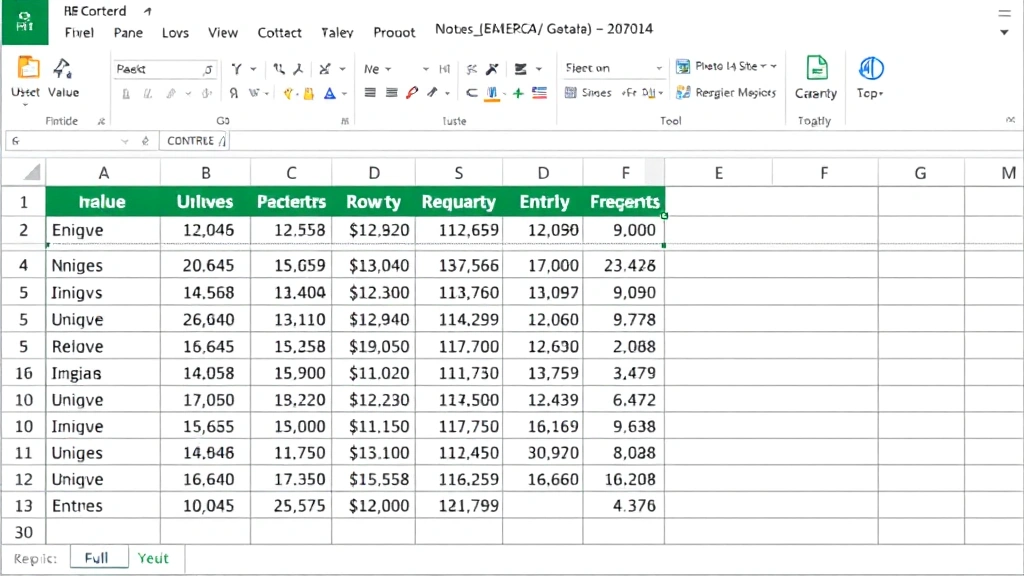
How to Identify Duplicates in Excel: Simple & Essential Guide
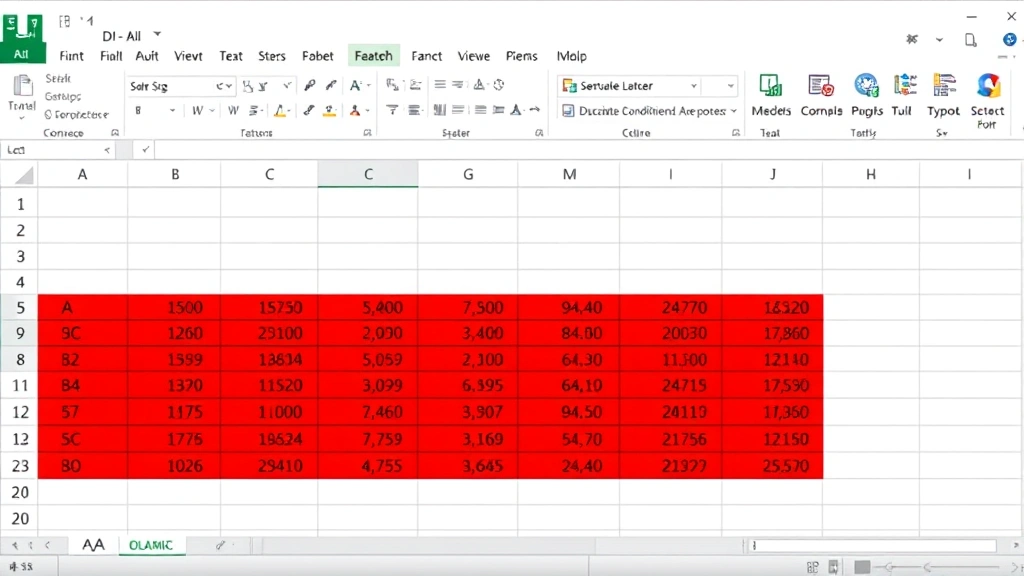
Duplicate data clutters spreadsheets and skews analysis results. Whether you’re managing customer lists, inventory records, or project data, knowing how to identify duplicates in Excel is a critical skill that saves time and prevents costly errors. This guide walks you through multiple methods—from built-in conditional formatting to advanced formulas—so you can clean your data efficiently.
Quick Answer: The fastest way to identify duplicates in Excel is using the Conditional Formatting feature: select your data range, go to Home → Conditional Formatting → Highlight Cell Rules → Duplicate Values. For more control, use the COUNTIF formula to flag duplicates manually, or leverage the Remove Duplicates tool for a one-click solution. Each method suits different scenarios and data complexity levels.
- Conditional Formatting (fastest visual method)
- COUNTIF formula approach (most flexible)
- Remove Duplicates tool (automatic deletion)
- Pivot tables (analytical view)
- Advanced filtering techniques
- Data validation for prevention
Method 1: Conditional Formatting to Highlight Duplicates
Conditional Formatting is the quickest visual way to identify duplicates in Excel. This method highlights duplicate values with color, making them instantly recognizable without altering your data. It’s ideal for spreadsheets where you need to review duplicates before taking action.
Steps:
- Select the data range containing potential duplicates (e.g., A2:A100)
- Click the Home tab in the ribbon
- Select Conditional Formatting → Highlight Cell Rules → Duplicate Values
- Choose your highlight color (default is light red with dark red text)
- Click OK to apply formatting
Duplicate entries now appear highlighted, making them easy to spot. You can modify the formatting rule by returning to Conditional Formatting → Manage Rules to adjust colors or conditions. This method works across multiple columns simultaneously if you select a larger range.
Pro Tip: For large datasets, freeze your header row using the freeze row in Excel feature before applying conditional formatting. This keeps column headers visible while scrolling through highlighted duplicates.

Method 2: Using COUNTIF Formula to Identify Duplicates
The COUNTIF formula provides granular control when you need to identify duplicates in Excel with custom logic. This approach counts how many times each value appears, flagging anything that occurs more than once. It’s perfect for conditional analysis and creating duplicate reports.
Basic Formula:
=COUNTIF($A$2:$A$100,A2)>1
This formula returns TRUE if the value in A2 appears more than once in the range. To implement it:
- Insert a helper column next to your data (e.g., column B)
- In cell B2, type the COUNTIF formula above
- Copy the formula down to all rows with data
- Cells showing TRUE indicate duplicates
You can enhance this by combining COUNTIF with IF statements for more detailed reporting. For example, =IF(COUNTIF($A$2:$A$100,A2)>1,"Duplicate","Unique") displays text labels instead of TRUE/FALSE values. This makes your duplicate analysis clearer and more professional.
Advanced Option: Use =COUNTIF($A$2:A2,A2)=1 to identify only the first occurrence of each value, leaving subsequent duplicates unmarked. This helps you determine which record is the original.
Method 3: Excel’s Remove Duplicates Tool
When you’re ready to eliminate duplicates permanently, Excel’s Remove Duplicates tool is the most efficient solution. This built-in feature automatically deletes duplicate rows based on column values you specify. It’s irreversible, so always backup your data first.
Steps:
- Select your entire data range including headers (e.g., A1:C100)
- Go to Data tab → Data Tools → Remove Duplicates
- Check the columns to consider when identifying duplicates
- Click OK to remove duplicate rows
Excel will display a message showing how many duplicate rows were removed. The tool compares entire rows across selected columns—if you select columns A and B, duplicates are identified only when both columns match. This granularity prevents accidentally removing legitimate variations.
Important: Before using Remove Duplicates, create a backup copy of your spreadsheet. Unlike conditional formatting or formulas, this action permanently deletes data and cannot be undone with standard Undo functions if you close the file.
Method 4: Using Pivot Tables to Find Duplicates
Pivot tables offer an analytical approach to identify duplicates in Excel, especially when you need to understand duplicate frequency or patterns. They summarize data and reveal which values appear multiple times without modifying your original dataset.
Steps:
- Select your data range including headers
- Go to Insert tab → Pivot Table
- Choose to create the pivot table on a new sheet
- Drag the column you want to analyze into the Rows area
- Drag the same column into the Values area (it will count automatically)
- Review the count column to identify values appearing more than once
The pivot table displays each unique value with its occurrence count. Any value with a count greater than 1 is a duplicate. This method is particularly valuable for understanding duplicate distribution across large datasets and generating reports for stakeholders.
Advantage: Pivot tables don’t modify your source data, making them safe for exploratory analysis. You can create multiple pivot tables with different column combinations to analyze duplicates across various dimensions.
Method 5: Advanced Filtering Techniques
Advanced Filtering provides sophisticated options for identifying and isolating duplicates. This method filters your dataset to show only duplicate records or unique records, depending on your needs. It’s ideal for complex datasets with multiple criteria.
Steps to Show Only Duplicates:
- Select your data range including headers
- Go to Data tab → Advanced
- Select Filter the list, in-place or Copy to another location
- Check the No duplicates option to show unique records only
- Click OK
To show duplicates instead of unique records, use a helper column with COUNTIF formulas first, then filter where the count exceeds 1. This two-step approach gives you precise control over which records display.
Tip: When using “Copy to another location,” specify a destination range to preserve your original data while creating a filtered copy. This is safer than in-place filtering when you’re learning the feature.
Preventing Duplicates: Best Practices
The best approach to duplicate problems is prevention. Implementing validation rules and structured data entry processes stops duplicates before they occur. This saves time on cleanup and maintains data integrity from the start.
Use Data Validation: Restrict entries using dropdown lists in Excel to ensure consistent, controlled data entry. When users select from predefined lists, duplicate variations (like “John” vs “john”) are eliminated automatically.
Implement Unique Identifiers: Add ID columns with auto-incrementing numbers or unique codes. This ensures each record has a distinct identifier, making duplicates obvious and easier to track.
Regular Audits: Schedule monthly or quarterly data reviews using conditional formatting to catch duplicates early. Addressing duplicates promptly prevents them from compounding and corrupting analysis.
Documentation: Create clear data entry guidelines for your team. Include examples of what constitutes a duplicate and preferred methods for handling exceptions. This reduces human error and maintains consistent standards.
Common Issues and Troubleshooting
Issue: Conditional Formatting Doesn’t Highlight Expected Duplicates
This often occurs due to hidden spaces or formatting differences. Values like “Smith ” (with trailing space) and “Smith” appear identical but are technically different. Solution: Use the TRIM function to remove extra spaces before applying conditional formatting, or use Find & Replace to clean data systematically.
Issue: COUNTIF Formula Returns Unexpected Results
Ensure your formula range is absolute (uses $ signs) while the comparison cell is relative. The formula =COUNTIF($A$2:$A$100,A2) works correctly, but =COUNTIF(A2:A100,A2) may produce incorrect results when copied down. Also verify that data types match—text values won’t match numeric values even if they look identical.
Issue: Remove Duplicates Deleted More Than Expected
This happens when you select too many columns. The tool considers entire rows when all columns are selected. To remove duplicates based on specific columns only, deselect columns that shouldn’t factor into duplicate detection before clicking OK.
Issue: Pivot Table Shows Duplicates Incorrectly
Check that your data range includes all relevant records. Pivot tables only analyze selected data, so incomplete ranges produce incomplete duplicate counts. Also ensure there are no blank rows within your data range, as these can cause analysis errors.
Cross-Reference: For managing large spreadsheets, freeze cells in Excel to keep headers visible while reviewing duplicate results. This improves accuracy when working with extensive datasets.
FAQ
Q: Can I identify duplicates across multiple columns simultaneously?
A: Yes. Conditional Formatting works on multi-column ranges, but it identifies duplicates within each column independently. For row-level duplicate detection (matching across multiple columns), use the Remove Duplicates tool or create a combined helper column using concatenation formulas like =A2&B2&C2, then apply COUNTIF to that column.
Q: What’s the difference between “Remove Duplicates” and filtering duplicates?
A: Remove Duplicates permanently deletes duplicate rows from your spreadsheet. Filtering (using conditional formatting or advanced filters) temporarily hides duplicates without deleting them. Use filtering for review and analysis; use Remove Duplicates only when you’re certain duplicates should be eliminated.
Q: How do I identify duplicates across different sheets in the same workbook?
A: Excel’s built-in tools work within single sheets. For cross-sheet duplicate detection, copy all data to a temporary sheet, combine it, then apply duplicate identification methods. Alternatively, use COUNTIF with external sheet references: =COUNTIF(Sheet2!$A:$A,A2)>0 to check if a value exists in another sheet.
Q: Why does conditional formatting highlight values I don’t consider duplicates?
A: Conditional Formatting is case-insensitive by default, so “Apple” and “apple” are treated as duplicates. If this isn’t desired, use COUNTIF formulas with EXACT function: =COUNTIF($A$2:$A$100,A2)>1 combined with conditional formatting on a helper column for case-sensitive detection.
Q: Can I undo Remove Duplicates if I make a mistake?
A: Undo works immediately after removing duplicates (Ctrl+Z), but only if you haven’t closed the file. Once saved and closed, the action is permanent. Always backup your spreadsheet before using Remove Duplicates to ensure you can recover if needed.
Q: Is there a way to keep one copy of duplicates while removing others?
A: Yes. Use the COUNTIF approach with =COUNTIF($A$2:A2,A2)=1 to mark only the first occurrence as unique. Then filter to show only marked rows, or use Remove Duplicates after sorting so the records you want to keep appear first.
Related Resources: Learn how to create dropdown lists in Excel to prevent future duplicates through controlled data entry. For additional spreadsheet management techniques, explore how to pin a row in Excel for improved navigation during duplicate review sessions.
External Resources: According to WikiHow, mastering duplicate identification is essential for data integrity. Family Handyman emphasizes the importance of systematic approaches in any organizational task. For comprehensive data management strategies, The Spruce recommends regular audits and preventive measures. HowStuffWorks provides detailed technical breakdowns of Excel functionality. Consumer insights from Consumer Reports highlight that proper data management saves time and reduces errors.