How to Hide Followers on Instagram: Easy & Essential Tips
Want to keep your Instagram followers private? Whether you’re concerned about privacy, managing your online presence, or simply prefer a more exclusive vibe, learning how to hide followers on Instagram is a straightforward process that takes just minutes. This guide walks you through every method available on both iOS and Android devices, plus desktop options.
Quick Answer: To hide followers on Instagram, open your profile, tap the menu icon, select “Settings and privacy,” go to “Privacy,” then toggle “Private account” on. You can also hide your follower/following lists individually by adjusting privacy settings in the same menu. For a more granular approach, use the “Close Friends” feature or restrict specific users from viewing your activity.
Tools & Materials You’ll Need
- Instagram app (latest version) or web browser
- Your Instagram account login credentials
- iPhone, Android device, or desktop computer
- Internet connection
- 2-3 minutes of your time
Making Your Account Private to Hide Followers
The most comprehensive way to hide followers on Instagram is by converting your account to private. This method prevents non-followers from seeing your follower list, following list, and most of your content. When your account is private, only approved followers can see your posts, stories, and follower information.
Step-by-step instructions for iPhone:
- Open Instagram and tap your profile icon (bottom right)
- Tap the menu icon (three horizontal lines)
- Select “Settings and privacy”
- Tap “Privacy”
- Toggle “Private account” to ON
- Confirm your choice when prompted
Step-by-step instructions for Android:
- Launch Instagram and tap your profile picture
- Tap the menu icon (three lines)
- Go to “Settings and privacy”
- Select “Privacy”
- Enable “Private account” by toggling it on
- Confirm the action
Once your account is private, existing followers will remain connected, but new followers must request access. You’ll receive notifications for follow requests and can approve or deny them individually. This approach is ideal if you want complete control over who sees your follower count and follower list. As noted by WikiHow, making your account private is one of the most effective privacy measures available on social media platforms.
How to Hide Your Follower List Specifically
If you want to keep your account public but hide just your follower list, Instagram offers a granular privacy option. This lets your followers see your posts while keeping your follower count and follower list private. It’s perfect for maintaining engagement while protecting your audience information.
To hide your follower list while staying public:
- Go to your profile and tap the menu icon
- Select “Settings and privacy”
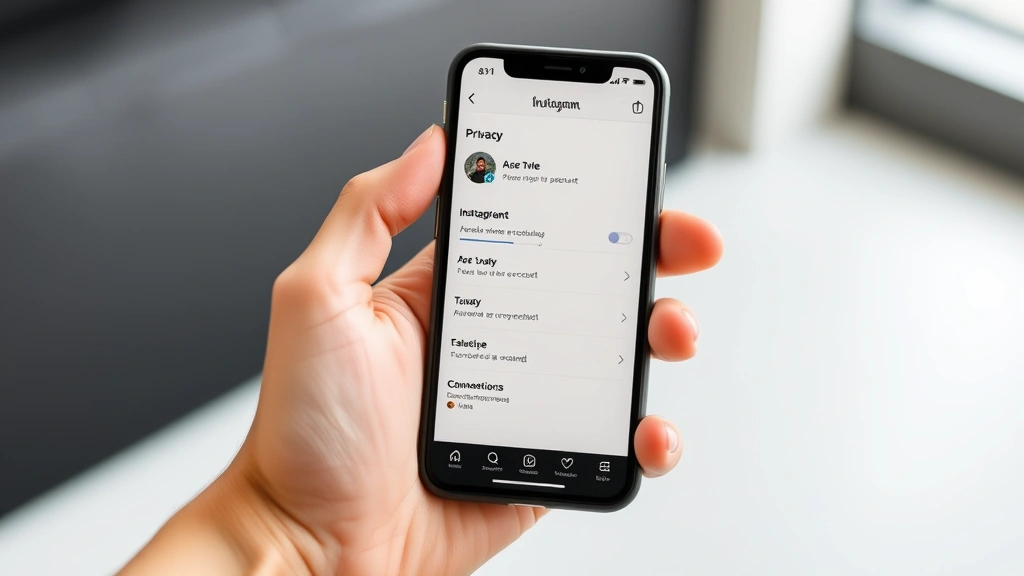
- Tap “Privacy”
- Scroll down to “Connections” or “Follower and following” section
- Toggle “Private connections” or “Hide follower list” ON
This setting hides your follower list from everyone except you. Your follower count may still be visible depending on your account type, but no one can see who specifically follows you. This is particularly useful for business accounts, influencers, or public figures who want to maintain transparency about their follower count while protecting their audience’s privacy.
Note that even with this setting enabled, Instagram may still show your follower count in certain contexts, such as when someone tries to view your followers. The key difference is that the actual list remains hidden from public view.
Hiding Your Following List
Separate from your followers, you can also hide the accounts you follow. This prevents others from seeing which accounts you’re interested in or following, which is valuable for maintaining privacy about your interests and browsing habits. Many users prefer this option to keep their social circles confidential.
To hide your following list:
- Open your Instagram profile
- Tap the menu icon (three lines)
- Go to “Settings and privacy”
- Select “Privacy”
- Find the “Connections” section
- Toggle “Private connections” ON (this hides both followers and following)
Alternatively, you can make your account private, which automatically hides both your follower and following lists from non-followers. The “Private connections” setting is ideal if you want to keep your account public for content sharing but maintain privacy about your social connections.
This feature is especially important for users who follow accounts they’d prefer to keep private, such as hobby-related pages, support groups, or niche communities. Hiding your following list ensures your personal interests remain between you and Instagram.
Using Close Friends to Control Visibility
Instagram’s Close Friends feature offers a sophisticated way to manage who sees your content without hiding your entire follower list. This method lets you create a curated group of trusted accounts who see your stories and specific posts, while others see different content.
How to set up Close Friends:
- Go to your profile and tap the menu icon
- Select “Close Friends”
- Tap “Create list” or “Edit list”
- Search for and select accounts to add
- Tap “Done” to save your list
Once your Close Friends list is created, you can share stories and posts exclusively with these accounts. When you post a story, you’ll see an option to share it with “Close Friends” instead of “Everyone.” This provides granular control over your content visibility without affecting your follower list visibility.
The Close Friends feature is perfect for maintaining multiple audience tiers. You can share professional content with your entire follower base while keeping personal stories limited to your closest connections. This approach keeps your followers list visible while controlling what each group sees.
Restricting Specific Users from Seeing Followers
Sometimes you don’t want to hide your followers from everyone—just from specific people. Instagram’s restrict feature allows you to limit what particular users can see without them knowing they’re restricted. This is more subtle than blocking and maintains the appearance of a normal follow relationship.
To restrict a specific user:
- Go to your profile
- Tap the menu icon
- Select “Settings and privacy”
- Go to “Privacy”
- Tap “Restricted accounts”
- Search for and select the account to restrict
- Confirm the restriction
When you restrict someone, they can’t see when you’re online, they won’t see your story unless you approve it, and their comments on your posts will only be visible to them. However, they can still see your public profile information, which may include your follower count depending on your settings.
This approach is ideal when you want to maintain a follow relationship with someone but limit their access to your activity. Combined with hiding your follower list, restricting specific users provides layered privacy protection. If you’re also concerned about other activity tracking, consider how to turn off active status on Instagram to prevent others from seeing when you’re using the app.
Hiding Followers on Instagram Web
You can also manage your follower visibility through Instagram’s web version, which is convenient if you’re working on a computer. The process is nearly identical to the mobile app, though the interface layout differs slightly.
Steps for Instagram web:
- Go to instagram.com and log in
- Click your profile icon (top right)
- Select “Settings” from the dropdown menu
- Click “Privacy and safety” on the left sidebar
- Toggle “Private account” ON under the Account Privacy section
- Alternatively, find “Connections” and toggle “Private connections” to hide just your follower/following lists
The web version provides the same functionality as the mobile app, making it convenient to adjust privacy settings from any computer. Some users find the desktop interface clearer for managing multiple privacy settings at once, especially when making changes to their Close Friends list or reviewing restricted accounts.
Note that changes made on the web version sync immediately across all devices. If you adjust your privacy settings on desktop, your mobile app will reflect these changes within seconds, ensuring consistency across platforms.
Important Privacy Considerations
Before hiding your followers, understand the implications and limitations of each method. Making your account private is the most comprehensive solution, but it may impact engagement and discoverability if you’re a content creator or business. Public accounts with hidden follower lists offer a middle ground.
Key considerations:
- Private accounts receive fewer discovery opportunities: Instagram’s algorithm favors public accounts in recommendations and explore pages, so going private may reduce your reach.
- Existing followers remain connected: Making your account private doesn’t remove current followers; they just can’t see your follower list.
- Follow requests require approval: New followers must request access, which gives you control but requires active management.
- Follower count may still be visible: Even with a hidden follower list, your follower count might show in certain contexts.
- Screenshots are still possible: Users can still screenshot your posts and share them elsewhere; privacy settings don’t prevent this.
Consider your goals before adjusting privacy settings. If you’re a business or creator, hiding followers might hurt engagement. If you’re a personal user prioritizing privacy, making your account private is the best option. As emphasized by Consumer Reports, understanding your privacy options is essential for protecting your personal information online.
For additional privacy protection, you might also want to explore how to clear Instagram cache to remove stored data, or review your overall social media privacy strategy across platforms.
Troubleshooting Common Issues
If you’re having trouble hiding your followers on Instagram, several common issues might be at play. Most problems stem from outdated apps, account type limitations, or settings not syncing properly across devices.
Issue: Private account toggle won’t turn on
Solution: Update your Instagram app to the latest version. Go to your device’s app store (Apple App Store or Google Play Store), search for Instagram, and tap “Update” if available. Outdated versions may not support all privacy features.
Issue: Follower list still visible after hiding
Solution: Changes may take up to 24 hours to fully propagate across Instagram’s servers. If it’s been longer, log out completely and log back in. Clear your app cache (go to Settings > Apps > Instagram > Storage > Clear Cache on Android, or reinstall the app on iOS).
Issue: Can’t find the Private Connections option
Solution: This feature may not be available on all account types. Business and creator accounts have different privacy options than personal accounts. If you need this feature, consider switching your account type in Settings > Account type and tools.
Issue: Follow requests are piling up
Solution: Regularly check your follow requests in your profile menu. You can approve or decline requests in bulk, or adjust your account back to public if managing requests becomes overwhelming.
For broader privacy concerns beyond Instagram, you might also want to learn about how to unrepost on Instagram to control your content sharing, or explore privacy settings on other platforms like how to unblock someone on Snapchat.
FAQ
Q: Will people know I hid my followers?
A: No, Instagram doesn’t notify users when you hide your follower list. People will simply see that the follower list is unavailable when they try to view it. There’s no notification or alert sent to your followers.
Q: Can I hide followers from only certain people?
A: Not directly. You can make your account private (hiding followers from everyone except followers) or use the restrict feature on individual accounts, but there’s no option to hide your follower list from specific people while keeping it visible to others.
Q: Does hiding followers affect my engagement or reach?
A: Making your account private may reduce your reach since Instagram’s algorithm prioritizes public accounts in recommendations. However, hiding your follower list while staying public has minimal impact on engagement.
Q: Can I hide my follower count but show my follower list?
A: Instagram doesn’t offer this specific combination. You can hide both (private connections), show both (public), or hide both with a private account. The follower count and list are typically managed together.
Q: What happens to my followers when I make my account private?
A: Your existing followers remain connected and can still see your posts. New people must send a follow request for approval. Your current followers won’t be removed or notified of the change.
Q: Is there a way to hide followers temporarily?
A: Not built into Instagram. Your privacy settings remain in place until you manually change them. If you want temporary privacy, you could make your account private for a period, then switch back to public.
Q: Can I hide followers on Instagram Business accounts?
A: Business and Creator accounts have limited privacy options compared to personal accounts. You can still make these accounts private, but some privacy features may be restricted. Consider switching to a personal account if privacy is your priority.
Q: Will hiding my followers prevent people from finding me?
A: No. People can still find you through search, hashtags, and recommendations. Hiding your followers only prevents them from seeing who follows you—it doesn’t make your account undiscoverable.
Learning how to hide followers on Instagram empowers you to control your privacy while maintaining your presence on the platform. Whether you choose to make your account private, hide your follower list, or use the Close Friends feature, Instagram provides multiple options to suit your privacy needs. Start with the method that aligns with your goals, and remember that you can always adjust these settings as your needs change. For comprehensive privacy management, combine these Instagram settings with broader digital privacy practices across all your social media accounts. According to Lifehacker, taking control of your social media privacy is one of the most important steps in protecting your digital identity.