How to Hide Amazon Order: Simple & Essential Guide
Whether you’re buying gifts, managing shared accounts, or simply prefer privacy, knowing how to hide Amazon order history is a practical skill every Amazon user should master. Amazon provides several straightforward methods to keep your purchases private and remove orders from your visible history. In this comprehensive guide, we’ll walk you through every option available to maintain your shopping privacy on Amazon.
Quick Answer: You can hide Amazon orders by archiving them in your order history, removing items from your browsing history, or using the “Archive Orders” feature. For complete privacy, adjust your account settings to hide order notifications and disable personalized recommendations. The process takes just a few clicks and requires no technical expertise.
Tools & Materials You’ll Need
- Amazon account access (mobile app or web browser)
- Your login credentials
- Internet connection
- Smartphone or computer
- Optional: Private browsing mode for added security
How to Archive Orders on Amazon
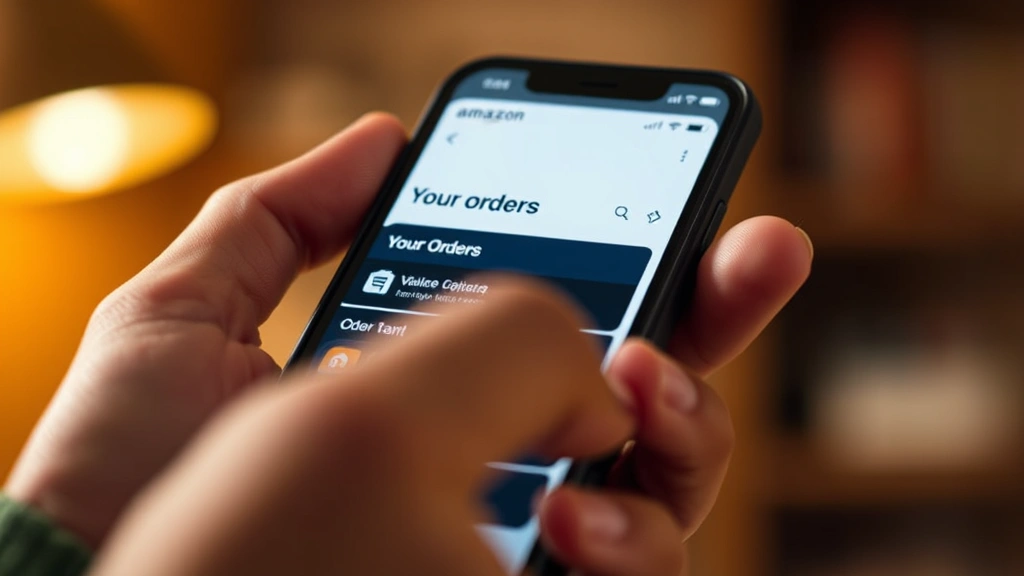
The most effective way to hide Amazon order details is by using Amazon’s archive feature. This removes orders from your main order history without deleting them permanently. Archived orders remain in your account but are hidden from casual browsing, making them invisible to anyone who gains access to your account briefly.
Step-by-step process:
- Log into your Amazon account on a web browser or mobile app
- Navigate to “Returns, Orders & Accounts” or “Your Orders” section
- Locate the specific order you want to hide
- Click or tap the three-dot menu icon next to the order
- Select “Archive Order” from the dropdown menu
- Confirm your action when prompted
Once archived, the order disappears from your primary order history. However, you can still access archived orders by scrolling to the bottom of your orders page and selecting “View Archived Orders.” This method is particularly useful when you’re buying gifts for family members or making surprise purchases.
Pro tip: Archive orders immediately after they arrive to maintain a clean order history. This prevents accidental discovery and keeps your account organized.
Remove Items from Your Browsing History
Amazon tracks every product you view, and this browsing history influences your recommendations. To truly hide Amazon order related items, you should remove them from your browsing history. This prevents Amazon from showing related products and recommendations based on your purchase.
Here’s how to clear your browsing history:
- Open Amazon.com and sign into your account
- Hover over “Account & Lists” in the top right corner
- Click “Your Account”
- Select “Browsing History” from the menu options
- Choose “Manage History” to view all items you’ve viewed
- Find the items you want to remove and click “Remove from View History”
- Alternatively, click “Remove All” to clear your entire browsing history
Removing items from your browsing history is especially important if you share your Amazon account with family members or roommates. It prevents them from seeing product recommendations related to your hidden orders. According to WikiHow, managing your digital footprint across shopping platforms is essential for personal privacy.
You can also disable “Browsing History” entirely by unchecking the “Keep the following browsing history” option. This prevents Amazon from recording any products you view going forward.
Hide Order Notifications and Alerts
Email notifications and push alerts can expose your Amazon purchases to anyone with access to your email or phone. Learning how to hide Amazon order notifications is crucial for maintaining privacy, especially when buying sensitive items.
To disable email notifications:
- Go to “Account & Lists” and select “Your Account”
- Click “Login & security” section
- Scroll down to “Communications” preferences
- Uncheck “Order, shipping, and package notifications” boxes
- Disable any promotional emails related to your purchases
- Save your changes
For mobile app users, disable push notifications by going to your phone’s settings, finding the Amazon app, and turning off notification permissions. This prevents order confirmations, shipping updates, and delivery notifications from appearing on your lock screen or notification center.
Consider using a separate email address for Amazon purchases if you’re particularly concerned about privacy. This keeps order notifications segregated from your primary inbox and makes it easier to manage your digital privacy.
Manage Personalized Recommendations
Amazon’s recommendation algorithm learns from your purchases and browsing behavior. To effectively hide Amazon order impact on your account, you must manage personalized recommendations. This prevents the platform from suggesting related items based on your hidden purchases.
Steps to customize recommendations:
- Visit your “Account & Lists” menu
- Select “Your Account” then “Personalization Settings”
- Click “Manage Your Recommendations”
- Review items and click “Remove” next to products you want excluded
- Toggle off “Personalized recommendations” entirely if desired
- Adjust “Browsing history” settings to limit data collection
Disabling personalized recommendations means you’ll see fewer targeted suggestions, but your privacy increases significantly. Amazon will still function normally, but you’ll encounter more generic product recommendations instead of items tailored to your purchase history.
As noted by Consumer Reports, understanding your privacy options with major retailers is fundamental to protecting your personal data and shopping habits.
Adjust Your Privacy Settings
Amazon offers comprehensive privacy controls that go beyond simple order hiding. To properly hide Amazon order information and protect your account, review all available privacy settings.
Key privacy settings to adjust:
- Ad preferences: Limit targeted advertising based on your shopping behavior
- Alexa privacy: Disable voice shopping and purchase history access through Alexa devices
- Data collection: Opt out of analytics and behavioral tracking
- Third-party access: Prevent external apps from accessing your order data
- Location services: Disable location tracking on the mobile app
- Camera and microphone: Deny app permissions for sensitive device features
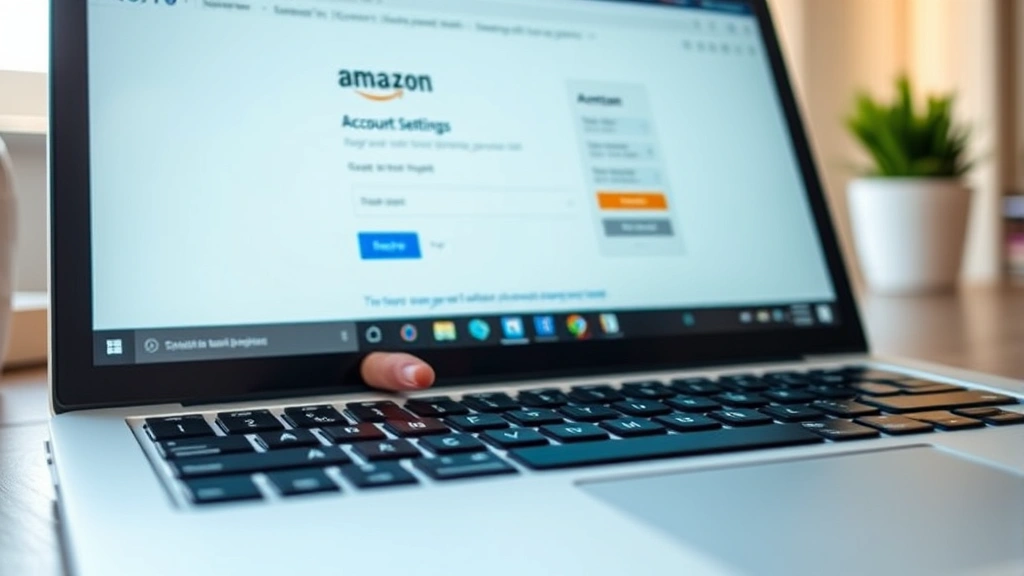
Navigate to your Account Settings and review each privacy category. Many users don’t realize how much data Amazon collects beyond purchase history. Disabling unnecessary permissions reduces the risk of your shopping habits being exposed.
Check your “Connected devices and applications” section regularly. Remove any apps or devices you no longer use that have access to your Amazon account. This prevents old applications from accessing your order history.
Hide Orders on Shared Accounts
If you share an Amazon account with family members, hiding orders becomes more complex. The best solution is creating separate user profiles or accounts entirely. However, if you must use a shared account, here’s how to hide Amazon order from other users:
Using Amazon Household feature:
- Set up separate Amazon accounts for each family member
- Link accounts through “Amazon Household” feature
- Each person maintains their own order history and recommendations
- Orders remain private to each individual account
- Shared benefits like Prime membership apply to all members
Amazon Household is the most effective solution for families sharing Prime benefits without exposing individual purchase histories. Each member sees only their own orders while maintaining access to shared features like music and photo storage.
If creating separate accounts isn’t possible, archive every order immediately after purchase and clear your browsing history regularly. This minimizes what other account users can discover about your shopping habits. Similar to how you might hide followers on Instagram, Amazon provides privacy compartmentalization tools for shared environments.
Mobile App Privacy Tips
The Amazon mobile app offers unique privacy challenges and solutions. Understanding how to hide Amazon order on your phone requires different steps than the web browser.
Mobile app privacy best practices:
- Use private browsing: Open Amazon in your phone’s private/incognito mode before making purchases
- Disable app notifications: Go to phone Settings → Apps → Amazon → Notifications and disable all alerts
- Clear app cache: Regularly clear the Amazon app’s cached data to remove browsing history
- Use biometric login: Enable fingerprint or face recognition to prevent unauthorized account access
- Log out after purchases: Always sign out after completing transactions on shared devices
- Disable location services: Prevent the app from tracking your physical location
To clear app cache on iPhone, go to Settings → General → iPhone Storage → Amazon → Offload App. On Android, navigate to Settings → Apps → Amazon → Storage → Clear Cache. This removes temporary files that might reveal your browsing history.
If you’re using a shared device, consider logging into Amazon through a web browser in private mode rather than using the app. This prevents the app from storing your login credentials and purchase history on the device.
For additional security, as discussed when learning how to unhide apps on iPhone, you can use device-level privacy features to restrict app access to sensitive information.
FAQ
Can I permanently delete orders from Amazon?
No, Amazon doesn’t allow permanent deletion of order history for account security and warranty purposes. However, archiving orders effectively hides them from your main order history. If you need to remove an order completely, contact Amazon Customer Service, though they rarely delete records.
Will archived orders still count toward my Prime benefits?
Yes, archived orders still apply to Prime benefits, return windows, and warranty coverage. Archiving only removes them from your visible order history—they remain in your account for legal and service purposes.
Can someone else see my archived orders if they access my account?
Only if they know to look in your archived orders section. Archived orders don’t appear in your main order history, making them much harder to discover accidentally. However, they’re not completely hidden from someone with full account access.
Does turning off personalized recommendations affect my shopping experience?
Yes, you’ll see fewer targeted product suggestions. However, you can still search for products and browse categories normally. Amazon’s core functionality remains unchanged—only the recommendation algorithm is disabled.
What’s the difference between archiving and deleting from browsing history?
Archiving removes an order from your order history but keeps it in your account. Deleting from browsing history removes a product you viewed but didn’t purchase. You should do both to completely hide a purchase from your account.
Is using private browsing mode enough to hide Amazon purchases?
Private browsing prevents your local device from storing cookies and history, but Amazon still records the purchase in your account. You must also archive the order and remove it from your browsing history on Amazon’s servers for complete hiding.
Can I hide orders from Amazon customer service?
No, Amazon customer service can access your complete order history, including archived orders. If you need to contact support about a hidden order, they’ll still see it. However, regular account users won’t discover archived orders without deliberate searching.
Should I use a different email address for private purchases?
Yes, using a separate email account for sensitive purchases adds an extra layer of privacy. This keeps order confirmations and notifications segregated from your primary inbox, reducing the chance of accidental discovery.
Learning how to hide Amazon order history is straightforward once you understand all available options. Whether you’re buying gifts, managing shared accounts, or simply prioritizing privacy, these methods ensure your purchases remain confidential. Start by archiving sensitive orders, clearing your browsing history, and adjusting your notification settings. For maximum privacy, create separate Amazon accounts for household members using the Amazon Household feature. Remember that while archiving and hiding orders makes them less visible, Amazon retains complete records for warranty and legal purposes. Regular maintenance of your privacy settings keeps your account secure and your shopping habits private. If you’re also concerned about privacy across other platforms, explore similar privacy management techniques for services like managing DoorDash orders or managing email history. Take control of your digital privacy today by implementing these essential Amazon order hiding strategies.