
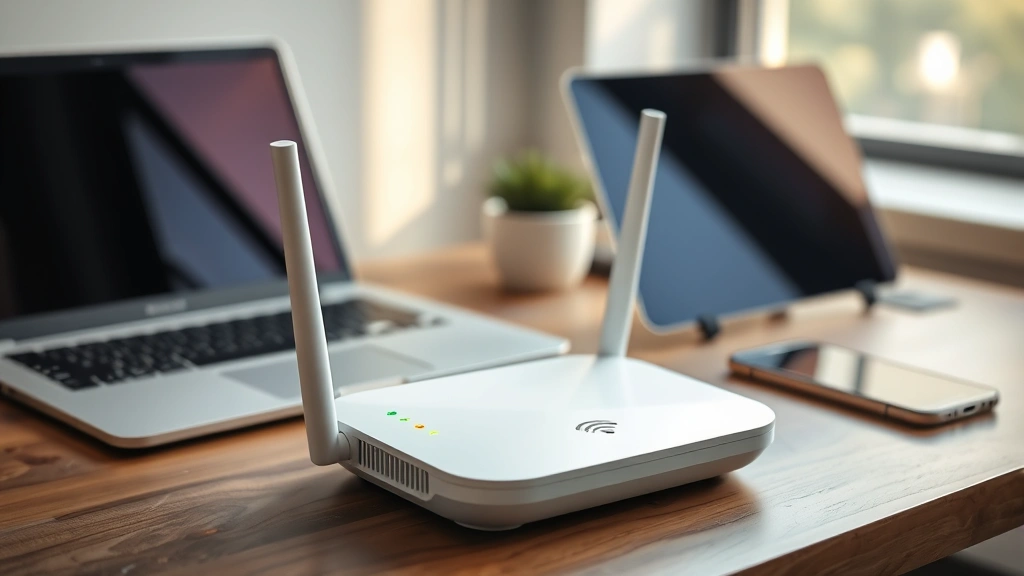
Let’s be real: the phrase “how to hack WiFi” makes most people nervous. You’re either locked out of your own network, curious about security, or worried someone’s stealing your bandwidth. Here’s the truth—learning how to hack WiFi in legitimate ways isn’t about breaking into your neighbor’s router. It’s about understanding your own network, troubleshooting problems, and protecting what’s actually yours.
In this guide, we’ll cover the legal, practical side of how to hack WiFi: recovering lost passwords, diagnosing connection issues, optimizing your network performance, and spotting when someone else might be doing the same to you. Think of this as network first aid—the kind of knowledge every homeowner or small business owner should have in their toolkit.
Understanding Your Own WiFi Network
Before we talk about how to hack WiFi, you need to know what you’re actually working with. Your WiFi network consists of three main components: the router (the physical box), the network name (SSID), and the password (pre-shared key). Most people only interact with the password part, but understanding the whole system is crucial.
Your router is essentially a small computer that broadcasts a wireless signal and manages all the devices connecting to it. When you want to know how to hack WiFi, what you’re really asking is how to access and control that device. The good news? If it’s your router, you have every right to do it.
Start by locating your router’s model number and manufacturer. This is usually printed on a label on the device itself. Write it down. You’ll need it to find your router’s default login credentials and understand its capabilities. Common manufacturers include TP-Link, Netgear, Linksys, and Asus. Each has slightly different interfaces, but the basic principles remain the same.
Pro Tip: Take a photo of the label on your router. Include the model number, serial number, and default gateway IP address. Store it somewhere safe—you’ll reference it constantly when troubleshooting.
Your network name (SSID) is what you see when you search for available WiFi networks on your phone or laptop. The password is what protects that network from unauthorized access. Both can be changed in your router’s admin panel, which we’ll get to shortly. For now, just know that these are the two pieces of information you control.
How to Recover Your Lost WiFi Password
This is the most common reason people search for “how to hack WiFi.” You’ve forgotten your password, and now you’re locked out of your own network. Don’t panic—there are several legitimate ways to recover it.
Method 1: Check Your Connected Devices
If you have a device that’s already connected to your WiFi (laptop, tablet, phone), you can retrieve the password from there. On Windows, go to Settings → Network & Internet → WiFi → Manage Known Networks. Find your network, click on it, select “Show,” and check the “Security key” field. On Mac, open Keychain Access (Applications → Utilities), search for your network name, double-click it, and check “Show password.” You’ll need to enter your computer’s admin password, but the WiFi password will be displayed.
Method 2: Access Your Router’s Admin Panel
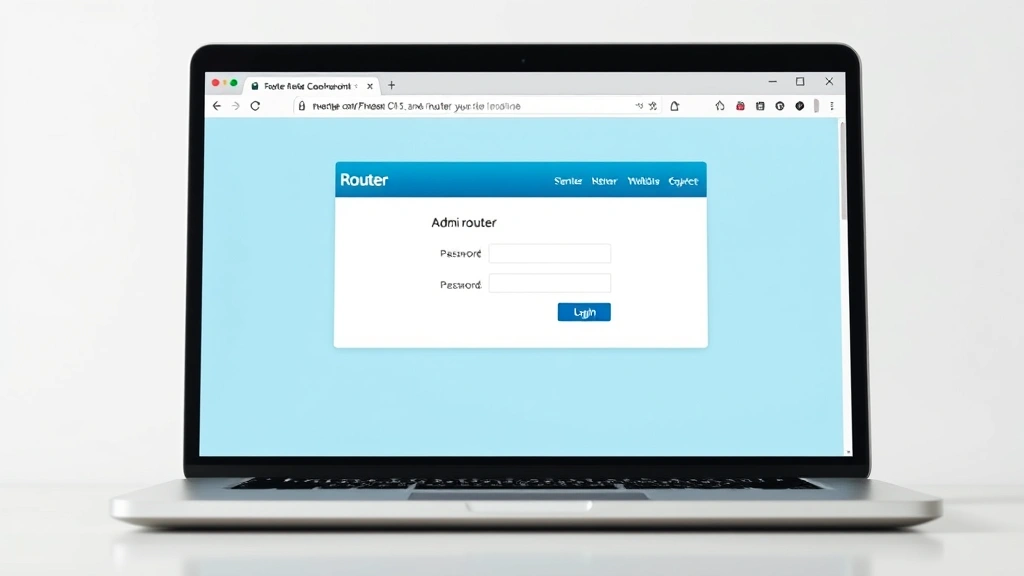
This is where knowing how to hack WiFi becomes practical. Open a web browser and type your router’s IP address into the address bar. The default is usually 192.168.1.1 or 192.168.0.1, but check your router’s manual to be sure. You’ll be prompted for a username and password. If you’ve never changed these, use the default credentials (often “admin” and “admin,” or “admin” and the router’s serial number). Once you’re in, look for the Wireless or WiFi settings section. Your current password should be displayed there—though it might be masked with asterisks.
Method 3: Factory Reset Your Router
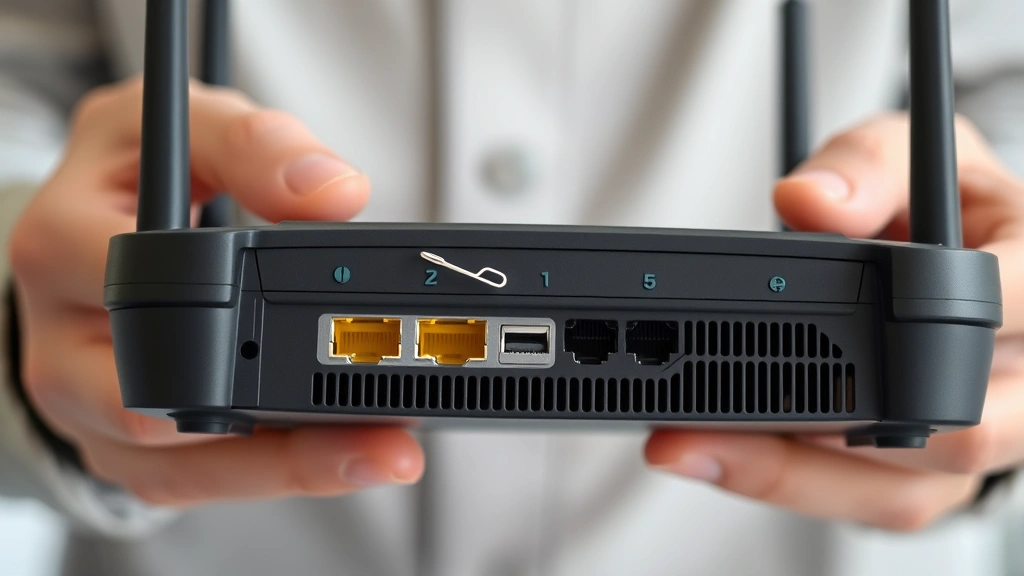
If you can’t access the admin panel and you don’t have a connected device, you can perform a factory reset. Hold down the small reset button on the back of your router for 10-15 seconds with a paperclip or pen. The router will reboot and return to its default settings, including the default password. You can then log in with those credentials and set a new password. Fair warning: this will disconnect all your devices, so do it when you can afford some downtime.
According to Family Handyman, resetting your router should be a last resort because it wipes all your customized settings. But when you’re locked out, it’s a legitimate lifeline.
Accessing Your Router Admin Panel Safely
Learning how to hack WiFi safely means understanding how to access your router without creating security vulnerabilities. The admin panel is where the real power lives, so we need to be careful.
- Find your router’s IP address: On Windows, open Command Prompt and type “ipconfig.” Look for “Default Gateway” under your network adapter. On Mac, go to System Preferences → Network and click “Advanced.” The IP address is usually 192.168.1.1 or 192.168.0.1.
- Open a browser and navigate to the IP: Type it into the address bar like you would a website. You should see a login screen.
- Enter your credentials: Use the default username and password from your router’s label or manual. If you’ve changed them before and forgotten them, you’ll need to factory reset (see above).
- Change the default password immediately: Once you’re in, find the admin password settings and create a strong, unique password. This is non-negotiable. Default credentials are public knowledge, and anyone on your network could access your router if you don’t change them.
- Update your WiFi password too: While you’re in there, change your WiFi password to something strong—at least 12 characters with uppercase, lowercase, numbers, and symbols.
The admin panel is where you can see all connected devices, adjust security settings, update firmware, and control bandwidth allocation. It’s also where the real learning happens when you’re trying to understand how to hack WiFi responsibly.
Safety Warning: Never share your admin credentials with anyone except a trusted IT professional you hire. This gives them complete control over your network and all devices on it. Treat this password like you’d treat your bank account password.
Diagnosing WiFi Connection Problems
“How to hack WiFi” often really means “how to fix my WiFi.” Connection problems are frustrating, but most can be solved with basic troubleshooting.
Slow Speeds
If your WiFi is crawling, start by checking how many devices are connected to your network. Go into your router’s admin panel and look at the connected devices list. Too many devices pulling bandwidth simultaneously will slow everything down. Disconnect devices you’re not actively using.
Next, check your router’s placement. WiFi signals weaken through walls, metal objects, and large appliances. If your router is tucked in a closet or behind the TV, move it to a central, elevated location. Think of WiFi like a light bulb—it radiates outward, so position it where it can reach the most space.
Also check the WiFi channel your router is broadcasting on. In the admin panel, look for Wireless Settings or Channel Selection. Most routers default to Channel 6 or 11, but if your neighbors are using the same channel, you’ll get interference. Use a WiFi analyzer app to see which channels are least congested in your area, then switch to one of those.
Devices Won’t Connect
This is where knowing how to hack WiFi gets practical. If a specific device won’t connect, first try “forgetting” the network on that device and reconnecting. On phones and tablets, go to WiFi settings, find your network, and select “Forget.” Then reconnect and re-enter the password. This refreshes the connection and often solves the problem.
If that doesn’t work, check your router’s security settings. Some older devices don’t support modern WiFi security protocols like WPA3. In your admin panel, look for Security Type or Encryption. If you’re running WPA3 and have an old device, you might need to switch to WPA2 to maintain compatibility.
Intermittent Disconnections
Devices that keep dropping off the network usually point to a firmware issue or interference. First, check if your router’s firmware is up to date. In the admin panel, look for System Settings or Administration. If there’s an option to check for updates, do it. Manufacturers regularly release patches that fix stability issues.
If firmware is current, try changing your WiFi channel (see above) and reducing the number of connected devices. Also check if anything new has been introduced near your router—microwaves, cordless phones, and baby monitors all operate on the 2.4GHz frequency and can cause interference.
Checking for Unauthorized Network Access
Now we’re getting into the defensive side of how to hack WiFi. Someone might be stealing your bandwidth or worse. Here’s how to check.
Log into your router’s admin panel and look at the list of connected devices. You should recognize every device on that list. If you see something unfamiliar—a device with a name you don’t recognize or an unusual MAC address—that’s a red flag. Note the device’s name and MAC address (a string of letters and numbers like “AA:BB:CC:DD:EE:FF”).
If you find an unauthorized device, you have options. The nuclear option is to change your WiFi password immediately, which will disconnect the intruder. But before you do that, try to identify what it is. Sometimes devices have misleading names. Do a quick search for the MAC address online—there are databases that identify devices by their MAC address prefix.
If it’s genuinely an intruder, change your password to something very strong. Consider also enabling MAC filtering in your router’s admin panel, which only allows devices with approved MAC addresses to connect. This is more secure but requires you to manually approve any new devices.
According to OSHA guidelines on workplace cybersecurity, regular network audits are part of responsible technology management. The same principle applies at home.
Securing Your Network Against Real Threats
Understanding how to hack WiFi means understanding how to prevent it. Real security isn’t complicated, but it does require attention to detail.
- Use WPA3 encryption: This is the current gold standard. If your router doesn’t support it, consider upgrading. WPA2 is acceptable but older. Never use WEP or open networks.
- Create a strong password: At least 12 characters. Use a mix of uppercase, lowercase, numbers, and symbols. Avoid dictionary words or personal information. A passphrase like “BlueSky!Mountains47” is better than “Password123.”
- Hide your SSID: This is optional, but it adds a layer of obscurity. In your admin panel, look for “Broadcast SSID” and disable it. Your network won’t show up in WiFi searches, but you can still connect if you know the name.
- Disable WPS: WiFi Protected Setup sounds helpful but it’s a security vulnerability. Find it in your admin panel and turn it off.
- Change the default admin password: We mentioned this before, but it’s critical. Use a password manager to store it securely.
- Update firmware regularly: Check your router’s admin panel monthly for firmware updates. These patches fix security vulnerabilities.
- Use a guest network: If you have visitors or contractors, create a separate guest network with a different password. This keeps them off your main network where your personal devices live.
Think of these steps like locking your doors and windows. None of them is impenetrable, but together they make your network a harder target than your neighbor’s, and that’s usually enough.
Advanced WiFi Troubleshooting Techniques
For those who want to go deeper into how to hack WiFi (in the legitimate sense), here are some advanced techniques.
Using WiFi Analyzer Tools
Apps like WiFi Analyzer (Android) or iStumbler (Mac) show you detailed information about your network and nearby networks. You can see which channels are congested, signal strength at different locations in your home, and whether interference is coming from neighbors’ networks. This data helps you optimize your router placement and channel selection.
Checking Router Logs
Most routers maintain logs of connections, disconnections, and failed login attempts. In your admin panel, look for Logs or System Logs. These can reveal patterns—like a device that keeps trying to connect and failing, which might indicate a configuration problem. Repeated failed login attempts from unknown IP addresses could indicate someone’s trying to break into your router.
Port Forwarding and Remote Access
If you need to access something on your home network from outside your home, you can set up port forwarding in your router’s admin panel. This is advanced territory and should only be done if you understand the security implications. Generally, it’s safer to use a VPN service than to expose your home network to the internet.
According to This Old House’s tech section, understanding your network’s capabilities is the first step to managing it effectively.
Factory Resetting and Reconfiguring
Sometimes the best solution is to start fresh. If you’ve made changes over months or years and your network is behaving strangely, a factory reset followed by a clean configuration can solve mysterious problems. Just remember to document your settings first—take screenshots of your admin panel so you can recreate your configuration.
When reconfiguring, set a strong admin password, create a strong WiFi password, update the firmware immediately, and then configure your security settings. This systematic approach prevents most common issues.
Upgrading Your Router
If your router is more than 5 years old, it might be time to upgrade. Older routers have slower processors, less RAM, and outdated security standards. Modern routers offer better range, faster speeds, and more robust security. When shopping for a new router, look for WiFi 6 (802.11ax) support and WPA3 encryption. It’s an investment that pays dividends in reliability and security.
You can also extend your network’s range by adding a mesh WiFi system. These use multiple nodes to blanket your home with strong signal, and they’re much easier to set up than traditional range extenders. Brands like Bob Vila’s recommended mesh systems offer good starting points for research.
Frequently Asked Questions
Is it legal to hack into my own WiFi network?
– Yes, absolutely. You own the network, so you have every right to access and manage it. The illegality comes only when you access a network you don’t own or don’t have permission to use. Learning how to hack WiFi on your own equipment is like learning how to change the locks on your own house—completely legitimate.
What’s the difference between WPA2 and WPA3 encryption?
– WPA3 is the newer, more secure standard. It protects against brute-force password attacks better than WPA2 and handles open networks more safely. If your router supports WPA3, use it. WPA2 is still acceptable but is showing its age. Never use WEP—it’s been broken for years.
How often should I change my WiFi password?
– There’s no strict rule, but changing it every 3-6 months is reasonable if you’re concerned about security. Change it immediately if you suspect unauthorized access, if you’ve had guests with the password, or if you’re selling your home. For most people, a strong password that you change once a year is sufficient.
Can I see what websites people on my network are visiting?
– Not without specialized tools. Your router can see which devices are connected and how much bandwidth they’re using, but not the specific websites they visit (if they’re using HTTPS, which most are). If you need to monitor network activity, you’d need to set up a proxy server or use parental control software, which is more complex.
What should I do if I think someone has hacked my WiFi?
– Change your WiFi password immediately. Log into your router’s admin panel and change the admin password too. Check the list of connected devices and remove anything unfamiliar. Consider enabling MAC filtering to only allow approved devices. If you suspect more serious intrusion, factory reset your router and reconfigure from scratch. Finally, run a malware scan on all your personal devices.
Is it safe to use public WiFi?
– Public WiFi is inherently risky because you don’t control the network. Anyone on the same network can potentially see your unencrypted traffic. If you must use public WiFi, use a VPN (Virtual Private Network) to encrypt your connection. Avoid accessing sensitive information like banking or email passwords on public networks. This is one area where understanding how to hack WiFi makes you realize why security matters so much.
What’s a MAC address and why does it matter?
– A MAC address is a unique identifier assigned to every network device. It looks like “AA:BB:CC:DD:EE:FF.” It matters because you can use it to identify devices on your network, whitelist approved devices through MAC filtering, or identify unauthorized devices. It’s different from your IP address, which can change. If you see an unfamiliar MAC address in your connected devices list, that’s your first clue something’s wrong.
Do I need to restart my router regularly?
– Restarting your router every month or so can help maintain performance and clear out temporary issues. Some routers have automatic restart schedules you can set in the admin panel. If your router is running hot or acting sluggish, a restart often helps. Think of it like rebooting your computer—it clears out accumulated junk and refreshes the system.


