
Minecraft is running like molasses, and you’re watching your frame rate tank every time you load a new chunk. Sound familiar? The culprit is almost always the same: you haven’t allocated enough RAM to the game. Your computer might have 16GB sitting idle, but Minecraft is limping along on 1GB. This guide shows you exactly how to give Minecraft more RAM—whether you’re playing vanilla, running modpacks, or just tired of lag.
RAM allocation is one of the easiest performance tweaks you can make, and it’s free. No new hardware needed. Just a few clicks and your game transforms from choppy to smooth. Let’s dig in.
Why RAM Matters for Minecraft
Think of RAM like your workbench. The bigger it is, the more materials you can spread out at once without things getting cramped. Minecraft uses RAM to store chunk data, entity information, textures, and everything happening in your world right now. When you don’t give it enough space, the game has to constantly shuffle data in and out, which causes stuttering and lag.
Here’s the reality: default Minecraft allocations are conservative. The launcher typically gives Java Edition only 1-2GB. If you’re playing vanilla with a few friends, that might be okay. But add in a modpack with 100+ mods, and you’re looking at needing 4-8GB minimum. Shaders? Throw another 2-4GB at it. Large render distances? Same deal.
The good news is that allocating more RAM is literally just telling Java “hey, you can use this much memory.” Your computer won’t explode. You won’t break anything. The worst that happens is the game crashes if you allocate more than your system actually has.
Pro Tip: Never allocate all your system RAM to Minecraft. Always leave at least 2-4GB for your operating system and background apps. If you have 16GB total, max out Minecraft at 12GB. If you have 8GB, stick with 6GB.
Check How Much RAM Your System Has
Before you allocate anything, know what you’re working with.
Windows:
- Right-click “This PC” or “My Computer” on your desktop
- Select “Properties”
- Look for “Installed RAM” under System
Mac:
- Click the Apple menu → “About This Mac”
- Check “Memory” in the window that opens
Linux:
- Open Terminal
- Type:
free -h - Look at the “Mem” row, “total” column
Write down that number. You’ll need it to decide how much to allocate.
Allocate RAM via Minecraft Launcher (Easiest Method)
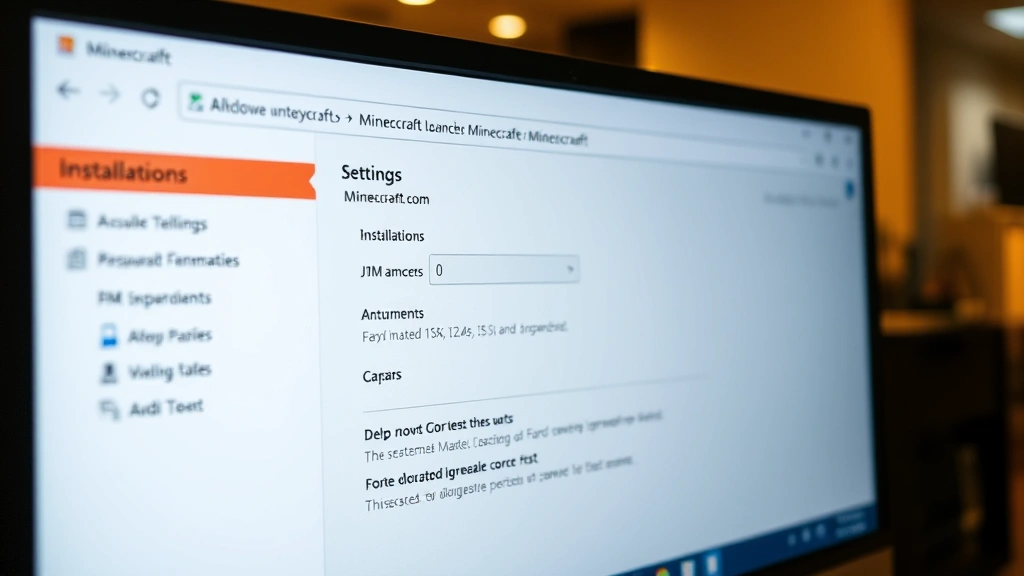
This is the path most players should take. The official Minecraft Launcher has a built-in RAM allocation tool that’s straightforward and safe.
Steps:
- Open the Minecraft Launcher
- Click “Installations” on the left sidebar
- Find the version you want to modify (e.g., “Latest Release”) and hover over it
- Click the folder icon that appears
- Go back and click the three dots next to your installation, then select “Edit”
- Scroll down to “JVM Arguments”
- Look for text that says
-Xmx1G(or similar). The number is your current allocation - Change
1Gto your desired amount. For example:-Xmx8Gfor 8GB - Click “Save” and launch the game
That’s it. The next time you start Minecraft, it’ll have access to the new RAM amount.
Common Allocations:
– Vanilla + no mods: 2-4GB
– Small modpacks (20-50 mods): 4-6GB
– Medium modpacks (50-100 mods): 6-8GB
– Heavy modpacks (100+ mods): 8-12GB
– Shaders + large worlds: Add 2-4GB to your base allocation
Manual RAM Allocation for Java Edition (Advanced)
If the launcher method doesn’t work or you’re running a custom setup, you can edit the JVM arguments directly through a batch file or shell script.
Windows Batch File Method:
- Open Notepad
- Paste this code:
@echo off
java -Xmx8G -Xms4G -jar launcher.jar
- Replace
8Gwith your desired max RAM and4Gwith your minimum RAM (usually half of max) - Save as
minecraft.batin your Minecraft folder - Double-click the batch file to launch
Mac/Linux Shell Script:
- Open Terminal
- Navigate to your Minecraft folder:
cd ~/Library/Application\ Support/minecraft(Mac) or~/.minecraft(Linux) - Create a new script:
nano launch_minecraft.sh - Paste:
#!/bin/bash
java -Xmx8G -Xms4G -jar launcher.jar
- Save (Ctrl+X, then Y, then Enter)
- Make it executable:
chmod +x launch_minecraft.sh - Run it:
./launch_minecraft.sh
The -Xmx flag sets maximum RAM. The -Xms flag sets minimum (starting) RAM. Setting both helps Java allocate memory more efficiently.
RAM Allocation for Windows 10/11 Edition (Bedrock)
Bedrock Edition (the Microsoft Store version) doesn’t let you manually allocate RAM like Java Edition does. It uses your system’s available memory dynamically. However, you can optimize performance:
- Close background apps before playing (Discord, Chrome, etc.)
- Disable unnecessary Windows features in Settings → Apps → Apps & features → Optional features
- Update your graphics drivers
- Check your system RAM and upgrade if you’re below 8GB total
If you want full control over RAM allocation, consider switching to Java Edition. It’s more flexible and better for modding anyway. If you’re serious about modpacks, you’ll want Java Edition regardless—that’s where the modding community lives.
RAM Allocation for Modpacks
Modpacks are RAM hogs. If you’re running something like modpacks through a launcher like CurseForge or MultiMC, you need to know where to allocate RAM.
CurseForge Launcher:
- Open CurseForge
- Go to “Minecraft” → “My Modpacks”
- Find your modpack and click the three dots
- Select “Edit”
- Go to “Java Settings”
- Adjust “Allocated Memory” to your desired amount
- Click “Save”
MultiMC:
- Right-click your instance
- Select “Edit Instance”
- Go to “Settings”
- Check “Memory” and set your max allocation
- Click “Close”
Most modpack creators recommend a minimum allocation. Check the pack’s description or README file. If it says “requires 6GB RAM,” don’t try to run it on 4GB—you’ll get crashes and constant lag.
For heavy modpacks with 100+ mods, I’d recommend 8GB minimum. If you’re also running CPU overclocking to boost performance further, that’s another conversation, but RAM allocation is step one.
Troubleshooting Common Issues
Game Crashes After Allocating More RAM
This usually means you allocated more than your system has available. If you have 8GB total and allocated 12GB, Java can’t find that memory. Solution: reduce the allocation. Leave at least 2-4GB for your OS.
No Performance Improvement After Allocation
RAM isn’t always the bottleneck. If you’re still lagging after allocating 8GB, your issue might be:
- GPU: Your graphics card can’t keep up. Lower render distance, disable fancy graphics, reduce shader quality
- CPU: Your processor is maxed out. Close background apps, lower simulation distance, reduce entity rendering
- Disk speed: Your hard drive is slow. Upgrade to an SSD if you’re still using a mechanical drive
- Render distance: Too high for your specs. Try 12 chunks instead of 20
According to Minecraft’s official performance guide, RAM is just one piece. Graphics settings matter too.
Game Uses Less RAM Than Allocated
This is normal. Java doesn’t always use all allocated RAM. It uses what it needs up to the maximum you set. Allocating 8GB doesn’t mean the game will always consume 8GB—it might only use 4GB for vanilla play. That’s fine.
JVM Arguments Not Working
Make sure you’re editing the right installation profile. If you have multiple versions installed, you might be editing the wrong one. Also, some launchers reset JVM arguments on updates. Check after each launcher update.
Frequently Asked Questions
How much RAM do I actually need for Minecraft?
– Vanilla with no mods: 2-4GB is plenty. Modpacks: 6-12GB depending on mod count. Shaders add 2-4GB. If you’re playing vanilla and have 8GB system RAM, allocate 4-6GB to Minecraft and you’re golden. Most lag complaints come from people running modpacks on 2GB allocations.
Will allocating more RAM damage my computer?
– No. You’re just telling Java “you can use up to this much memory.” The worst that happens is the game crashes if you go over your system’s limit. You won’t break hardware or corrupt files. Just don’t allocate more than your system actually has.
Can I allocate 100GB to Minecraft?
– Only if you have 100GB RAM available. If you try to allocate more than your system has, Java will throw an error and the game won’t start. Allocate only what your system can spare, leaving 2-4GB for your OS.
Does more RAM mean better FPS?
– Not necessarily. RAM helps with stuttering and load times, not raw frame rate. FPS is mostly determined by your GPU and CPU. More RAM prevents the game from freezing while it loads chunks. You might go from 30 FPS with stutters to 30 FPS smooth. That’s still a huge quality-of-life improvement.
Should I allocate minimum RAM (-Xms) too?
– Yes, if you’re using manual scripts. Set -Xms to about half your -Xmx value. So if -Xmx is 8G, set -Xms to 4G. This helps Java allocate memory more efficiently. The launcher usually handles this automatically.
Why is my modpack still lagging after allocating 8GB?
– Could be a dozen reasons: CPU bottleneck, GPU bottleneck, render distance too high, too many entities, mods with bad optimization, or your SSD is slow. Try lowering render distance first (it’s usually the culprit). If that doesn’t help, check your CPU and GPU usage while playing. If CPU is at 100%, that’s your problem, not RAM.
Do I need to restart my computer after changing RAM allocation?
– No. Just close Minecraft and relaunch it. The new allocation takes effect immediately on the next game start.
What’s the difference between -Xmx and -Xms?
– -Xmx is the maximum RAM Java can use. -Xms is the minimum (starting) amount. Java will grab -Xms immediately and request more as needed up to -Xmx. Setting both helps optimize memory usage. Most players only care about -Xmx, but setting -Xms to half of -Xmx is a best practice.
Can I allocate RAM to Bedrock Edition like Java Edition?
– No. Bedrock doesn’t have manual RAM allocation. It uses available system memory dynamically. If you want full control, switch to Java Edition. Java is also better for modpacks anyway.
Will allocating more RAM fix my low FPS?
– Maybe. If you’re getting stuttering and freezes, yes. If you’re getting consistently low FPS (like 20 FPS everywhere), that’s a GPU or CPU issue, not RAM. Check your graphics settings and render distance first. More RAM won’t help if your graphics card can’t keep up.


