
Let’s be real—if you’ve accidentally opened how to get out of incognito mode on iPhone, you’re probably wondering if you’re stuck in some privacy prison. The good news? You’re not. Exiting incognito mode (or “Private Browsing” as Apple calls it) on Safari is straightforward, and I’ll walk you through exactly how to do it in under two minutes.
Whether you opened a private tab by accident, want to switch back to your regular browsing history, or just need to understand what incognito mode actually does on your iPhone, this guide covers everything. No confusion, no tech jargon—just real steps that work.
What Is Private Browsing (Incognito Mode) on iPhone?
Apple’s version of incognito mode is called “Private Browsing.” When you enable it in Safari, your iPhone stops saving your browsing history, search history, autofill information, and cookies from the websites you visit. Think of it like using a temporary browser that erases its own footprints.
Here’s what actually happens when Private Browsing is on:
- Safari won’t save your browsing history
- Websites can’t store cookies or tracking data on your device
- Search queries won’t appear in your search history
- Autofill suggestions won’t be saved
- Your IP address is still visible to websites and your internet provider
That last point is important—private browsing doesn’t hide your activity from your ISP, WiFi network owner, or the websites you visit. It just keeps your iPhone from remembering what you did.
Most people accidentally turn on Private Browsing without realizing it, then wonder why their regular tabs disappeared. If that’s you, don’t worry—your data is fine. You just need to switch back to regular browsing mode.
How to Exit Private Browsing in Safari
The fastest way to exit incognito mode on iPhone is to close your private tabs and open a new regular tab. Here’s the exact process:
- Open Safari on your iPhone
- Tap the Tabs icon in the bottom right corner (it looks like two overlapping squares)
- Look at the bottom of the screen—you’ll see “Private” displayed if you’re currently in Private Browsing mode
- Tap “Private” to toggle it off
- A confirmation screen appears—tap “Done” to switch to regular browsing
That’s it. You’re now out of incognito mode. Your private tabs will still be there (they won’t disappear automatically), but any new tabs you open will be regular, non-private tabs that save your history.
If you want to close the private tabs and start fresh, swipe left on each private tab and tap the delete icon. But you don’t have to—you can keep them open and just switch to regular browsing for your next session.
Pro Tip: If you can’t find the Tabs icon, you might be on an older iPhone model. Tap the Safari icon at the bottom of the screen, then look for the overlapping squares icon. The interface is slightly different on older devices, but the Private Browsing toggle is always in the same general area.
Switching Between Private and Regular Tabs
Here’s where people get confused: you can have private tabs and regular tabs open at the same time in Safari. Your iPhone lets you switch between them without closing anything.
To switch from private tabs to regular tabs:
- Open the Tabs view (tap the overlapping squares icon at the bottom right)
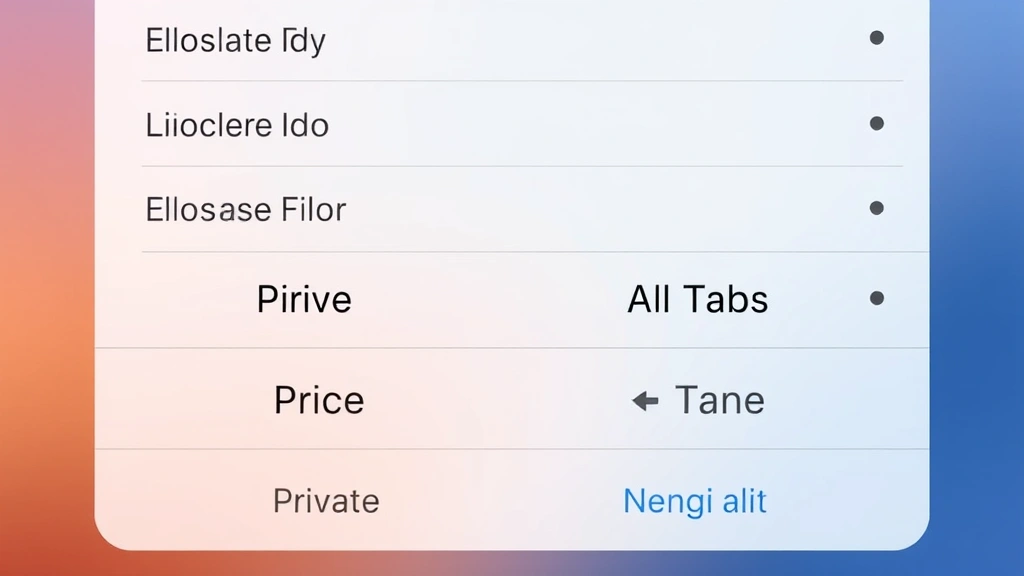
- Look at the bottom—you’ll see two options: “Private” and “All Tabs”
- Tap “All Tabs” to see your regular, non-private tabs
- Tap any regular tab to open it
To go back to private tabs, tap “Private” at the bottom of the Tabs view. You can flip between them instantly. This is actually useful if you want to keep a private browsing session separate from your regular one—maybe you’re researching a surprise gift and don’t want it showing up in your history.
The confusion usually happens because when you’re in Private Browsing mode, your regular tabs aren’t visible. They’re not gone—they’re just hidden behind the “Private” view. Switching back to “All Tabs” shows them again.
Disabling Private Browsing Permanently
If you want to prevent yourself (or someone else using your iPhone) from accidentally opening Private Browsing mode, you can disable it entirely through Settings. This is especially useful if you’re setting up a device for a kid or want to make sure your browsing history is always saved.
To disable Private Browsing on iPhone:
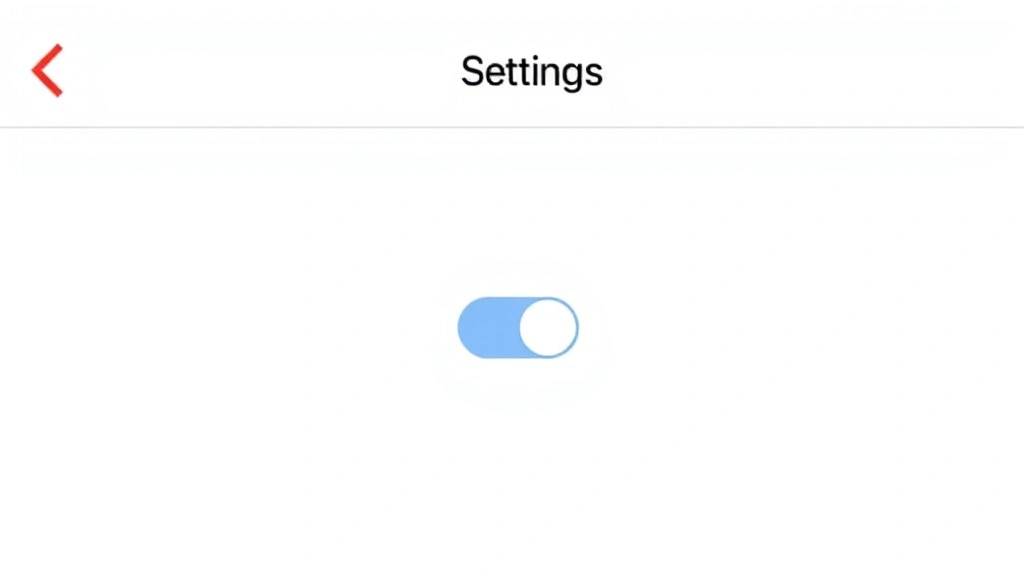
- Open Settings
- Scroll down and tap “Safari”
- Look for “Private Browsing” (it might be labeled differently depending on your iOS version)
- Toggle it OFF if it’s currently on
- Exit Settings
Once disabled, the Private Browsing option won’t appear in Safari anymore. Users won’t be able to toggle it on from the Tabs view. If someone tries to access it, they’ll get a message saying it’s been restricted.
Note: This setting only works if you haven’t set up Screen Time restrictions. If Screen Time is active, you might need to adjust those settings instead. For more details on managing your iPhone’s privacy features, check out how to find saved passwords on iPhone—it covers related privacy settings you should know about.
Safety Warning: Disabling Private Browsing won’t prevent someone from clearing their history manually. If you’re concerned about monitoring a child’s online activity, you’ll need to set up Screen Time or parental controls through Settings → Screen Time.
Common Myths About Private Browsing
A lot of people misunderstand what Private Browsing actually does. Let me clear up the biggest misconceptions:
Myth #1: “Private Browsing makes me completely anonymous online.”
False. Your ISP, WiFi network, and websites you visit can still see your IP address and track your activity. Private Browsing only prevents your iPhone from remembering what you did. According to the Electronic Frontier Foundation, private browsing is useful for privacy on shared devices, but it’s not true anonymity.
Myth #2: “Websites can’t see me in Private Browsing mode.”
Wrong. Websites see you exactly the same way whether you’re in Private Browsing or not. The only difference is that your iPhone doesn’t save cookies or history locally. The website’s server still logs your visit.
Myth #3: “Private Browsing protects me from viruses and malware.”
Nope. Private Browsing has nothing to do with security—it’s purely about privacy. You can still accidentally download malware or visit phishing sites in Private Browsing mode. For actual security, use a reputable antivirus app and avoid suspicious links.
Myth #4: “If I’m in Private Browsing, my employer can’t see my activity.”
Not true if you’re on a work network or using a company device. Your employer can monitor network traffic regardless of whether you’re in Private Browsing mode. Private Browsing only affects your device’s local storage.
The reality is simpler: Private Browsing is useful for keeping your browsing history clean on a shared device, but it’s not a security or anonymity tool. If you need actual privacy, you’d want a VPN service like ExpressVPN or NordVPN, which actually encrypt your traffic.
Other Privacy Features Worth Knowing About
If you’re interested in privacy on your iPhone, Private Browsing is just one piece of the puzzle. Here are other features that actually make a difference:
Intelligent Tracking Prevention
Safari automatically blocks many tracking pixels and cookies from ad networks. You don’t need to do anything—it’s on by default. This prevents advertisers from following you across websites.
Privacy Report in Safari
Tap the privacy icon (usually looks like a shield) in Safari’s address bar to see which trackers were blocked on the current website. It’s eye-opening to see how many companies are trying to track your activity.
App Privacy Report
Go to Settings → Privacy to see which apps have accessed your location, contacts, photos, and other sensitive data. You can restrict permissions app-by-app. For related management, check out how to update apps on iPhone—keeping apps current also improves security.
Sign in with Apple
When logging into websites, use “Sign in with Apple” instead of Facebook or Google. It creates a unique, anonymous email address for each service, preventing companies from building a profile of you across multiple sites.
Clearing Your History Manually
Even outside of Private Browsing, you can clear your history anytime. Go to Settings → Safari → Clear History and Website Data. This removes everything Safari has saved about your browsing.
The combination of these features gives you real privacy on your iPhone. Private Browsing is useful, but it’s not a substitute for understanding how these other tools work.
Frequently Asked Questions
Can I tell if my iPhone is in Private Browsing mode right now?
– Yes. Open Safari, tap the Tabs icon (overlapping squares at the bottom right), and look at the bottom of the screen. If it says “Private,” you’re in Private Browsing mode. If it says “All Tabs” or you don’t see a Private option, you’re in regular browsing mode.
Will my private tabs disappear if I close Safari?
– No, they won’t disappear automatically. Your private tabs will still be there the next time you open Safari. However, if you restart your iPhone completely or if Safari crashes, private tabs might close (depending on your iOS version). To be safe, close private tabs manually if you don’t need them anymore.
Does Private Browsing hide my activity from my WiFi router?
– No. Your WiFi router can see all traffic from your device, regardless of whether you’re in Private Browsing mode. If the WiFi owner has monitoring software, they’ll see your activity. Private Browsing only affects what your iPhone remembers locally.
How do I know if a website stored a cookie on me in Private Browsing?
– You don’t, because in Private Browsing mode, websites can’t permanently store cookies on your device. However, they can still see your visit in real-time. The difference is that when you close Private Browsing, any temporary cookies are deleted.
Can I have both private and regular tabs open at the same time?
– Yes, absolutely. You can switch between them using the Tabs view. Tap the overlapping squares icon, then toggle between “Private” and “All Tabs” at the bottom. This lets you keep separate browsing sessions open simultaneously.
If I accidentally opened Private Browsing, where did my regular tabs go?
– They’re still there. They’re just hidden behind the “Private” view. Tap the Tabs icon, then tap “All Tabs” at the bottom to see your regular tabs again. Nothing was deleted—you just need to switch views.
Is Private Browsing the same as incognito mode on other browsers?
– Yes, functionally they’re the same thing. Chrome calls it “Incognito Mode,” Firefox calls it “Private Browsing,” and Safari calls it “Private Browsing.” They all work the same way: they stop the browser from saving your history and cookies locally.
Can someone recover my private browsing history if they have access to my iPhone?
– Not from Safari’s perspective. Private Browsing doesn’t save history, so there’s nothing to recover from the browser. However, if someone has physical access to your iPhone and knows your passcode, they might be able to access other data (like iCloud backups or cached files). For maximum privacy, use Face ID or a strong passcode.
Does Private Browsing work the same way on iPad?
– Yes, it works identically on iPad. The steps are the same: open Safari, tap the Tabs icon, and toggle Private Browsing on or off. The interface might look slightly different depending on your iPad’s size and orientation, but the functionality is identical.
Will disabling Private Browsing in Settings prevent me from using it?
– Yes. If you disable Private Browsing in Settings → Safari, the option will disappear from Safari completely. You won’t be able to toggle it on anymore. To re-enable it, go back to Settings and turn it on again.
What’s the difference between Private Browsing and clearing my history?
– Private Browsing prevents history from being saved in the first place. Clearing history removes history that’s already been saved. Private Browsing is like not writing anything down; clearing history is like erasing what you already wrote. If you’re in regular browsing mode, you should clear your history periodically. If you’re in Private Browsing, there’s nothing to clear.
Can websites tell if I’m in Private Browsing mode?
– Most websites can’t tell directly, but some sophisticated sites might detect it through technical means (like checking if localStorage is available). However, this is rare and not something the average website does. Even if a site suspects you’re in Private Browsing, it can’t do anything about it—you can still access the site normally.
Should I use Private Browsing all the time?
– That’s up to you. If you’re on a shared device and want to keep your browsing private, yes. If you’re on a personal device, regular browsing is fine—Private Browsing is more useful for privacy on shared devices. The downside of always using Private Browsing is that you lose useful features like search suggestions and autofill.
If you’re looking to enhance your overall iPhone privacy, also check out how to unhide apps on iPhone and how to unhide an app on iPhone—these guides cover privacy features that work alongside your browsing settings. Additionally, how to clear Instagram cache shows you how to manage app-level privacy and storage.
The Bottom Line
Exiting incognito mode on iPhone is simple: open Safari, tap the Tabs icon, and toggle off Private Browsing. Your regular tabs are still there—they’re just hidden behind the Private view. Switch back to “All Tabs” and you’re done.
The confusion usually happens because people don’t realize they can have private and regular tabs open simultaneously. Once you understand that Private Browsing is just a view toggle, not a separate app, it all makes sense.
Remember: Private Browsing is useful for keeping your browsing history clean on a shared device, but it’s not a security or anonymity tool. If you need real privacy, combine it with other features like Intelligent Tracking Prevention, app permission restrictions, and consider a VPN for actual encryption. But for the basic task of switching out of incognito mode? You’ve got everything you need right here.


