How to Get Effects on Google Duo: Easy & Fun Guide
Google Duo makes video calling more entertaining with built-in effects that transform your appearance and surroundings in real-time. Whether you want to add fun filters, change your background, or apply face masks, learning how to get effects on Google Duo takes just a few taps. This guide walks you through every method to unlock and use these creative features on your smartphone or tablet.
Getting effects on Google Duo is straightforward—simply open an active call, tap the effects icon, and choose from available filters. The platform offers face beautification tools, background blur, holiday-themed masks, and more. All effects are free and accessible directly within the app, requiring no additional downloads or subscriptions.
Tools & Materials You’ll Need
- Google Duo app (latest version installed on your device)
- Smartphone or tablet (iOS or Android)
- Active internet connection (WiFi or mobile data)
- Good lighting for optimal effect visibility
- Front-facing camera on your device
- Updated operating system (iOS 12+ or Android 5.0+)
Update Google Duo to Latest Version
Before attempting to use effects on Google Duo, ensure your app is fully updated. Older versions may lack access to the newest filters and features. Open your device’s app store—Google Play Store for Android or Apple App Store for iOS—and search for Google Duo. If an update is available, you’ll see an “Update” button instead of “Open.” Tap it to download and install the latest version.
Keeping your app current guarantees you have access to all effect features. Google regularly rolls out new masks, filters, and tools, so updating ensures you won’t miss seasonal effects or newly released options. Learn how to update apps on iPhone if you’re using an Apple device, or check your Android device’s settings for automatic app updates.
Access Effects During an Active Call
Effects on Google Duo are only available once you’ve started a video call. Begin by opening the Google Duo app and selecting a contact to call. Once the call connects and the video feed is active, look for the effects icon on your screen. This icon typically appears as a smiley face or sparkle symbol in the bottom toolbar during your call.
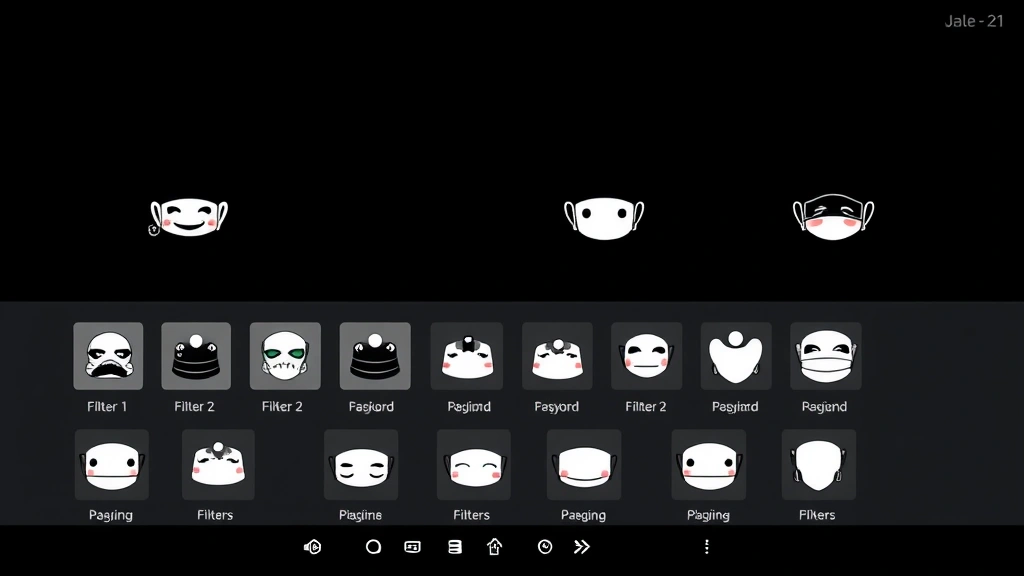
Tap the effects icon to open the effects menu. You’ll see a carousel of available filters and effects displayed horizontally across your screen. The interface is intuitive—simply swipe left or right through the options to preview different effects in real-time. Your contact will see the effect applied to your video feed as you select it, making it a fun shared experience.
According to WikiHow’s comprehensive guides, mobile video calling features have become increasingly sophisticated, with effects now standard across major platforms. Google Duo’s implementation makes effects accessible to users of all technical skill levels.
Explore Available Effects and Filters
Google Duo offers a diverse range of effects to choose from, each designed to enhance your video calls in different ways. The effects library includes classic filters like black and white, vintage, and color-shifted versions of your video. These aesthetic filters change how your entire video feed appears without altering your actual appearance.
Seasonal and holiday-themed effects rotate throughout the year. During holidays like Christmas, Halloween, or Valentine’s Day, Google Duo releases special masks and filters themed around these occasions. These limited-time effects create excitement and give users fresh options regularly. Additionally, the app includes fun distortion effects that warp or stylize your appearance in playful ways.
Face-specific effects allow you to add virtual accessories like glasses, hats, or decorative elements directly to your face. These effects use your device’s camera to track your face in real-time, ensuring the accessories move naturally with your head and expressions. Beauty filters are also available, offering skin smoothing, brightening, and other subtle enhancements to your appearance.
Apply Face Effects and Masks
Face effects and masks represent some of the most popular features on Google Duo. To apply a face effect, tap the effects icon during your call and look for mask-style options in the carousel. These appear as distinct icons showing faces with accessories or artistic modifications. Tap any mask to instantly apply it to your video feed.
Your device’s front-facing camera uses facial recognition technology to track your face and position the mask correctly. This means if you turn your head, the mask follows naturally. You can speak, smile, and move your face freely while the effect remains properly aligned. Most masks include animated elements—for example, a mask with cat ears might have ears that twitch or move realistically.
To remove a face effect, simply tap the “None” or blank option at the start of the effects carousel. This returns your video feed to its normal, unfiltered state. You can switch between different effects instantly without any lag or delay, allowing you to experiment and find your favorite options during your call.
As noted by HowStuffWorks, real-time facial tracking technology has revolutionized video communication, enabling seamless integration of virtual elements with live video feeds.
Use Background Effects and Blur
Background effects on Google Duo let you blur, replace, or modify the area behind you during video calls. This feature proves particularly useful if you’re calling from a messy room, office, or public space where you want privacy. To access background effects, tap the effects icon and look for background-specific options, which typically appear as distinct icons showing blurred or altered backgrounds.
The blur effect softens everything behind you while keeping your face sharp and clear. This draws attention to you while maintaining some context of your surroundings. The blur intensity is usually preset, creating a professional appearance suitable for business calls or formal conversations. If you want complete privacy, some versions of Google Duo offer background replacement, allowing you to substitute your actual background with a solid color or preset image.
Background effects work best when you have adequate lighting on your face. If the area behind you is too dark or complex, the blur effect may not work as smoothly. Position yourself near a light source facing your camera for optimal results. Similar background customization techniques apply across social media platforms, though Google Duo’s implementation is specifically optimized for video calls.
Troubleshoot Effects Not Showing
If effects aren’t appearing on your Google Duo app, several troubleshooting steps can resolve the issue. First, verify that your app is updated to the latest version. Open your device’s app store and check for pending updates. Older app versions may not support all effects or may have bugs preventing effects from loading properly.
Next, check your internet connection. Effects require a stable, reasonably fast connection to function smoothly. If you’re on weak WiFi or have poor cellular signal, effects may not load or may lag during use. Switch to a stronger WiFi network or move closer to your router if possible. Restart your device completely—power it off, wait 30 seconds, and power it back on. This often resolves temporary software glitches affecting effects.
Clear your app cache to remove corrupted data that might interfere with effects. On Android, go to Settings > Apps > Google Duo > Storage > Clear Cache. On iPad and iOS devices, you can clear app cache through Settings, though the process differs slightly from Android. For iPhone users, similar cache-clearing principles apply across different apps.
If effects still don’t appear, reinstall Google Duo entirely. Uninstall the app, restart your device, then download and install Google Duo fresh from your app store. This ensures all files are current and no corrupted data remains from previous installations. Contact Google Support if problems persist after trying these steps.
Tips for Best Results with Effects
Optimize your lighting environment. Effects work best when your face is well-lit and clearly visible to the camera. Natural light from a window is ideal, but any consistent light source helps. Avoid backlighting, where light comes from behind you, as this can confuse facial recognition and make effects misalign.
Position your device at eye level. Mount your phone or tablet so the camera is roughly at your eye height. This creates a flattering angle and helps facial tracking work more accurately. Holding your device too low or too high can cause effects to position incorrectly on your face.
Test effects before important calls. If you’re using effects during a professional or important personal call, test them beforehand. Make a practice call to a friend or family member to ensure effects work properly and create the impression you want.
Use effects sparingly in professional settings. While face masks and fun filters are entertaining, they may not be appropriate for business calls or formal meetings. Subtle effects like light blur or gentle beauty filters work better in professional contexts than bold masks or distortion effects.
Explore new effects regularly. Google Duo frequently updates its effects library. Check back periodically to discover new options, especially around holidays and special occasions. This keeps your video calls fresh and fun.
Combine effects with good call etiquette. Remember that effects enhance the call experience but don’t replace good communication. Ensure you’re still making eye contact (looking at the camera), speaking clearly, and being respectful of your contact’s time and attention.
According to Consumer Reports, video calling features have become essential tools for both personal and professional communication, with effects enhancing user engagement and satisfaction.
FAQ
Q: Are effects on Google Duo free to use?
A: Yes, all effects on Google Duo are completely free. There are no subscriptions, in-app purchases, or hidden costs. Simply update your app and access effects during any video call.
Q: Can my contact see the effects I apply?
A: Yes, your contact sees the effects applied to your video feed in real-time. They see exactly what you see when you select an effect. This makes effects a shared, interactive part of your video call experience.
Q: Do effects work on both Android and iOS?
A: Effects are available on both Android and iOS versions of Google Duo. However, the specific effects available may vary slightly between platforms, and some newer effects may roll out to one platform before the other.
Q: Why don’t effects work on my device?
A: Several factors can prevent effects from working: your app isn’t updated, your internet connection is too slow, your device’s camera has permission issues, or your device doesn’t meet minimum requirements. Try updating your app, improving your connection, and checking camera permissions in your device settings.
Q: Can I use effects during group calls?
A: Effects functionality on group calls depends on your app version and device. Some versions support effects during group calls, while others limit effects to one-on-one calls. Check your app’s current capabilities by attempting to access effects during a group call.
Q: Do effects use a lot of data?
A: Effects processing happens on your device, not through cloud servers, so they don’t significantly increase data usage beyond normal video calling. However, video calls themselves do use data, so ensure you have an adequate data plan if calling over cellular.
Q: Can I create custom effects?
A: Currently, Google Duo doesn’t allow users to create custom effects. You can only use the effects provided by Google. However, the effects library is regularly updated with new options, so check back frequently for fresh additions.
Q: How often does Google add new effects?
A: Google typically adds new effects seasonally and around major holidays. The exact schedule isn’t publicly announced, but users generally see new effects several times per year, particularly around Christmas, Halloween, Valentine’s Day, and other celebrations.