
You’re watching a YouTube video and realize you need the exact words—maybe it’s a tutorial you want to reference later, a lecture you’re taking notes on, or content you want to quote. The good news: getting a transcript of a YouTube video is straightforward, and YouTube itself provides built-in tools to do it. No sketchy third-party apps required.
In this guide, I’ll walk you through every method to get a transcript of a YouTube video, from YouTube’s native feature to free alternatives. Whether you want to download it, copy it, or just read along, we’ve got you covered.
Using YouTube’s Built-In Transcript Feature
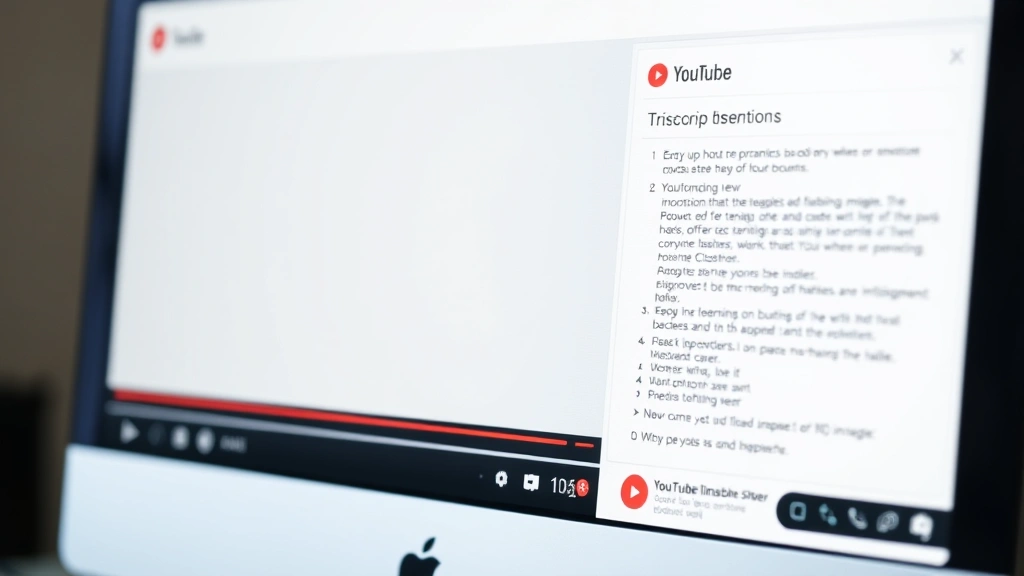
YouTube added transcript support years ago, and it’s the easiest way to get a transcript of a YouTube video. Here’s the real talk: not every video has a transcript available. YouTube generates auto-captions for most videos, but creators can also upload manual transcripts. Either way, if captions exist, you can access them.
Here’s how to view a transcript on YouTube:
- Open the YouTube video you want to transcribe
- Click the three-dot menu icon (⋮) below the video title on the right side
- Select “Show transcript” from the dropdown menu
- A transcript panel will open on the right side of your screen
- You can now read along with the video, and YouTube will highlight the text as it plays
That’s it. The transcript syncs with the video playback, so you’ll see which part is currently playing. If you click any line in the transcript, the video will jump to that timestamp. This feature works on desktop, tablets, and mobile browsers (though mobile layout is a bit cramped).
Pro tip: If you don’t see the “Show transcript” option, the video likely doesn’t have captions enabled. Some creators disable them intentionally, and there’s not much you can do about that.
How to Copy and Save a YouTube Transcript
Once you’ve opened the transcript panel, the next step is obvious: you’ll want to copy it. Unfortunately, YouTube doesn’t give you a direct “Download” button. But you can absolutely copy the text manually or use a workaround.
Method 1: Manual Copy (Desktop)
- Open the transcript panel (steps above)
- Click anywhere in the transcript text
- Use Ctrl+A (Windows) or Cmd+A (Mac) to select all text in the panel
- Copy with Ctrl+C or Cmd+C
- Paste into a text editor, Google Docs, or Word
This works fine, but it’s a bit clunky if the transcript is long. You’ll get all the text, including timestamps if they’re visible.
Method 2: Using Google Docs (Best for Editing)
If you want to save and edit your transcript, Google Docs is your friend. After copying the transcript text, open a new Google Doc and paste it there. From there, you can insert a table of contents if you want to organize it by topic, or use the built-in tools to format it however you need. Google Docs also lets you share the document with others or export it as a PDF or Word file.
Safety Note: When copying transcripts, respect copyright. Using a transcript for personal study or accessibility is fine. Republishing someone else’s transcript without permission or attribution isn’t. Always check the creator’s terms if you plan to share or use it publicly.
Downloading Transcripts with Third-Party Tools
If you want a more automated way to download a transcript of a YouTube video, third-party tools can help. These aren’t sketchy—they’re legitimate services that extract publicly available data.
Popular options include:
- Rev.com: Offers transcript downloads for a small fee, and they’ll also transcribe videos that don’t have captions
- Kapwing: Free tool that downloads transcripts and lets you edit them
- Downsub.com: Simple, free tool. Paste the YouTube URL, and it extracts the transcript in seconds
- YouTube Transcript API (for developers): If you’re comfortable with code, you can use Python or JavaScript to pull transcripts programmatically
Here’s how to use Downsub (the easiest free option):
- Go to downsub.com
- Paste your YouTube video URL into the search box
- Click “Download”
- Select the language if multiple are available
- The transcript appears on screen—copy it or download as a .txt or .srt file
The .srt format includes timestamps, which is useful if you’re creating subtitles or need to reference exact moments in the video. The .txt format is just plain text, easier to read and edit.
Real talk: These tools are safe, but always use HTTPS sites and avoid anything asking for your YouTube password. Legitimate tools never need that.
Understanding Auto-Generated vs. Manual Transcripts

Not all transcripts are created equal. YouTube’s auto-generated captions (powered by AI) are convenient but sometimes inaccurate, especially with technical jargon, accents, or background noise. Manual transcripts, uploaded by creators, are usually more accurate.
How to tell which you’re looking at:
When you open the transcript panel, look at the top. If it says “Transcript” with no additional note, it’s likely auto-generated. If the creator uploaded a manual transcript, YouTube usually indicates that.
Auto-generated transcripts are still useful for:
- Finding a specific moment (search the text, jump to that timestamp)
- Accessibility (reading along if audio is unclear)
- Quick reference and note-taking
- Understanding the general content
For precision work—like quoting someone directly or transcribing for academic purposes—manual transcripts are better. If a video only has auto-generated captions and you need accuracy, you might need to manually review and correct the transcript yourself, or use a paid transcription service like Rev.com or Otter.ai.
What to Do When a Video Has No Transcript
Some creators disable captions intentionally. Others just haven’t enabled them. Either way, you’re stuck if you want a transcript of a YouTube video that has no captions.
Your options:
- Request captions from the creator: Leave a polite comment asking them to add captions. Many creators will do it if they know there’s demand
- Use a paid transcription service: Services like Rev, Otter, or SpeechText.ai can transcribe any audio file. Download the video’s audio and upload it
- Transcribe it yourself: Tedious, but possible. Use YouTube’s playback controls to slow down the video (click the gear icon, select “Playback speed”) and type as you listen
- Use speech-to-text software: Tools like Google Docs’ voice typing feature or Otter can transcribe audio in real-time as you play the video
The paid route costs $5–$25 per video, depending on length and turnaround time. For one-off videos, it might be worth it. For research requiring many transcripts, it adds up fast.
Editing Transcripts in Google Docs
Once you’ve copied a transcript, you’ll probably want to clean it up. Auto-generated transcripts especially can be messy—with typos, false starts, and awkward line breaks.
Google Docs is perfect for this. After pasting your transcript, here’s what I recommend:
- Fix obvious errors: Use Find & Replace (Ctrl+H or Cmd+H) to catch repeated mistakes
- Remove timestamps if they’re cluttering the text: Select all (Ctrl+A), then use Find & Replace to remove patterns like “[00:00:00]”
- Add paragraph breaks: Break up wall-of-text transcripts into logical sections by topic or speaker
- Highlight key points: Use Google Docs’ highlighting tool to mark important quotes or concepts
- Add notes: Use comments to add context or references
Once it’s polished, you can export it as a PDF, download as a Word doc, or share the Google Doc link with others. If you need to add a signature in Google Docs (if you’re using it for official documentation), that’s easy too.
Pro tip: If you’re transcribing multiple videos for research, create a master Google Doc with all transcripts, organized by topic. Use the table of contents feature to make it searchable and easy to navigate.
Why Transcripts Matter for Accessibility
Getting a transcript of a YouTube video isn’t just convenient—it’s essential for accessibility. Transcripts help people who are deaf or hard of hearing access video content. They also benefit people in noisy environments, non-native speakers, and anyone who learns better by reading.
If you’re a content creator, YouTube’s support documentation explains how to upload captions. It takes a few minutes and makes your content inclusive.
For viewers, knowing how to get a transcript of a YouTube video empowers you to access content on your own terms. Some people prefer reading; others need captions for accessibility reasons. The tools exist—use them.
Organizations like the Web Accessibility Initiative advocate for captions and transcripts as a standard, not a luxury. It’s a good practice to support creators who prioritize accessibility, and to request captions from those who don’t.
Frequently Asked Questions
Can I download a YouTube transcript as a PDF?
– Yes, indirectly. Copy the transcript to Google Docs or Word, then export as PDF. Or use a third-party tool like Downsub, which lets you download as .txt, then convert to PDF using an online converter or your word processor.
Are YouTube’s auto-generated transcripts accurate?
– Usually pretty good, but not perfect. They work well for clear speech but struggle with accents, technical terms, and background noise. For precision, rely on manual transcripts uploaded by creators, or hire a professional transcription service.
What if a video has no transcript at all?
– Request captions from the creator. If that doesn’t work, use a paid transcription service, transcribe manually, or use speech-to-text software while the video plays.
Is it legal to download and use a YouTube transcript?
– For personal use, study, and accessibility, yes. For republishing or commercial use, it depends on the video’s copyright. Always respect creator rights and give attribution if you share the transcript publicly.
Can I edit a YouTube transcript directly?
– No, you can’t edit YouTube’s transcript directly. But you can copy it, paste it into Google Docs or Word, edit it there, and save your version.
Do all YouTube videos have transcripts?
– Not automatically. YouTube auto-generates captions for most videos, but some creators disable them. Older videos might not have auto-captions either. If captions are enabled, you can access the transcript.
What’s the best tool to download a transcript of a YouTube video?
– For free and simple: Downsub.com. For editing and organizing: Google Docs. For professional accuracy: Rev.com or Otter.ai. Choose based on your needs and budget.


