
Let’s be real—you get a text that’s too good not to share, or maybe it’s important information someone else needs to see. The question is: how to forward a text message on iPhone without looking like you’re fumbling through your phone for five minutes. The good news? Apple made this dead simple, and we’re going to walk you through every method, every edge case, and every trick that actually matters.
Whether you’re forwarding a single message, multiple texts, or dealing with group chats, this guide covers the real-world scenarios you’ll actually encounter. No fluff, just practical steps that work.
How to Forward a Single Text Message
This is the bread and butter of message forwarding. Here’s the straightforward process:
- Open the Messages app on your iPhone
- Find the conversation containing the message you want to forward
- Press and hold the specific message (not the entire thread) until a menu appears
- Tap “More” from the popup menu
- Select the additional messages if you want to forward multiple (optional)
- Tap the forward arrow button in the bottom right corner
- Choose your recipient(s) or conversation thread
- Tap “Send”
That’s it. The entire operation takes about 10 seconds once you get the hang of it. The key is that long press—it’s the gateway to everything.
One thing worth noting: when you forward a message, it appears as a separate message in the new conversation. It doesn’t create a link back to the original. So if the recipient wants context, you might need to explain where it came from.
Pro Tip: If you’re forwarding to multiple people, you can select all of them in one go. After tapping the forward arrow, just keep tapping different contacts or conversations before you hit send. This beats sending the same message three times separately.
Forwarding Multiple Messages at Once
Sometimes a single message doesn’t tell the whole story. Maybe you need to forward a conversation snippet that includes context. Here’s how to handle this:
- Open the conversation containing the messages
- Press and hold the first message you want to forward
- Tap “More” when the menu appears
- Now tap on the other messages you want to include (they’ll get a checkmark)
- Tap the forward arrow button
- Select your recipient(s)
- Tap “Send”
The messages will forward in the order they appeared in the original conversation. This is helpful when you’re sharing a back-and-forth exchange that needs context.
Here’s something most people don’t realize: you can forward messages that aren’t consecutive. Want to skip message three but include messages one, two, and four? You can do that. Just tap the ones you want and ignore the rest.
Forwarding Messages from Group Chats
Group chats add a wrinkle because you’re dealing with multiple people and potentially sensitive conversations. The forwarding process is identical, but there are some etiquette and practical considerations:
Technical steps: Press and hold the message (or messages) from the group chat, tap “More,” select additional messages if needed, tap the forward arrow, and choose where to send them.
The real question is whether you should. Before forwarding something from a group chat, think about whether everyone in that chat would be okay with it being shared elsewhere. It’s not like there’s a notification that says “Hey, your message was forwarded,” so the original sender might not know.
That said, forwarding is totally normal for sharing funny moments, important information, or planning details with someone who wasn’t in the original conversation. Just use common sense about sensitive topics.
Forwarding Texts with Photos and Videos
Text messages often include photos, videos, or links. Good news: forwarding works with all of this stuff attached.
When you forward a message that contains media, the photo or video goes along with it. Same process as forwarding text—long press, tap “More,” select what you want, hit forward, choose recipients, and send.
One important thing: if you’re forwarding a photo or video that’s already been compressed by iMessage, you’re forwarding the compressed version, not the original high-resolution file. If quality matters, you might want to send the original file through a different method (like AirDrop or email).
Links work seamlessly. Forward a message with a URL, and the link comes through intact and clickable on the other end.
Safety Note: Before forwarding links from unknown sources, make sure they’re legitimate. Check out Apple’s security resources for tips on identifying suspicious links. If you’re concerned about message security, you can also check your iPhone for viruses to make sure you’re not spreading malware.
Common Limitations and Workarounds
Apple’s forwarding feature is solid, but it does have some constraints worth knowing about:
You can’t forward deleted messages. Once a message is gone, it’s gone. If you need to forward something, grab it before it disappears.
You can’t forward voice messages or FaceTime calls. These aren’t technically text messages, so they don’t have a forward option. If you need to share audio, you’ll need to record it separately or describe it to the other person.
Forwarding doesn’t work across platforms perfectly. If you’re forwarding to someone with an Android phone, iMessage converts the message to SMS/MMS. This usually works fine, but formatting and special characters might get mangled.
You can’t bulk-forward entire conversations. You have to select individual messages or small groups. If you need to share a long conversation, consider taking screenshots or using a note-taking app instead.
Workaround for long conversations: Take a screenshot of the conversation thread and send that as a photo. It’s old school, but it works when you need to preserve the full context and formatting.
Another workaround for important information: copy the text, paste it into Notes or Mail, and send that. This gives you more control over formatting and lets you add your own commentary.
Pro Tips and Shortcuts
Use Siri for faster forwarding. You can say “Hey Siri, forward my last text message to [contact name].” Siri will handle the heavy lifting. This works best if you’re forwarding to a single person and the message is recent.
Create a forwarding shortcut. If you frequently forward messages to the same person or group, you can build a custom shortcut in the Shortcuts app. This is overkill for most people, but if you’re forwarding regularly, it saves time.
Remember that forwarding is permanent. Once you send a forwarded message, you can’t unsend it (unless you’re using iMessage with the newer unsend feature, but that only works for a limited time). Take a breath before hitting send if it’s sensitive content.
Check your forwarding habits in group chats. It’s easy to forget that forwarding something from a private conversation to a group chat changes the audience. Always think about who’s going to see it on the other end.
For additional iPhone security and privacy considerations when sharing messages, check out EFF’s analysis of iPhone privacy features.
Use iCloud to back up message threads. If you’re forwarding important information, make sure your messages are backed up. This protects you in case something happens to your phone. Go to Settings > [Your Name] > iCloud > Messages to enable this.
Consider using Mail for formal forwarding. If you’re forwarding something official or important, email might be better than text. It creates a permanent record and feels more professional. You can forward the text content into an email and add proper context.
For more information on managing your iPhone’s data and privacy, Apple’s official support documentation covers message management in detail.
Frequently Asked Questions
Can the original sender see that I forwarded their message?
– No. There’s no notification system that alerts someone when their message is forwarded. They won’t know unless you tell them or unless they see it mentioned in another conversation. This is different from email, where forwarding is often more visible.
What happens if I forward a message and then delete it from my phone?
– The forwarded copy stays intact on the recipient’s phone. Deleting something from your Messages app doesn’t affect messages that have already been sent or forwarded to other people. It only removes it from your device.
Can I forward messages from iMessage to SMS/text message conversations?
– Yes. iMessage automatically converts to SMS when you send to Android phones or non-iMessage users. The message will go through, but you might lose some formatting or special features like read receipts.
Is there a limit to how many messages I can forward at once?
– Technically, no hard limit exists, but practically speaking, you’ll want to keep it under 20-30 messages. Forwarding huge chunks of conversation gets unwieldy and might look like spam to the recipient. If you need to share a lot of context, consider a different approach.
Can I forward messages to multiple people simultaneously?
– Yes. After tapping the forward arrow, you can select multiple recipients or conversation threads before hitting send. This is faster than forwarding the same message three times separately.
What if the message I want to forward contains sensitive information?
– Think twice before forwarding. Once it’s sent, you can’t control where it goes or who sees it. If it’s truly sensitive, consider paraphrasing the information instead of forwarding the exact message. For security concerns, check your iPhone for security issues to make sure your device isn’t compromised.
Can I forward messages from a conversation I’ve already deleted?
– No. Once you delete a conversation, the messages are gone from your phone. However, if you have iCloud backup enabled, you might be able to restore them. But the easier solution is to not delete conversations you might need to reference later.
Does forwarding work with encrypted messages?
– iMessage uses end-to-end encryption by default. When you forward an iMessage, the forwarded copy is still encrypted, but only between you and the new recipient. The original encryption between the original sender and you doesn’t extend to the new recipient.
Can I forward voice memos or audio messages?
– Not directly through the forward function. Voice messages are treated differently than text messages. If you need to share audio, you’ll have to record a new voice message or send the file through a different method like AirDrop.
What’s the best way to forward an entire conversation?
– The most reliable method is to take a series of screenshots and send them as photos. This preserves the formatting and context. Alternatively, you can copy and paste key parts of the conversation into a note or email.
Can I schedule a forwarded message to send later?
– Not natively in the Messages app. You have to send it immediately. If you need to schedule messages, you’d need to use a third-party app or create a reminder to forward it at a specific time.
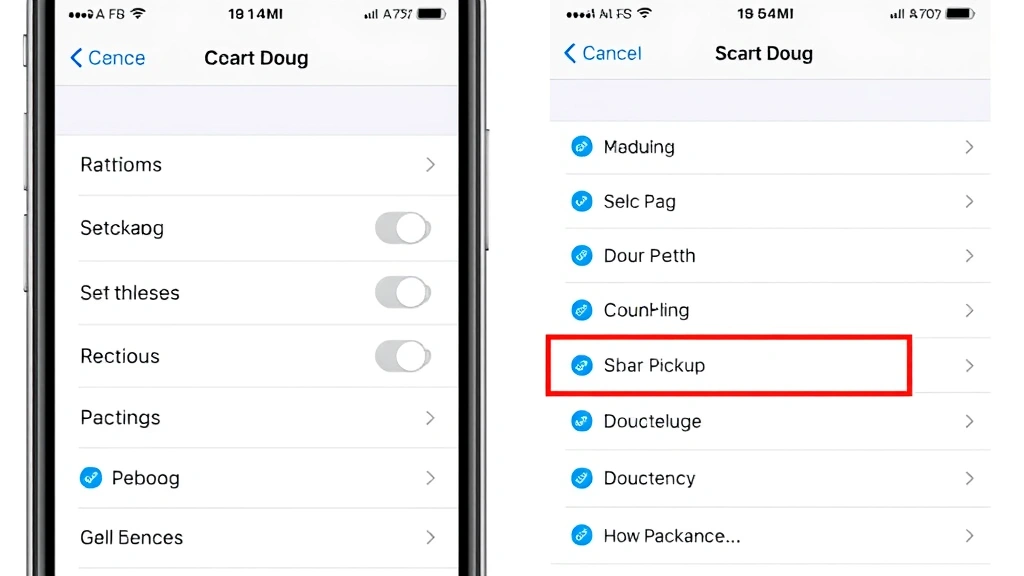
The process of learning how to forward a text message on iPhone is straightforward once you understand the long-press gesture and the “More” menu. It’s one of those features that feels obvious in hindsight but takes a minute to discover if you’re new to iOS. Master this, and you’ll be sharing important information, funny moments, and group chat gems like a pro.
The key takeaway: press and hold the message, tap “More,” select what you need, hit forward, choose your recipients, and send. Everything else is just variations on that theme. And remember—just because you can forward something doesn’t always mean you should. Use good judgment, especially with sensitive or private conversations.


