How to Force Close on Windows: Easy & Essential Guide

A frozen or unresponsive application can disrupt your workflow, but knowing how to force close on Windows puts you back in control. Whether you’re dealing with a stuck program, a memory hog, or a crashed application, learning to force close on Windows is an essential skill every user should master. This guide walks you through multiple methods to terminate unresponsive programs quickly and safely.
Quick Answer: The fastest way to force close on Windows is using Alt + F4 while the problematic window is active, or opening Task Manager with Ctrl + Shift + Esc and selecting the frozen application, then clicking “End Task.” For persistent issues, use Command Prompt or PowerShell with the taskkill command. Each method offers different advantages depending on your situation.
Tools & Materials You’ll Need
- Windows PC or laptop (Windows 10 or Windows 11)
- Keyboard (for keyboard shortcuts)
- Mouse (optional but recommended)
- Administrator access (for some advanced methods)
- Task Manager (built-in to Windows)
- Command Prompt or PowerShell (built-in to Windows)
Method 1: Using Alt + F4 Keyboard Shortcut
The simplest way to force close on Windows is using the Alt + F4 keyboard shortcut. This method works when the unresponsive application window is active or in focus. Simply press both keys simultaneously, and Windows will attempt to close the application. If the program is truly frozen, this shortcut forces the closure without saving unsaved work.
Step-by-step instructions:
- Click on the frozen application window to make it active
- Press and hold the Alt key
- While holding Alt, press the F4 key
- Release both keys
- If prompted with a save dialog, click “Don’t Save” to force close without saving
This method is ideal for quick situations where you need to force close on Windows immediately. However, Alt + F4 may not work if the application is completely unresponsive. In those cases, proceed to Task Manager, which provides more forceful termination options.
Method 2: Force Close Using Task Manager
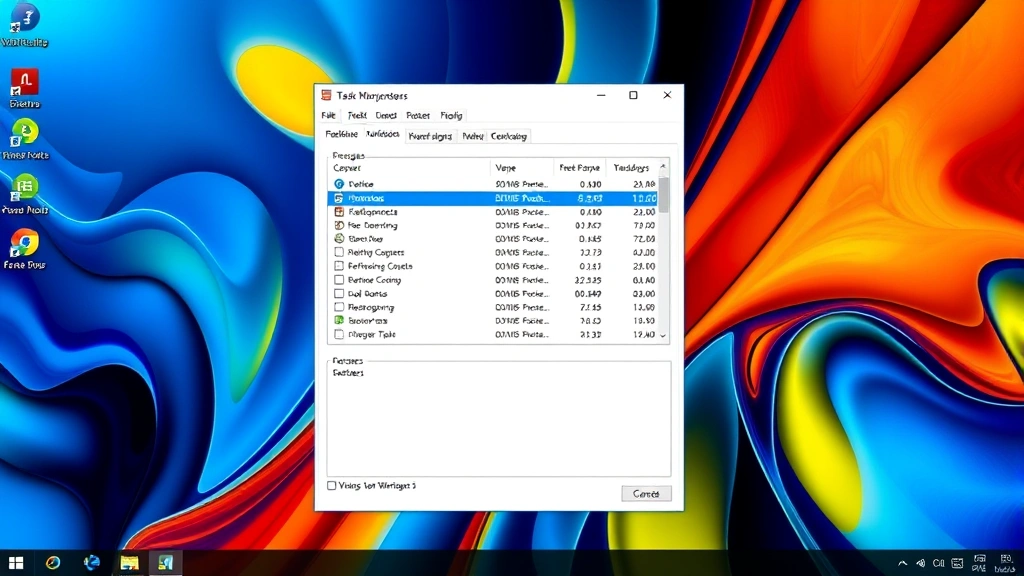
Task Manager is the most reliable tool to force close on Windows applications. This built-in utility displays all running processes and allows you to terminate them instantly. To open Task Manager, press Ctrl + Shift + Esc simultaneously, or right-click the taskbar and select “Task Manager.”
Steps to force close using Task Manager:
- Press Ctrl + Shift + Esc to open Task Manager directly
- Locate the frozen application in the list of running programs
- Click once to select the application
- Click the “End Task” button at the bottom right
- Wait a few seconds for the application to close
According to WikiHow, Task Manager is the go-to solution for most Windows users dealing with unresponsive software. The interface clearly shows CPU usage, memory consumption, and disk activity, helping you identify resource-hungry applications that need termination. For additional troubleshooting, you might also consider how to clear app cache on iPhone if you’re managing multiple devices.
Method 3: Command Prompt Force Close Method
For advanced users, Command Prompt offers powerful command-line options to force close on Windows. The taskkill command terminates processes by name or process ID (PID). This method provides precise control over which applications you terminate.
Using taskkill by application name:
- Press Windows Key + R to open the Run dialog
- Type cmd and press Enter
- In Command Prompt, type: taskkill /IM applicationname.exe /F
- Replace “applicationname” with the actual program name
- Press Enter to execute the command
The /F flag forces closure immediately without waiting for the application to respond. For example, to force close Notepad, you would type: taskkill /IM notepad.exe /F. As reviewed by Lifehacker, this method is particularly useful for batch operations or scripting scenarios where you need to force close on Windows multiple applications simultaneously.
Method 4: Using PowerShell for Advanced Control
PowerShell is a more modern alternative to Command Prompt and offers enhanced capabilities for forcing application closure. To force close on Windows using PowerShell, open it with administrator privileges and use the Stop-Process cmdlet.
Steps to use PowerShell:
- Right-click the Start menu and select “Windows PowerShell (Admin)” or “Terminal (Admin)”
- Type: Stop-Process -Name applicationname -Force
- Replace “applicationname” with the target program (without .exe extension)
- Press Enter to execute
PowerShell’s syntax is more intuitive than Command Prompt, making it easier to force close on Windows when you need precise control. You can also list all running processes first by typing Get-Process to identify the exact name of the application you want to terminate. This method is particularly effective when dealing with stubborn applications that resist standard termination methods.
Method 5: Restarting Windows Explorer
Sometimes the entire Windows Explorer shell becomes unresponsive, affecting your entire desktop. In these cases, force closing Explorer itself and restarting it often resolves the issue. Open Task Manager and locate “Windows Explorer” in the processes list.
To force close and restart Windows Explorer:
- Open Task Manager with Ctrl + Shift + Esc
- Find “Windows Explorer” in the list
- Click to select it, then click “End Task”
- Your desktop will temporarily disappear
- In Task Manager, click File → Run new task
- Type explorer.exe and click OK
This method refreshes your entire desktop environment and often resolves system-wide freezing issues. Unlike force closing individual applications, restarting Explorer affects your entire Windows interface, so use this approach when you notice widespread performance problems rather than isolated application issues.
When Should You Force Close Applications?
Understanding when to force close on Windows helps you maintain system health and productivity. Force close applications when they become completely unresponsive and don’t respond to normal closing commands. Frozen programs that consume excessive CPU or memory resources should also be terminated immediately to prevent system slowdown.
You should force close on Windows when:
- An application stops responding to mouse clicks or keyboard input
- The program’s window is grayed out or appears frozen
- Task Manager shows the application as “Not Responding”
- An application consumes excessive CPU (above 80-90%) or RAM
- The program prevents you from accessing other applications
- Error messages appear repeatedly and won’t clear
Avoid force closing on Windows during critical operations like file transfers, system updates, or database operations, as this can cause data corruption. If you’re experiencing frequent crashes, consider how to uninstall Valorant or other problematic applications and reinstalling them fresh.
Preventing Frozen Applications
While knowing how to force close on Windows is essential, prevention is always better than intervention. Keep your system running smoothly by regularly updating Windows and your applications. Outdated software often contains bugs that cause freezing and unresponsiveness.
Best practices to prevent frozen applications:
- Keep Windows updated with the latest patches and security updates
- Install software updates promptly when they become available
- Monitor your system’s RAM and disk space regularly
- Close unnecessary background applications to free up resources
- Run antivirus scans to detect malware causing performance issues
- Disable startup programs you don’t need
- Clean temporary files and cache regularly
- Ensure your computer has adequate cooling and ventilation
According to Consumer Reports, regular maintenance significantly reduces the frequency of frozen applications. If you’re managing multiple devices, you might also explore how to turn off Apple Watch to understand cross-platform device management. Additionally, learning proper how to right click on a Mac can help if you work across different operating systems.
Monitor your system’s performance using Task Manager regularly. If you notice specific applications consistently consuming excessive resources, uninstall them and look for lightweight alternatives. Keeping your system clean and organized prevents most freezing issues before they occur.
FAQ
What’s the difference between closing and force closing on Windows?
Normal closing allows the application to save data and perform cleanup operations gracefully. Force closing on Windows terminates the program immediately without saving, which can result in data loss but is necessary when applications become unresponsive.
Will force closing damage my computer?
Force closing individual applications won’t damage your computer. However, force closing system processes or Windows Explorer repeatedly can cause instability. Stick to force closing user applications like web browsers, media players, or office software.
Why does my application keep freezing?
Frequent freezing indicates insufficient system resources, outdated software, corrupted files, or malware. Check Task Manager to see if your RAM or CPU is maxed out. Update your applications and Windows, run antivirus scans, and consider uninstalling problematic software.
Can I force close on Windows without Task Manager?
Yes, you can use Alt + F4, Command Prompt with taskkill, or PowerShell with Stop-Process. These methods work when Task Manager won’t open, though Task Manager is generally the most reliable option.
Is it safe to use Command Prompt to force close applications?
Yes, using taskkill in Command Prompt is safe for user applications. However, be careful not to terminate system processes, as this can cause Windows to become unstable or crash.
What should I do if force closing doesn’t work?
If standard force close methods fail, restart your computer. If the problem persists after restart, the application may be corrupted. Uninstall and reinstall the problematic software, or check for updated versions that fix the freezing issue.
How do I know which process to terminate in Task Manager?
Look for the application’s name in the Task Manager list. If unsure, hover over the process name to see additional details. Avoid terminating processes with names like “svchost,” “csrss,” or “lsass,” as these are critical system processes.
Learning how to force close on Windows empowers you to handle unresponsive applications confidently. Whether you choose keyboard shortcuts, Task Manager, or command-line tools, you now have multiple methods to regain control of your system. Remember to use these techniques responsibly and focus on prevention through regular maintenance to minimize freezing issues in the future. As reviewed by Family Handyman, understanding your tools makes troubleshooting faster and more effective across all technical challenges.