

Your internet is acting weird. Websites won’t load, or they’re showing old versions. You clear your browser cache, restart your router, and nothing works. Here’s the thing most people don’t know: your computer is holding onto cached DNS information like a stubborn stain on a workshop apron. Learning how to flush DNS cache is one of those skills that solves problems fast—and it’s way simpler than you’d think.
DNS (Domain Name System) is basically your computer’s address book. When you type in a website URL, DNS translates it into the IP address your browser actually needs. Your system caches this information so it doesn’t have to look it up every single time. Smart, right? Except when that cache gets corrupted or outdated, you’re stuck looking at phantom versions of websites or getting connection errors that shouldn’t exist.
This guide walks you through flushing your DNS cache on Windows, Mac, and Linux—plus what to do if you’re having DNS issues on your router or mobile devices. We’ll also cover why you might need to do this, when it actually helps, and how to avoid common mistakes.
Why You Need to Flush DNS Cache
Before we get into the how, let’s talk about the why. DNS caching is supposed to make your internet faster. Your computer remembers that google.com lives at a certain IP address, so next time you visit, it doesn’t have to ask a DNS server. That’s efficient.
But here’s where it breaks down: sometimes that cached information gets stale. A website moves to a new server. Your ISP’s DNS server has issues. A domain expires and gets reassigned. Your computer is still pointing to the old address, so you get connection errors or see outdated content. It’s like having an old address book that nobody updated.
Common signs you need to flush DNS cache:
- A website won’t load, but it works fine on your phone or another computer
- You see an old version of a website (especially after updates)
- You get “DNS_PROBE_FINISHED_NXDOMAIN” or similar errors
- You changed DNS servers and the change isn’t taking effect
- A site you used to visit now shows a different domain or error page
- Email isn’t working after a server migration
The fix is straightforward: clear that cache and force your computer to look up the address fresh. Think of it like clearing out your browser history, but for your network settings.
One more thing: flushing DNS cache is 100% safe. You’re not deleting anything important or changing settings. You’re just telling your system to forget temporary information and start fresh. No data loss, no breaking anything.
How to Flush DNS Cache on Windows
Windows makes this easy, though the method depends on your version. Let’s cover both modern Windows (10/11) and older versions.
Windows 10 and 11 (Command Prompt Method)
This is the fastest way:
- Press Windows Key + R to open the Run dialog
- Type cmd and press Enter (or search for “Command Prompt” in the Start menu)
- Type this command: ipconfig /flushdns
- Press Enter
- You should see “Successfully flushed the DNS Resolver Cache”
That’s it. Seriously. Your DNS cache is now cleared. Close the Command Prompt window and you’re done.
If you want to verify the cache was actually flushed, you can run ipconfig /displaydns before and after. Before flushing, you’ll see a list of cached DNS entries. After flushing, it’ll be mostly empty (except for some system entries that regenerate immediately).
Windows PowerShell Method (Advanced)
If you prefer PowerShell or the Command Prompt method doesn’t work:
- Right-click the Start menu and select Windows PowerShell (Admin)
- Type: Clear-DnsClientCache
- Press Enter
- No confirmation message, but it worked
Both methods do the same thing. Pick whichever feels more natural to you.
Restarting the DNS Client Service (Nuclear Option)
If flushing the cache doesn’t solve your problem, try restarting the DNS Client service itself. This is more aggressive but sometimes necessary:
- Press Windows Key + R
- Type services.msc and press Enter
- Find DNS Client in the list
- Right-click it and select Restart
This restarts the service that manages DNS lookups. It’s harmless, but only do this if simple cache flushing didn’t work.
How to Flush DNS Cache on Mac
Mac doesn’t make this as obvious as Windows, but it’s still straightforward. The command varies slightly depending on your macOS version.
macOS 10.15 (Catalina) and Newer
- Open Terminal (find it in Applications > Utilities or search Spotlight)
- Copy and paste this command: sudo dscacheutil -flushcache; sudo killall -HUP mDNSResponder
- Press Enter
- Enter your Mac password when prompted (you won’t see the characters as you type—that’s normal)
- Press Enter again
The command does two things: flushes the DNS cache and restarts the mDNSResponder service. Both are necessary on newer Macs.
Older macOS Versions (10.14 and Earlier)
If you’re running an older version:
- Open Terminal
- Type: sudo killall -HUP mDNSResponder
- Enter your password and press Enter
Older Macs don’t have the same cache flushing command, so restarting the mDNSResponder service is the equivalent fix.
Verify It Worked
Unlike Windows, Mac doesn’t give you a confirmation message. But you can check by opening Terminal and typing: dns-sd -G v4 8.8.8.8
This runs a DNS lookup test. If it works, your DNS is functioning normally.
How to Flush DNS Cache on Linux
Linux is flexible—maybe too flexible. The command depends on which DNS service your system uses. Here are the most common scenarios:
Systems Using systemd-resolved (Most Modern Linux)
This is the default on Ubuntu 18.04+, Fedora 33+, and most recent distributions:
- Open Terminal
- Type: sudo systemctl restart systemd-resolved
- Enter your password and press Enter
This restarts the DNS resolver service, effectively clearing the cache.
Systems Using nscd (Older Linux)
If the above doesn’t work, try:
- Type: sudo systemctl restart nscd
- Or: sudo /etc/init.d/nscd restart
Systems Using dnsmasq
Some systems use dnsmasq as a local DNS cache:
- Type: sudo systemctl restart dnsmasq
Check Your DNS Service
Not sure which one you’re using? Type: ps aux | grep -i dns
Look for systemd-resolved, nscd, or dnsmasq in the output. That’s your DNS service.
Flushing DNS Cache on Your Router
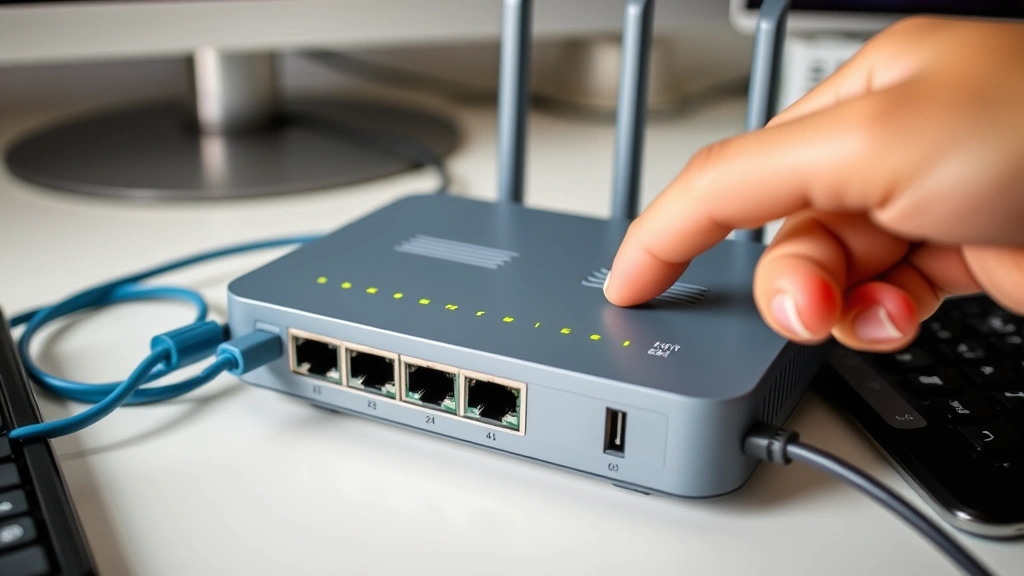
Here’s something most people miss: your router also caches DNS. Even if you flush your computer’s cache, your router might still be serving up old information to all your devices.
The simplest fix? Restart your router:
- Unplug the power cable from your router
- Wait 30 seconds (this is important—it clears the memory)
- Plug it back in
- Wait 2-3 minutes for it to fully boot up
That’s it. This clears the router’s DNS cache and fixes a surprising number of DNS-related issues.
Flushing DNS on Your Router’s Admin Panel
If you want to be more surgical about it (and your router supports it), you can access the admin panel:
- Open a browser and go to 192.168.1.1 or 192.168.0.1 (check your router’s manual for the exact address)
- Log in (default is often admin/admin, but check your documentation)
- Look for DNS settings or cache settings (location varies wildly by router brand)
- Find an option to clear DNS cache or restart DNS service
- Apply the changes
Not all routers have this option, and the interface varies. If you can’t find it, just restart the router—that accomplishes the same thing.
Changing Your DNS Server
While you’re in the router settings, consider changing your DNS servers if you’re having persistent issues. Your ISP’s default DNS servers aren’t always the fastest or most reliable. Try Google’s Public DNS (8.8.8.8 and 8.8.4.4) or Cloudflare’s DNS (1.1.1.1 and 1.0.0.1). Both are free, fast, and reliable.
Mobile Devices: iPhone and Android
Mobile devices handle DNS differently than computers. There’s no built-in “flush DNS cache” command on phones, but you have options.
iPhone (iOS)
iPhones don’t expose DNS cache flushing directly, but you can force a refresh:
- Go to Settings > Wi-Fi
- Tap the info icon next to your network
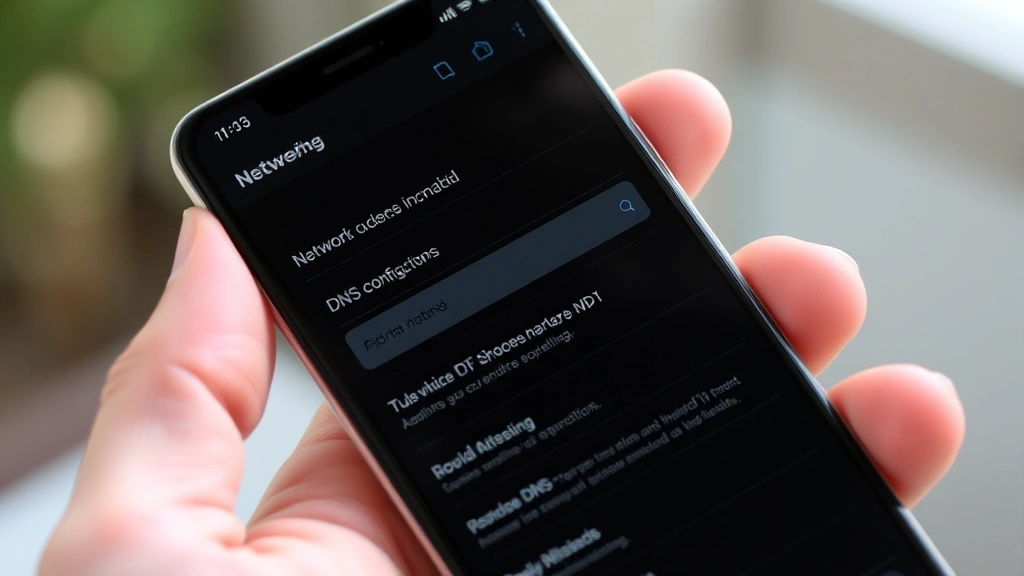
- Tap Configure DNS
- Select Automatic (or switch to a different DNS service like Cloudflare or Google DNS)
- Go back and toggle Wi-Fi off and on
Alternatively, the nuclear option: restart your iPhone. Hold the power button until you see the “slide to power off” screen, swipe, wait 10 seconds, then power it back on. This clears DNS cache along with other temporary data.
Android
Android also doesn’t have a direct DNS flush option, but try these:
- Go to Settings > Apps
- Find Chrome (or your browser) and tap Storage > Clear Cache
- Go to Settings > System > Reset Options and select Reset Wi-Fi, Mobile & Bluetooth
- Or simply restart your phone
The Wi-Fi reset is particularly effective because it clears cached network information including DNS.
Changing DNS on Mobile
For persistent DNS issues on mobile, change your DNS servers:
iPhone: Settings > Wi-Fi > Configure DNS > Manual > add 8.8.8.8 and 8.8.4.4
Android: Settings > Network & Internet > Wi-Fi > (long-press your network) > Modify > Advanced > DNS > set to 8.8.8.8
Troubleshooting DNS Issues
Flushing your DNS cache solves maybe 60% of DNS problems. Here’s what to do if it doesn’t work.
Check If It’s Actually a DNS Problem
First, verify that DNS is actually the issue:
- Try visiting a website by its IP address instead of domain name. For example, instead of google.com, try visiting 142.250.185.46 (Google’s IP)
- If that works, it’s definitely a DNS problem
- If it doesn’t work, the problem is elsewhere (connection, firewall, etc.)
Test Your DNS Servers
Use WhatsMyDNS.net to check if your DNS servers are actually resolving domains correctly. Enter a domain name and see what IP addresses your DNS servers return. If they’re returning incorrect IPs or no results, your DNS servers are the problem.
Try a Different DNS Server
If your ISP’s DNS is failing, switch to a public DNS:
- Google DNS: 8.8.8.8 and 8.8.4.4
- Cloudflare DNS: 1.1.1.1 and 1.0.0.1
- OpenDNS: 208.67.222.222 and 208.67.220.220
Change this in your router settings (so all devices use it) or on individual devices. Instructions vary by device, but it’s usually in network settings.
Check Your Hosts File
Your computer also has a “hosts” file that can override DNS. If something is wrong there, flushing DNS won’t help:
Windows: Open Notepad as admin and go to File > Open > C:\Windows\System32\drivers\etc\hosts
Mac/Linux: Open Terminal and type: sudo nano /etc/hosts
Look for any lines that aren’t comments (starting with #). If you see entries for websites you’re having trouble with, delete them. Save and close.
Restart Your Modem
Your modem is different from your router. The modem connects you to your ISP. If DNS is still broken after flushing cache and restarting your router, restart your modem:
- Unplug the modem’s power cable
- Wait 30 seconds
- Plug it back in
- Wait 2-3 minutes for it to fully boot
- Restart your router after the modem is back up
This is a last-resort move, but it fixes a lot of DNS issues that are actually ISP-level problems.
Contact Your ISP
If nothing works, your ISP’s DNS servers might be down or having issues. Call them and ask if they’re experiencing DNS problems. They might need to restart their servers on their end. In the meantime, use Google DNS or Cloudflare DNS as mentioned above.
When NOT to Flush DNS Cache
Here’s the real talk: flushing DNS cache is harmless, but it’s not a cure-all. Don’t assume it’ll fix every internet problem. If you’re having issues with:
- General internet slowness: That’s usually not DNS. Check your connection speed at Speedtest.net
- Can’t connect to any websites: Probably a router or modem issue, not DNS
- One specific website won’t load: Might be the website itself, not your DNS
- Email not working: Could be DNS, but also could be authentication or server issues
Flushing DNS is a good first step when you have DNS-specific problems (old website versions, DNS error messages, issues that only affect one device). But it’s not the universal fix for all internet problems.
Preventing DNS Cache Issues
You don’t need to flush DNS regularly. But here are some habits that prevent problems:
- Restart your router monthly: Just unplug it for 30 seconds. This clears caches and keeps things fresh
- Use reliable DNS servers: Google or Cloudflare DNS are more reliable than many ISP defaults
- Keep your router firmware updated: Check your router’s admin panel for updates every few months
- Use a wired connection when possible: WiFi issues sometimes masquerade as DNS problems
Think of it like maintenance on a car. You don’t need an oil change every week, but regular maintenance prevents big problems.
Frequently Asked Questions
Will flushing DNS cache delete any of my data?
– No. Flushing DNS cache only clears temporary network information that your computer uses for lookups. It doesn’t touch files, passwords, browser history, or anything important. It’s completely safe.
How often should I flush my DNS cache?
– You shouldn’t need to do it regularly. Most people never need to flush DNS cache. Only do it when you’re experiencing specific DNS problems like websites not loading or showing old versions. If you find yourself doing it weekly, something else is wrong with your network.
Is flushing DNS cache the same as clearing my browser cache?
– No, they’re different. Browser cache stores website files and data. DNS cache stores the IP addresses associated with domain names. Clearing your browser cache won’t clear DNS, and vice versa. Sometimes you need to do both to fully resolve issues.
Can flushing DNS cache slow down my internet?
– No. If anything, it might speed things up slightly because your computer will fetch fresh DNS information instead of relying on potentially stale cached data. The first DNS lookup after flushing might take a few milliseconds longer, but that’s negligible.
What’s the difference between flushing DNS and changing DNS servers?
– Flushing DNS clears cached information. Changing DNS servers tells your computer to use different servers for future lookups. They’re different solutions. Flushing helps when your cache is corrupted. Changing servers helps when your current servers are slow or unreliable.
Why do some websites still show old versions after I flush DNS?
– Your browser might still have cached the website files. Flush your browser cache too (usually Ctrl+Shift+Delete on Windows, Cmd+Shift+Delete on Mac). Also, make sure you’re doing a hard refresh (Ctrl+F5 or Cmd+Shift+R) to bypass browser cache.
Does flushing DNS on my computer affect other devices on my network?
– No. Each device has its own DNS cache. Flushing DNS on one computer only affects that computer. If you want to flush DNS on all your devices, you need to do it individually, or restart your router (which clears the router’s cache and affects all devices).
What if the command doesn’t work on Windows?
– Make sure you’re running Command Prompt as administrator. Right-click Command Prompt and select “Run as Administrator.” If it still doesn’t work, try the PowerShell method instead. If neither works, your system might have restrictions preventing you from running these commands—contact your IT support.
Is it safe to change my DNS servers to Google or Cloudflare?
– Yes, completely safe. Google and Cloudflare DNS are free, public services that millions of people use. They’re often faster and more reliable than ISP DNS. The only downside is that your ISP won’t have visibility into your DNS queries (which some people actually prefer for privacy).
Can DNS cache cause security problems?
– Rarely, but yes. In extreme cases, corrupted DNS cache could theoretically direct you to a malicious website instead of the real one. This is called DNS poisoning. Flushing your cache eliminates this risk. It’s also why using trusted DNS servers (Google, Cloudflare) is important—they’re less likely to be poisoned.


